
1. Introduction
This manual provides essential information for setting up, operating, maintaining, and troubleshooting your Lenovo LOQ 83JC008BGE laptop. Please read this guide thoroughly to ensure proper use and to maximize the performance and longevity of your device.
The Lenovo LOQ 83JC008BGE is a high-performance gaming laptop featuring an AMD Ryzen™ 7 7435HS processor, NVIDIA GeForce RTX 4060 graphics, 16GB RAM, and a 1TB SSD, designed for demanding applications and gaming.
2. Safety Information
Observe the following safety precautions to prevent injury or damage to your device:
- Power Supply: Use only the power adapter supplied with your laptop. Using an incompatible adapter may cause fire or damage.
- Battery: Do not attempt to replace the battery yourself. Refer to authorized service personnel. Do not expose the battery to extreme heat or dispose of it in fire.
- Heat: Avoid blocking ventilation openings. Do not place the laptop on soft surfaces that may block airflow. Prolonged skin contact with a hot laptop may cause discomfort or burns.
- Liquid: Keep the laptop away from liquids. If liquid enters the device, disconnect power immediately and seek professional service.
- Cleaning: Disconnect power before cleaning. Use a soft, dry cloth. Avoid liquid cleaners or aerosols.
3. Setup
3.1 Unboxing
Carefully remove the laptop and all accessories from the packaging. Check for any visible damage. The package should contain:
- Lenovo LOQ 83JC008BGE Laptop
- Power Adapter and Power Cord
- Documentation (Quick Start Guide, Warranty Information)
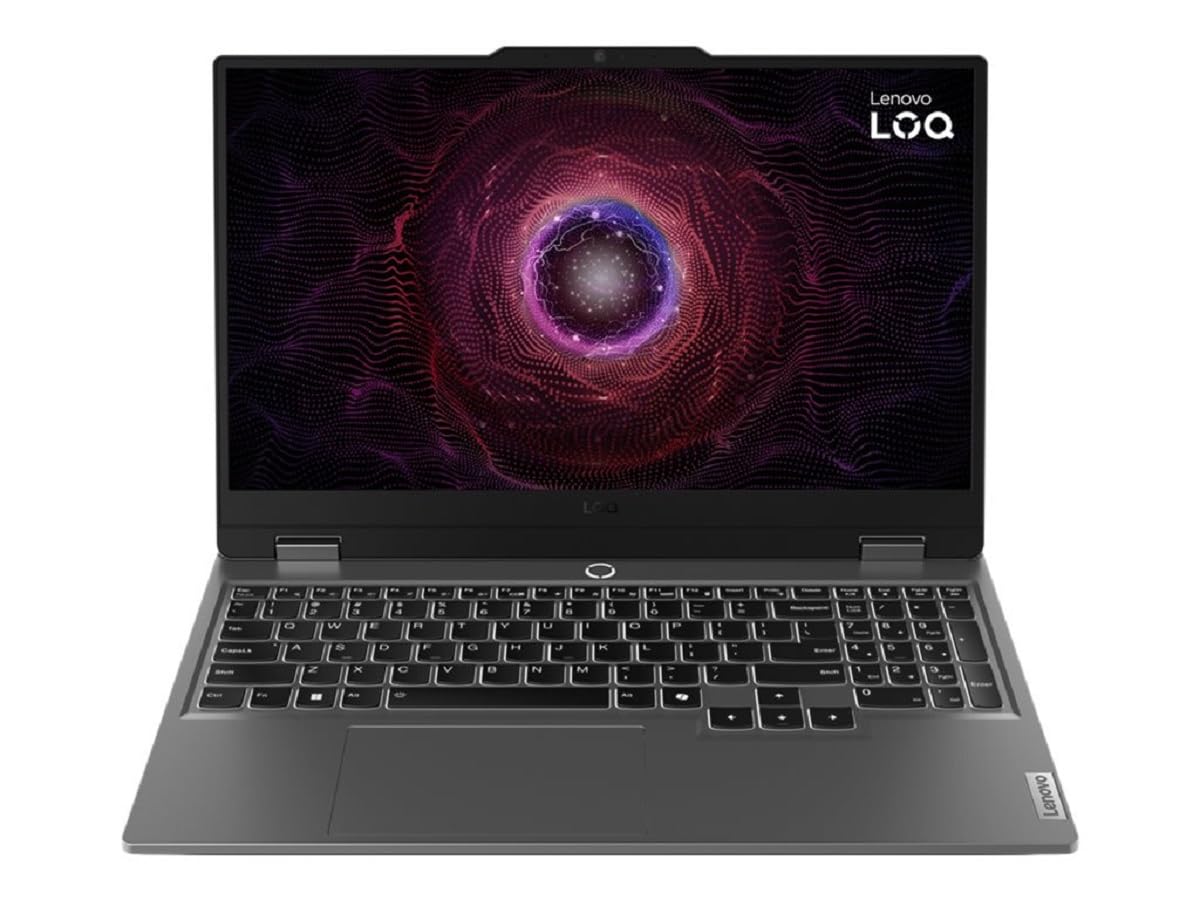
Figure 1: Angled view of the Lenovo LOQ 83JC008BGE laptop with the screen open, displaying a vibrant abstract wallpaper.
3.2 Connecting Power
- Connect the power cord to the power adapter.
- Plug the power adapter into the laptop's power input port.
- Plug the power cord into a grounded electrical outlet.
It is recommended to fully charge the battery before initial use.
3.3 Initial Boot-up and Operating System Installation
This model may come with DOS (Disk Operating System) pre-installed. You will need to install a full operating system (e.g., Windows, Linux) to use the laptop effectively. Refer to your chosen operating system's installation guide for detailed steps.
- Press the power button to turn on the laptop.
- Follow the on-screen prompts to complete the initial setup or operating system installation.
3.4 Connecting Peripherals
Connect external devices such as a mouse, keyboard, external monitor, or USB drives to the available ports on your laptop.

Figure 2: Angled view of the Lenovo LOQ 83JC008BGE laptop, highlighting the side profile and various connectivity ports.
4. Operating
4.1 Power On/Off and Sleep
- Power On: Press the power button located on the laptop.
- Power Off: Use the operating system's shutdown function (e.g., Start > Power > Shut down in Windows).
- Sleep Mode: Close the lid or use the operating system's sleep function.
4.2 Keyboard and Touchpad
The laptop features a full-sized keyboard with a numeric keypad and a multi-touch touchpad.

Figure 3: Top-down view of the Lenovo LOQ 83JC008BGE laptop's keyboard and touchpad, showing the full layout including the numeric keypad.
- Function Keys (Fn): Use the Fn key in combination with F1-F12 keys for special functions like adjusting brightness, volume, or toggling Wi-Fi.
- Touchpad Gestures: Refer to your operating system's settings for available multi-touch gestures (e.g., two-finger scroll, pinch-to-zoom).
4.3 Connecting to Wi-Fi
- Ensure Wi-Fi is enabled (often via a function key or system settings).
- Open your operating system's network settings.
- Select your desired Wi-Fi network from the list.
- Enter the network password if prompted and connect.
4.4 Using Ports
Your laptop is equipped with various ports for connectivity:
- USB Ports: For connecting USB devices like external drives, mice, or keyboards.
- HDMI Port: For connecting to external displays or TVs.
- Audio Jack: For connecting headphones or external speakers.
- Ethernet Port (if available): For wired network connections.
5. Maintenance
5.1 Cleaning the Laptop
- Screen: Use a soft, lint-free cloth slightly dampened with water or a screen cleaner. Do not spray liquid directly onto the screen.
- Keyboard and Chassis: Use a soft, dry cloth. A can of compressed air can be used to remove dust from between keys.
- Ventilation: Periodically check and clean the ventilation grilles to ensure proper airflow and prevent overheating.
5.2 Battery Care
- Avoid fully discharging the battery frequently.
- Store the laptop in a cool, dry place if not used for extended periods.
- Do not expose the battery to extreme temperatures.
5.3 Software Updates
Regularly update your operating system, drivers, and applications to ensure optimal performance, security, and compatibility. Visit the official Lenovo support website for the latest drivers for your model.
6. Troubleshooting
This section addresses common issues you might encounter.
6.1 No Power
- Ensure the power adapter is securely connected to both the laptop and the electrical outlet.
- Try a different electrical outlet.
- Check if the power adapter's indicator light (if any) is on.
6.2 No Display
- Ensure the laptop is powered on.
- Adjust screen brightness using function keys.
- If an external monitor is connected, try disconnecting it or switching display output modes (e.g., Fn + F7).
6.3 Wi-Fi Connectivity Issues
- Ensure Wi-Fi is enabled on the laptop.
- Restart your router and modem.
- Check if other devices can connect to the Wi-Fi network.
- Update your Wi-Fi drivers.
6.4 Slow Performance
- Close unnecessary applications running in the background.
- Check for malware or viruses.
- Ensure sufficient free space on your storage drive.
- Update drivers and operating system.
7. Specifications
| Feature | Specification |
|---|---|
| Model Name | Lenovo LOQ 83JC008BGE |
| Processor | AMD Ryzen™ 7 7435HS |
| RAM | 16GB (Note: Product specifications list 8GB, please verify actual configuration) |
| Storage | 1TB SSD |
| Graphics | NVIDIA GeForce RTX 4060 (Dedicated) |
| Display | 15.6" FHD |
| Operating System | DOS (Requires user installation of OS) |
| Dimensions (W x D x H) | 35.99 x 25.87 x 2.39 cm |
| Weight | 1 kg |
| Color | Black |
Note: Specifications are subject to change without notice. Please refer to the product packaging or official Lenovo website for the most accurate and up-to-date information. There was a discrepancy in RAM size (16GB in title vs 8GB in specs), please verify.
8. Warranty and Support
Your Lenovo LOQ 83JC008BGE laptop comes with a limited warranty. For detailed warranty terms and conditions, please refer to the warranty document included with your product or visit the official Lenovo support website.
For technical support, driver downloads, and service information, please visit the Lenovo Support Website and search for your specific model (83JC008BGE).


