
NIIMBOT B1-lan
NIIMBOT B1 Label Maker User Manual
Model: B1-lan | Brand: NIIMBOT
1. Introduction
The NIIMBOT B1 Label Maker is a portable Bluetooth thermal label printer designed for various labeling needs in home, kitchen, small business, and school environments. It utilizes direct thermal printing technology, eliminating the need for ink or toner. This manual provides comprehensive instructions for setting up, operating, and maintaining your NIIMBOT B1 Label Maker.

Figure 1: The NIIMBOT B1 Label Maker with examples of address, jam, and router labels.
2. What's in the Box
Upon unboxing your NIIMBOT B1 Label Maker, please ensure all the following components are present:
- 1 x NIIMBOT B1 Label Maker
- 1 x Roll 50x30mm Label (inside the machine)
- 1 x Type-C Cable
- 1 x User Manual

Figure 2: Package contents of the NIIMBOT B1 Label Maker.
3. Setup Guide
3.1. Inserting the Label Paper
- Open the paper cover by sliding the switch on the side of the printer.
- Adjust the paper slot to fit your label roll width (supports 20-50mm).
- Ensure the tip of the label tape is facing up and insert the roll onto the spindle so labels feed from underneath.
- Close the paper cover, ensuring 2-5mm of paper remains outside the machine.
- Press the Power Button for 3 seconds to power on. The machine will automatically align the paper.

Figure 3: Proper insertion of the label paper roll into the NIIMBOT B1.
Video 1: B1 Label Maker Operation Video - Demonstrates paper insertion and initial power-on.
3.2. App Download and Bluetooth Pairing
- Download the "NIIMBOT" app from the Apple App Store (for iOS) or Google Play Store (for Android).
- Ensure Bluetooth is enabled on your smartphone.
- Open the NIIMBOT app. Click on "connect" or "unconnected" (top right corner) to initiate pairing.
- The app will search for nearby printers. Select your NIIMBOT B1 device (e.g., B1-XXXXXXXX) from the list to pair.
- Once connected, the app will automatically recognize the label template in the printer.
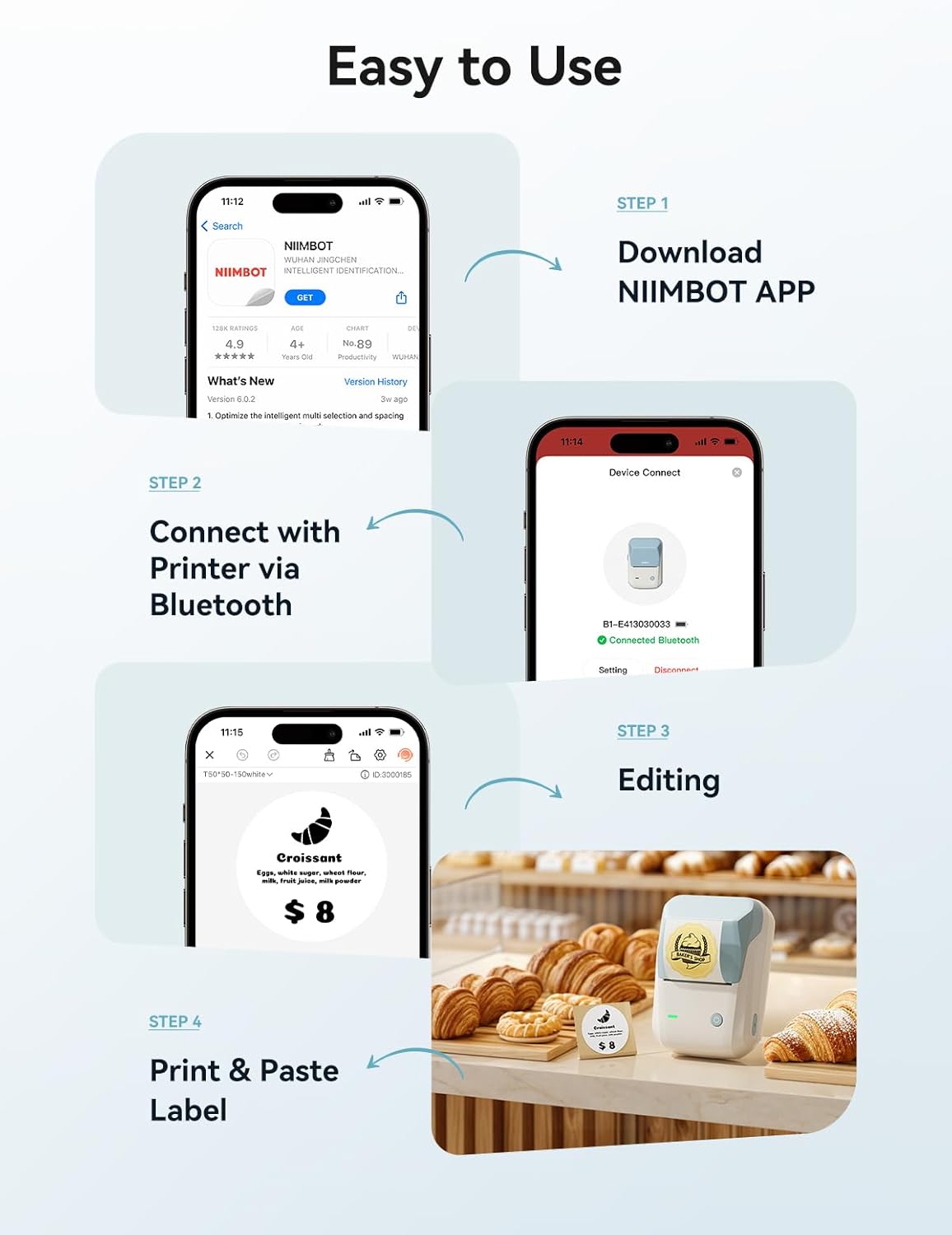
Figure 4: Easy steps for app download, connection, and label printing.
Video 2: NIIMBOT B1 Label Printer for Small Business - Shows app interface and basic printing.
4. Operating Your Label Maker
4.1. Designing Labels with the App
The NIIMBOT app offers extensive customization options:
- Access over 10+ fonts/languages, 100+ borders, and 1500+ symbols.
- Create barcodes, QR codes, and integrate images.
- Utilize pre-made templates or design your own.
- Double-click on text boxes to edit content.

Figure 5: Examples of diverse label applications for the NIIMBOT B1.

Figure 6: More examples of label uses for organization and classification.
4.2. Printing Labels
After designing your label:
- Review the printing preview in the app.
- Adjust print copies and density as needed.
- Click "Print" to send the design to your NIIMBOT B1 Label Maker.

Figure 7: The NIIMBOT B1 supports label widths from 20mm to 50mm (1-2 inches).

Figure 8: Automatic label rewinds feature prevents waste and ensures precise starting points.
5. Maintenance
To ensure optimal performance and longevity of your NIIMBOT B1 Label Maker, follow these maintenance guidelines:
- Cleaning: Regularly wipe the exterior of the printer with a soft, dry cloth. For the print head, use a cotton swab lightly dampened with isopropyl alcohol. Ensure the printer is off and disconnected from power before cleaning.
- Label Storage: Store label rolls in a cool, dry place away from direct sunlight and extreme temperatures to prevent degradation of the thermal paper.
- Battery Care: The built-in 1500 mAh rechargeable battery provides up to 100 days of standby time. For best battery life, avoid fully discharging the battery frequently and store the device with a partial charge if not used for extended periods.
- Print Head Protection: Avoid touching the print head directly with your fingers or sharp objects.
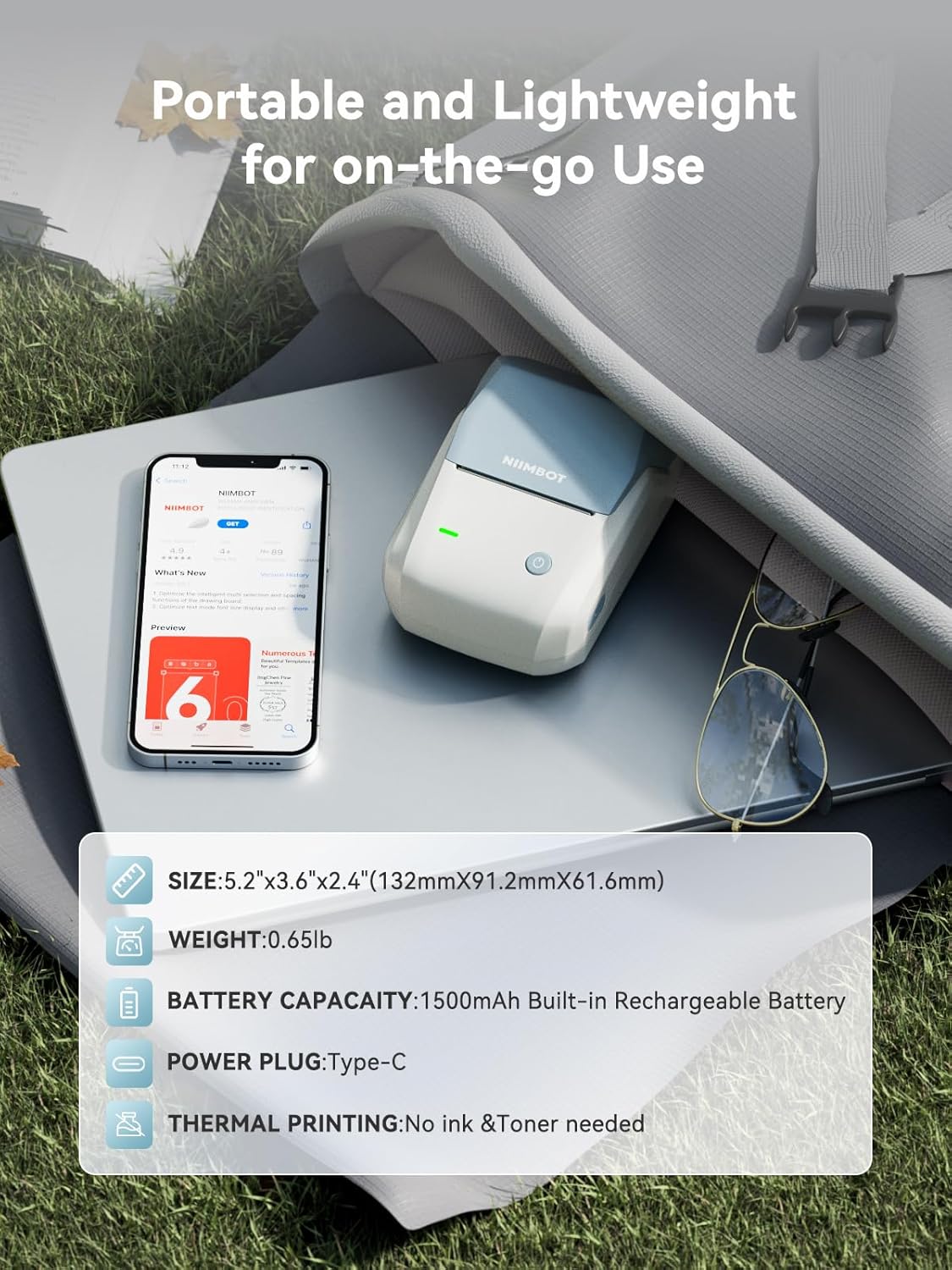
Figure 9: Key features including premium label quality (waterproof, oilproof, scratch-resistant) and long battery life.
6. Troubleshooting
If you encounter issues with your NIIMBOT B1 Label Maker, refer to the following common troubleshooting steps:
| Problem | Possible Cause | Solution |
|---|---|---|
| Printer not connecting via Bluetooth | Bluetooth is off on phone; printer is off; app not updated. | Ensure phone Bluetooth is on. Power on the printer. Update the NIIMBOT app to the latest version. Restart both devices. |
| Labels printing faded or unevenly | Low battery; print head dirty; incorrect print density setting. | Charge the printer. Clean the print head. Adjust print density in the app. |
| Label paper not feeding correctly | Paper inserted incorrectly; paper jammed. | Re-insert the label roll correctly, ensuring the tip faces up and feeds from underneath. Clear any paper jams. |
| App not recognizing label size | Incorrect label type; app glitch. | Ensure you are using NIIMBOT compatible labels. Restart the app and printer. |
7. Specifications
- Model Name: B1-lan
- Brand: NIIMBOT
- Printing Technology: Thermal Direct
- Connectivity Technology: Bluetooth
- Maximum Color Print Resolution: 203dpi
- Maximum Black and White Print Resolution: 300dpi
- Max Printspeed Monochrome: 50mm/s
- Product Dimensions: 5.2 x 3.6 x 2.4 inches (132mm x 91.2mm x 61.6mm)
- Item Weight: 1.15 pounds (293g)
- Battery: Built-in 1500 mAh rechargeable battery
- Charging Port: Type-C
- Supported Label Widths: 20mm to 50mm (0.78-1.96 inches)
- Special Features: Portable, Bluetooth, APP Editing, Automatic Label Rewinds, Automatic Label Recognition
- Included Components: 1 Roll 50x30mm Label, Type-C Cable, User Manual
Figure 10: The compact and portable design of the NIIMBOT B1 Label Maker.
8. Warranty and Support
The NIIMBOT B1 Label Maker comes with a Limited Warranty. For detailed warranty information, please refer to the warranty card included in your package or visit the official NIIMBOT website.
For technical support, troubleshooting assistance, or any inquiries regarding your product, please contact NIIMBOT customer service through their official website or the contact information provided in the product packaging.
You can also visit the NIIMBOT Store on Amazon for more product information and support resources.
Related documentsB1-lan


Ask a question about this manual
Ask about setup, troubleshooting, compatibility, parts, safety, or missing instructions. Manuals+ will review the question and use this page’s manual context to help answer it.