Introduction
Thank you for choosing the NBDDIGITAL W100 2K Webcam. This manual provides detailed instructions for setting up, operating, and maintaining your webcam to ensure optimal performance. The W100 webcam is designed to deliver crystal-clear 2K resolution video, enhanced audio with AI noise-canceling microphones and stereo speakers, and convenient features like an adjustable field of view, remote control, and a built-in privacy cover.
What's in the Box
- NBDDIGITAL W100 2K Webcam
- USB-A to USB-C Cable (2 meters)
- Remote Control
- User Manual (this document)
Product Features
- 2K Resolution: Captures video at 2K (2560x1440) resolution at 30 frames per second for clear and detailed images.
- Dual AI Noise-Canceling Microphones: Filters out background noise to ensure your voice is heard clearly during calls.
- Stereo Speakers: Provides enhanced audio output for an immersive experience.
- Adjustable Field of View (FoV): Allows fine-tuning of the camera's viewing angle to suit your needs.
- Remote Control: Enables convenient adjustment of camera settings, including FoV and zoom, without physical interaction.
- Built-in Privacy Cover: A physical slide mechanism to instantly cover the lens and mute audio for privacy.
- Autofocus: Automatically adjusts focus to keep you sharp and clear.
- Low-Light Correction: Automatically adjusts image settings to provide clear and bright video even in dim lighting conditions.
- Plug-and-Play: Simple USB-A to USB-C connection for quick setup without additional drivers.
- Flexible Mounting: Can be mounted on monitors, laptops, or used with a tripod (tripod not included).
Setup Guide
1. Unpacking and Placement
Carefully remove the webcam and its accessories from the packaging. The W100 webcam features a versatile mounting clip that allows it to be securely placed on top of a monitor, laptop screen, or freestanding on a desk. It also includes a standard tripod thread for alternative mounting options.

Image: The NBDDIGITAL W100 webcam connected via its USB-A to USB-C cable, mounted on a monitor, illustrating its plug-and-play setup.

Image: The webcam shown in two mounting configurations: (1) clipped onto a monitor and (2) attached to a tripod, demonstrating its flexible placement options.
2. Connecting the Webcam
- Connect the USB-C end of the provided 2-meter cable to the USB-C port on the back of the W100 webcam.
- Connect the USB-A end of the cable to an available USB-A port on your computer (PC or Laptop).
- The webcam is plug-and-play and typically does not require additional driver installation. Your operating system should automatically detect and install the necessary drivers.
3. Initial Software Configuration
Once connected, open your preferred video conferencing or streaming application (e.g., Zoom, Microsoft Teams, Skype, OBS Studio). Navigate to the video and audio settings within the application and select "NBDDIGITAL W100" as your camera and microphone device.
Operating Instructions
1. Video Quality and Autofocus
The W100 webcam automatically provides 2K resolution video at 30fps. The autofocus feature continuously adjusts to keep you in clear focus. Ensure adequate lighting for the best video quality, although the webcam includes low-light correction.

Image: A side-by-side comparison demonstrating the superior clarity of the W100 webcam (left) compared to a standard camera (right).
2. Audio Features
The dual AI noise-canceling microphones are designed to reduce ambient noise, focusing on your voice. The integrated stereo speakers provide clear audio playback. No specific configuration is typically required for these features; they operate automatically.
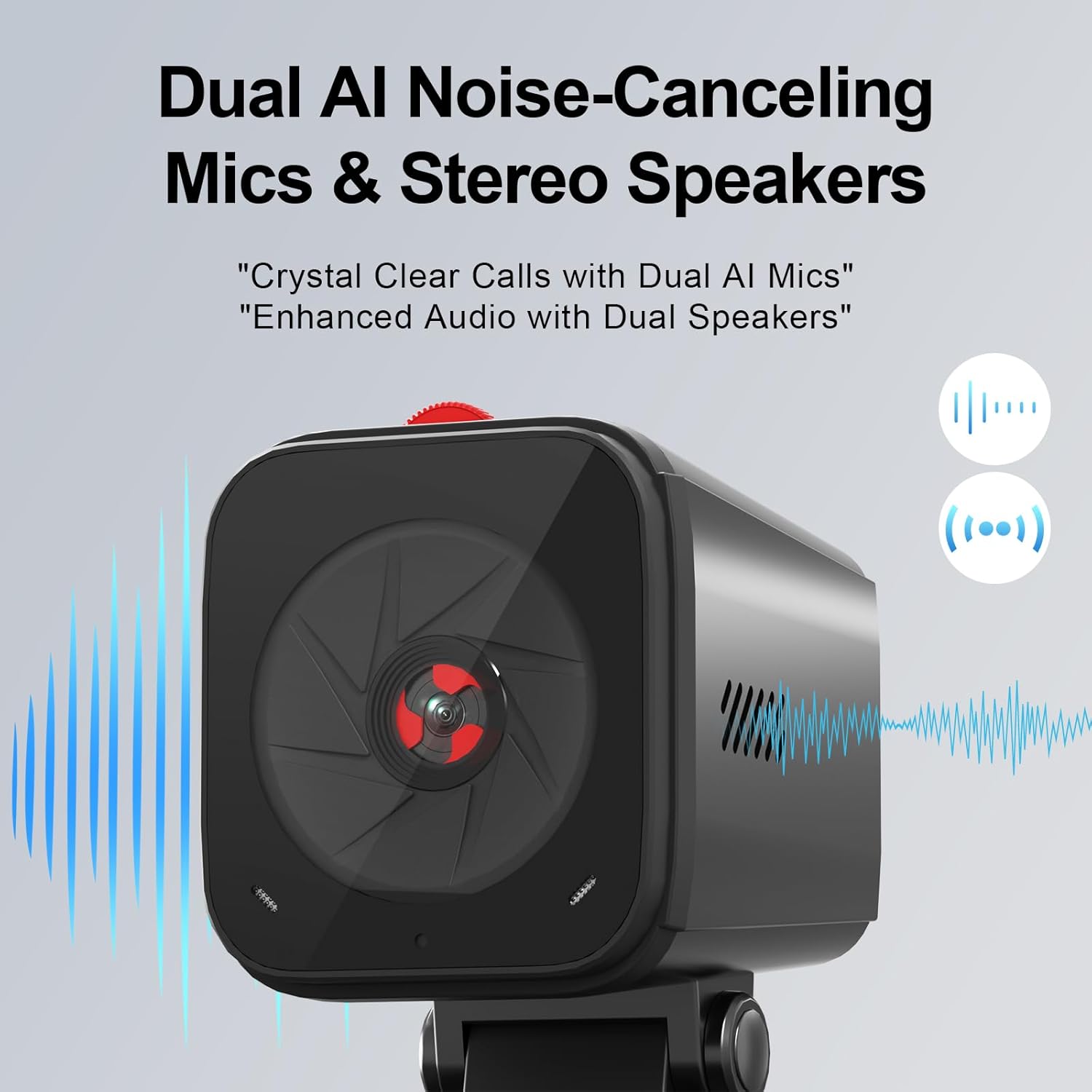
Image: A close-up of the W100 webcam, visually indicating the location and function of its dual AI noise-canceling microphones and stereo speakers.
3. Adjustable Field of View and Remote Control
Use the included remote control to adjust the camera's field of view (FoV) and zoom. This allows you to frame yourself or your subject perfectly without physically touching the webcam.

Image: A hand using the remote control to adjust the field of view of the W100 webcam, which is mounted on a computer monitor.

Image: A user holding the remote control, demonstrating its use to manipulate the webcam's view on a monitor.
4. Privacy Cover
The W100 features a built-in physical privacy cover. Slide the cover to the left to expose the lens and enable video/audio. Slide it to the right to cover the lens and mute both video and audio, ensuring your privacy when the webcam is not in use.

Image: The W100 webcam with its privacy cover closed, visually indicating that both video and audio are muted for user privacy.

Image: A visual representation of the privacy cover sliding mechanism on the W100 webcam, showing how to turn video and audio on or off.
5. Low-Light Correction
The webcam automatically adjusts its settings to optimize image quality in low-light environments, ensuring you remain clearly visible even in dimly lit rooms.

Image: A user in a dimly lit room, with the W100 webcam providing clear and bright video thanks to its low-light correction feature.
Maintenance
- Cleaning the Lens: Use a soft, lint-free cloth specifically designed for camera lenses to gently wipe the webcam lens. Avoid abrasive materials or harsh chemicals.
- General Cleaning: Wipe the body of the webcam with a soft, dry cloth. Do not use liquid cleaners directly on the device.
- Storage: When not in use for extended periods, store the webcam in a cool, dry place, ideally in its original packaging or a protective pouch.
- Cable Care: Avoid bending or twisting the USB cable excessively to prevent damage.
Troubleshooting
- Problem: Webcam is not detected by the computer.
- Ensure the USB cable is securely connected to both the webcam and the computer.
- Try connecting the webcam to a different USB port on your computer.
- Restart your computer.
- Check your operating system's device manager to see if the webcam is listed. If there's an error, try updating or reinstalling drivers (though typically not needed for plug-and-play).
- Problem: Video is blurry or out of focus.
- The W100 has autofocus. Ensure there is sufficient lighting.
- Clean the webcam lens with a soft, lint-free cloth.
- Ensure you are within the optimal operating distance for the webcam.
- Problem: No audio or poor audio quality.
- Verify that the privacy cover is not engaged, as it mutes audio.
- Check your application's audio settings to ensure the NBDDIGITAL W100 is selected as the microphone and speaker.
- Adjust microphone input levels in your computer's sound settings.
- Ensure you are speaking within a reasonable range of the webcam.
- Problem: Remote control is not working.
- Ensure there are no obstructions between the remote and the webcam.
- Check if the remote control requires batteries and if they are correctly inserted and charged.
Specifications
| Brand | NBDDIGITAL |
| Model Number | W100 |
| Video Capture Resolution | 2K (2560x1440) at 30fps |
| Photo Sensor Technology | CMOS |
| Connectivity Technology | USB (USB-A to USB-C cable) |
| Cable Length | 2 meters |
| Microphones | Dual AI Noise-Canceling Microphones |
| Speakers | Stereo Speakers |
| Special Features | Autofocus, Remote Control, Adjustable Field of View, Low-Light Correction, Built-in Privacy Cover, Compact |
| Item Weight | 11.3 ounces |
| Package Dimensions | 6.38 x 5.94 x 2.24 inches |
Warranty and Support
NBDDIGITAL products are designed for reliability and performance. For specific warranty information regarding your W100 webcam, please refer to the warranty card included in your product packaging or visit the official NBDDIGITAL website. If you encounter any issues or require technical assistance, please contact NBDDIGITAL customer support through their official channels. Keep your purchase receipt for warranty claims.
Online Support: Visit the NBDDIGITAL store on Amazon: NBDDIGITAL Store