ZKTeco TF1700 Fingerprint Time Attendance User Manual
Model: TF1700
Introduction
This manual provides comprehensive instructions for the installation, operation, and maintenance of the ZKTeco TF1700 Fingerprint Time Attendance system. The TF1700 is designed for precise and secure biometric authentication, utilizing an advanced infrared detection fingerprint sensor and the zK Finger V10.0 algorithm for reliable recognition. It offers versatile connectivity options including TCP/IP, RS485, and USB Host for seamless integration into various environments.
Product Overview
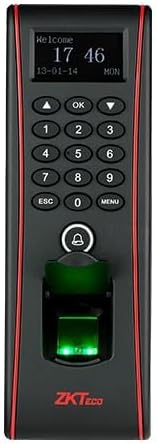
Figure 1: Front view of the TF1700 device, displaying the screen, numeric keypad, and the illuminated fingerprint sensor.

Figure 2: Side view of the TF1700, illustrating the protective cover of the fingerprint scanner in an open position.
The ZKTeco TF1700 features a compact design with a clear display, a numeric keypad for user input, and a highly responsive fingerprint sensor. It is designed for wall-mounting and includes various ports for connectivity.
Setup and Installation
1. Unpacking
Carefully remove all components from the packaging. Verify that all items listed in the packing list are present. Retain the original packaging for future transport or storage.
2. Mounting the Device
- Choose a suitable wall location, ensuring it is dry, stable, and within reach of power and network connections.
- Use the provided mounting template to mark the drilling points on the wall.
- Drill holes and insert wall anchors if necessary.
- Secure the mounting bracket to the wall using screws.
- Attach the TF1700 device to the mounting bracket.
3. Wiring and Connections
- Power Connection: Connect the DC 12V power adapter to the device's power input port.
- Network Connection (TCP/IP): Connect an Ethernet cable from the device's RJ45 port to your network switch or router.
- Serial Connection (RS485): For RS485 communication, connect the appropriate wires to the RS485+ and RS485- terminals.
- USB Host: The USB Host port can be used for data transfer (e.g., firmware upgrades, data download/upload) via a USB flash drive.
Ensure all connections are secure before powering on the device.
Operating Instructions
1. Initial Power-On and Setup
After connecting power, the device will boot up. Follow the on-screen prompts for initial configuration, including setting date, time, and network parameters.
2. User Enrollment
To enroll a new user:
- Press the MENU button to access the main menu.
- Navigate to User Management and select New User.
- Enter the User ID and Name.
- Select Enroll Fingerprint. Place the finger firmly on the sensor three times as prompted.
- Optionally, enroll a password or RFID card.
- Save the user information.
3. Time Attendance Operation
Users can clock in or out by placing their enrolled finger on the sensor. A successful verification will be indicated by a visual and audible prompt on the device.
4. Data Management
Attendance records and user data can be downloaded via USB Host or through the network connection using compatible ZKTeco software.
Maintenance
- Cleaning: Regularly clean the fingerprint sensor surface with a soft, dry, lint-free cloth. Avoid using abrasive cleaners or solvents.
- Firmware Updates: Check the official ZKTeco website periodically for firmware updates to ensure optimal performance and security. Follow the provided instructions for updating.
- Data Backup: Periodically back up attendance records and user data to prevent data loss.
- Environmental Conditions: Ensure the device operates within its specified temperature and humidity ranges to prolong its lifespan.
Troubleshooting
| Problem | Possible Cause | Solution |
|---|---|---|
| Device does not power on. | No power supply; faulty adapter; loose connection. | Check power adapter and cable connections. Ensure power outlet is functional. |
| Fingerprint not recognized. | Finger not placed correctly; dirty sensor; un-enrolled finger; damaged fingerprint. | Ensure finger is clean and dry. Place finger firmly and completely on the sensor. Re-enroll fingerprint if necessary. Clean sensor. |
| Network connection failed. | Incorrect IP settings; faulty Ethernet cable; network issue. | Verify IP address, subnet mask, and gateway settings. Check Ethernet cable. Test network connectivity. |
| Data transfer via USB failed. | Incompatible USB drive; corrupted data; full USB drive. | Use a FAT32 formatted USB drive. Ensure sufficient space. Try a different USB drive. |
Specifications
- Model: TF1700
- Fingerprint Sensor: Infrared Detection Fingerprint Sensor
- Algorithm Version: zK Finger V10.0
- Communication: TCP/IP, RS485, USB Host
- Fingerprint Capacity: Up to 3,000 (expandable to 8,000)
- Card Capacity: 10,000 cards
- Manufacturer: ZKTeco Co., Ltd
- Product Dimensions: 4.15 x 6.25 x 18.5 cm
- Item Weight: 90 g
- Color: Silver/Black
Warranty Information
ZKTeco products typically come with a standard manufacturer's warranty. For specific warranty terms and conditions, please refer to the warranty card included with your product or visit the official ZKTeco website. Keep your purchase receipt as proof of purchase for warranty claims.
Customer Support
For technical assistance, product inquiries, or support, please contact ZKTeco customer service through their official website or the contact information provided in your product documentation. When contacting support, please have your product model number (TF1700) and serial number ready.
Official ZKTeco Website: www.zkteco.com


