
1. Introduction
Thank you for choosing the hohem iSteady X3 SE Gimbal Stabilizer. This device is designed to provide ultra-smooth, professional-grade video footage and photos using your smartphone. Its portable and foldable design, combined with advanced stabilization technology and smart features, makes it an ideal tool for vlogging, travel, and everyday content creation. Please read this manual carefully before use to ensure proper operation and maximize your experience.
2. What's in the Box
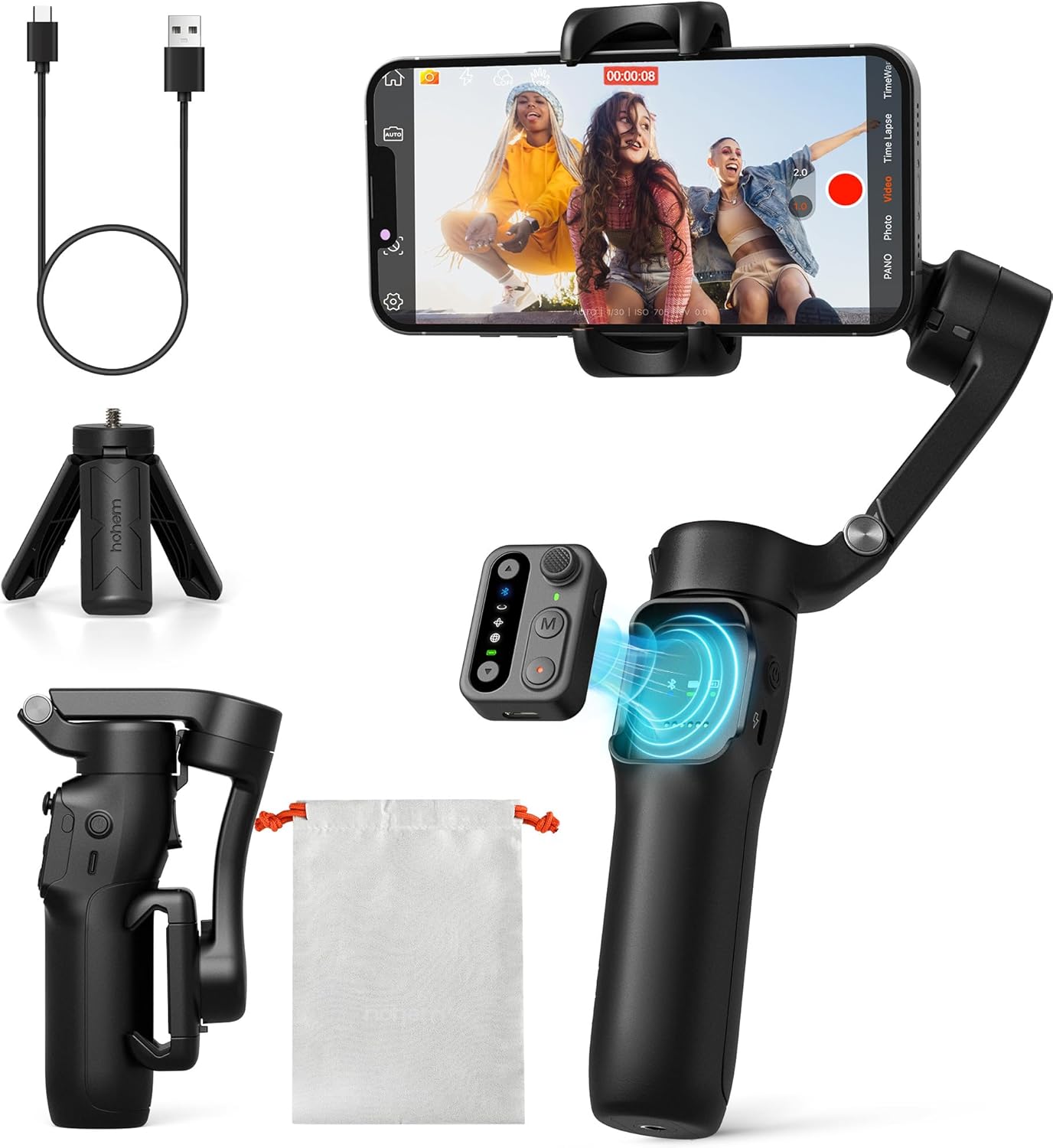
The hohem iSteady X3 SE package includes all essential components for immediate use. Upon opening the box, you will find the main iSteady X3 SE Gimbal unit, a detachable Remote Controller, a compact Tripod for stable shots, a Type-C Charging Cable for convenient power replenishment, a soft Storage Pouch for protection and portability, a Quick Start Guide for initial setup, and a Warranty Card for product registration and support.
- iSteady X3 SE Gimbal
- Remote Controller
- Tripod
- Type-C Charging Cable
- Storage Pouch
- Quick Start Guide
- Warranty Card
3. Product Overview
The hohem iSteady X3 SE features a user-friendly design with intuitive controls and a robust build. Key components include the phone clamp, 3-axis stabilization system, control panel with various buttons, and a comfortable handle that integrates a detachable remote control.

3-Axis Stabilization System: Ensures smooth and steady footage by compensating for unwanted movements across three axes.

Detachable Remote Control: A magnetic remote that allows for convenient control of the gimbal and phone camera from a distance of up to 33 feet.
4. Setup
4.1 Unfolding the Gimbal

To unfold the gimbal, gently extend the handle and the phone clamp arm until they lock into position. The design allows for quick transformation from a compact, pocket-sized device to a fully functional stabilizer. Refer to the included Quick Start Guide for detailed visual instructions on the unfolding process.
4.2 Mounting Your Smartphone
Open the phone clamp and carefully insert your smartphone. Ensure the phone is securely centered in the clamp. The iSteady X3 SE supports a wide range of smartphones with a clip width of 2.28-3.86 inches and a payload capacity of up to 0.66 lbs (300 grams). This gimbal is designed to work without manual balancing, simplifying setup.
4.3 Charging the Gimbal

Connect the supplied Type-C charging cable to the gimbal's charging port and a 5V power adapter (not included). A full charge takes approximately 2 hours and provides up to 11 hours of continuous operation. The LED indicator lights will show the charging status and battery level.
4.4 App Installation and Bluetooth Connection
Download the Hohem Joy App from your smartphone's app store (available for iOS and Android). Once installed, enable Bluetooth on your phone and open the Hohem Joy App. The app will automatically detect and connect to your iSteady X3 SE gimbal. This seamless Bluetooth connection enables full control over the gimbal's features and access to advanced shooting modes.

The Hohem Joy App is essential for unlocking the full potential of your iSteady X3 SE, providing features like AI tracking, gesture control, and various creative templates. Ensure your phone's Bluetooth is active for a quick and stable connection.
5. Operating Instructions
5.1 Power On/Off
Press and hold the power button on the gimbal for 3 seconds to power it on or off. The indicator lights will illuminate when the device is active.
5.2 Using the Detachable Remote Control
The magnetic remote control can be detached from the gimbal handle for remote operation. It allows you to control various functions, including starting/stopping recording, switching modes, and zooming. Ensure the remote is charged and paired via Bluetooth for optimal performance.
5.3 Switching Between Horizontal and Vertical Modes

The iSteady X3 SE allows for quick switching between landscape (horizontal) and portrait (vertical) modes. This can typically be done via a dedicated button on the gimbal or through the Hohem Joy App, enabling seamless transitions for different content formats.
5.4 AI Tracking and Gesture Control

AI Tracking: Utilize the Hohem Joy App to enable AI face and object tracking, ensuring your subject remains in focus even when moving. This feature is ideal for dynamic vlogging and action shots.
Gesture Control: Start or stop recording with simple hand gestures, providing a hands-free shooting experience, especially useful for solo content creators.
5.5 Hohem Joy App Features
The Hohem Joy App offers a suite of creative features to enhance your videos:
- Creative Templates: Access pre-set shooting templates for various scenarios.
- Timelapse Mode: Capture stunning time-lapse videos with precise stabilization.
- Inception Mode: Create dynamic 180-degree roll rotations for unique visual effects.
- Firmware Updates: Keep your gimbal updated with the latest features and performance improvements.
6. Maintenance
- Cleaning: Use a soft, dry cloth to clean the gimbal. Avoid using liquid cleaners or solvents.
- Storage: Store the gimbal in its storage pouch in a cool, dry place away from direct sunlight and extreme temperatures.
- Battery Care: For long-term storage, charge the battery to about 50-60% every three months to maintain battery health.
- Avoid Overloading: Do not exceed the maximum payload capacity of 0.66 lbs (300 grams) to prevent damage to the motors.
7. Troubleshooting
| Problem | Possible Cause | Solution |
|---|---|---|
| Gimbal not powering on | Low battery; Power button not pressed long enough | Charge the gimbal fully; Press and hold the power button for 3 seconds |
| Phone not stable/tilting | Phone not properly seated; Phone too heavy/light; Gimbal not calibrated | Ensure phone is centered and secure; Check phone weight against specifications; Perform gimbal calibration via the Hohem Joy App |
| Bluetooth connection issues | Bluetooth off on phone; App not open; Interference | Enable Bluetooth; Open Hohem Joy App; Restart gimbal and phone; Move away from other wireless devices |
| Remote control not responding | Remote battery low; Not paired; Out of range | Charge remote; Re-pair remote via Bluetooth; Ensure remote is within 33ft of gimbal |
| AI tracking not working | Poor lighting; Subject too far/close; App not updated | Ensure adequate lighting; Maintain optimal distance (1-3 meters); Update Hohem Joy App to the latest version |
If you encounter issues not listed here, please refer to the official Hohem Joy App for further assistance or contact hohem customer support.
8. Specifications
| Feature | Detail |
|---|---|
| Model Number | HPG-X3 SE |
| Product Dimensions (Folded) | 3.86 x 1.73 x 6.32 inches |
| Item Weight | 12.6 ounces (0.79 lbs) |
| Maximum Payload Capacity | 0.66 lbs (300 Grams) |
| Phone Clip Width | 2.28 - 3.86 inches |
| Battery Type | Lithium Ion (included) |
| Charging Time | Approx. 2 hours |
| Battery Life | Up to 11 hours |
| Stabilization | 3-Axis |
| Remote Control Range | Up to 32.81 feet (10 meters) |
| Compatible Devices | iPhone 11-16 Pro Max, Huawei P-series, Samsung Galaxy S-series, OnePlus, Google Pixel, OPPO, Vivo (check Hohem Joy App for full compatibility) |
9. Warranty and Support
The hohem iSteady X3 SE Gimbal Stabilizer comes with a Warranty Card included in the package. Please refer to this card for detailed information regarding your product's warranty period and terms. For technical support, troubleshooting assistance, or any inquiries about your device, please visit the official hohem website or contact their customer service directly. Keeping your Hohem Joy App updated will also provide access to the latest support resources and firmware.


