
1. Introduction
The Inrico T320 is a sophisticated 4G Internet Mobile Radio designed for reliable and efficient communication. This device combines the functionality of a walkie-talkie with the versatility of an Android 7.0 smartphone, offering global intelligent intercom capabilities, WiFi, Bluetooth, and GPS positioning. Built with military-grade robustness, the T320 is suitable for various demanding environments.
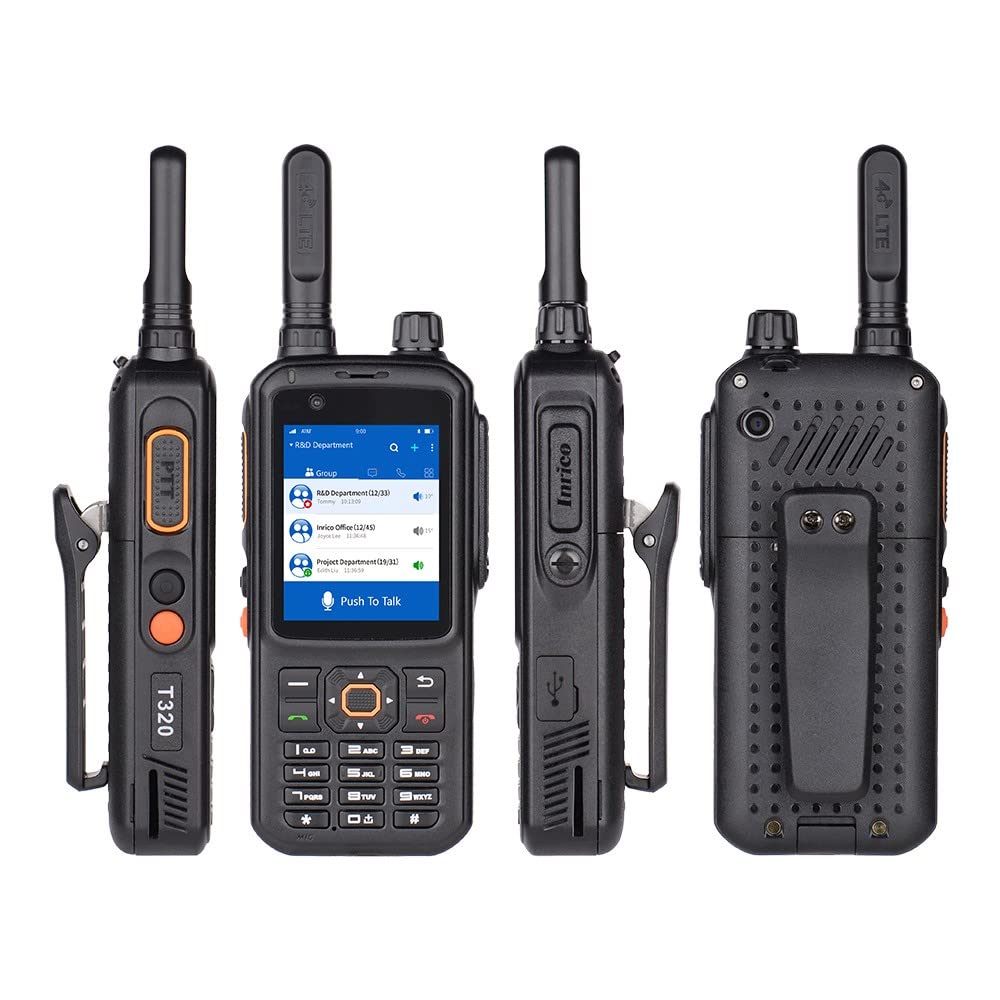
Image 1.1: The Inrico T320 radio highlighting its multifunctional design, smart touch screen, integrated WiFi/Bluetooth/GPS, dual camera, and clear audio.
2. Safety Information
Please read all safety information before using the device to ensure safe and proper operation. Keep this manual for future reference.
- Battery Safety: Use only the specified battery and charger. Do not disassemble, puncture, or short-circuit the battery. Dispose of batteries properly according to local regulations.
- Charging: Charge the device in a well-ventilated area. Do not charge near flammable materials.
- Water Resistance: The device is IP67 rated for water and dust resistance. Ensure all port covers are securely closed before exposure to water or dust. Do not intentionally submerge the device.
- Operating Environment: Avoid exposing the device to extreme temperatures, direct sunlight, or high humidity.
- Interference: Turn off the device in areas where radio communication is prohibited or when it may cause interference or danger, such as in hospitals, aircraft, or near blasting sites.
3. Package Contents
Carefully unpack your Inrico T320 and check for the following items:
- 1 x Inrico T320 Walkie Talkie
- 1 x Lithium-Ion Battery
- 1 x Antenna
- 1 x USB Charger
- 1 x Belt Clip
- 1 x Lanyard (Hanging Strap)
- 1 x User Manual
If any items are missing or damaged, please contact your retailer.
4. Product Overview
4.1 Key Features
- 4G LTE/PoC Connectivity: Supports global intelligent intercom over 4G networks.
- Android 7.0 Operating System: Provides a familiar and versatile user experience.
- Zello/Real PTT Compatibility: Seamless integration with popular Push-to-Talk over Cellular applications.
- Integrated WiFi & Bluetooth: For wireless connectivity and data transfer. Can function as a WiFi hotspot.
- GPS Positioning System: For location tracking and navigation.
- Dual Cameras: Front and rear cameras with autofocus function.
- Robust & Durable Design: Military-grade quality, IP67 dust and water resistance.
- Enhanced Audio: 36mm diameter speaker with noise reduction capabilities.

Image 4.1: The Inrico T320 display showing icons for GPS, WiFi, Bluetooth, and SOS functions, indicating its integrated features.
4.2 Physical Components
Familiarize yourself with the various parts of your T320 radio:
- Antenna: For signal reception and transmission.
- PTT Button: Push-to-Talk button for instant communication.
- Power Button: To turn the device on/off and manage screen lock.
- Volume Control: Buttons or knob to adjust audio levels.
- Display Screen: Touchscreen interface for navigation and information display.
- Front/Rear Cameras: For capturing images and video.
- USB Port: For charging and data transfer.
- Speaker/Microphone: For audio input and output.

Image 4.2: Top and side views of the Inrico T320, illustrating the antenna connection, various ports, and control buttons.

Image 4.3: Detailed side views of the Inrico T320, highlighting the Push-to-Talk (PTT) button and the USB charging/data port.
5. Setup
5.1 Battery Installation
- Ensure the device is powered off.
- Locate the battery compartment cover on the back of the device.
- Open the cover by sliding or lifting it according to the markings.
- Insert the Lithium-Ion battery, aligning the contacts correctly.
- Close the battery compartment cover securely until it clicks into place.
5.2 SIM Card / SD Card Installation
The T320 supports 4G connectivity and expandable storage. Refer to the device's specific slot locations for SIM and SD card insertion. Typically, these slots are located under the battery or on the side, protected by a cover.
- Power off the device and remove the battery if necessary.
- Open the SIM/SD card slot cover.
- Insert the SIM card (and optional SD card) into the designated slots with the gold contacts facing down.
- Close the cover firmly to maintain water and dust resistance.
5.3 Antenna Attachment
- Locate the antenna connector on the top of the device.
- Screw the provided antenna clockwise onto the connector until it is finger-tight. Do not overtighten.
5.4 Initial Charging
Before first use, fully charge the device.
- Connect the USB charger cable to the device's USB port.
- Plug the charger into a power outlet.
- The charging indicator will illuminate. Charging is complete when the indicator changes color or turns off (refer to device screen for battery status).
6. Operating Instructions
6.1 Power On/Off
- To Power On: Press and hold the Power button until the screen lights up and the device boots.
- To Power Off: Press and hold the Power button until the power options appear on the screen. Select 'Power Off'.
6.2 Basic Navigation
The T320 features an Android 7.0 operating system with a touchscreen interface. Navigate through menus and applications by tapping, swiping, and using the physical buttons as needed.
6.3 Push-to-Talk (PTT) Functionality
The T320 is compatible with PTT over Cellular (PoC) applications like Zello and Real PTT. Ensure the application is installed and configured.
- Open your preferred PTT application (e.g., Zello).
- Select the desired contact or group for communication.
- Press and hold the dedicated PTT button on the side of the device to transmit your voice.
- Release the PTT button to listen for incoming messages.
6.4 WiFi Connection
- Go to Settings > Wi-Fi.
- Toggle Wi-Fi On.
- Select your desired network from the list and enter the password if prompted.
- The device can also act as a WiFi hotspot when a SIM card with a data plan is active.
6.5 Bluetooth Pairing
- Go to Settings > Bluetooth.
- Toggle Bluetooth On.
- The device will scan for available Bluetooth devices.
- Select the device you wish to pair with and follow the on-screen instructions.
6.6 GPS Positioning
The T320 has an integrated GPS system for location services. Ensure location services are enabled in the device settings for applications to utilize GPS data.
6.7 Camera Usage
The device features front and rear cameras with autofocus. Open the camera application from the home screen or app drawer to capture photos and videos.

Image 6.1: The Inrico T320 showcasing its front and rear cameras, both equipped with autofocus functionality.
7. Maintenance
7.1 Cleaning
- Wipe the device with a soft, damp cloth. Do not use harsh chemicals or abrasive cleaners.
- Ensure all port covers are closed before cleaning with a damp cloth.
7.2 Battery Care
- To prolong battery life, avoid fully discharging the battery frequently.
- Store the device with a partially charged battery if not used for extended periods.
7.3 Storage
- Store the device in a cool, dry place away from direct sunlight and extreme temperatures.
- Keep the device away from magnetic fields.
8. Troubleshooting
If you encounter issues with your Inrico T320, refer to the following common problems and solutions:
| Problem | Possible Cause | Solution |
|---|---|---|
| Device won't power on | Low battery; Battery not installed correctly; Device malfunction. | Charge the battery; Reinstall the battery; Contact support. |
| No network connection | No SIM card; SIM card not activated; Out of network coverage; WiFi off. | Install SIM card; Contact service provider; Move to an area with coverage; Enable WiFi. |
| Poor audio quality / Noise | Weak signal; Obstructions; Speaker/microphone blocked. | Move to an open area; Clear speaker/microphone openings. |
| PTT not working | PTT application not running; No internet connection; Incorrect group/contact selected. | Launch PTT app; Check network connection; Verify PTT app settings. |
If the problem persists after trying these solutions, please contact customer support.
9. Specifications
| Model Number | T320 |
| Dimensions (L x W x H) | 14 x 6.4 x 2.8 cm |
| Weight | 257 g |
| Battery Type | 1 Lithium Ion |
| Average Battery Duration | 9 Hours |
| Operating System | Android 7.0 |
| Connectivity | 4G LTE (GSM B2/B3/B5/B8, WCDMA B1/B2/B5/B8, TDD-LTE B38/B39/B40/B41, FDD-LTE: B1/B3/B5/B7/B8/B20/B28a/B28b), WiFi, Bluetooth |
| Water Resistance Rating | IP67 |
| Special Features | GPS, Dual Cameras (Autofocus), Dustproof, Long Range, Lightweight, Rechargeable, Noise Reduction |
| Number of Channels | 2 |
| Tuner Type | UHF |
| FCC ID | 2AIV6-T320 |
10. Warranty and Support
For warranty information, please refer to the documentation provided at the time of purchase or contact your retailer. The manufacturer of this product is G camolech.
For technical support or service inquiries, please contact the seller or manufacturer directly. Keep your purchase receipt and product model number (T320) handy when seeking support.


