
leapwell CD201W
Leapwell Portable CD Player User Manual
Model: CD201W
Introduction
Thank you for choosing the Leapwell Portable CD Player. This device is designed to provide a versatile and high-quality audio experience, supporting multiple playback modes and featuring a classic design. Please read this manual thoroughly to understand the product's functions and ensure proper operation and maintenance.
What's in the Box
Please check the contents of your package. If any items are missing or damaged, contact customer support.
- Leapwell Portable CD Player
- Remote Control
- Earphones
- 3.5mm AUX Cable
- USB-C Charging Cable
- User Manual

Image: The Leapwell Portable CD Player shown with its remote control, earphones, AUX cable, USB-C charging cable, and user manual, all neatly arranged next to its packaging box.
Product Overview
The Leapwell Portable CD Player combines classic design with modern functionality. It features a top-loading CD mechanism with a translucent dust cover, integrated speakers, and a control panel with a rotary knob for volume and various buttons for mode selection and playback control.

Image: A white Leapwell Portable CD Player with its top lid open, revealing a CD. The front speakers are illuminated with a blue glow, and control buttons are visible on the right side.
Key Features:
- Multi-Functional Playback: Supports CD Play, Bluetooth, FM Radio, USB, AUX, AB Repeat, and Optical Mode.
- HiFi Speaker System: Features independent sound cavity design and inner magnetic speaker unit for enhanced sound detail and bass.
- Rechargeable Battery: Built-in USB-C fast rechargeable battery provides 4-5 hours of playback.
- Classic Design: Retro square design with an elegant volume knob and translucent CD dust cover.
- Versatile Connectivity: Includes 3.5mm audio, USB, and optical interfaces for external connections.
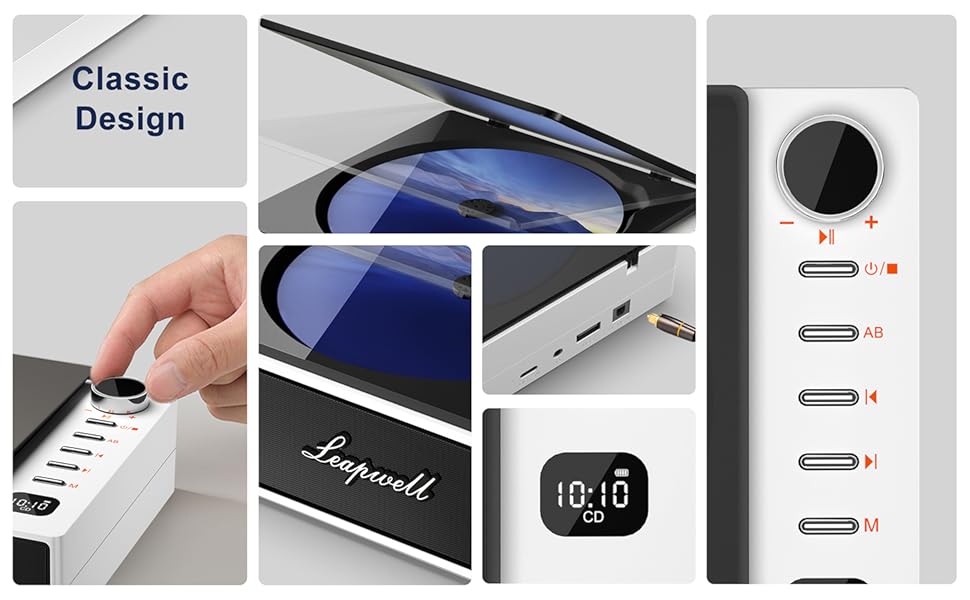
Image: A collage showcasing various design elements and features of the CD player, including the volume knob, the open CD lid, the USB-C and optical ports, and the digital display.
Setup
1. Charging the Device
Before first use, fully charge the CD player. Connect the provided USB-C charging cable to the USB-C port on the device and the other end to a 5V-2A power adapter (not included) or a computer's USB port. A blinking white light indicates charging. The light will become solid when fully charged. Charging typically takes 3.5 hours for 4-5 hours of playback.

Image: The portable CD player is shown outdoors, emphasizing its built-in rechargeable battery and portability, with icons indicating 4.5 hours playback and 3.5 hours charging time.
2. Powering On/Off
Press and hold the power button (usually indicated by a power symbol) to turn the device on or off.
Operating Modes
The Leapwell CD Player supports multiple audio sources. Use the 'M' (Mode) button on the device or remote control to switch between modes.

Image: A circular diagram illustrating the six different operating modes of the CD player: CD Mode, BT Mode (Bluetooth), FM Mode, USB Mode, AB Repeat, and Optical Mode.
1. CD Play Mode
- Open the translucent dust cover on top of the player.
- Carefully place a CD onto the spindle, ensuring it is seated correctly.
- Close the dust cover.
- Select "CD" mode using the 'M' button. The CD will begin playing automatically.
- Use the play/pause, skip forward/backward buttons, and volume knob to control playback.

Image: The Leapwell Portable CD Player with its top lid open, ready for a CD to be inserted. The internal mechanism is visible.
2. Bluetooth Mode
The CD player can connect to Bluetooth headphones or a mobile phone to play music.
- Switch the player to "BT" (Bluetooth) mode. The display will show "BT" and an indicator will blink, signifying pairing mode.
- On your Bluetooth device (e.g., smartphone, headphones), enable Bluetooth and search for "Leapwell CD Player".
- Select the device to pair. Once connected, the Bluetooth indicator on the CD player will stop blinking.
- You can now play audio from your connected device through the CD player's speakers or connected Bluetooth headphones.

Image: A person's hands are shown interacting with a smartphone and the CD player, illustrating the Bluetooth connection process. Bluetooth icons float between the devices.
3. FM Radio Mode
- Switch the player to "FM" mode.
- Use the skip forward/backward buttons to scan for radio stations.
- Adjust the volume using the rotary knob.
4. USB Mode
- Insert a USB flash drive containing audio files into the USB port.
- Switch the player to "USB" mode.
- The player will automatically detect and begin playing audio files from the USB drive.
5. AUX Mode
Connect external audio devices (e.g., smartphone, MP3 player) using the provided 3.5mm AUX cable.
- Connect one end of the 3.5mm AUX cable to the AUX-in port on the CD player.
- Connect the other end to the headphone jack or audio output of your external device.
- Switch the player to "AUX" mode.
- Play audio from your external device. The sound will be output through the CD player's speakers.
6. Optical Mode
For high-fidelity audio output, connect the CD player to an external decoder or speaker system via an optical cable (not included).
- Connect an optical cable to the optical output port on the CD player.
- Connect the other end to the optical input of your compatible audio system.
- Switch the player to "Optical" mode.
- Audio from the CD player will now be transmitted digitally to your external system.
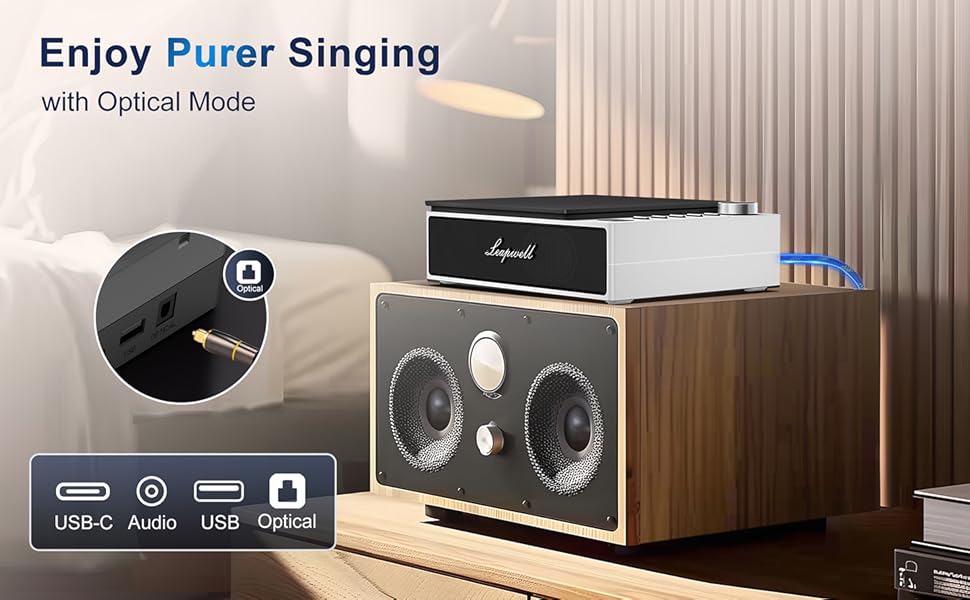
Image: The CD player is shown connected to a larger external speaker system using an optical cable, highlighting its capability for high-quality audio output.
7. AB Repeat Mode
This mode allows you to repeat a specific section of an audio track (CD or USB).
- During playback, press the "AB" button once to set the starting point (A).
- Press the "AB" button again to set the ending point (B). The section between A and B will now repeat.
- Press the "AB" button a third time to cancel the repeat function.
Maintenance
- Cleaning: Use a soft, dry cloth to clean the exterior of the player. For the CD lens, use a specialized CD lens cleaner. Do not use abrasive cleaners or solvents.
- Dust Cover: Keep the translucent dust cover closed when not in use to protect the optical drive from dust and debris.
- Storage: Store the player in a cool, dry place away from direct sunlight and extreme temperatures.
- Battery Care: To prolong battery life, avoid fully discharging the battery frequently. Charge the device regularly, even if not in constant use.
Troubleshooting
| Problem | Possible Cause / Solution |
|---|---|
| Device does not power on. | Battery might be depleted. Connect to power adapter and charge. Ensure the power button is pressed and held sufficiently. |
| CD does not play or skips. | CD might be dirty or scratched. Clean the CD. Ensure the CD is properly seated. The player has anti-shake protection, but excessive movement can still cause skips. |
| No sound from speakers. | Volume might be too low. Increase volume using the knob. Ensure correct mode is selected. Check if external headphones or speakers are connected and functioning. |
| Bluetooth connection issues. | Ensure the player is in Bluetooth pairing mode. Make sure the external Bluetooth device is discoverable and within range. Try unpairing and re-pairing the devices. |
| Remote control not working. | Check if the remote control's battery needs replacement. Ensure there are no obstructions between the remote and the player's IR receiver. |
| Slow charging via computer USB. | Charging via a computer's USB port will be slower. It is recommended to use a 5V-2A adapter for faster charging. |
Specifications
| Feature | Detail |
|---|---|
| Product Dimensions | 7.3 x 5.8 x 2.2 inches (18.5 x 14.7 x 5.6 cm) |
| Item Weight | 1.4 pounds (0.63 kg) |
| Model Number | CD201W |
| Battery Type | 1 Lithium Ion battery (included) |
| Playback Modes | CD, Bluetooth, FM Radio, USB, AUX, AB Repeat, Optical |
| Connectivity Technology | Auxiliary, Bluetooth, Optical, USB, USB-C |
| Special Features | Anti-Skip Protection, Built-In Speaker, Portable, Rechargeable |
| Tuner Technology | FM |
| Power Source | Battery Powered |
Warranty & Support
Leapwell CD Players come with lifelong technical support and 24/7 professional customer service. For any inquiries, issues, or warranty claims, please contact Leapwell customer support through the retailer's platform or the contact information provided in your product packaging.
Related documentsCD201W


Ask a question about this manual
Ask about setup, troubleshooting, compatibility, parts, safety, or missing instructions. Manuals+ will review the question and use this page’s manual context to help answer it.