
1. Introduction
This manual provides detailed instructions for the SbocKeeb V400pro 75% Wireless Mechanical Keyboard. Please read this guide thoroughly to ensure proper setup, operation, and maintenance of your device. This keyboard features tri-mode connectivity, hot-swappable switches, customizable RGB lighting, and a multi-function knob, designed for both gaming and productivity across various platforms.
2. Product Overview
The SbocKeeb V400pro is a compact 75% layout mechanical keyboard, offering a balance of functionality and space-saving design. It supports multiple connection types and advanced customization options.

Figure 2.1: SbocKeeb V400pro 75% Wireless Mechanical Keyboard. This image displays the full keyboard with its compact 75% layout, featuring pink and teal keycaps and a silver multi-function knob on the top right corner. A white USB-C cable is shown connected to the keyboard.
Key Components and Features:
- Tri-Mode Connectivity: Bluetooth 5.0, 2.4 GHz wireless, and USB-C wired connections.
- Hot-Swappable Sockets: Compatible with 3-pin and 5-pin mechanical switches for easy customization without soldering.
- Gasket Mount Design: Enhances typing comfort and reduces noise with a five-layer padding structure.
- Customizable RGB Backlight: 16.8 million colors and various lighting effects, configurable via software.
- Multi-Function Knob: Controls media playback, volume, and can be programmed for macros.
- PBT Double Shot Keycaps: Durable keycaps with legends that will not fade.
- 4000 mAh Battery: Provides extended wireless usage.
- Universal Compatibility: Supports Windows, Mac, PC, laptops, Xbox, and PS4.

Figure 2.2: Exploded view of keyboard layers. This diagram illustrates the internal structure of the keyboard, showing layers such as the top case, PBT double shot keycaps, PC plate, silicone gaskets, Gray Cream switches, EVA foam, IXPE switch pad, PET acoustic pad, PCB board, sound-absorbing sponge, bottom silicone pad, and ABS bottom shell.
3. Setup
3.1 Charging the Keyboard
Before initial use, fully charge the keyboard using the provided USB-C cable. Connect the USB-C end to the keyboard and the USB-A end to a power source (e.g., computer USB port, wall adapter). The charging indicator will show the charging status.
3.2 Connecting the Keyboard
The V400pro supports three connection modes: 2.4 GHz wireless, Bluetooth, and USB-C wired.
3.2.1 2.4 GHz Wireless Connection
- Locate the 2.4 GHz USB dongle, typically stored in a compartment on the keyboard.
- Plug the USB dongle into an available USB port on your computer.
- Switch the keyboard's mode selector to 2.4 GHz mode. The keyboard should automatically connect.
3.2.2 Bluetooth Connection
- Switch the keyboard's mode selector to Bluetooth mode.
- On your device (computer, laptop, tablet, etc.), enable Bluetooth and search for new devices.
- The keyboard will appear as 'SbocKeeb V400pro' or similar. Select it to pair.
- The keyboard can store up to three Bluetooth profiles. Use Fn + Q, Fn + W, or Fn + E to switch between profiles. To pair a new device, hold Fn + Q/W/E for 3-5 seconds until the indicator light flashes, then pair as usual.
3.2.3 USB-C Wired Connection
- Connect the provided USB-C cable to the keyboard's USB-C port.
- Connect the other end of the cable to a USB port on your computer.
- The keyboard will automatically switch to wired mode and function as a plug-and-play device.
4. Operating Instructions
4.1 Multi-Function Knob
The knob located on the top right of the keyboard provides quick control over media functions.
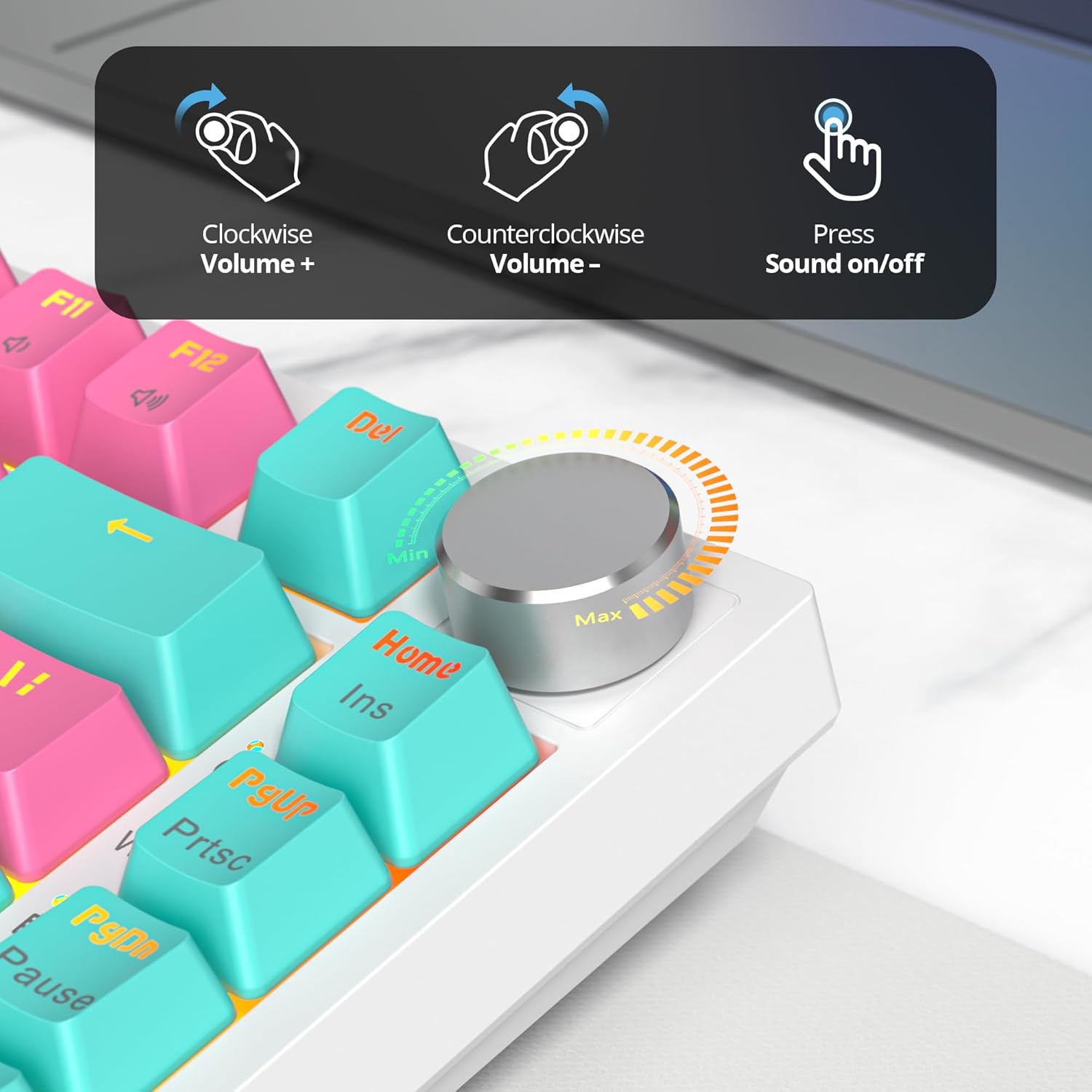
Figure 4.1: Multi-function knob controls. This image illustrates the functions of the knob: turning clockwise increases volume, turning counter-clockwise decreases volume, and pressing the knob toggles sound on/off (mute).
- Rotate Clockwise: Increase Volume
- Rotate Counter-clockwise: Decrease Volume
- Press: Play/Pause media or Mute/Unmute sound.
4.2 RGB Backlight Control
The keyboard features customizable RGB backlighting. Use the following key combinations to adjust lighting effects:

Figure 4.2: Keyboard RGB and software customization. This image shows the keyboard connected to a laptop, displaying software for customizing RGB lighting and key functions. It also highlights key combinations for backlight control: Fn+X to turn on/off the light, Fn+\ to switch light modes, Fn+Up Arrow to increase backlight brightness, and Fn+Down Arrow to decrease backlight brightness.
- Fn + X: Turn Backlight On/Off
- Fn + \|: Switch Lighting Modes
- Fn + ↑: Increase Backlight Brightness
- Fn + ↓: Decrease Backlight Brightness
For advanced RGB customization and macro programming, download the dedicated software from the SbocKeeb official website.
4.3 WIN Key Lock
To prevent accidental interruptions during gaming, you can lock the Windows key:
- Fn + Win: Toggle Win Key Lock On/Off.
5. Customization
5.1 Hot-Swappable Switches
The V400pro features hot-swappable sockets, allowing you to change mechanical switches without soldering. This enables customization of typing feel and sound.

Figure 5.1: Hot-swappable mechanical keyboard feature. This image highlights the hot-swappable nature of the keyboard, showing switches being removed and inserted. It also indicates support for 3/5 pin mechanical switches, North Facing LEDs, Double-Shot PBT Keycaps, and Shine Through Keycaps.
- Power off the keyboard or disconnect it from your device.
- Using a switch puller tool (not included), carefully grip the switch and pull it straight up to remove it.
- Align the pins of the new switch with the holes on the PCB. Ensure the pins are straight.
- Gently press the new switch into place until it clicks. Do not force it to avoid bending pins.
- Test the new switch to ensure it functions correctly.
5.2 Cream Gray Pro Switches
The keyboard comes equipped with Cream Gray Pro Switches, which are linear switches designed for a smooth and creamy typing experience.

Figure 5.2: Cream Gray Pro Switches details. This image shows a close-up of the Cream Gray Pro Switches, highlighting their characteristics: Type: Linear, Keystrokes Lifespan: 50 Million, Total Travel: 3.3±0.3mm, Operating Force: 45±10gf.
- Type: Linear
- Keystrokes Lifespan: 50 Million
- Total Travel: 3.3 ± 0.3 mm
- Operating Force: 45 ± 10 gf
6. Maintenance
6.1 Cleaning the Keyboard
Regular cleaning helps maintain the keyboard's performance and appearance.
- Disconnect the keyboard from all power sources.
- Use a soft, lint-free cloth slightly dampened with water or a mild cleaning solution to wipe the keycaps and chassis.
- For deeper cleaning, use a keycap puller (not included) to remove keycaps and clean underneath with compressed air or a small brush.
- Ensure the keyboard is completely dry before reconnecting it.
6.2 Battery Care
To prolong battery life:
- Avoid fully discharging the battery frequently.
- Store the keyboard in a cool, dry place when not in use for extended periods.
- Do not expose the keyboard to extreme temperatures.
7. Troubleshooting
7.1 Keyboard Not Responding
- Check Connection: Ensure the USB cable is securely connected, or the 2.4 GHz dongle is properly inserted, or Bluetooth is paired.
- Battery Level: Charge the keyboard if the battery is low.
- Mode Switch: Verify the keyboard is in the correct mode (2.4G, BT, or USB-C) for your connection type.
- Restart Device: Try restarting your computer or device.
7.2 RGB Lights Not Working
- Brightness: Increase brightness using Fn + ↑.
- Toggle On/Off: Ensure lights are not turned off using Fn + X.
- Software: If using custom profiles, check the software settings.
7.3 Intermittent Wireless Connection
- Interference: Move the keyboard closer to the receiver or device. Avoid obstacles and other wireless devices that may cause interference.
- Battery: Ensure the keyboard has sufficient battery charge.
- Re-pair: For Bluetooth, try unpairing and re-pairing the keyboard. For 2.4 GHz, try unplugging and replugging the dongle.
8. Specifications
| Feature | Detail |
|---|---|
| Model | V400pro |
| Brand | SbocKeeb |
| Layout | 75% TKL (American QWERTY) |
| Connectivity | Bluetooth 5.0, 2.4 GHz Wireless, USB-C Wired |
| Switches | Cream Gray Pro Switches (Linear, Hot-swappable 3/5 pin) |
| Keycaps | PBT Double Shot |
| Backlight | RGB (16.8 million colors) |
| Battery Capacity | 4000 mAh (Lithium Polymer) |
| Compatibility | Windows, Mac, PC, Laptop, Xbox, PS4 |
| Special Features | Multi-function Knob, Gasket Mount, N-Key Rollover, WIN Key Lock |
| Dimensions | 36.4 x 19.1 x 4.7 cm |
| Weight | 1.1 kg |

Figure 8.1: Summary of keyboard features. This image visually summarizes the key features of the keyboard, including Tri-Mode Connection, Long-lasting Battery, 75% Compact Layout, Dynamic RGB, Gasket Structure, Win/Mac Systems compatibility, Hot-Swap Socket, and Software support.
9. Warranty and Support
For warranty information and technical support, please refer to the documentation included with your purchase or visit the official SbocKeeb website. If you encounter any issues not covered in this manual, please contact customer service for assistance.