
Blackview Tab 60WiFi
Blackview 10-inch Android Tablet Instruction Manual
Model: Tab 60WiFi
Introduction
Welcome to the user manual for your new Blackview 10-inch Android Tablet, model Tab 60WiFi. This tablet is designed to provide a seamless and powerful user experience, equipped with the latest Android 15 system, a robust octa-core processor, and ample memory for all your needs. This manual will guide you through the setup, operation, maintenance, and troubleshooting of your device, ensuring you can maximize its capabilities for both work and entertainment.
What's in the Box?
Upon unboxing your Blackview Tab 60WiFi, please ensure all the following items are present:
- Blackview Tab 60 WiFi Tablet
- 10W Power Adapter
- USB-C Cable
- User Manual

Image: The Blackview Tab 60WiFi tablet and its included accessories: power adapter, USB-C cable, and user manual.
Setup
Initial Power On
To power on your tablet for the first time, press and hold the power button located on the side of the device until the Blackview logo appears. Follow the on-screen prompts to complete the initial setup process, including language selection and basic settings.
Network Connection
Your tablet supports the latest WiFi 6 technology for faster and more reliable internet connectivity, and Bluetooth 5.3 for efficient wireless peripheral connections.
- Wi-Fi: Navigate to Settings > Network & internet > Wi-Fi. Select your desired network and enter the password if required.
- Bluetooth: Go to Settings > Connected devices > Connection preferences > Bluetooth. Turn on Bluetooth and pair with your devices.

Image: Visual representation of the tablet's connectivity features, including WiFi 6 and Bluetooth 5.3, alongside its charging capabilities.
Account Setup (Google GMS)
To access Google services like the Play Store, Gmail, and Google Maps, you will need to sign in with your Google account during the initial setup or later via Settings > Accounts.
Memory Expansion
The tablet comes with 12GB (4GB real + 8GB virtual) RAM and 128GB ROM. You can expand the storage up to 2TB using a Micro TF card. To expand memory, go to Settings > About Tablet > Memory and adjust the memory bar to 12GB.

Image: An overview of the tablet's impressive storage capabilities, highlighting its RAM, ROM, and expandable storage options.
Operating Instructions
Operating System: Android 15 with Doke OS 4.0
Your Blackview Tab 60WiFi runs on the latest Android 15 system, enhanced with Blackview's custom Doke OS 4.0. This combination provides a smooth, intuitive, and secure user experience with features like intelligent storage allocation, multi-tasking capabilities, and enhanced privacy protection.

Image: The Blackview tablet showcasing its Android 15 operating system and memory configuration.
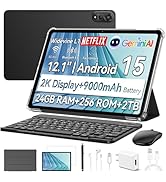
Image: Key features of the Android operating system, including performance enhancements and privacy controls. (Note: While the product is Android 15, some visuals may reflect Android 14 features during transition.)
Display and Streaming
The 10.1-inch HD screen provides a wide visual space with vivid colors. With Widevine L1 support, you can enjoy high-definition streaming from popular platforms like Netflix, Disney+, and Hulu.

Image: The tablet's 10.1-inch HD+ IPS display, highlighting its resolution and aspect ratio for an ideal viewing experience.

Image: The tablet's Widevine L1 support, enabling high-quality streaming from various popular video services.
Audio Experience
Experience immersive sound with the tablet's dual Smart BOX stereo speakers, providing clear and rich audio for all your media.

Image: The tablet's dual Smart BOX stereo speakers delivering stunning sound quality for an enhanced audio experience.
Camera Functionality
Capture your moments with the tablet's 5MP front camera for clear video calls and selfies, and an 8MP rear camera for everyday photography.

Image: Demonstrating the tablet's 8MP rear camera and 5MP front camera, designed to capture various moments.
Productivity Features
The Tab 60WiFi offers several features to boost your productivity and convenience:
- PC Mode: Transform your tablet into a PC-like interface for a more desktop-oriented workflow.
- Workspace App: Separate your personal and work applications and data for enhanced privacy and organization.
- WPS Suite: Comes pre-installed with WPS Office for document creation and editing.
- Split View 2.0: Multitask efficiently by running two applications side-by-side on the screen.
- Atomized Memory 2.0: Smartly allocates RAM to boost performance and free up resources for other processes.
- Wireless Casting Screen: Share your tablet's screen content to a larger display wirelessly.
Video: A demonstration of the Workspace App feature on the Blackview tablet, showing how to manage personal and work applications separately.

Image: The Workspace App interface, illustrating the separation of personal and work environments on the tablet.

Image: The tablet comes with the WPS Office suite pre-installed, ready for productivity tasks.
Image: Split View 2.0 in action, allowing users to perform two tasks simultaneously on the tablet screen.

Image: An explanation of Atomized Memory 2.0, detailing its role in optimizing tablet performance by efficient RAM allocation.
Privacy and Comfort Features
The tablet includes features to protect your privacy and enhance viewing comfort:
- Privacy Protection: Manage app permissions and data sharing settings easily.
- Clear Clipboard History: Option to automatically clear clipboard history for sensitive information.
- Read Mode: Optimizes the screen for reading, reducing eye strain.
- Eye Protection Mode (Night Mode): Adjusts screen colors to reduce blue light emission.
- Dark Mode: Provides a darker color scheme for the user interface, ideal for low-light environments.

Image: The tablet's smart display modes, including Read Mode, Eye Protection Mode, and Dark Mode, designed for user comfort.
Maintenance
Battery Life and Charging
The tablet is equipped with a 5100mAh battery, offering extended usage times. It supports 10W fast charging via the USB-C port. To prolong battery life, avoid extreme temperatures and use the provided charger.

Image: The tablet's 5100mAh battery and 10W fast charging feature, ensuring long-lasting power.

Image: Detailed breakdown of the tablet's long-lasting 5100mAh battery performance across various usage scenarios.
General Care
The tablet features a stylish all-metal body with a thin and light design (8.5mm thickness, 538 grams weight). To maintain its appearance and functionality, avoid dropping the device, exposing it to liquids, or using abrasive cleaners. Use a soft, dry cloth for cleaning.

Image: The tablet's sleek design, available in multiple colors, emphasizing its thin and lightweight construction.
Troubleshooting
If you encounter any issues with your Blackview Tab 60WiFi, please refer to the following common troubleshooting steps:
- Device Not Powering On: Ensure the battery is charged. Connect the tablet to the charger and wait a few minutes before attempting to power on again.
- Screen Unresponsive: Try restarting the tablet by holding the power button for approximately 10-15 seconds.
- Wi-Fi Connection Issues: Check if Wi-Fi is enabled in settings. Restart your router and the tablet. Forget the network and reconnect.
- Apps Crashing/Freezing: Clear the cache and data for the problematic app in Settings > Apps. If the issue persists, uninstall and reinstall the app.
- Slow Performance: Close unnecessary background apps. Clear cached data regularly. Consider reducing the number of widgets on your home screen.
For more complex issues or persistent problems, please contact Blackview customer support.
Specifications
| Feature | Specification |
|---|---|
| Brand | Blackview |
| Model Name | Tab 60WiFi |
| Operating System | Android 15 (Note: May ship with Android 14 during transition) |
| Screen Size | 10.1 Inches |
| Screen Resolution | 1280*800 Pixels |
| Processor | 2.0GHz Octa-Core (AllWinner A523 chip) |
| RAM | 12GB (4GB real + 8GB virtual) |
| Internal Storage (ROM) | 128GB |
| Expandable Storage | Up to 2TB (Micro TF Card) |
| Rear Camera Resolution | 8 MP |
| Front Camera Resolution | 5 MP |
| Battery Capacity | 5100mAh |
| Charging | 10W Fast Charging (USB-C) |
| Wireless Connectivity | WiFi 6 (802.11ax), Bluetooth 5.3 |
| Dimensions (LxWxH) | 9.6 x 6.7 x 0.3 inches |
| Item Weight | 2.12 pounds (approx. 538 grams) |
| Color | Gray |
Warranty and Support
Blackview offers a 720-day (two-year) worry-free warranty for your Tab 60WiFi tablet. This warranty covers manufacturing defects and ensures high-quality standards. For any questions, technical assistance, or warranty claims, please contact Blackview customer service through the Amazon order page. Our support team is available 24 hours to provide free replacement or assistance.
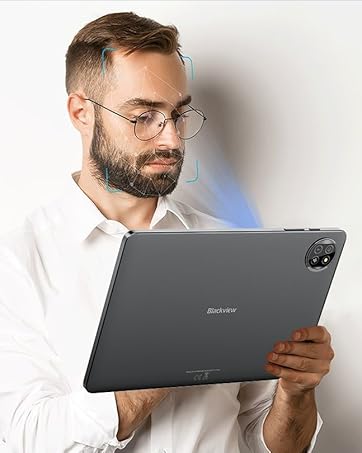
Image: Blackview's commitment to customer satisfaction, highlighting the two-year warranty and dedicated support.
Ask a question about this manual
Ask about setup, troubleshooting, compatibility, parts, safety, or missing instructions. Manuals+ will review the question and use this page’s manual context to help answer it.