
1. Introduction
This manual provides detailed instructions for the installation, operation, and maintenance of your wisecoco 14.5 Inch LCD Touchscreen Monitor, specifically designed for seamless integration with the Hyte Y70 PC case. This monitor features a 2K 2560x720 IPS display, multi-touch capabilities, and versatile connectivity options including HDMI and USB-C.
Please read this manual thoroughly before using the product to ensure proper functionality and to prevent any damage.
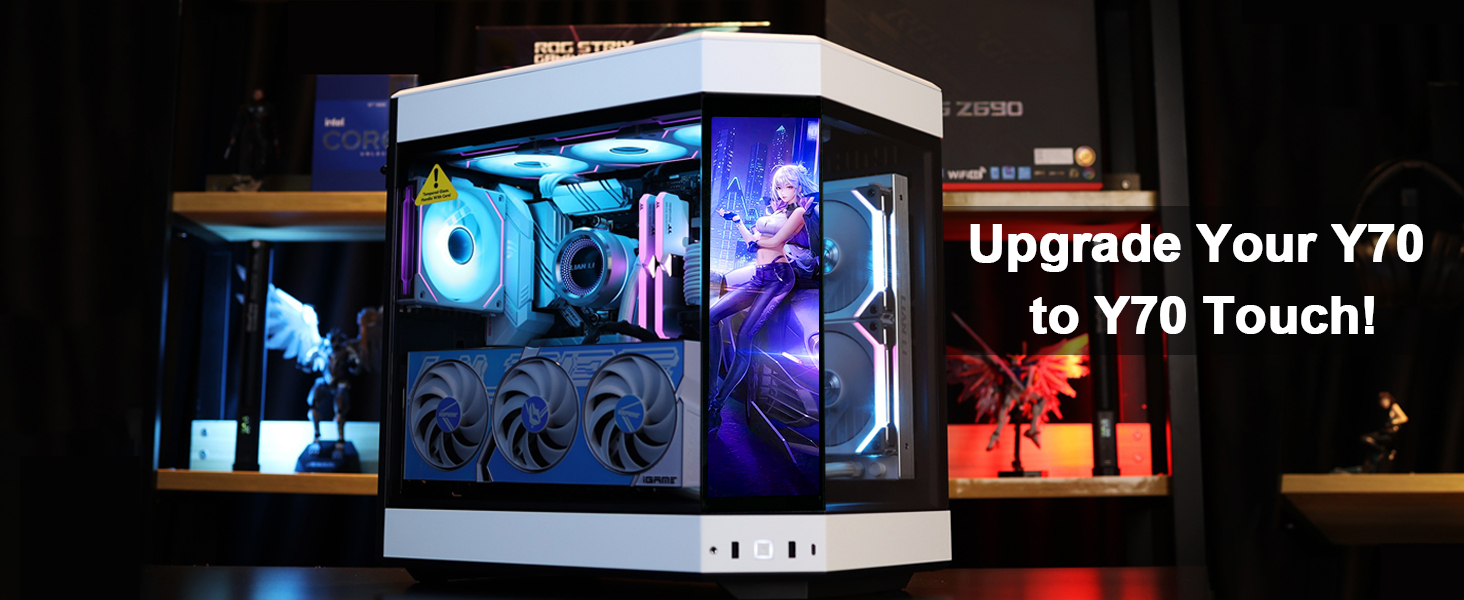
The wisecoco 14.5 inch touchscreen monitor seamlessly integrated into a Hyte Y70 PC case.
2. What's in the Box
Verify that all items listed below are included in your package:
- 1x Hyte Y70 Touch Monitor
- 1x Type-C to Type-C cable
- 1x USB to Type-C cable
- 1x mini HDMI to HDMI cable
- 1x Screwdriver

Included accessories: monitor, various cables, and a screwdriver for installation.
3. Specifications
| Feature | Specification |
|---|---|
| Screen Size | 14.5 Inches |
| Resolution | 2K (2560x720 Pixels) |
| Aspect Ratio | 32:9 |
| Screen Surface | Glossy |
| Image Brightness | 250 Candela |
| Contrast Ratio | 1500:1 |
| Color Gamut | 100% sRGB |
| Refresh Rate | 60Hz |
| Response Time | 5ms |
| Touchscreen | 10-point Multi-touch |
| Speakers | Built-in Dual Speakers |
| Connectivity | HDMI, 2x Type-C (one full-feature) |
| Power Source | 5V2A (minimum) |
| Product Dimensions | 1.18 x 15.35 x 4.72 inches |
| Item Weight | 4.2 pounds |
4. Setup & Installation
The wisecoco 14.5 inch monitor is specifically designed for the Hyte Y70 PC case. Follow these steps for proper installation:
- Prepare the PC Case: Carefully remove the top panel and the side glass panel of your Hyte Y70 PC case. Refer to your PC case manual for specific instructions on panel removal.
- Insert the Monitor: Slide the monitor into the designated slot on the side panel of the Hyte Y70 case. Ensure it is fully seated and does not dangle.
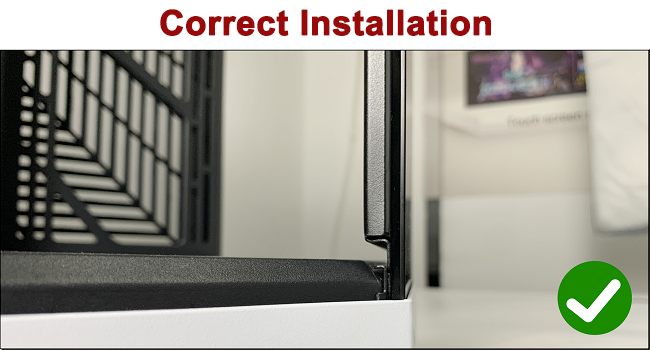
Correct installation: Monitor fully inserted into the side panel.
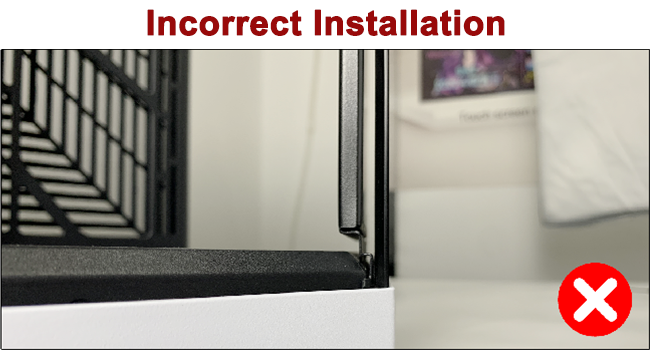
Incorrect installation: Monitor not fully inserted, causing it to dangle.
- Secure the Monitor: Use the provided screwdriver to secure the monitor in place by tightening the screws on the mounting brackets.
- Connect Cables:
- Video Signal: Connect the monitor to your PC using either the HDMI to mini HDMI cable or the Type-C to Type-C cable. If your PC has a full-feature Type-C port (Thunderbolt 3.0, 4.0, or USB 3.1 Type-C DP ALT-MODE), a single Type-C to Type-C cable can provide both video and touch functionality.
- Touch Functionality: To enable touch functionality, connect the middle Type-C port on the monitor to your PC using the Type-A to Type-C cable (if using HDMI for video) or the full-feature Type-C to Type-C cable.
- Power: Ensure the monitor receives adequate power. The power source should be 5V2A. If the screen flickers, it may be due to insufficient power; connect the monitor to a dedicated 5V2A power source.
- Reassemble PC Case: Once the monitor is securely installed and connected, reattach the side glass panel and the top panel of your PC case.
Installation Video Guide
Official video demonstrating the step-by-step installation process of the wisecoco monitor into a Hyte Y70 PC case.
Connectivity Diagram

Detailed diagram illustrating how to connect the monitor to various devices for video and touch functionality.
5. Operating Instructions
Once installed and connected, your wisecoco monitor is ready for use. It functions as a secondary display for your PC.
Display Features
- High Resolution: Enjoy a vivid and detailed visual experience with the 2K (2560x720) IPS display.
- Color Accuracy: The monitor supports 100% sRGB, ensuring accurate and vibrant color reproduction.
- Multi-Touch: The 10-point multi-touch screen allows for intuitive interaction, supporting gestures like tap, press, zoom in, zoom out, and mouse click.
- Built-in Speakers: Integrated dual speakers provide audio output without the need for external devices.

The monitor supports various multi-touch gestures for enhanced interaction.
System Monitoring (Optional)
To display system data such as CPU and GPU temperature, usage, and other metrics, you will need to install third-party software:
- Aida64 Extreme: This software is used to monitor various system parameters.
- Wallpaper Engine: This software allows you to display custom wallpapers, including Aida64 sensor panels, on your secondary monitor.
Ensure both applications are properly configured to display information on the wisecoco monitor. You can configure Aida64 and Wallpaper Engine to run automatically when your PC powers on for continuous display of system data.
System Monitoring Setup Video Guide
Official video guide on how to set up Aida64 and Wallpaper Engine to display CPU/GPU information on the monitor.
6. Maintenance
To ensure the longevity and optimal performance of your monitor, follow these maintenance guidelines:
- Cleaning: Use a soft, lint-free cloth slightly dampened with water or a screen-cleaning solution to gently wipe the screen surface. Avoid harsh chemicals, abrasive materials, or excessive moisture.
- Handling: Avoid applying excessive pressure to the screen or dropping the monitor.
- Storage: When not in use for extended periods, store the monitor in a cool, dry place away from direct sunlight and extreme temperatures.
7. Troubleshooting
If you encounter any issues with your wisecoco monitor, refer to the following common problems and solutions:
| Problem | Possible Cause | Solution |
|---|---|---|
| Screen Flickers | Insufficient power supply. | Ensure the monitor is connected to a stable 5V2A power source. Try a different USB power adapter or port. |
| No Display | Incorrect cable connection, no signal from PC, or power issue. | Check all cable connections (HDMI/Type-C for video, USB-C for power/touch). Ensure your PC is powered on and outputting a signal. Verify the power supply meets 5V2A. |
| Touch Function Not Working | Incorrect USB-C connection for touch data. | Ensure the middle Type-C port on the monitor is connected to your PC for touch data transfer. If using HDMI for video, a separate USB-C to USB-A cable is required for touch. |
| Monitor Not Recognized by PC | Driver issue or display settings. | No drivers are typically needed for this plug-and-play monitor. Check your PC's display settings to ensure the monitor is detected and configured as an extended display. Restart your PC. |
If the problem persists after attempting these solutions, please contact customer support.
8. Warranty & Support
Your wisecoco 14.5 Inch LCD Touchscreen Monitor comes with a 1-year warranty from the date of purchase. This warranty covers manufacturing defects and ensures the product is free from defects in materials and workmanship under normal use.
For any questions, technical assistance, or warranty claims, please contact our customer support team. We offer 7/24H professional and friendly customer service to assist you.
Please have your product model number (R140TY70-1) and proof of purchase ready when contacting support.

wisecoco offers comprehensive customer support and warranty for your product.


