
Redragon K709
Redragon K709 PRO 65% Wireless Gasket RGB Gaming Keyboard User Manual
Model: K709
Brand: Redragon
Introduction
The Redragon K709 PRO is a compact 65% wireless gaming keyboard designed for enhanced typing comfort and performance. Featuring a gasket-mounted structure and 5-layer noise dampening, it provides a soft, quiet, and responsive typing experience. This keyboard supports tri-mode connectivity (USB-C wired, Bluetooth, and 2.4GHz wireless) and is equipped with hot-swappable Mint Mambo linear switches and durable PBT keycaps. This manual provides essential information for setting up, operating, maintaining, and troubleshooting your K709 PRO keyboard.

Image: The Redragon K709 PRO keyboard, showcasing its compact 65% layout and vibrant RGB backlighting with pink, blue, and white keycaps.
Setup
Package Contents
- Redragon K709 PRO Gaming Keyboard
- USB-C Cable
- 2.4GHz Wireless Dongle
- Keycap Puller
- Switch Puller
Connecting the Keyboard
The K709 PRO supports three connection modes:
- USB-C Wired Connection:
Connect the provided USB-C cable to the keyboard's port and the other end to an available USB port on your computer. The keyboard will be automatically recognized and ready for use.
- 2.4GHz Wireless Connection:
Insert the 2.4GHz wireless dongle into a USB port on your computer. Turn on the keyboard using the switch located on the back or side. The keyboard should automatically pair with the dongle. If not, press and hold the designated function key combination (refer to the keyboard layout) to initiate pairing mode.
- Bluetooth Connection:
Ensure Bluetooth is enabled on your device (computer, tablet, etc.). Turn on the keyboard and switch it to Bluetooth mode (usually indicated by a specific LED). Press and hold the designated Bluetooth pairing key combination (e.g., Fn + 1/2/3) until the indicator light flashes, signifying pairing mode. Select "Redragon K709 PRO" from your device's Bluetooth settings to connect.

Image: The Redragon K709 PRO keyboard demonstrating its tri-mode connection capability, shown connected to a laptop, tablet, and desktop setup.
Operating Instructions
Key Functions and Layout
The K709 PRO features a 65% layout with 68 keys, optimizing space while retaining essential functions. Many keys have secondary functions accessible via the Fn key.
- Fn + F1-F12: Multimedia controls (specific functions may vary, refer to keycap legends).
- Fn + Backspace: Delete function.
- Fn + P: Print Screen.
- Fn + [: Home.
- Fn + ]: End.
- Fn + ;: Page Up.
- Fn + ': Page Down.
- Fn + Arrow Keys: Adjust backlight effects (direction, speed, brightness).
Backlight Control
The keyboard features dynamic RGB backlighting with multiple modes and customization options.
- Fn + < (or ,): Switch between 20 preset backlight modes.
- Fn + ↑ (Up Arrow): Increase backlight brightness (5 levels).
- Fn + ↓ (Down Arrow): Decrease backlight brightness (5 levels).
- Fn + ← (Left Arrow): Decrease backlight effect speed.
- Fn + → (Right Arrow): Increase backlight effect speed.
- Fn + Backspace: Enter self-defined backlight mode (requires software).

Image: Diagram illustrating the function key combinations for switching backlight modes, adjusting brightness, and controlling effect speed on the Redragon K709 PRO keyboard.
Software Customization
For advanced customization, including macro programming, key remapping, and detailed RGB lighting effects, download the dedicated software from the official Redragon website. The software allows for personalized profiles to enhance your gaming and work experience.

Image: A screenshot of the Redragon K709 PRO's software interface, showing options for light effects, brightness, speed, and color customization.
Maintenance
Cleaning the Keyboard
- Disconnect the keyboard from your computer before cleaning.
- Use a soft, lint-free cloth slightly dampened with water or a mild cleaning solution to wipe the keycaps and chassis.
- For dust and debris between keycaps, use compressed air.
- Avoid using harsh chemicals, abrasives, or solvents, as these can damage the keyboard's finish or keycap legends.
Hot-Swapping Switches
The K709 PRO features hot-swappable sockets, allowing you to change switches without soldering. This keyboard is compatible with most 3-pin and 5-pin mechanical switches.
- Removing Keycaps: Use the provided keycap puller to gently remove the desired keycap by pulling straight up.
- Removing Switches: Use the provided switch puller. Align the prongs of the puller with the two clips on the top and bottom of the switch. Squeeze the clips and gently pull the switch straight up.
- Installing New Switches: Ensure the pins on the new switch are straight. Align the switch with the hot-swap socket on the PCB. Gently push the switch down until it clicks into place. Do not force it, as bent pins can damage the socket.
- Reinstalling Keycaps: Place the keycap over the switch stem and press down firmly until it is seated.

Image: A close-up view of the Redragon K709 PRO's hot-swappable sockets, showing switches removed and ready for replacement.

Image: A hand demonstrating the process of installing a new switch into the hot-swappable socket of the Redragon K709 PRO keyboard.
Troubleshooting
| Problem | Possible Solution |
|---|---|
| Keyboard not responding (Wired) |
|
| Wireless connection issues (2.4GHz/Bluetooth) |
|
| Backlight not working or stuck |
|
| Keys not registering or double-typing |
|
| Software not detecting keyboard |
|
Specifications
| Feature | Detail |
|---|---|
| Model | K709 PRO |
| Layout | 65% (68 Keys) |
| Connection Modes | USB-C Wired, Bluetooth (BT 3.0/5.0), 2.4GHz Wireless |
| Switch Type | Custom Mint Mambo Linear Switches (Hot-Swappable 3/5 Pin) |
| Keycaps | Round PBT Keycaps, Shine-Through, Frosted Granular Feel |
| Mounting Style | Gasket Mount |
| Noise Dampening | 5-Layer (3.5mm PO foam, IXPE switch foam, PET sound pad, bottom socket foam, silicone bottom pad, silicone gasket) |
| Backlighting | RGB (20+ modes, customizable via software) |
| Battery Capacity | 2500mAh |
| Dimensions | 13.23 x 4.69 x 1.57 inches |
| Weight | 1.39 pounds |
| Compatible OS | Windows, macOS (via software) |
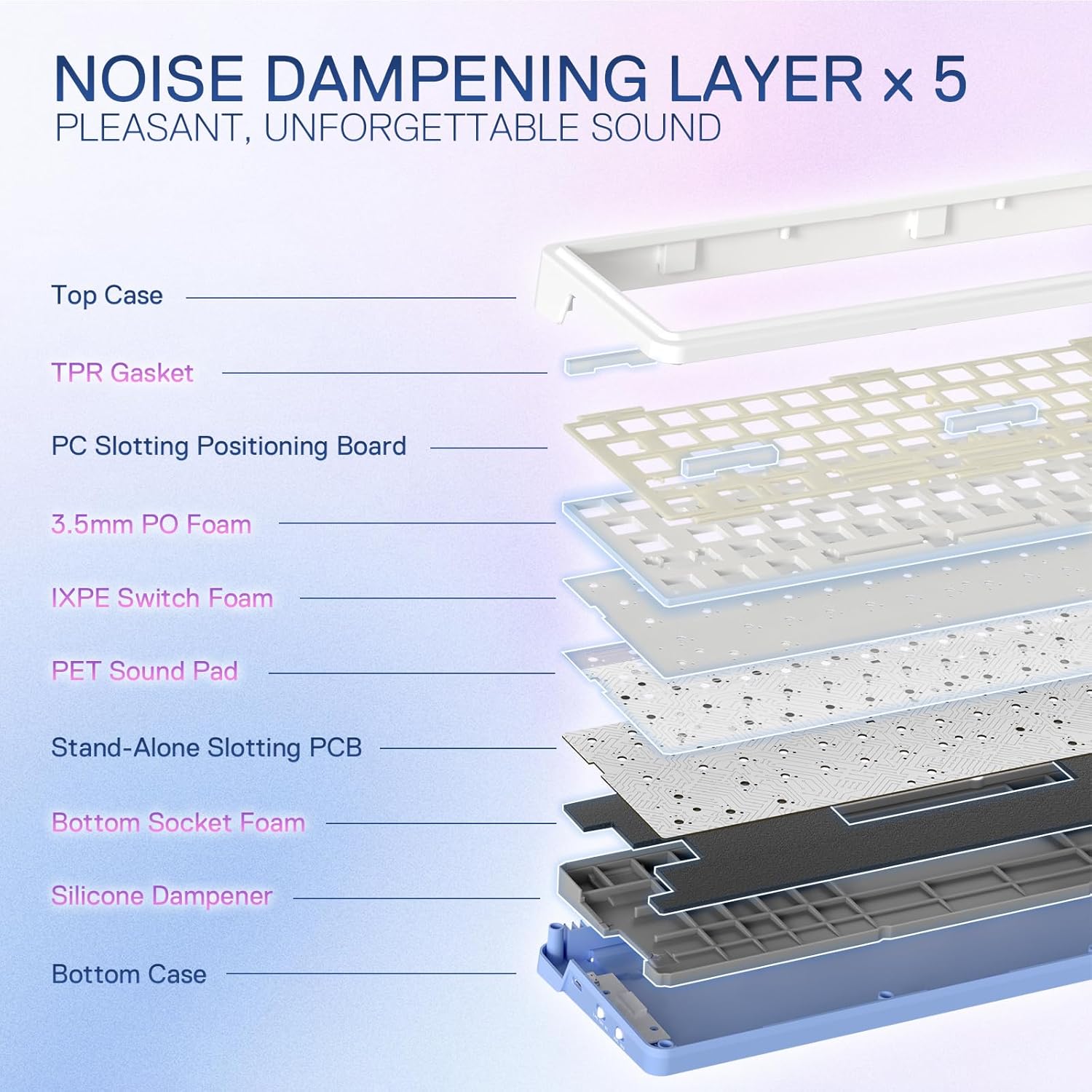
Image: An exploded diagram illustrating the five layers of noise dampening materials within the Redragon K709 PRO keyboard, including the top case, gasket, PC board, foams, and silicone dampener.
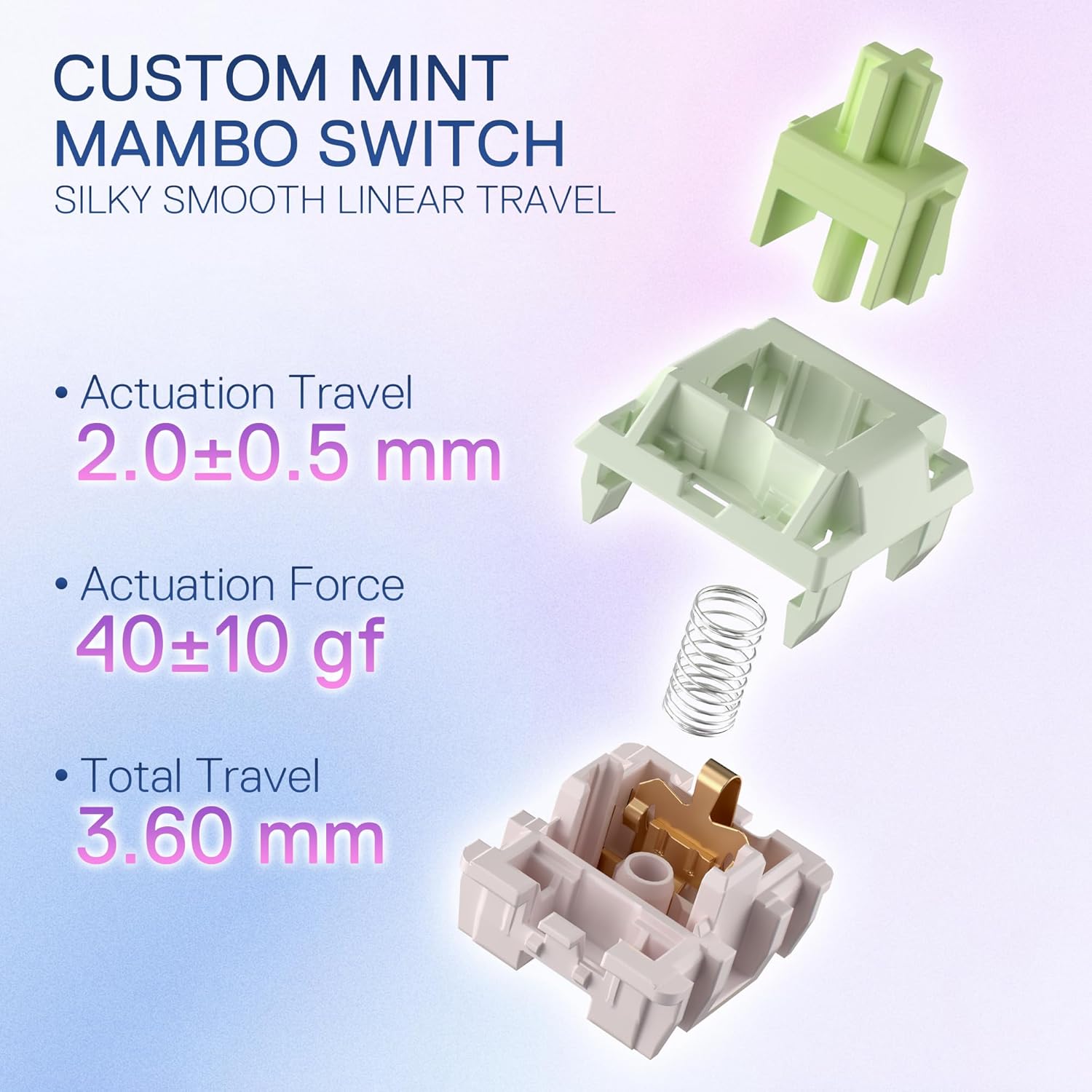
Image: Detailed specifications for the Custom Mint Mambo Switch, including actuation travel (2.0±0.5 mm), actuation force (40±10 gf), and total travel (3.60 mm).
Warranty and Support
Redragon products typically come with a standard manufacturer's warranty. Please refer to the warranty card included with your product or visit the official Redragon website for detailed warranty terms and conditions.
For technical support, troubleshooting assistance, or to download the latest software and drivers, please visit the Redragon official support page. You may also find a comprehensive user manual in PDF format on the product's Amazon listing or the Redragon support site.
Official User Manual (PDF): Download Here