
1. Introduction
This manual provides essential information for setting up, operating, maintaining, and troubleshooting your Apple iPad Air 5th Generation. Please read this guide thoroughly to ensure optimal use and longevity of your device.
2. Product Overview
The Apple iPad Air 5th Generation is a versatile tablet designed for performance and portability. It features a 10.9-inch Liquid Retina display and is powered by the Apple M1 chip. Key features include:
- Display: Stunning 10.9-inch Liquid Retina Display with True Tone and P3 Wide Color.
- Processor: Apple M1 Chip with Neural Engine for powerful performance.
- Connectivity: 802.11AX Wi-Fi 6 for fast wireless connections.
- Audio: Stereo Landscape Audio for immersive sound.
- Cameras: 12MP Wide Camera (rear) and 12MP Ultra Wide Front Camera with Center Stage for enhanced video calls.
- Security: Touch ID for secure authentication.
- Battery Life: Up to 10 hours of battery life.
- Accessories Support: Compatible with Apple Pencil (2nd generation) and Magic Keyboard.
- Port: USB-C port for versatile connectivity.

Image: Front and side view of the Apple iPad Air 5th Gen in Pink.
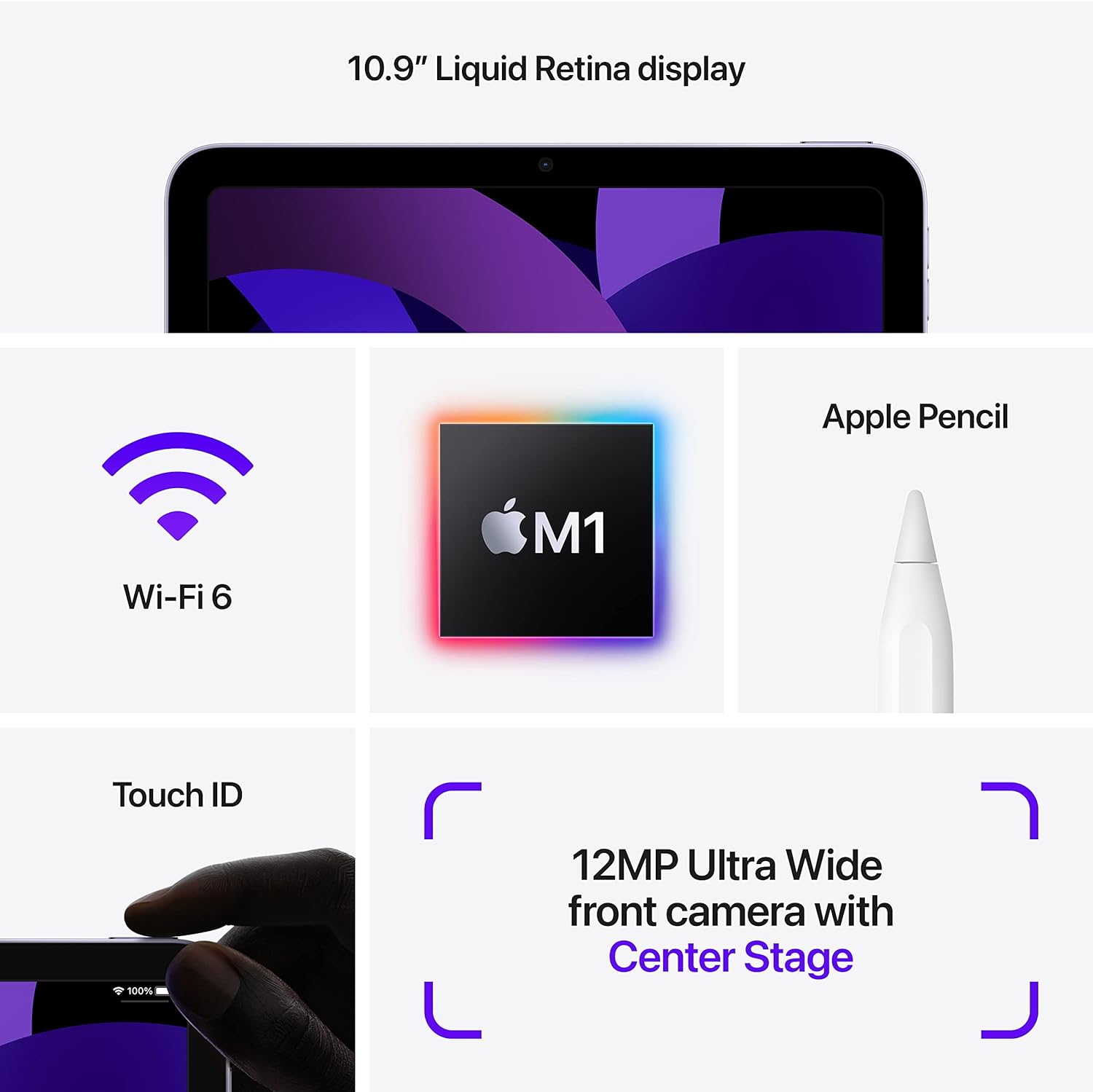
Image: Diagram highlighting key features including 10.9" Liquid Retina display, Wi-Fi 6, M1 chip, Apple Pencil support, Touch ID, and 12MP Ultra Wide front camera with Center Stage.
3. What's in the Box
Upon unboxing your Apple iPad Air 5th Gen, you should find the following items:
- Apple 10.9-inch iPad Air 5th Gen
- USB-C Charging Cable
Note: A USB-C Power Adapter may or may not be included depending on the specific package.

Image: Illustration showing the iPad Air, a USB-C Charge Cable, and a USB-C Power Adapter.
4. Setup
4.1 Initial Charge
Before first use, it is recommended to fully charge your iPad. Connect the provided USB-C charging cable to the iPad's USB-C port and plug the other end into a compatible USB-C power adapter (sold separately or included depending on package) or a computer's USB-C port.
4.2 Power On/Off
- To Power On: Press and hold the Top button until the Apple logo appears.
- To Power Off: Press and hold the Top button and either Volume button simultaneously until the power off slider appears. Drag the slider to power off.
4.3 Initial Configuration
Follow the on-screen instructions to set up your iPad. This includes selecting your language and region, connecting to a Wi-Fi network, setting up Touch ID, and signing in with your Apple ID. You can also restore data from a previous device or set up as a new iPad.
5. Operating Instructions
5.1 Navigating iPadOS
The iPad Air 5th Gen runs on iPadOS, offering an intuitive touch interface. Use gestures to navigate:
- Home Screen: Swipe up from the bottom edge of the screen.
- App Switcher: Swipe up from the bottom edge and pause in the middle of the screen.
- Control Center: Swipe down from the top-right corner of the screen.
- Notifications: Swipe down from the top-left corner of the screen.
5.2 Using Apple Pencil (2nd Gen)
The iPad Air 5th Gen supports the Apple Pencil (2nd generation) for drawing, note-taking, and marking up documents. To pair, attach the Apple Pencil magnetically to the right side of your iPad. It will automatically pair and charge.

Image: A person sketching on the iPad Air 5th Gen with an Apple Pencil.
The following video demonstrates the responsiveness of the Apple Pencil on the iPad Air 5th Gen:
Video: A user demonstrating writing and drawing on the iPad Air 5th Gen with an Apple Pencil.
5.3 Using Magic Keyboard
Attach the Magic Keyboard magnetically to the back of your iPad. The iPad will automatically connect and adjust its display angle. The Magic Keyboard provides a comfortable typing experience and a trackpad for precise control.
5.4 Multitasking
iPadOS supports various multitasking features:
- Split View: Open two apps side-by-side. Drag an app from the Dock or App Library to the side of the screen.
- Slide Over: Keep an app open in a smaller floating window over another app.
- Stage Manager: Organize apps and windows automatically, allowing you to resize, overlap, and group them.
5.5 Camera Usage
The iPad Air 5th Gen features a 12MP Wide rear camera and a 12MP Ultra Wide front camera with Center Stage. Open the Camera app to take photos, record videos, or use features like Panorama and Time-lapse. Center Stage automatically keeps you in the frame during video calls.
6. Maintenance
- Cleaning: Use a soft, lint-free cloth to clean the screen and exterior. Avoid abrasive materials or harsh chemicals.
- Software Updates: Regularly update iPadOS to the latest version to ensure optimal performance and security. Go to Settings > General > Software Update.
- Battery Care: To prolong battery life, avoid exposing the iPad to extreme temperatures. For long-term storage, charge the battery to about 50%.
- Storage Management: Periodically review and delete unnecessary files, apps, and media to free up storage space.
7. Troubleshooting
7.1 Device Not Responding
If your iPad is unresponsive, try a force restart:
- Press and quickly release the Volume Up button.
- Press and quickly release the Volume Down button.
- Press and hold the Top button until the Apple logo appears.
7.2 Wi-Fi Connectivity Issues
- Ensure Wi-Fi is enabled in Settings > Wi-Fi.
- Restart your Wi-Fi router.
- Forget the network and reconnect: Settings > Wi-Fi > [Network Name] > Forget This Network.
7.3 Battery Draining Quickly
- Check battery usage in Settings > Battery to identify power-consuming apps.
- Reduce screen brightness.
- Disable Background App Refresh for non-essential apps.
8. Specifications
| Feature | Detail |
|---|---|
| Model Name | iPad Air 5th Gen |
| Item Model Number | A2588 |
| Display Size | 10.9 Inches |
| Screen Resolution | 2360 x 1640 Pixels |
| Processor | Apple M1 Chip (3.2 GHz) |
| Flash Memory Size | 64 GB |
| Operating System | iPadOS (initially 15.4, upgradable) |
| Rear Webcam Resolution | 12 MP |
| Average Battery Life | 10 Hours |
| Item Weight | 1.02 pounds |
| Product Dimensions | 9.74 x 7.02 x 0.24 inches |
9. Warranty and Support
This Apple iPad Air 5th Gen is a Renewed Premium product. For specific warranty details and support, please refer to the documentation provided with your purchase or contact Amazon Renewed customer service. General Apple support resources can be found on the official Apple website.
For further assistance, visit the Apple iPad Support page.


