
1. Introduction
This manual provides detailed instructions for the setup, operation, maintenance, and troubleshooting of your KiiBoom Phantom 81 V3 Transparent Mechanical Gaming Keyboard. Please read this manual thoroughly to ensure proper use and to maximize your keyboard's performance.

Image: KiiBoom Phantom 81 V3 Transparent Mechanical Gaming Keyboard with RGB backlighting.
2. Package Contents
Verify that all items are present in the package:
- KiiBoom Phantom 81 V3 Mechanical Keyboard
- USB-C Cable
- Keycap Puller
- Switch Puller
- Extra Switches (2 units)
- User Manual (this document)
3. Setup
3.1 Connectivity Modes
The KiiBoom Phantom 81 V3 supports three connectivity modes: Wired (USB-C), 2.4GHz Wireless, and Bluetooth 5.0. You can switch between modes using the function (FN) key combinations.

Image: Diagram illustrating the three connectivity modes: 2.4G, Bluetooth, and Wired, with corresponding FN key combinations.
- Wired Mode: Connect the keyboard to your device using the provided USB-C cable. Press FN + 5 to activate wired mode.
- 2.4GHz Wireless Mode: Insert the 2.4GHz USB receiver into your device. Press FN + 4 to activate 2.4GHz mode. The keyboard will automatically connect to the receiver.
- Bluetooth Mode: The keyboard supports up to three Bluetooth devices. Press FN + 1, FN + 2, or FN + 3 to select a Bluetooth channel. The indicator light will flash, indicating pairing mode. On your device, search for 'KiiBoom Phantom 81 V3' and connect.
3.2 Initial Charging
Before first use, it is recommended to fully charge the keyboard. Connect the USB-C cable to the keyboard and a power source (e.g., computer USB port or wall adapter). The charging indicator light will show the charging status. The Phantom 81 V3 features an 8000mAh battery for extended use.
4. Operating Instructions
4.1 Basic Keyboard Functions
The KiiBoom Phantom 81 V3 is a 75% layout keyboard with 82 keys and a multi-functional knob. It is compatible with both Windows and Mac operating systems. Standard key functions operate as expected.
4.2 RGB Backlight Control
The keyboard features 16.8 million RGB backlights with south-facing LEDs. Use the following FN key combinations to control the lighting effects:
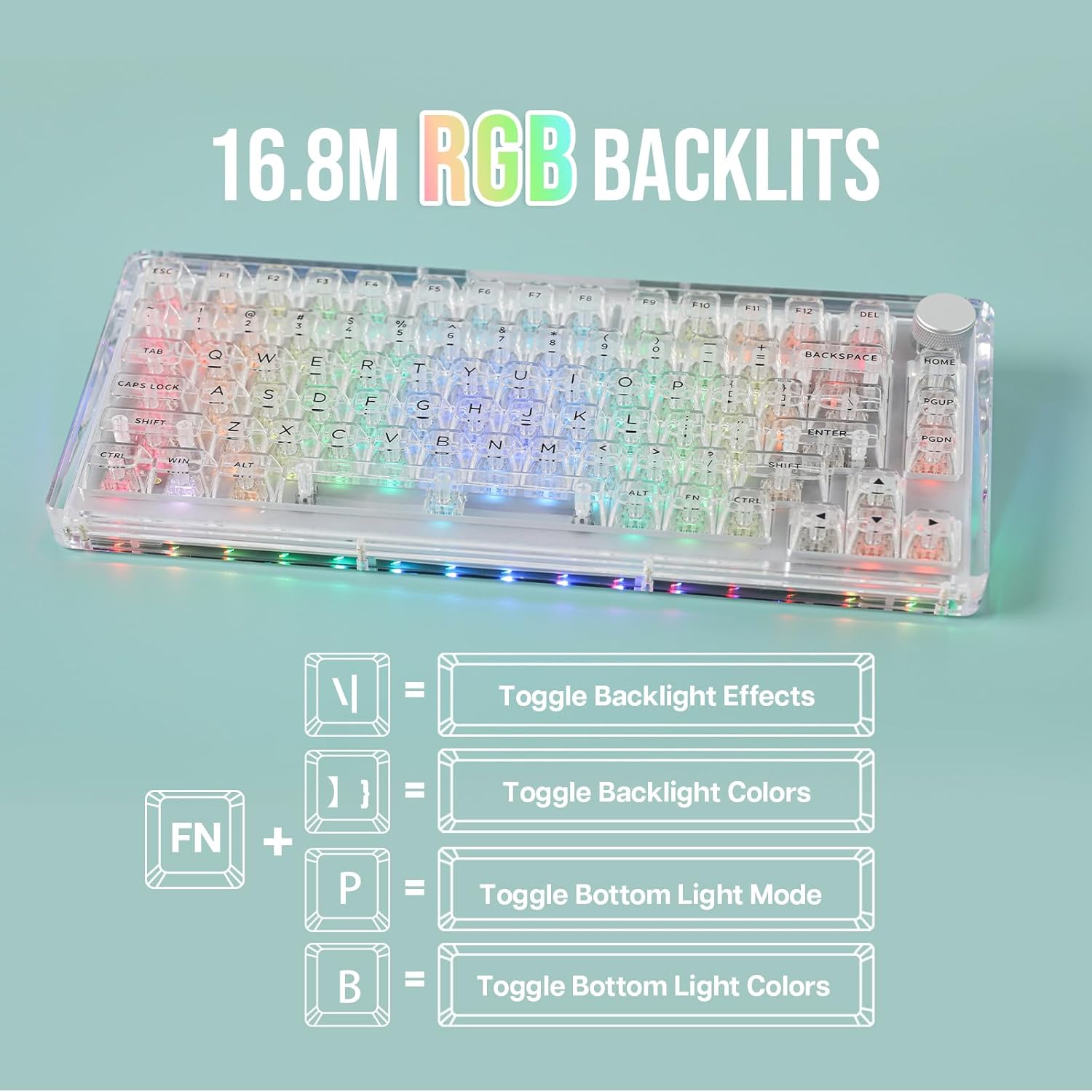
Image: Visual guide for RGB backlight control using FN key combinations.
- FN + \|: Toggle backlight effects.
- FN + ]}: Toggle backlight colors.
- FN + P: Toggle bottom light mode.
- FN + B: Toggle bottom light colors.
4.3 Software Programmable Features
Customize your keyboard experience using the dedicated KiiBoom software. The software allows for:

Image: Screenshot of the KiiBoom software interface showing options for key remapping, lighting effects, and macro creation.
- Keys Remap: Reassign functions to individual keys.
- Lights Effects: Fine-tune RGB lighting patterns and colors.
- Macro: Create and assign complex macros for enhanced productivity or gaming.
- Share Settings: Save and share your custom profiles.
Refer to the KiiBoom official website for software download and detailed instructions.
4.4 Battery Status Check
To check the current battery level, press FN + Backspace. The indicator lights on the keyboard will display the approximate battery percentage.
4.5 N-Key Rollover (NKRO)
The KiiBoom Phantom 81 V3 supports N-Key Rollover (NKRO), which means all keys can be registered simultaneously. This ensures that every keystroke is detected, even during rapid and complex typing or gaming sequences, preventing ghosting or missed inputs.
5. Maintenance
5.1 Cleaning
To clean your keyboard, disconnect it from all power sources. Use a soft, lint-free cloth to wipe down the acrylic frame and keycaps. For deeper cleaning, remove keycaps using the provided keycap puller and use compressed air to clear debris from between switches. Avoid using harsh chemicals or abrasive materials.
5.2 Switch and Keycap Replacement (Hot-Swappable)
The Phantom 81 V3 features a full-key hot-swappable PCB, allowing you to easily change switches without soldering. Use the included switch puller to carefully remove switches. Ensure new switches are 3-pin or 5-pin compatible and align correctly before pressing them into place. Use the keycap puller to remove and replace keycaps.

Image: A hand demonstrating the removal of a keycap and switch from the hot-swappable PCB of the KiiBoom Phantom 81 V3 keyboard.
6. Troubleshooting
- Keyboard not responding: Ensure the keyboard is charged. Check the connectivity mode (Wired, 2.4GHz, Bluetooth) and ensure it matches your device's connection. Try reconnecting the USB cable or re-pairing Bluetooth.
- RGB lights not working: Verify that the backlight is enabled using the FN key combinations. Check software settings if custom profiles are in use.
- Keys not registering: If specific keys are not working, try removing and re-inserting the switch for that key. Ensure the switch pins are not bent. If the issue persists, replace the switch with one of the included spare switches.
- Bluetooth connection unstable: Ensure the keyboard is within range of your device. Avoid interference from other wireless devices. Try unpairing and re-pairing the keyboard.
- 2.4GHz connection issues: Ensure the USB receiver is securely plugged in. Try a different USB port. Avoid placing the receiver near large metal objects that may cause interference.
7. Specifications

Image: Exploded view diagram of the KiiBoom Phantom 81 V3 showing its internal gasket structure components.
| Model | Phantom 81 V3 |
| Layout | 75% (82 Keys + 1 Knob) |
| Connectivity | Type-C Wired, Bluetooth 5.0, 2.4GHz Wireless |
| Switches | KiiBoom Crystal Linear Switch (Hot-Swappable) |
| Stabilizers | Plate-Mounted |
| Backlighting | 16.8M RGB, South-Facing LEDs |
| Battery Capacity | 8000mAh |
| Frame Material | Crystal-Clear Acrylic |
| Mounting Style | Gasket Mount with PC Plate |
| Compatibility | Windows, macOS, Gaming Consoles, Laptops, PCs, Smartphones, Tablets |
| Item Weight | 4.44 pounds (approx. 2.01 kg) |
| Package Dimensions | 16.45 x 10.79 x 2.91 inches |
8. Warranty and Support
KiiBoom products are designed for quality and durability. For specific warranty information regarding your Phantom 81 V3 keyboard, please refer to the warranty card included in your product packaging or visit the official KiiBoom website.
For technical support, troubleshooting assistance, or further inquiries, please visit the KiiBoom official support page or contact their customer service directly. You can find more information and resources on the KiiBoom Brand Store on Amazon.


