
TMEZON MZ-M710+MZ-D10
TMEZON WIFI Connected Video Intercom System User Manual
Model: MZ-M710+MZ-D10
1. Product Overview
The TMEZON WIFI Connected Video Intercom System provides a comprehensive solution for home security and communication. This system features a 7-inch touch screen monitor and a 1080P night vision doorbell, enabling two-way audio communication, remote unlocking via a smartphone app, and RFID card access.
Key functionalities include:
- 2-Wire Connection: Designed for easy integration into most European homes.
- APP Remote Control: Connects to 2.4G WiFi, allowing remote monitoring, communication, and unlocking via the TuyaSmart app.
- 7-Inch HD Touch Screen Monitor: Provides clear visuals and intuitive control with multiple menu styles.
- 1080P Night Vision Doorbell: Features a 126° wide-angle camera and built-in infrared sensor for clear day and night vision. IP65 weatherproof for outdoor installation.
- 3-in-1 Unlocking: Supports unlocking via RFID cards, the mobile app, and directly from the monitor.
- Automatic Recording: Captures snapshots or video recordings to a micro SD card (up to 256GB, not included) when visitors press the doorbell.
- Motion Detection: Sends notifications to your phone and records video/images when motion is detected near the doorbell.

Figure 1.1: TMEZON Video Intercom System components, including the indoor monitor, outdoor doorbell unit, RFID key fobs, and a smartphone demonstrating the mobile application's live view and control features.
2. Package Contents
Verify that all items are present in the package before proceeding with installation.
- 7-inch Touch Screen Monitor (MZ-M710)
- 1080P Night Vision Doorbell (MZ-D10)
- RFID Badges (8 included)
- Mounting Accessories
- Power Adapter
- User Manual

Figure 2.1: Front view of the product packaging, illustrating the main components of the TMEZON Video Intercom System.
3. Setup and Installation
3.1 Wiring Diagram
The system uses a 2-wire connection for communication between the indoor monitor and the outdoor doorbell. Ensure proper polarity and secure connections.
Note: Professional installation is recommended if you are unfamiliar with electrical wiring.
3.2 Monitor Installation
- Choose a suitable indoor location for the monitor, typically near the entrance or a central area.
- Mount the monitor bracket securely to the wall using the provided screws.
- Connect the 2-wire cable from the doorbell to the monitor's designated terminals.
- Connect the power adapter to the monitor and a power outlet.
- Attach the monitor to the mounted bracket.
3.3 Doorbell Installation
- Select an outdoor location for the doorbell, ensuring it is at an appropriate height for visitors and has a clear view.
- Mount the doorbell bracket securely to the wall.
- Connect the 2-wire cable from the monitor to the doorbell's terminals.
- Secure the doorbell unit to its bracket. The IP65 rating ensures weather resistance.

Figure 3.1: Product dimensions for the indoor monitor (236mm x 143mm) and outdoor doorbell (128mm x 57mm x 26mm), useful for planning installation space.
4. Operating Instructions
4.1 Initial Setup and Wi-Fi Connection
- Power on the monitor. The touch screen will display the main interface.
- Navigate to the settings menu on the monitor.
- Select "Network" or "Wi-Fi" settings.
- Connect the monitor to your 2.4GHz home wireless network. This is crucial for app functionality.
4.2 TuyaSmart App Integration
- Download the "TuyaSmart" app from your smartphone's app store (available on App Store and Google Play).
- Register or log in to your TuyaSmart account.
- In the app, add a new device and follow the on-screen instructions to pair it with your TMEZON intercom system. This typically involves scanning a QR code displayed on the monitor.

Figure 4.1: TuyaSmart app information and QR code for easy download. The app is essential for remote control features.
Download the TuyaSmart app: https://smartapp.tuya.com/tuyasmart
4.3 Answering Calls and Two-Way Audio
When a visitor presses the doorbell:
- The indoor monitor will ring and display the visitor's image.
- Your smartphone will receive a notification from the TuyaSmart app.
- From Monitor: Tap the "Answer" icon on the touch screen to initiate two-way audio.
- From App: Tap the notification to open the app and answer the call. For two-way audio via app, press the microphone icon to speak and release to listen.

Figure 4.2: Demonstrates the two-way audio feature, allowing conversation with visitors through the monitor.
4.4 Unlocking Methods
The system supports three methods for unlocking an electronic lock (if connected):
- App Unlock: From the TuyaSmart app, tap the "Unlock" icon during a call or live view.
- RFID Card Unlock: Present a registered RFID badge to the doorbell's RFID reader.
- Monitor Unlock: Tap the "Unlock" icon on the monitor's screen during a call.

Figure 4.3: Overview of the 3-in-1 unlocking capabilities of the system.
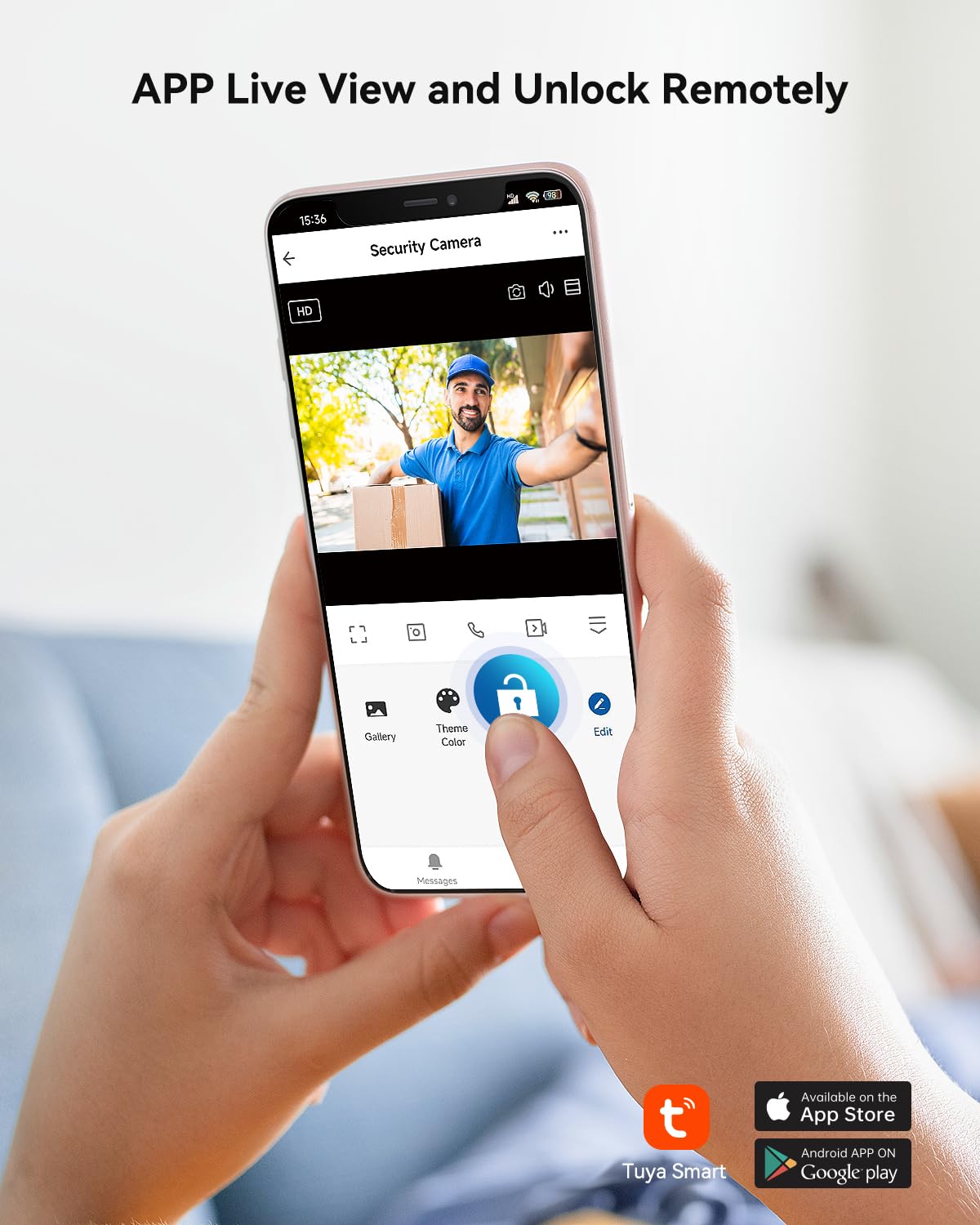
Figure 4.4: Remote unlocking via the TuyaSmart app, showing the live view and unlock button.
4.5 Motion Detection
The doorbell camera features smart motion detection. When motion is detected within its 126° wide-angle view:
- You will receive a notification on your smartphone via the TuyaSmart app.
- A video or image will be automatically saved to the inserted micro SD card.

Figure 4.5: Visual representation of the smart motion detection feature and its detection range.
4.6 Automatic Recording and Playback
The monitor supports a micro SD card (up to 256GB, not included) for storing recordings.
- When a visitor presses the doorbell, the camera automatically captures photos or videos.
- These recordings are saved to the micro SD card.
- You can view recorded events at any time through the monitor's playback function or via the TuyaSmart app on your smartphone.
- Important: Before installing, format the micro SD card to FAT32.

Figure 4.6: Demonstrates the video recording and playback functionality, highlighting the micro SD card slot.
4.7 Day and Night Vision
The 1080P doorbell camera provides clear visuals in various lighting conditions, automatically switching to infrared night vision in low light.

Figure 4.7: Comparison of day and night vision capabilities of the 1080P doorbell camera.
5. Maintenance
- Cleaning: Use a soft, dry cloth to clean the monitor screen and doorbell lens. Avoid abrasive cleaners or solvents.
- Firmware Updates: Periodically check for firmware updates via the TuyaSmart app or TMEZON's official website to ensure optimal performance and security.
- SD Card Management: Regularly back up important recordings from the micro SD card and format it periodically to maintain performance.
- Weather Protection: While the doorbell is IP65 weatherproof, ensure it is not directly exposed to extreme conditions like prolonged heavy rain or direct sunlight if possible, to extend its lifespan.
6. Troubleshooting
| Problem | Possible Cause | Solution |
|---|---|---|
| Monitor not powering on. | No power supply; faulty adapter. | Check power connection. Ensure adapter is plugged in and functional. |
| No image from doorbell. | Incorrect wiring; doorbell not powered; camera fault. | Verify 2-wire connections between monitor and doorbell. Check doorbell power. |
| No audio or poor audio quality. | Microphone/speaker obstruction; wiring issue; app settings. | Ensure no obstructions. Check wiring. Adjust volume settings on monitor/app. |
| App cannot connect to monitor. | Monitor not connected to Wi-Fi; incorrect Wi-Fi password; 5GHz network. | Ensure monitor is connected to 2.4GHz Wi-Fi. Re-enter Wi-Fi password. Restart monitor and router. |
| RFID cards not working. | Card not registered; incorrect card type (must be 125kHz). | Ensure RFID cards are properly registered with the system. Verify card frequency. |
| Recordings not saving to SD card. | SD card not inserted; card full; incorrect format; faulty card. | Insert SD card. Check storage. Format card to FAT32. Try a different SD card. |
7. Specifications
| Feature | Detail |
|---|---|
| Brand | TMEZON |
| Model Number | MZ-M710+MZ-D10 |
| Monitor Screen Size | 7 Inch |
| Doorbell Camera Resolution | 1080P HD |
| Doorbell Camera Angle | 126° Wide Angle |
| Connectivity | 2-Wire Wired, 2.4GHz Wi-Fi (for App) |
| Unlocking Methods | App, RFID Cards (125kHz), Monitor |
| Storage | Micro SD Card (up to 256GB, not included) |
| Special Features | Motion Detection, App Remote Access, Real-time Notifications, Night Vision |
| Doorbell Weather Resistance | IP65 |
| Voltage | 24 Volts |
| Item Weight | 1 kg 420 g |
| Package Dimensions | 29.7 x 19.6 x 10.4 cm |
8. Warranty and Support
8.1 Warranty Information
TMEZON products typically come with a manufacturer's warranty. Please refer to the warranty card included in your product packaging or contact TMEZON customer support for specific warranty terms and conditions.
8.2 Customer Support
For technical assistance, troubleshooting, or product inquiries, please contact TMEZON customer support through the following channels:
- Official Website: www.tmezon.com
- Technical Support Email: Support@Tmezon.com
- Social Media:

Figure 8.1: Product box back panel, showing manufacturer contact information and social media links.
Related documentsMZ-M710+MZ-D10


Ask a question about this manual
Ask about setup, troubleshooting, compatibility, parts, safety, or missing instructions. Manuals+ will review the question and use this page’s manual context to help answer it.