
Introduction
The Apple 240W USB-C Charge Cable (2m) is designed for efficient power delivery and data transfer between compatible USB-C devices. Featuring a durable braided design and USB-C connectors on both ends, this cable supports charging up to 240 watts and data transfer at USB 2 speeds. It is ideal for connecting your devices to a compatible USB-C power adapter for charging or for syncing data between devices.
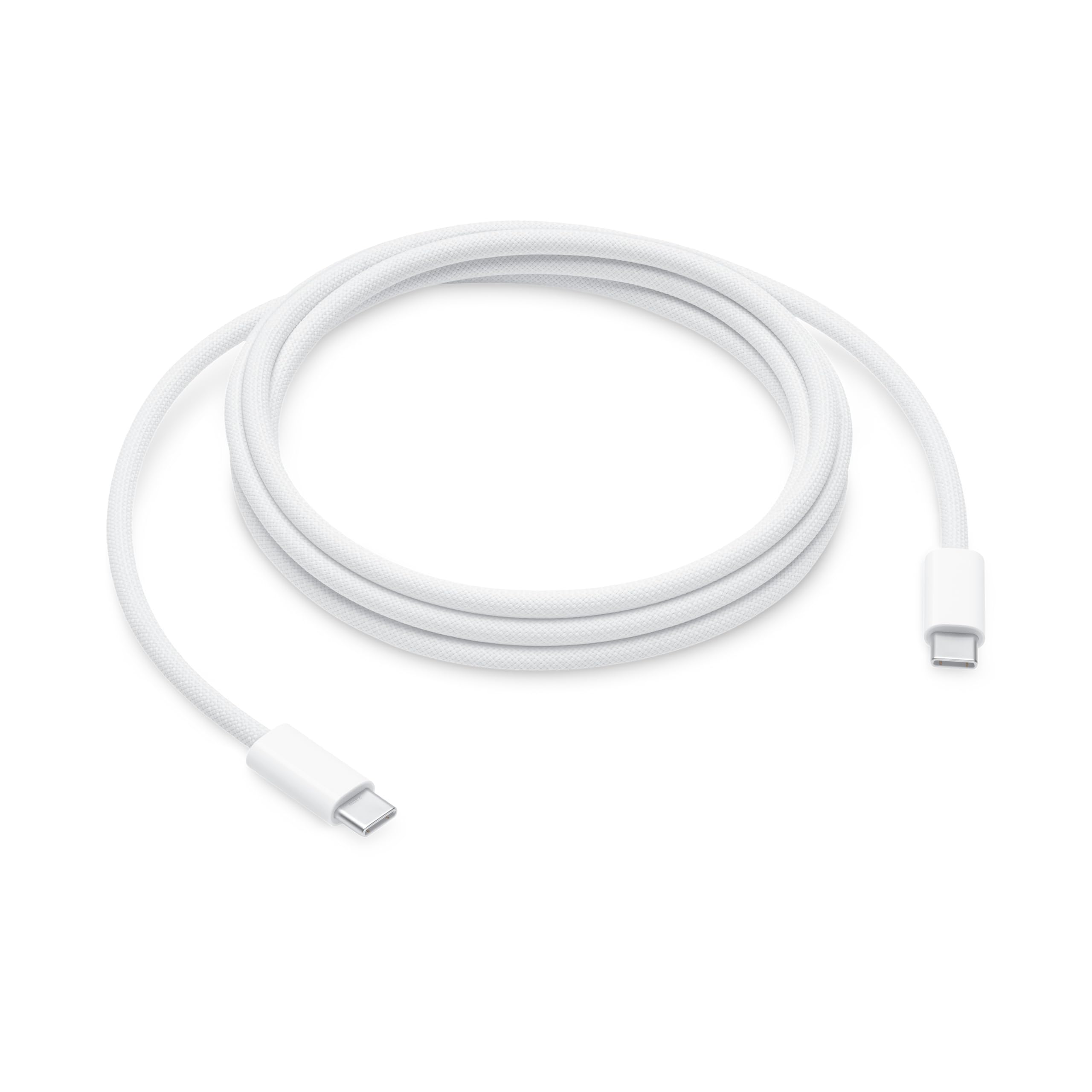
Image: The Apple 240W USB-C Charge Cable, showing its white braided exterior and USB-C connectors at each end.
Safety Information
- Do not expose the cable to liquids or extreme temperatures.
- Avoid bending or twisting the cable excessively, as this may damage internal wires.
- Keep out of reach of children.
- If the cable appears damaged, discontinue use immediately.
- Use only with compatible and certified USB-C power adapters and devices.
Package Contents
The package contains:
- One (1) Apple 240W USB-C Charge Cable (2m)
Setup
To set up your Apple 240W USB-C Charge Cable:
- Ensure you have a compatible USB-C power adapter (sold separately) and a device with a USB-C port.
- Connect one end of the Apple USB-C Charge Cable to the USB-C port on your power adapter.
- Connect the other end of the cable to the USB-C port on your device (e.g., laptop, tablet, smartphone).
- Plug the power adapter into a wall outlet. Your device should begin charging.
Note: A USB-C power adapter is required for charging and is sold separately. For optimal fast charging, use a power adapter that supports the wattage required by your device, up to 240W.
Operating
Charging Your Device
Once connected as described in the Setup section, the cable will facilitate power transfer from the USB-C power adapter to your device. This cable supports power delivery up to 240 watts, enabling fast charging for compatible devices.
Transferring Data
In addition to charging, this cable supports data transfer at USB 2 speeds. To transfer data:
- Connect one end of the cable to a USB-C port on your computer.
- Connect the other end of the cable to the USB-C port on your compatible device.
- Your computer should recognize the connected device, allowing you to transfer files and synchronize data.
Maintenance
Cleaning
To clean the cable, gently wipe it with a soft, dry, lint-free cloth. Do not use abrasive cleaners, solvents, or aerosol sprays, as these can damage the cable.
Storage and Handling
- Store the cable in a cool, dry place when not in use.
- Avoid tightly coiling the cable, especially near the connectors, to prevent strain.
- Always grasp the connector head when plugging or unplugging the cable, rather than pulling on the cable itself.
Troubleshooting
- Device not charging: Ensure both ends of the cable are securely connected. Verify that the power adapter is plugged into a working outlet and is compatible with your device's power requirements.
- Slow charging: Check if your power adapter supports fast charging and provides sufficient wattage for your device. Ensure your device also supports fast charging.
- Data transfer issues: Confirm that both devices are powered on and that the cable is properly connected. Try restarting both devices. Ensure your computer's operating system and drivers are up to date.
- Cable appears damaged: If the cable shows signs of fraying, exposed wires, or bent connectors, discontinue use immediately and replace it.
Specifications
| Feature | Detail |
|---|---|
| Brand | Apple |
| Connector Type | USB Type-C (on both ends) |
| Cable Type | USB |
| Cable Length | 2 meters (6.56 feet) |
| Power Delivery | Up to 240 Watts |
| Data Transfer Speed | USB 2 speeds |
| Special Feature | Fast Charging, Braided Design |
Warranty Information
Apple products are covered by a limited warranty. For detailed information regarding the warranty period, coverage, and terms and conditions for your Apple 240W USB-C Charge Cable, please refer to the warranty documentation included with your purchase or visit the official Apple support website.
Support
For further assistance, technical support, or to view frequently asked questions, please visit the official Apple Support website:
You can also contact Apple customer service directly through their website for personalized support.


