
Introduction
Thank you for choosing the Attoe Wireless Gaming Mouse. This device offers a versatile gaming and work experience with its transparent RGB mechanical design, tri-mode connectivity (2.4GHz wireless, Bluetooth, and wired USB-C), and convenient charging base. This manual provides detailed instructions for setup, operation, maintenance, and troubleshooting to ensure optimal performance.
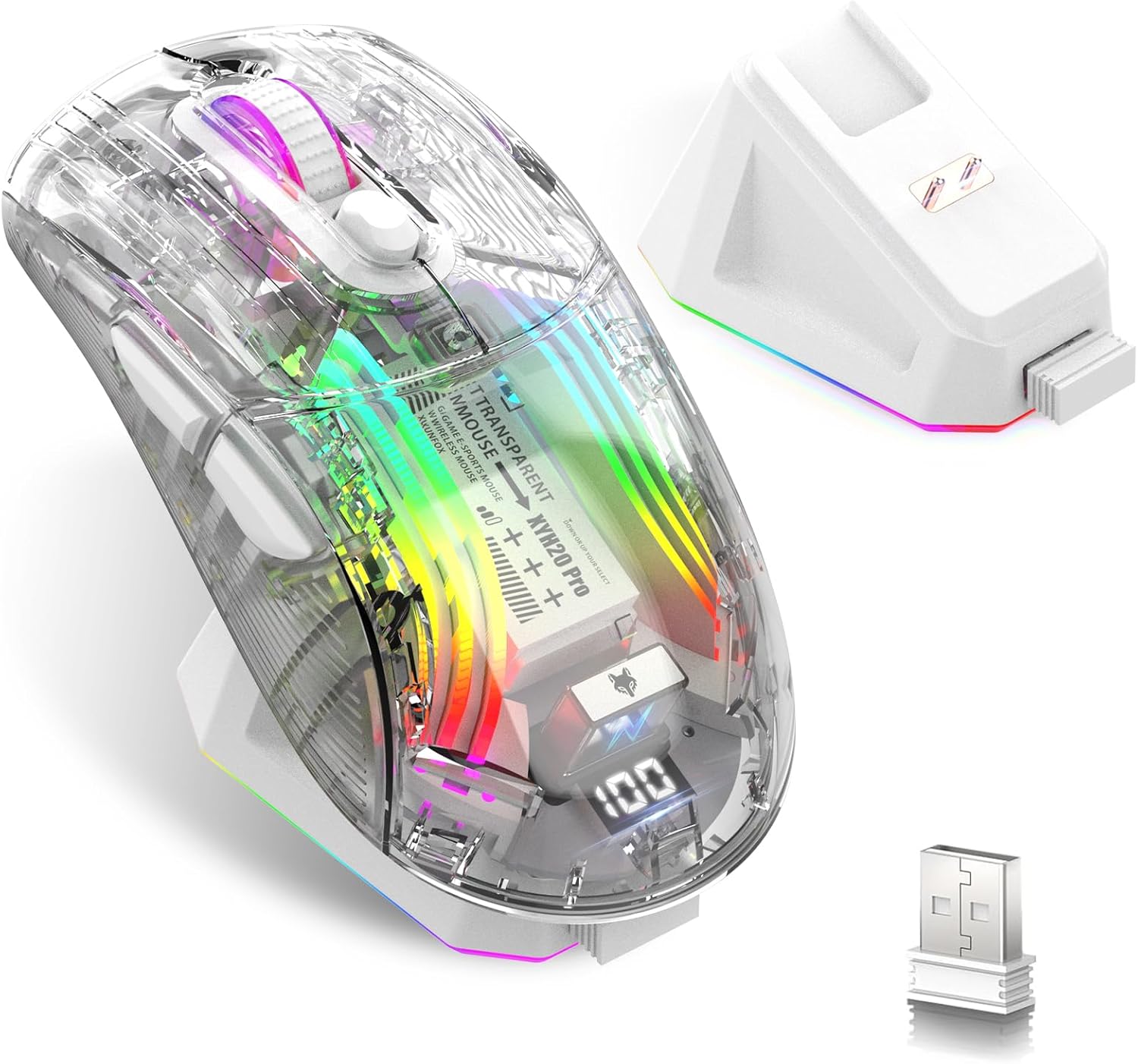
Image: Attoe Wireless Gaming Mouse, charging base, and USB receiver.
What's in the Box
- Wireless Gaming Mouse
- Charging base
- User manual
- TYPE-C cable
- USB receiver
Product Overview
Familiarize yourself with the components and controls of your Attoe Wireless Gaming Mouse.

Image: Detailed diagram showing mouse components including buttons, switches, and ports.
- Left Button
- Right Button
- Scroll Button
- DPI Button
- Forward Button
- Back Button
- USB Receiver
- Light Switch (bottom)
- Receive Bin (for USB receiver)
- Modes Switch (bottom)
- Charging Port (Type-C)
Setup
1. Charging the Mouse
Before first use, fully charge the mouse. The mouse features a 500mAh rechargeable battery.
- Using the Charging Base: Place the mouse onto the magnetic charging base. The base will illuminate, indicating charging. The light will turn off after approximately 10 minutes if the mouse is fully charged or if left idle.
- Using the Type-C Cable: Connect the provided Type-C cable to the mouse's charging port (11) and to a USB power source.

Image: Mouse on charging base, connected via Type-C cable.
The mouse features a digital display at the rear, showing the current power level. This allows you to monitor the battery status at any time.

Image: Close-up of the mouse's digital power display.
2. Connecting the Mouse (Tri-Mode)
The mouse supports three connection modes: 2.4GHz Wireless, Bluetooth, and Wired USB-C. Use the Modes Switch (10) on the bottom of the mouse to select your desired connection type.
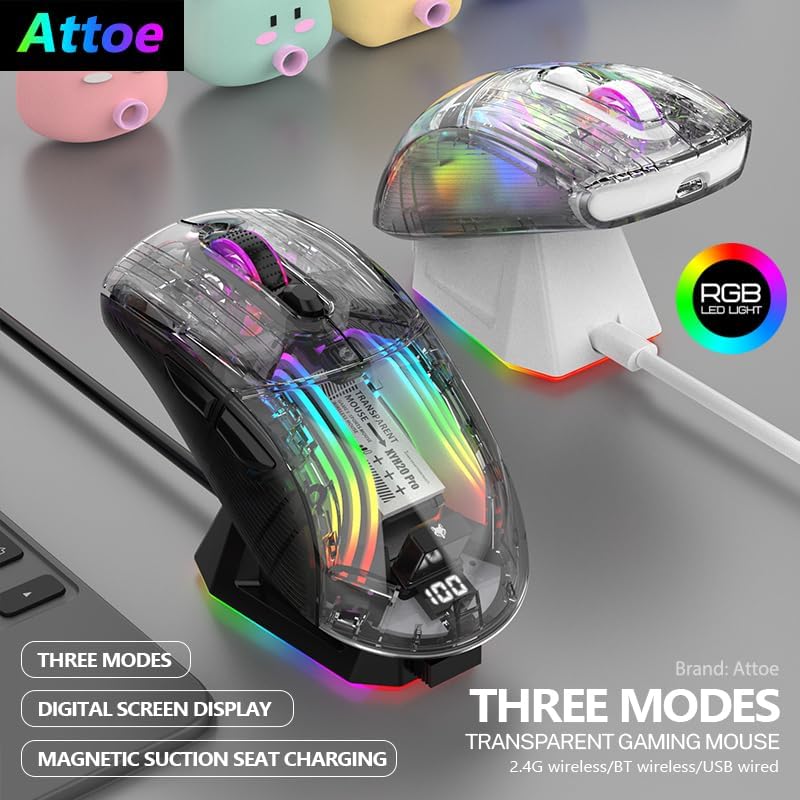
Image: Two Attoe mice (black and white) illustrating the three connection modes.
2.1. 2.4GHz Wireless Mode
- Locate the USB receiver (7) stored in the receive bin (9) on the bottom of the mouse.
- Plug the USB receiver into an available USB port on your computer.
- Set the Modes Switch (10) on the bottom of the mouse to the 2.4GHz wireless icon.
- The mouse should connect automatically.
2.2. Bluetooth Mode
- Set the Modes Switch (10) on the bottom of the mouse to the Bluetooth icon.
- On your computer or device, open Bluetooth settings and search for new devices.
- Select "Attoe Gaming Mouse" (or similar name) from the list of available devices to pair.
2.3. Wired USB-C Mode
- Connect the provided Type-C cable to the mouse's charging port (11) and to a USB port on your computer.
- The mouse will automatically switch to wired mode and begin charging.
Operating Instructions
1. Power On/Off
The mouse powers on automatically when connected via wired mode or when a wireless mode is selected. To turn off the mouse, switch the Modes Switch (10) to the 'OFF' position (usually the middle position).
2. DPI Adjustment
Press the DPI Button (4) to cycle through different DPI sensitivity levels. The mouse supports 5 steps of DPI, ranging from 800 to 2400 DPI, allowing you to adjust cursor speed to your preference.
3. RGB Lighting Control
The mouse features various RGB lighting effects. To adjust or turn off the lighting:
- Change Lighting Mode: Short press the Light Switch (8) on the bottom of the mouse to cycle through different RGB lighting effects.
- Turn Off Lighting: Long press the Light Switch (8) for 3 seconds to turn off the RGB lighting. Repeat the long press to turn it back on.

Image: Transparent shell of the mouse showcasing the internal RGB lighting.
4. Silent Click Buttons
The mouse is designed with silent click buttons, providing a quiet user experience suitable for various environments without disturbing others.

Image: Visual representation of the mouse's quiet click functionality.
Maintenance
- Cleaning: Use a soft, dry cloth to clean the mouse. Avoid using harsh chemicals or abrasive materials.
- Battery Care: To prolong battery life, avoid fully discharging the mouse frequently. Charge the mouse when the digital display indicates a low power level.
- Storage: When not in use for extended periods, store the mouse in a cool, dry place.
Troubleshooting
| Problem | Possible Cause | Solution |
|---|---|---|
| Mouse not responding | Low battery; Incorrect connection mode; USB receiver not plugged in (2.4GHz); Bluetooth not paired. | Charge the mouse; Ensure correct mode is selected (2.4GHz, BT, or Wired); Plug in USB receiver; Pair via Bluetooth. |
| Charging issues | Cable or charging base not properly connected; Faulty cable/base. | Ensure secure connection; Try a different USB port or power adapter; Contact support if issue persists. |
| RGB lighting not working or flickering | Lighting turned off; Software conflict (rare). | Short press the Light Switch (8) to cycle modes, long press to turn on/off; Restart computer. |
| Cursor movement is erratic or slow | Low battery; DPI setting too low; Dirty sensor; Uneven surface. | Charge the mouse; Adjust DPI using the DPI Button (4); Clean the optical sensor; Use on a smooth, opaque surface. |
Specifications
- Product Dimensions: 5 x 2.5 x 0.04 inches
- Item Weight: 9.2 ounces
- Connectivity Technology: Bluetooth, 2.4GHz Wireless, USB-C Wired
- Movement Detection Technology: Optical
- Special Features: 4-Way Scrolling, Ergonomic Design, LED Lights, Rechargeable, Wireless
- Battery: 500mAh Rechargeable
- DPI Settings: 5 steps (800-2400 DPI)
Warranty and Support
Attoe products are designed for reliability and performance. For warranty information or technical support, please refer to the contact details provided with your purchase or visit the official Attoe website. Keep your proof of purchase for warranty claims.
For further assistance, you may visit the Attoe Store on Amazon.