
1. Introduction
Thank you for choosing the Lecran DC403 Digital Camera. This compact and user-friendly camera is designed for capturing high-quality photos and videos, making it ideal for beginners, children, and teens. This manual provides detailed instructions to help you get started and make the most of your new camera.
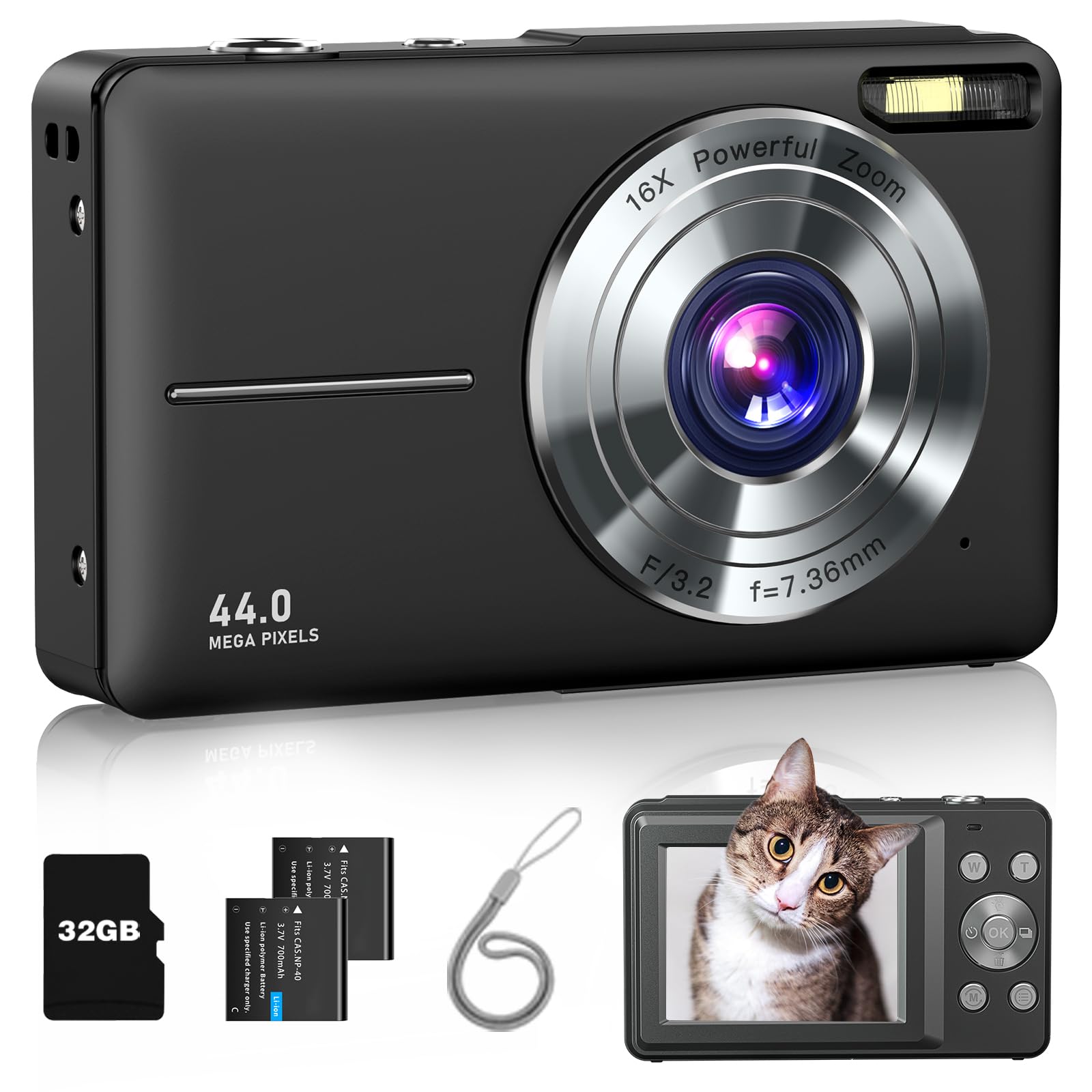
Image: The Lecran DC403 Digital Camera, a compact device designed for ease of use.
2. What's in the Box
Please check the package contents to ensure all items are present:
- 1x Lecran DC403 Digital Camera
- 1x 32GB Micro SD Card
- 2x Rechargeable Lithium-Ion Batteries
- 1x Lanyard
- 1x USB Type-C Cable
- 1x Charging Adapter
- 1x Carry Bag
- 1x User Manual

Image: All components included in the Lecran DC403 Digital Camera package.
3. Setup
3.1. Inserting the Battery
- Open the battery compartment cover located on the bottom of the camera.
- Insert a fully charged battery, ensuring the correct polarity.
- Close the battery compartment cover securely.
3.2. Inserting the Micro SD Card
- Locate the SD card slot, usually next to the battery compartment or on the side.
- Insert the 32GB Micro SD card with the metal contacts facing down until it clicks into place.
- To remove, gently push the card until it clicks out.
3.3. Charging the Battery
- Connect the camera to the charging adapter using the provided USB Type-C cable.
- Plug the adapter into a power outlet.
- The charging indicator light will illuminate. It will turn off or change color when fully charged.
3.4. Powering On/Off
- To power on, press and hold the power button until the screen lights up.
- To power off, press and hold the power button again until the screen shuts down.
3.5. Initial Settings (Date & Time)
Upon first use or after battery replacement, you may need to set the date and time. Navigate through the camera's menu using the directional buttons and 'OK' button to find the 'Date/Time' setting and adjust accordingly.
4. Operating the Camera
4.1. Taking Photos
- Turn on the camera.
- Frame your shot using the LCD screen.
- Press the Shutter button halfway to focus (if applicable), then press fully to take the picture.

Image: Front view of the Lecran DC403 Digital Camera.
4.2. Recording Videos
- Switch the camera to video mode (usually via a dedicated button or menu option).
- Press the Shutter button to start recording.
- Press the Shutter button again to stop recording.
4.3. 16X Digital Zoom
Use the W/T (Wide/Telephoto) buttons, typically located near the top right of the camera, to zoom in or out digitally. The camera features 16X digital zoom.

Image: Example of 16X Digital Zoom functionality.
4.4. Anti-Shake Function
The camera includes an anti-shake function to help reduce blur caused by camera movement, resulting in clearer photos. This feature can usually be toggled on or off in the settings menu.

Image: Demonstration of the Anti-Shake Function.
4.5. Self-Timer
The self-timer allows you to delay the shutter release by 2, 5, or 10 seconds, giving you time to get into the shot or stabilize the camera. Access this feature through the camera's menu.

Image: Self-Timer options (2s, 5s, 10s).
4.6. Fill Light
The camera features a built-in fill light to illuminate subjects in low-light conditions. This can be turned on or off via a dedicated button or menu setting.

Image: Fill Light function demonstration.
4.7. Filter Effects
Explore various filter effects (e.g., Normal, Black/White, Warm color, Cold color, Sepia, IR) to add creative touches to your photos. These can be selected from the camera's shooting mode menu.

Image: Examples of 16 Filter Effects.
4.8. Playback and Deleting Files
- Press the Playback button (often indicated by a triangle icon) to view your photos and videos.
- Use the directional buttons to navigate through your files.
- To delete a file, select it, press the Menu button, and choose the 'Delete' option. Confirm your selection.

Image: Back view of the Lecran DC403 Digital Camera, showing controls for playback.
4.9. USB Transfer and Webcam Function
- USB Transfer: Connect the camera to a computer using the USB Type-C cable. The camera will appear as a removable disk, allowing you to transfer photos and videos.
- Webcam Function: Some models support using the camera as a webcam when connected to a computer. Select the 'Webcam' option if prompted on the camera screen.

Image: Playback on camera and USB transfer to a computer.
4.10. Date Stamp
The camera can embed the date and time directly onto your photos. This feature can be enabled or disabled in the camera's settings menu.
5. Maintenance
5.1. Cleaning the Camera
- Use a soft, dry cloth to clean the camera body.
- For the lens, use a specialized lens cleaning cloth and solution. Avoid touching the lens with your fingers.
- Do not use harsh chemicals or abrasive materials.
5.2. Battery Care
- Store batteries in a cool, dry place when not in use.
- Avoid fully discharging the batteries frequently to prolong their lifespan.
- If storing for extended periods, charge batteries to about 50% capacity.
5.3. Storage
- Store the camera in its carry bag to protect it from dust and scratches.
- Keep the camera away from extreme temperatures, humidity, and direct sunlight.
6. Troubleshooting
| Problem | Possible Cause | Solution |
|---|---|---|
| Camera does not turn on. | Low or dead battery; incorrectly inserted battery. | Charge the battery; ensure battery is inserted correctly. |
| Photos are blurry. | Camera shake; dirty lens; subject too close/far. | Enable Anti-Shake function; clean the lens; ensure proper distance to subject. |
| Cannot save photos/videos. | SD card full; SD card error; no SD card inserted. | Delete old files; format SD card (will erase all data); insert SD card. |
| Battery drains quickly. | Frequent use of flash/screen; old battery. | Reduce screen brightness; limit flash use; replace battery if old. |
| Camera freezes. | Software glitch. | Remove and reinsert the battery to reset. |
7. Specifications
| Feature | Detail |
|---|---|
| Model Name | DC403 |
| Brand | Lecran |
| Effective Still Resolution | 44 MP |
| Video Resolution | 1080p (FHD) |
| Optical Zoom | 16.0 |
| Digital Zoom | 16X |
| Image Stabilization | Digital |
| Photo Sensor Technology | CMOS |
| Screen Size | 2.8 inches |
| Supported File Format | JPEG, MP4 |
| Memory Storage Capacity | 32 GB (Micro SD card included) |
| Battery Type | Lithium-Ion Polymer |
| Connectivity Technology | USB |
| Form Factor | Compact |
| Item Weight | 5.6 Ounces |
| Water Resistance Level | Not Water Resistant |
| Shooting Modes | Automatic, Shutter Priority, Time Lapse, Slow Motion, Continuous Shoot, Motion Detection, Face Detection, Self-timer, Webcam |
| Flash Modes | Auto, On/Fill, Off, Smile Capture |
8. Warranty Information
Lecran products are manufactured to high-quality standards. For specific warranty details, including coverage period and terms, please refer to the warranty card included in your product packaging or contact Lecran customer support directly. Keep your proof of purchase for warranty claims.
9. Customer Support
If you encounter any issues or have questions regarding your Lecran DC403 Digital Camera that are not covered in this manual, please contact our customer support team for assistance. You can typically find contact information on the product packaging, the official Lecran website, or through your retailer.
When contacting support, please have your product model (DC403) and purchase details ready.


