
1. Product Overview
This manual provides detailed instructions for the installation, operation, and maintenance of your Leadfan Car Stereo, designed specifically for 2008-2012 Subaru Forester, Impreza, and WRX models. This unit integrates advanced features such as wireless CarPlay, Android Auto, GPS navigation, and a backup camera to enhance your driving experience.
Key Features
- Compatibility: Designed for Subaru Forester Impreza WRX 2008-2012.
- Operating System: Android 12 with 2G RAM + 32G ROM storage.
- Wireless Connectivity: Supports Wireless Apple CarPlay and Android Auto via Bluetooth & WIFI.
- Display: 9-inch 2.5D IPS HD Touchscreen with Split Screen function.
- Navigation: Built-in GPS navigation system with support for offline and online maps.
- Multimedia: Bluetooth 5.1 for hands-free calls and audio streaming, FM Radio.
- Safety Features: Supports backup camera input with 170° wide-angle, IP68 waterproof, and night vision.
- Control: Steering Wheel Control (SWC) compatibility.
Package Contents
Verify that all items are present in the package:
- 1x Leadfan Car Touch Screen Radio Unit
- 1x Backup Camera
- 1x Rear View Input Cable
- 1x RCA Cable
- 2x USB Cables
- 1x Power Cable
- 1x Original USB Cable
- 1x GPS Antenna
- 1x User Manual
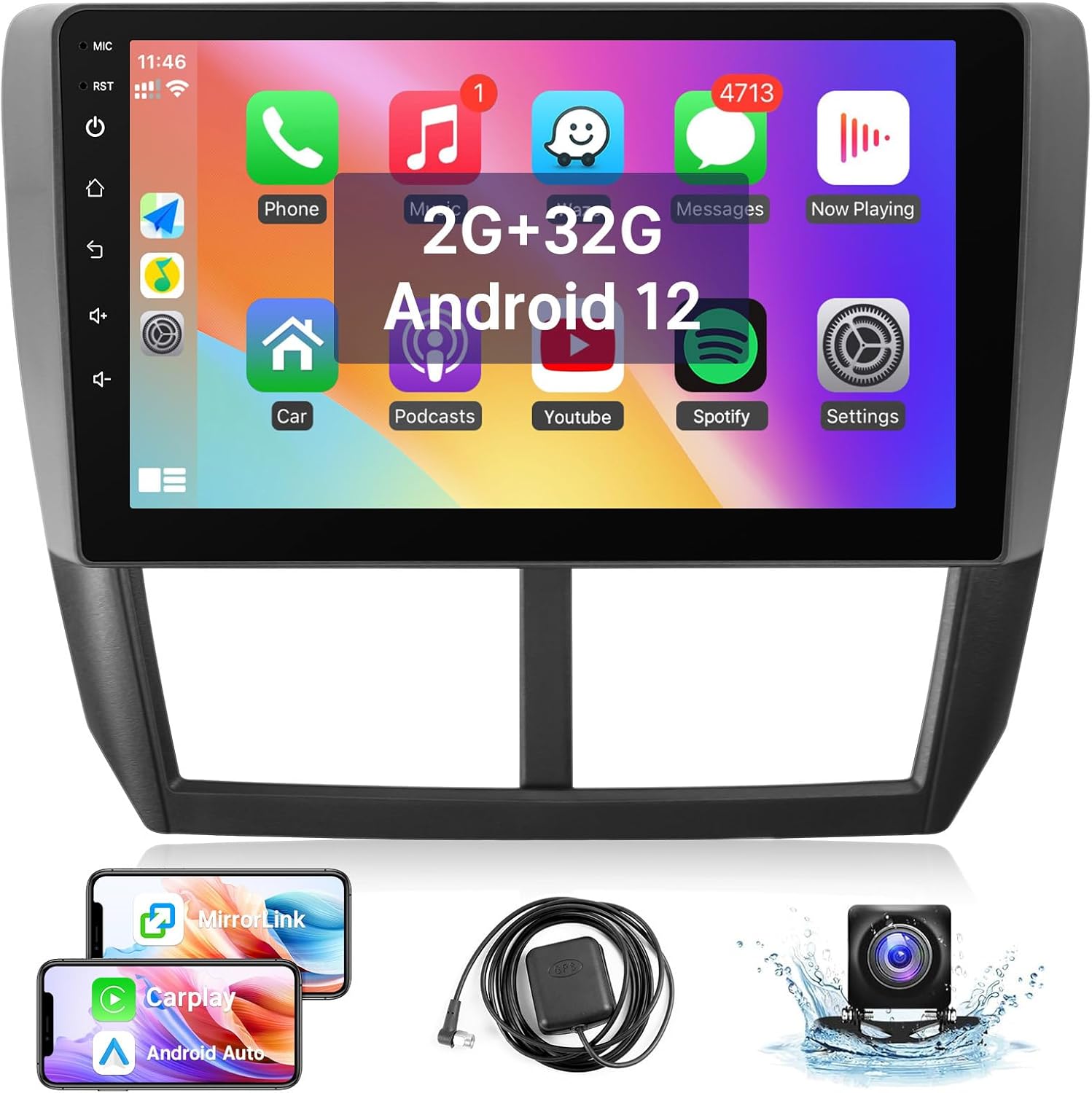
Image: Leadfan Car Stereo unit and its accessories, including the main display, backup camera, GPS antenna, and various connection cables.

Image: Detailed view of the car stereo's dimensions and a visual representation of all included cables and components, such as the power cable, USB cables, RCA cable, GPS antenna, and user manual.
2. Setup and Installation
Proper installation is crucial for the optimal performance of your new car stereo. It is recommended that installation be performed by a qualified professional.
2.1 Compatibility Check
This car stereo is designed for a perfect fit in Subaru Forester, Impreza, and WRX models from 2008 to 2012. Before installation, please verify your car's model, year, and the shape/size of your center console to ensure compatibility.

Image: Visual guide demonstrating the fit of the stereo in compatible Subaru Forester (2008-2012) and Impreza (2008-2011) dashboards, and examples of dashboards that are not compatible due to large screens or different radio configurations.
2.2 Wiring Diagram and Connections
Refer to the provided wiring harness and the diagram below for correct connections. The system is designed for plug-and-play installation with the included harness.
- Power Cable: Connect the main power harness to your vehicle's wiring.
- USB Cables: Connect the two USB cables for external device connectivity.
- RCA Cable: For audio/video input/output connections.
- GPS Antenna: Connect the GPS antenna and position it for optimal signal reception.
- Backup Camera Input: Connect the backup camera cable to the designated input. Ensure the pink wire from the power cable is connected to the reversing trigger cable for automatic display.

Image: Comprehensive diagram illustrating the connection points for the backup camera, including power, video input, and the trigger wire for reverse activation. It also shows two choices for camera wiring: roof wiring and under-seat wiring.
2.3 Physical Installation
- Carefully remove your existing car radio unit.
- Connect all necessary cables (power, speaker, antenna, USB, GPS, camera) to the new Leadfan unit.
- Mount the new car stereo securely into the dashboard opening.
- Reassemble the dashboard trim.
2.4 Initial Power On
After installation, turn on your vehicle's ignition. The car stereo should power on automatically. Follow any on-screen prompts for initial setup, such as language selection or time zone settings.
3. Operation Guide
This section details the various functions and features of your Leadfan Car Stereo.
3.1 Touchscreen Interface
The unit features a responsive 9-inch 2.5D IPS HD touchscreen. Navigate through menus and applications by tapping, swiping, and pinching. The intuitive Android 12 interface provides easy access to all functions.

Image: The 9-inch IPS HD touchscreen demonstrating its split-screen capability, allowing two applications, such as a music player and a navigation map, to be viewed and operated independently on the same screen.
3.2 Wireless CarPlay & Android Auto
Connect your smartphone wirelessly to access Apple CarPlay or Android Auto. This allows you to use phone functions like navigation, music, messages, and calls directly from the stereo's display.
- Connection: Enable Bluetooth and Wi-Fi on your phone and connect to the car stereo.
- Voice Control: Use voice commands (e.g., "Hey Siri" or "Hey Google") for hands-free operation.

Image: The car stereo screen displaying both Apple CarPlay and Android Auto environments, illustrating how smartphones connect wirelessly via Bluetooth and Wi-Fi, and showcasing examples of voice commands for navigation and communication.
3.3 Mirror Link Function
Mirror Link allows you to display your smartphone's screen directly onto the car stereo. iOS devices support wireless connection, while Android devices support both wireless and wired connections.

Image: A visual representation of the Mirror Link feature, where a smartphone's display is mirrored onto the car stereo screen. This image also highlights the GPS navigation, WIFI connectivity, and steering wheel control functionalities.
3.4 GPS Navigation
The built-in GPS system supports both offline and online maps, providing real-time navigation. You can download maps for offline use or connect to Wi-Fi for live traffic updates and online mapping services.

Image: The car stereo screen displaying a GPS navigation map, indicating support for both online and offline mapping. The image also includes a section illustrating the WIFI connection feature, showing various apps that can be downloaded.
3.5 WIFI Connectivity
Connect the car stereo to a Wi-Fi network or mobile hotspot to access online content, download applications, and receive software updates. This allows for a fully connected in-car experience.
3.6 Bluetooth 5.1
Utilize Bluetooth 5.1 for stable and high-quality wireless connections. You can make/receive hands-free calls and stream audio from your smartphone or other Bluetooth-enabled devices.

Image: A composite image highlighting the Bluetooth 5.1 capability with a chip graphic, the FM radio tuning interface, an illustration of steering wheel controls, and a clear view from the 1080P backup camera.

Image: A small icon representing Bluetooth connectivity.
3.7 FM Radio
Tune into your favorite FM radio stations. The intuitive interface allows for easy station scanning and saving presets.

Image: A small icon representing FM Radio functionality.
3.8 Steering Wheel Controls (SWC)
After correct wiring, you can program your vehicle's steering wheel buttons to control the car stereo, allowing for safer and more convenient operation while driving.
3.9 Backup Camera
The included backup camera provides a clear, wide-angle view (170°) of the area behind your vehicle. The display automatically switches to the camera view when reversing. It features IP68 waterproofing and night vision for optimal visibility in various conditions.

Image: A small icon representing Backup Camera functionality.
3.10 EQ Settings
Adjust the audio equalizer settings to customize your sound experience. Fine-tune bass, treble, and other audio parameters to match your preferences.

Image: A small icon representing EQ (Equalizer) settings.
4. Care and Maintenance
To ensure the longevity and optimal performance of your Leadfan Car Stereo, follow these maintenance guidelines:
- Cleaning: Use a soft, dry cloth to clean the screen and exterior. For stubborn smudges, slightly dampen the cloth with water. Avoid abrasive cleaners or solvents.
- Temperature: Avoid exposing the unit to extreme temperatures, direct sunlight for prolonged periods, or high humidity.
- Ventilation: Ensure that the ventilation openings are not blocked to prevent overheating.
- Connections: Periodically check all cable connections to ensure they are secure.
5. Troubleshooting
If you encounter issues with your car stereo, refer to the following table for common problems and their solutions. If the problem persists, please contact technical support.
| Problem | Possible Cause | Solution |
|---|---|---|
| Unit does not power on. | Loose power connection; Blown fuse. | Check all power cable connections. Inspect and replace any blown fuses in the vehicle or stereo wiring. |
| Screen is glitching or unit turns off unexpectedly. | Unstable power supply; Software issue; Loose wiring. | Ensure power connections are secure. Try a soft reset (power cycle the vehicle). If issues persist, consider a factory reset (refer to settings menu) or contact support for software updates. |
| Display has dim or broken pixels. | Hardware defect. | This indicates a potential hardware issue. Please contact technical support for assistance. |
| No sound or distorted audio. | Incorrect speaker wiring; Volume too low; Mute activated; Audio settings. | Check speaker connections. Increase volume. Ensure unit is not muted. Verify EQ and sound settings. |
| Bluetooth/CarPlay/Android Auto not connecting. | Bluetooth/Wi-Fi off on phone/unit; Pairing issue; Software glitch. | Ensure Bluetooth and Wi-Fi are enabled on both devices. Delete previous pairings and re-pair. Restart both phone and stereo. |
| Steering Wheel Controls not working. | Incorrect wiring; Not programmed. | Verify SWC wiring connections. Follow the instructions in the unit's settings menu to program the steering wheel buttons. |
6. Technical Specifications
| Specification | Detail |
|---|---|
| Model Number | B0DCBX65J7 |
| Operating System | Android 12 |
| Memory Storage Capacity | 32 GB (ROM) |
| RAM | 2 GB |
| Display Size | 9 Inches |
| Display Type | 2.5D IPS HD Touchscreen |
| Connectivity Technology | Bluetooth 5.1, Wi-Fi, USB |
| Special Features | Touchscreen, Android Auto, Bluetooth, CarPlay, GPS Navigation, MirrorLink, SWC, Backup Camera Support |
| Audio Output Mode | Stereo |
| Item Weight | 2.92 pounds |
| Package Dimensions | 11.85 x 11.06 x 3.9 inches |
7. Warranty and Support
Leadfan is committed to providing high-quality products and customer service. For any questions or technical assistance, please refer to the following support options:
- 30-Day Free Return: If you are not satisfied with your purchase, you may return it within 30 days.
- 12-Month Replacement: The product is eligible for a 12-month replacement for quality issues.
- Lifetime Technical Support: Receive ongoing technical support for the lifetime of the product.
- 24-Hour Response: Technical support inquiries will be answered within 24 hours.
How to Get Technical Support
If you require technical assistance, please follow these steps:
- Go to the product page on Amazon.
- Click on "Sold by Nideo" (or the current seller name).
- Click on "Ask a question" to send a message to the seller's technical support team.
- Provide photos or videos of the problem you are experiencing to help expedite the resolution.

Image: A visual guide demonstrating the process of contacting technical support through the Amazon platform, by navigating to the seller's page and using the "Ask a question" feature.


