
Introduction
This manual provides detailed instructions for the setup, operation, and maintenance of your TECKNET Wireless Headset HS004. This Bluetooth headset features a noise-cancelling microphone, dual device connectivity, and is designed for various communication needs, including calls, online meetings, and e-learning. Please read this manual thoroughly before using the product to ensure optimal performance and longevity.
Package Contents
Verify that all items are present in your package:
- TECKNET Wireless Headset HS004
- USB Dongle
- USB-C Charging Cable
- User Manual
Product Overview
Familiarize yourself with the components of your TECKNET Wireless Headset HS004.

Figure 1: TECKNET Wireless Headset HS004 and included USB dongle. This image shows the overall design of the headset, featuring an adjustable headband, an on-ear earcup, and a boom microphone.

Figure 2: Detailed view of the headset's controls. This image highlights the LED indicator, Volume Up button, Volume Down button, USB-C charging port, and the Multi-functional button located on the earcup.

Figure 3: Illustration of the microphone's 330-degree rotation capability. This feature allows the microphone to be positioned on either the left or right ear for user preference.
Setup
1. Charging the Headset
Before first use, fully charge the headset. Connect the USB-C charging cable to the headset's USB-C port and the other end to a USB power source (e.g., computer USB port, wall adapter). The LED indicator will show charging status. A full charge takes approximately 2 hours.
2. Powering On/Off
- Power On: Press and hold the Multi-functional button for approximately 3 seconds until the LED indicator flashes blue.
- Power Off: Press and hold the Multi-functional button for approximately 3 seconds until the LED indicator flashes red and then turns off.
3. Connecting via Bluetooth (for Mobile Devices)
- Ensure the headset is powered off.
- Press and hold the Multi-functional button for approximately 5-7 seconds until the LED indicator flashes red and blue alternately, indicating pairing mode.
- On your mobile device (smartphone, tablet), enable Bluetooth and search for available devices.
- Select "TECKNET HS004" (or similar name) from the list of devices.
- Once connected, the LED indicator will slowly flash blue.
4. Connecting via USB Dongle (for PC/Laptop)
- Plug the USB dongle into an available USB port on your computer.
- Power on the headset. It will automatically attempt to connect to the USB dongle.
- Once connected, the LED indicator on both the headset and the dongle will turn solid blue.
- You may need to select the headset as the default audio input/output device in your computer's sound settings.

Figure 4: The headset demonstrating dual device connectivity, simultaneously paired with a laptop via USB dongle and a smartphone via Bluetooth 5.2.
5. Dual Device Connection
The headset supports connecting to two devices simultaneously (e.g., a laptop via dongle and a smartphone via Bluetooth). After connecting to the first device, follow the Bluetooth pairing steps to connect to the second device. The headset will intelligently switch between devices for calls or media playback.
Operating Instructions
Basic Controls
| Button/Action | Function |
|---|---|
| Multi-functional Button (Press and Hold) | Power On/Off (3 seconds), Enter Pairing Mode (5-7 seconds) |
| Multi-functional Button (Single Press) | Answer/End Call, Play/Pause Music |
| Multi-functional Button (Double Press) | Redial Last Number |
| Volume Up Button (+) | Increase Volume |
| Volume Down Button (-) | Decrease Volume |
| Microphone Mute (Specific button or action) | Mute/Unmute microphone. Note: The mute function currently works only with mobile phones. |
Microphone Usage
The headset features a 330° rotatable microphone boom, allowing you to position it on either your left or right ear for optimal comfort and sound capture. The microphone is designed with noise-cancelling technology to reduce background distractions during calls.

Figure 5: The headset's microphone, illustrating its noise-cancelling capabilities by showing sound waves being focused.
Charging and Battery Life
The TECKNET Wireless Headset HS004 is equipped with a long-lasting battery. A full charge provides up to 20 hours of continuous talk time and up to 200 hours of standby time. Charging takes approximately 2 hours via the USB-C port.

Figure 6: Visual representation of the headset's battery performance: 20 hours talking time, 200 hours standby time, and 2 hours charging time.
Comfort and Fit
The headset is designed for extended wear with premium comfort features. It is ultra-lightweight (approximately 5.3 ounces) and features soft ear cups and an adjustable headband. The gripper T-pad ensures stability, while the skin-friendly ear pads contribute to lasting comfort during long calls or work sessions.
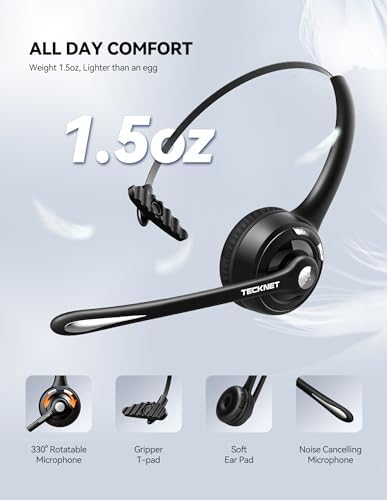
Figure 7: The headset emphasizing its lightweight design and comfort features, including a 330° rotatable microphone, gripper T-pad, soft ear pad, and noise-cancelling microphone.
Specifications
| Feature | Detail |
|---|---|
| Model Name | HS004 |
| Item Model Number | EBH01007BA02 |
| Connectivity Technology | Wireless (Bluetooth) |
| Wireless Communication Technology | Bluetooth 5.2 |
| Bluetooth Range | 10 Meters (33 feet) |
| Charging Time | 2 Hours |
| Battery Life (Talk Time) | Up to 20 Hours |
| Battery Life (Standby Time) | Up to 200 Hours |
| Compatible Devices | iPhones, smartphones, desktops, laptops, tablets, cellphones |
| Microphone | Noise Cancelling, 330° Rotatable |
| Weight | 5.3 ounces |
| Ear Placement | On Ear |
| Control Method | Touch (Multi-functional button, Volume buttons) |
Troubleshooting
If you encounter issues with your headset, refer to the following common solutions:
- Headset does not power on: Ensure the headset is fully charged. Connect it to a power source using the USB-C cable and allow it to charge for at least 30 minutes before attempting to power on again.
- Cannot pair with device:
- Ensure the headset is in pairing mode (LED flashing red and blue alternately).
- Make sure Bluetooth is enabled on your device and it is within 10 meters (33 feet) of the headset.
- Try turning off and on your device's Bluetooth, then re-attempt pairing.
- If previously paired, remove the headset from your device's Bluetooth list and try pairing again.
- No sound or poor sound quality:
- Check the volume levels on both the headset and your connected device.
- Ensure the headset is properly connected to your device (Bluetooth or USB dongle).
- If using the USB dongle, verify that the headset is selected as the default audio device in your computer's sound settings.
- Move closer to your connected device to ensure you are within Bluetooth range.
- Reboot both the headset and your connected device.
- Microphone not working:
- Ensure the microphone is not muted.
- Check that the microphone boom is positioned correctly towards your mouth.
- If using with a computer, verify that the headset microphone is selected as the default input device in your sound settings.
Maintenance
To ensure the longevity and optimal performance of your TECKNET Wireless Headset HS004, follow these maintenance guidelines:
- Cleaning: Use a soft, dry cloth to clean the headset. Avoid using harsh chemicals, cleaning solvents, or strong detergents.
- Storage: Store the headset in a cool, dry place away from direct sunlight and extreme temperatures.
- Charging: Do not overcharge the battery. Disconnect the charging cable once the headset is fully charged.
- Water Exposure: The headset is not water-resistant. Avoid exposure to water or excessive moisture.
- Handling: Handle the headset with care. Avoid dropping it or subjecting it to strong impacts.
Warranty and Support
TECKNET products are designed for reliability and performance. For warranty information and technical support, please refer to the official TECKNET website or contact their customer service. While specific warranty details are not provided in this manual, TECKNET generally offers support for their products.
For further assistance, visit the TECKNET Store on Amazon or contact TECKNET customer support directly.


