
HEANTLE de357c45-1f74-4326-b684-dacefa172da2
HEANTLE Smart Lock Front Door Instruction Manual
Model: de357c45-1f74-4326-b684-dacefa172da2
Brand: HEANTLE
1. Introduction
This manual provides comprehensive instructions for the installation, setup, operation, and maintenance of your HEANTLE Smart Lock Front Door. This smart lock offers multiple convenient entry methods, including fingerprint, IC card, passcode, physical key, and app control. It is designed for enhanced security and ease of use in residential environments.
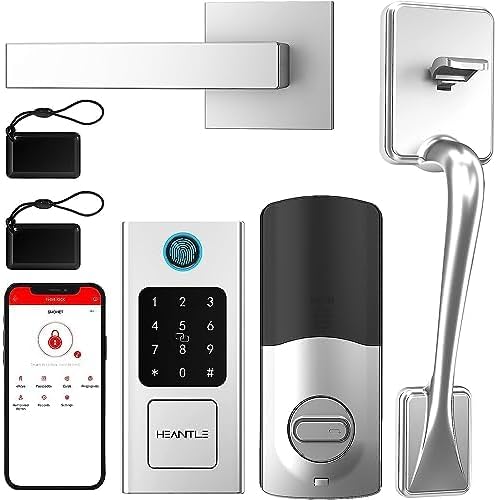
Image 1.1: Overview of HEANTLE Smart Lock components.
For optimal performance and safety, please read this manual thoroughly before installation and operation. Keep this manual for future reference.
2. Key Features
- Multiple Unlocking Methods: Fingerprint, IC Card/Fob, Passcode, Physical Key, and Smartphone App.
- Fast Biometric Recognition: Fingerprint unlock in approximately 0.3 seconds.
- High Capacity: Supports up to 250 fingerprints, 300 passcodes, and 1000 IC cards.
- Smart App Control: Manage access, generate temporary codes, and monitor lock status (optional gateway required for Wi-Fi remote access).
- Voice Assistant Integration: Compatible with Amazon Alexa and Google Assistant for voice control.
- Auto-Lock Function: Customizable automatic locking after a set duration (10-60 seconds).
- Anti-Peep Keypad: Enter random digits before or after your actual passcode to prevent onlookers from guessing your code.
- Emergency Power: USB-C port for temporary power supply in case of battery depletion.
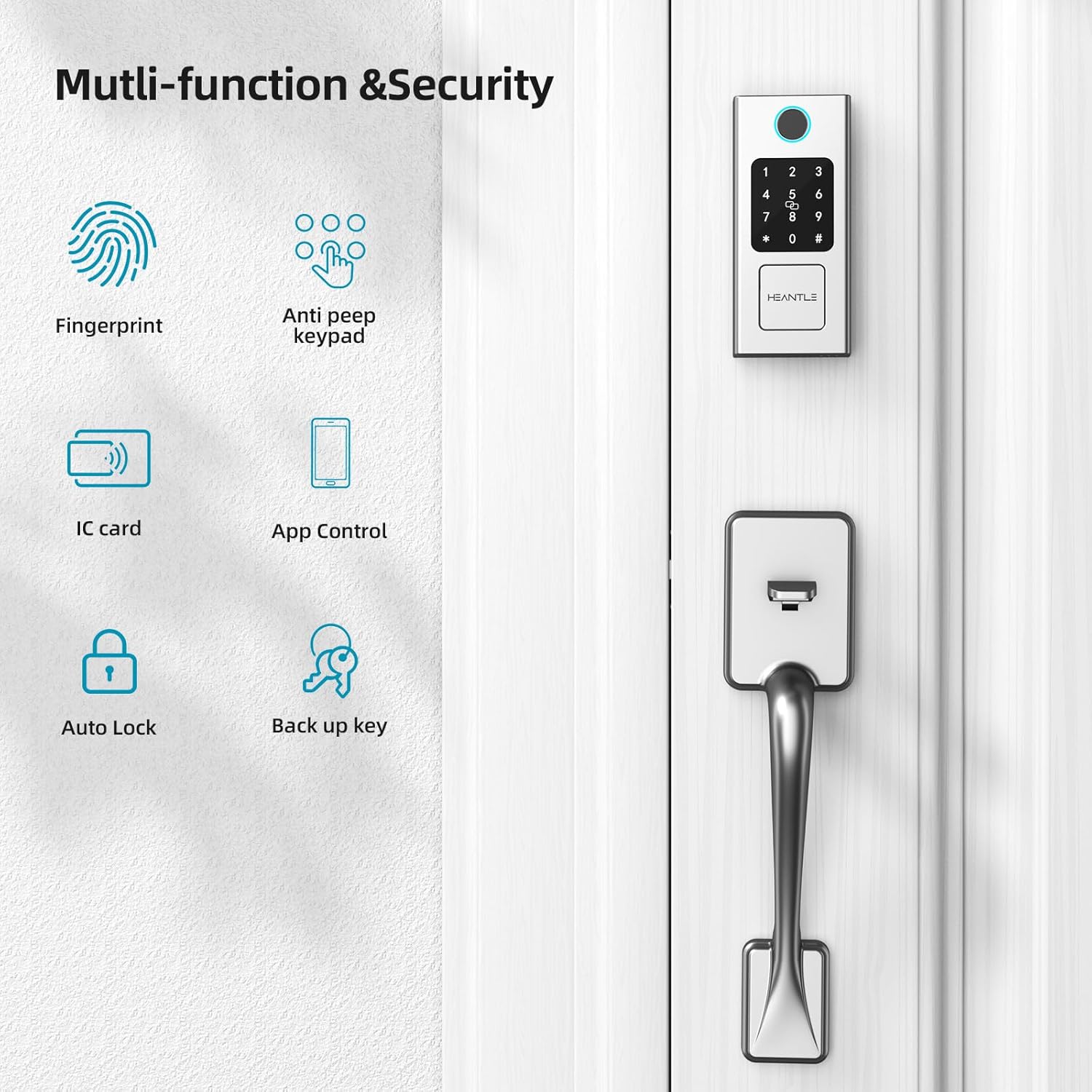
Image 2.1: Multi-function and security features of the smart lock.
3. Specifications
| Feature | Detail |
|---|---|
| Brand | HEANTLE |
| Model Number | de357c45-1f74-4326-b684-dacefa172da2 |
| Lock Type | Biometric, Keypad |
| Special Features | Auto-Lock, Fingerprint, Fob Unlock, Passcode Unlock, Touchscreen |
| Connectivity Protocol | Bluetooth (Wi-Fi with optional gateway) |
| Controller Type | Amazon Alexa, Google Assistant |
| Door Thickness Compatibility | 1.49"–1.88" (38mm-48mm) |
| Backset Compatibility | 2-3/8" or 2-3/4" (60mm or 70mm) |
| Item Weight | 5.39 pounds |
| Power Source | 4 x AA Batteries (not included) |
| Emergency Power | USB-C |
| Operating Temperature | -4°F to 158°F (-20°C to 70°C) |
| Water Resistance | IP63 rated |
4. Installation Guide
The HEANTLE Smart Lock is designed for easy installation on standard doors. A Phillips screwdriver is typically the only tool required. No additional drilling is needed for most standard door preparations.
4.1 Door Preparation
- Ensure your door thickness is between 1.49" and 1.88" (38mm-48mm).
- Verify your door's backset (distance from door edge to center of bore hole) is either 2-3/8" or 2-3/4" (60mm or 70mm).
- Confirm the bore hole diameter is 2-1/8" (54mm). If smaller, a hole saw may be required.
- Determine the door's handing (left or right) as the handle can be adjusted.
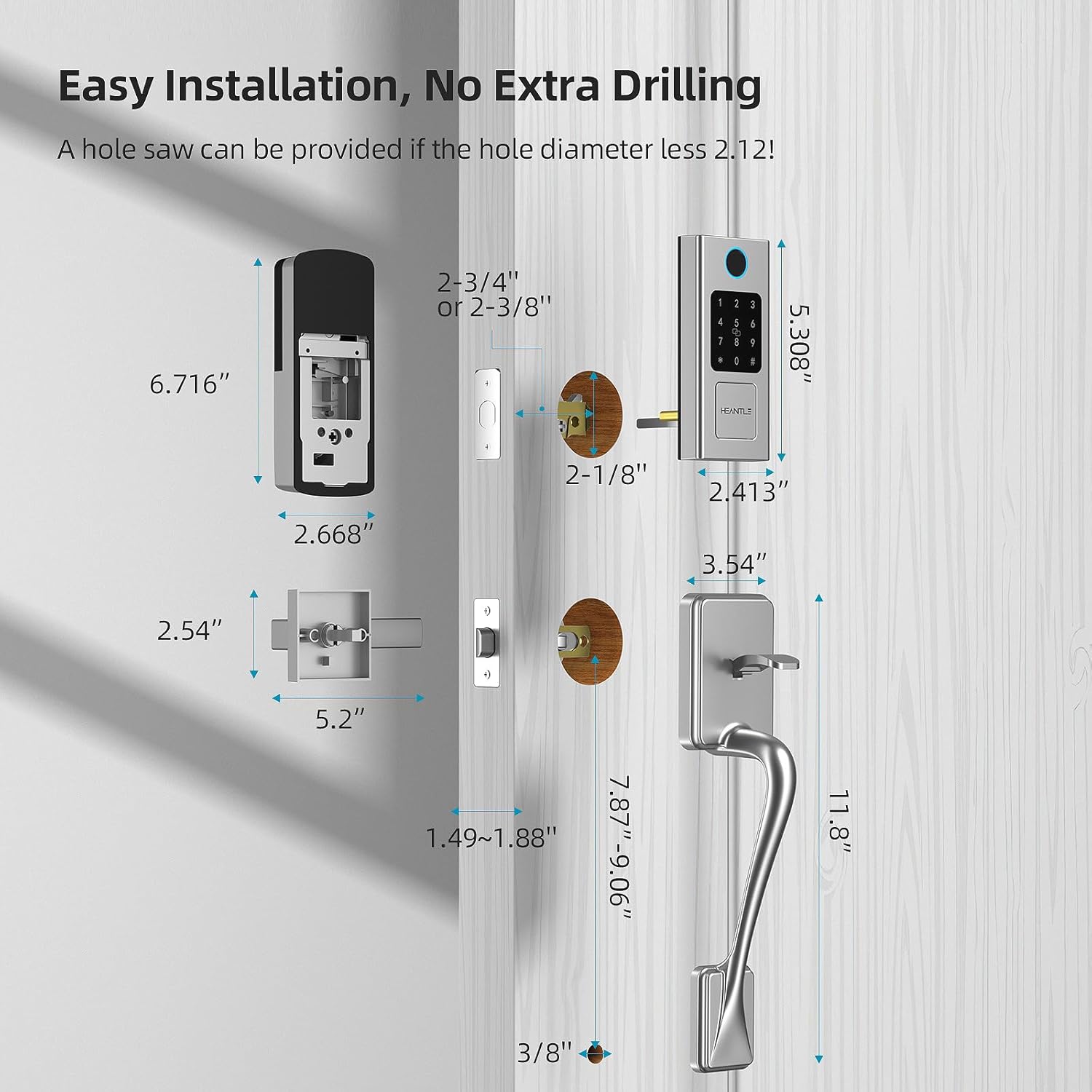
Image 4.1: Door and lock component dimensions for installation.

Image 4.2: The smart lock is suitable for both left and right-handed door opening directions.
4.2 Hardware Assembly
Follow the detailed instructions provided in the physical installation guide included with your product for step-by-step assembly. Generally, the process involves:
- Install the latch and strike plate.
- Mount the exterior keypad assembly.
- Install the interior mounting plate.
- Connect the cable from the exterior unit to the interior unit.
- Secure the interior unit to the mounting plate.
- Install the handle and deadbolt components.
- Insert 4 AA batteries (ensure correct polarity).
5. Initial Setup
5.1 App Download and Pairing
- Download the designated smart lock application from your smartphone's app store (e.g., Google Play Store or Apple App Store).
- Create an account and log in.
- Follow the in-app instructions to add your new smart lock. This typically involves enabling Bluetooth on your phone and bringing it close to the lock.
- Once paired, you will be prompted to set up an administrator passcode and fingerprint.
5.2 Administrator Setup
The first user registered will be the administrator. The administrator has full control over the lock, including adding/deleting users, managing access methods, and adjusting settings.
- Administrator Passcode: Set a strong, unique passcode for administrative access.
- Administrator Fingerprint: Register your fingerprint as the primary administrator.
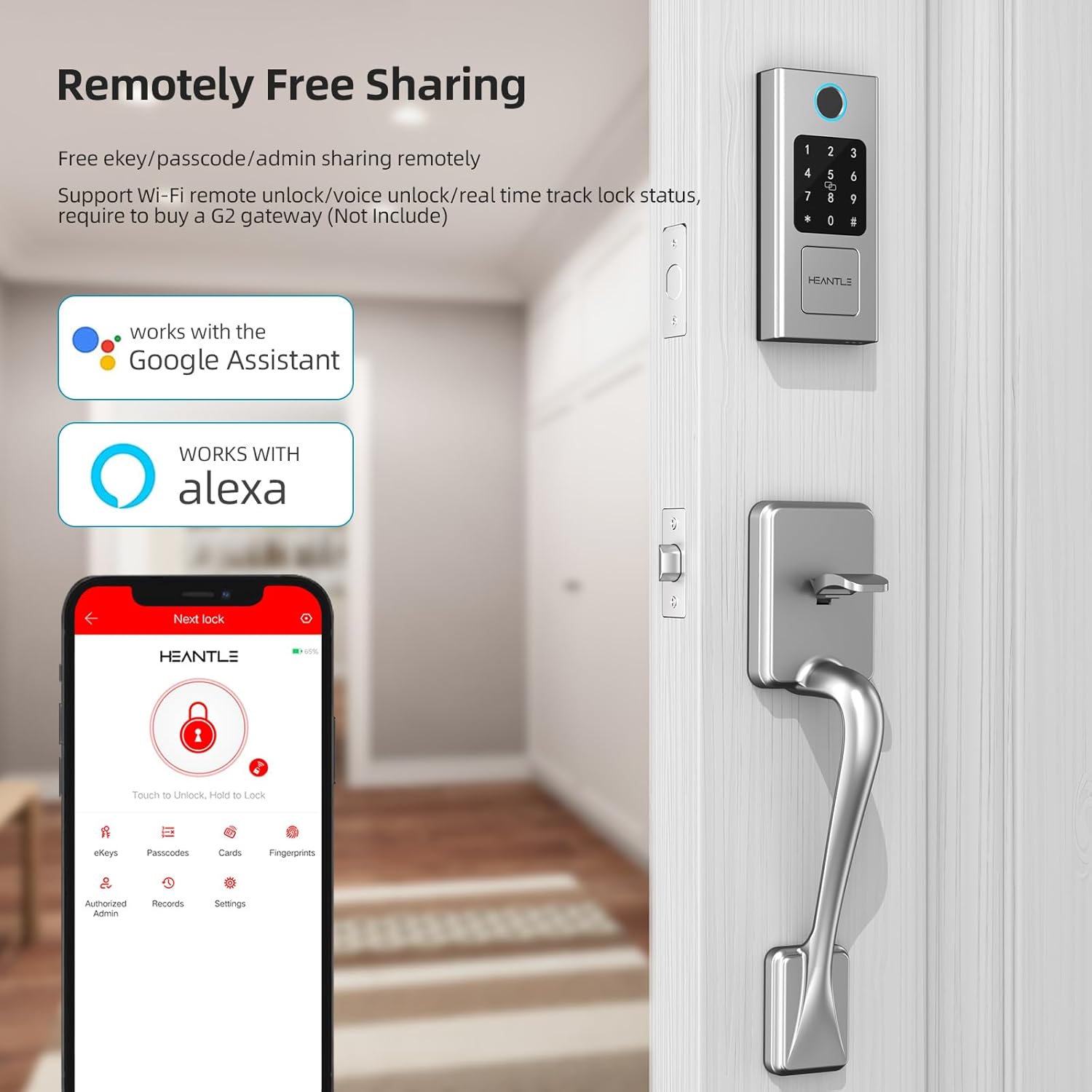
Image 5.1: App interface for remote sharing and management, compatible with Alexa and Google Assistant.
6. Operating Instructions
6.1 Fingerprint Unlock
Place your registered finger flat on the fingerprint sensor. The lock will unlock in approximately 0.3 seconds if the fingerprint is recognized.
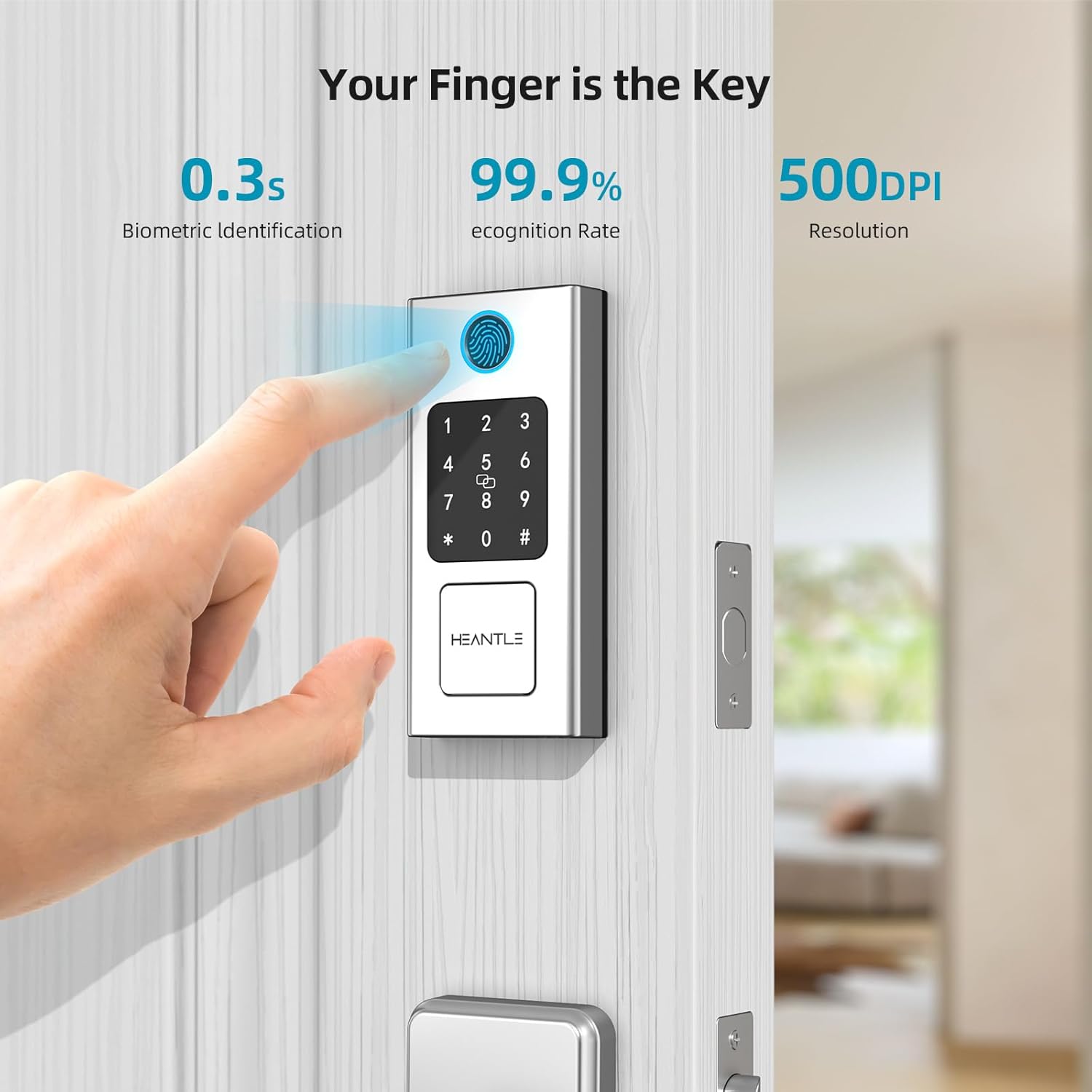
Image 6.1: Fingerprint recognition for quick unlocking.
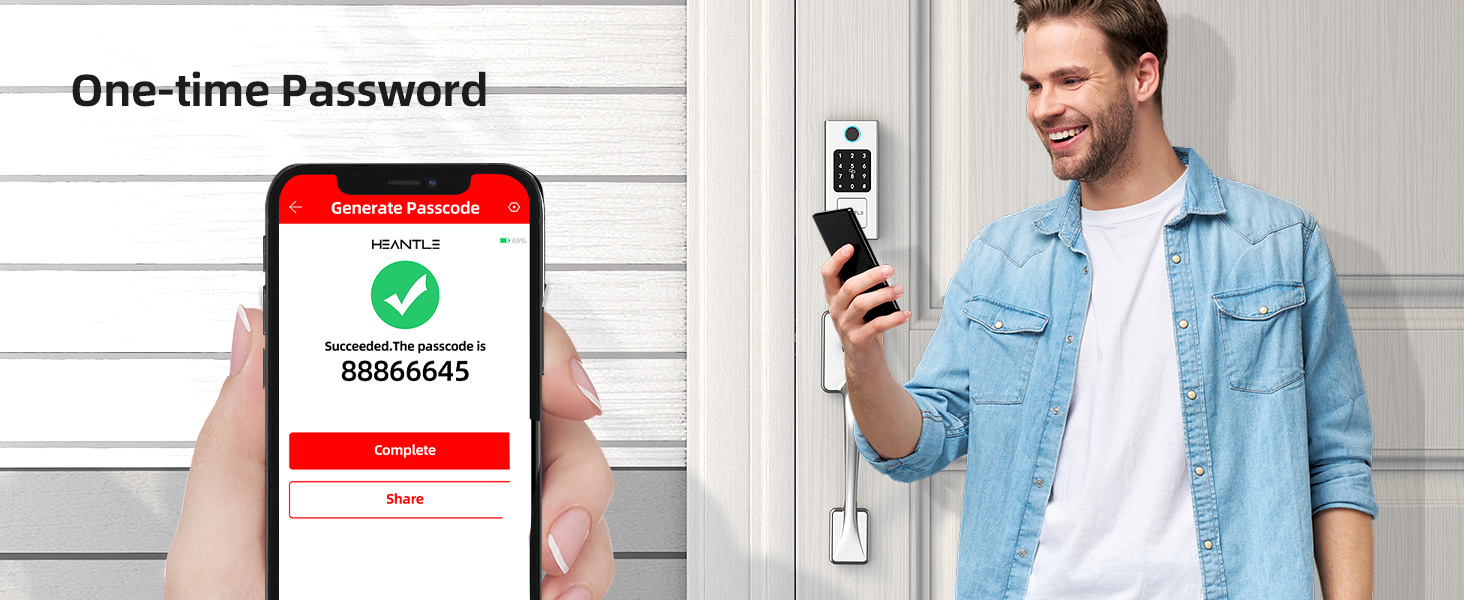
Image 6.2: The lock supports over 100 fingerprints for quick access.
6.2 Passcode Unlock
Enter your registered passcode on the keypad, followed by the '#' key. The lock will unlock if the passcode is correct.
- Anti-Peep Function: To prevent others from seeing your code, you can enter any random digits before and after your actual passcode. For example, if your passcode is 123456, you can enter 987123456321#. The lock will still recognize the correct sequence.
- One-Time Passcodes: Generate temporary passcodes via the app for guests or service providers. These codes can be time-limited or single-use.
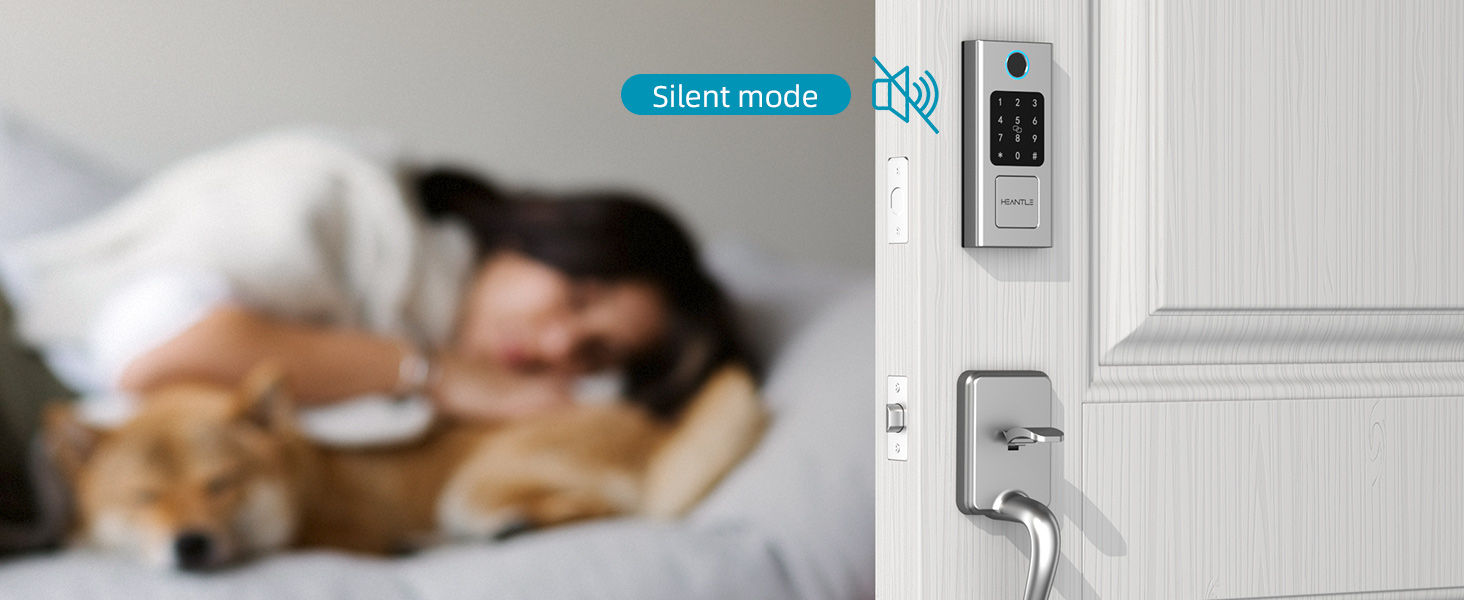
Image 6.3: Anti-Peep touchscreen keypad for enhanced security.
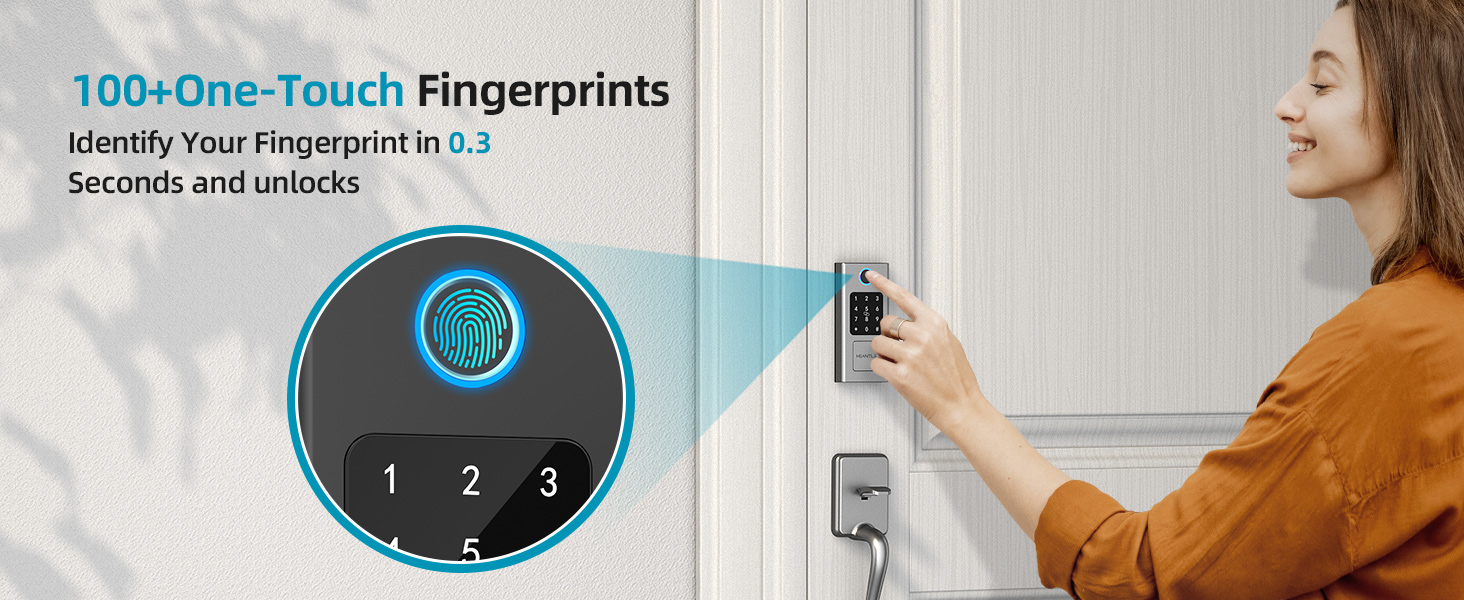
Image 6.4: Generating a one-time password via the app.
6.3 IC Card/Fob Unlock
Present a registered IC card or fob to the designated sensor area on the lock's exterior unit. The lock will unlock upon successful recognition.
6.4 Physical Key Unlock
In case of battery failure or electronic malfunction, use the provided physical key to manually unlock the deadbolt. Insert the key into the keyhole and turn to unlock.
6.5 App Control
The smartphone app allows for comprehensive control and management of your smart lock.
- Remote Unlock/Lock: Unlock or lock your door from anywhere using the app (requires optional Wi-Fi gateway).
- User Management: Add, modify, or delete fingerprints, passcodes, and IC cards for various users.
- Access Logs: View a history of who entered and when.
- Auto-Lock Settings: Customize the duration after which the lock automatically engages (10-60 seconds).

Image 6.5: Auto-lock feature for convenience and security.
6.6 Voice Control (Alexa/Google Assistant)
Integrate your HEANTLE Smart Lock with Amazon Alexa or Google Assistant for hands-free voice control. Follow the instructions in your smart home app (Alexa app or Google Home app) to link your HEANTLE account and enable voice commands.
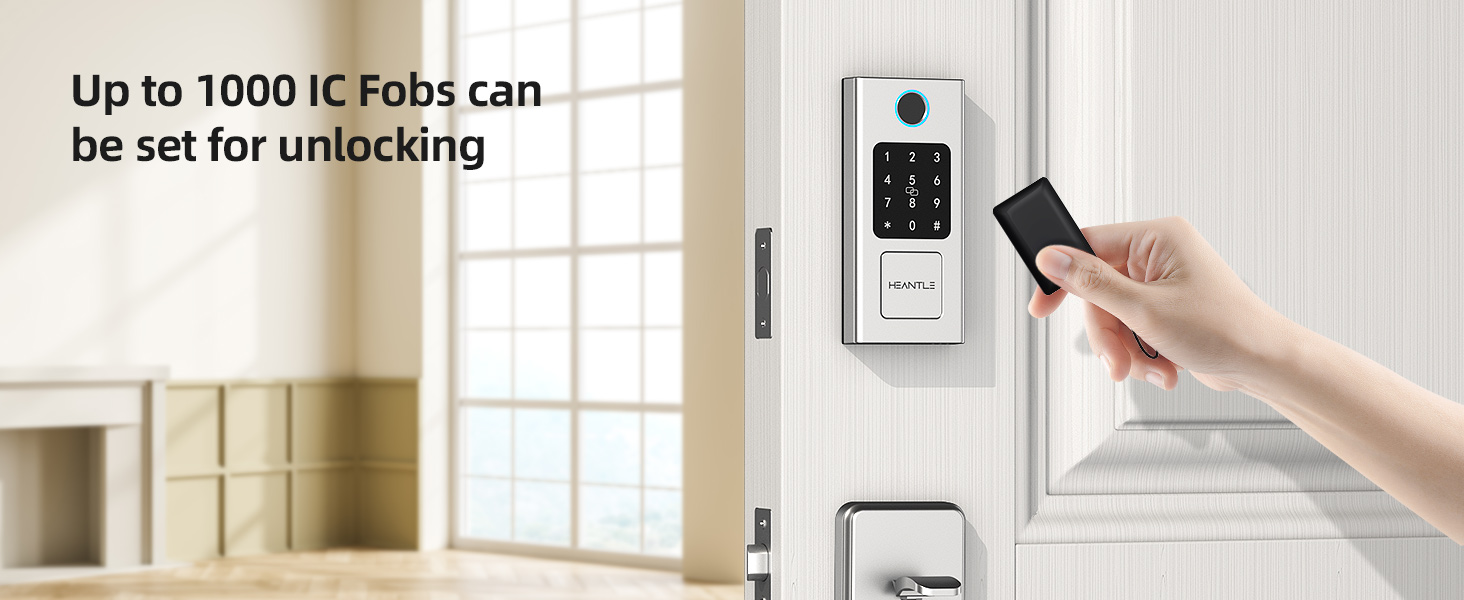
Image 6.6: Voice control unlock via Google Assistant and Alexa.
7. Advanced Features
7.1 Silent Mode
Enable silent mode through the app to disable all sound prompts from the lock. This is useful for quiet environments or late-night entries/exits.
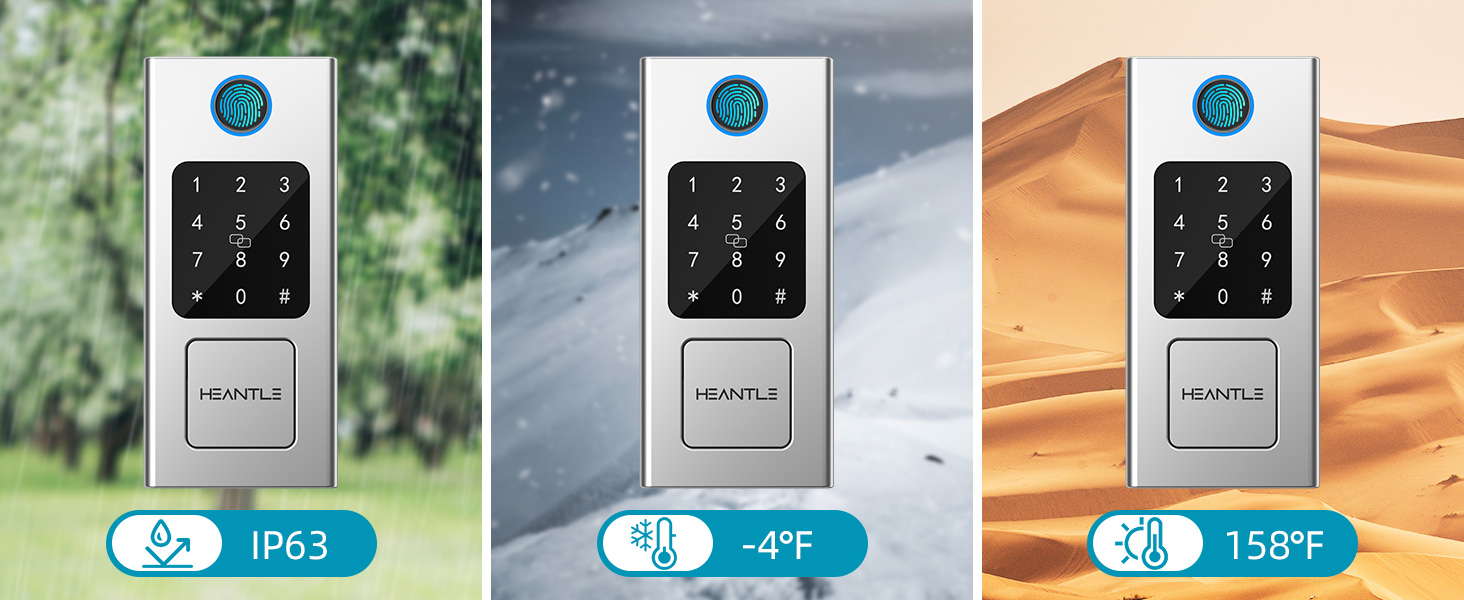
Image 7.1: Silent mode for discreet operation.
7.2 Weather Resistance
The HEANTLE Smart Lock is designed to withstand various weather conditions, with an IP63 rating, and can operate in temperatures ranging from -4°F to 158°F.

Image 7.2: The smart lock is built to endure various environmental conditions.
7.3 Apple Watch Integration
For added convenience, the lock can be integrated with Apple Watch, allowing you to unlock your door with a tap on your watch.
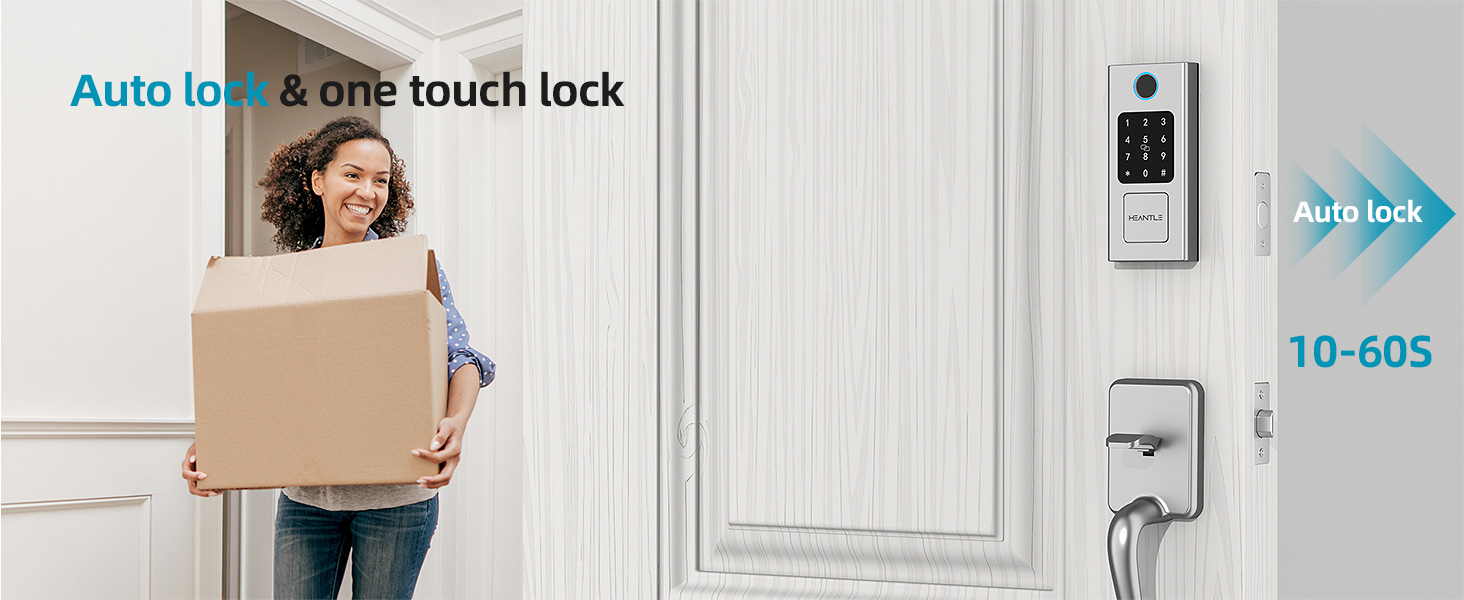
Image 7.3: Unlock your door using your Apple Watch.
8. Maintenance
8.1 Battery Replacement
The smart lock is powered by 4 AA batteries (not included). When the battery level is low, the lock will provide an audible or visual alert. Replace all four batteries simultaneously with new, high-quality alkaline AA batteries.
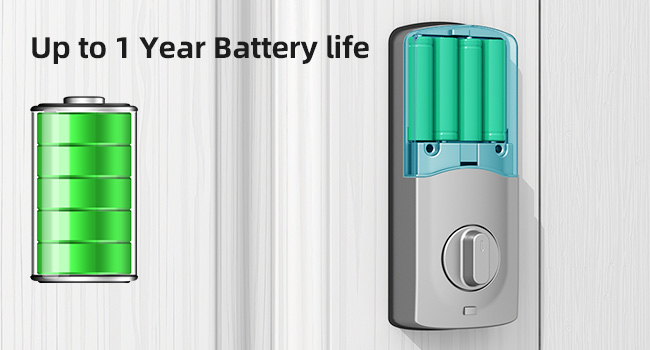
Image 8.1: Battery compartment and expected battery life.
8.2 Emergency Power
If the batteries completely deplete before replacement, you can temporarily power the lock using a USB-C power bank connected to the emergency power port on the exterior unit. This will allow you to unlock the door using a registered method (fingerprint, passcode, or IC card) and then replace the batteries.
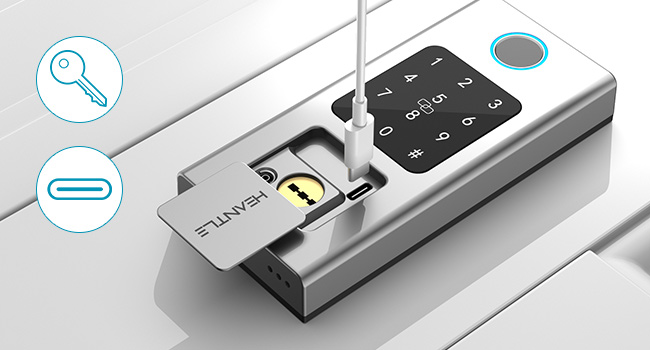
Image 8.2: Emergency key and USB-C power port.
8.3 Cleaning
Wipe the lock's exterior surfaces with a soft, damp cloth. Avoid using abrasive cleaners or solvents, as these can damage the finish or electronic components.
9. Troubleshooting
- Lock not responding: Check battery levels. If low, replace batteries or use emergency USB-C power.
- Fingerprint not recognized: Ensure your finger is clean and dry. Try re-registering your fingerprint if issues persist.
- Passcode not working: Verify the correct passcode is entered. Ensure the anti-peep function is not causing confusion.
- App connectivity issues: Ensure Bluetooth is enabled on your phone and you are within range. If using Wi-Fi, check your gateway connection and internet access.
- Auto-lock not engaging: Check the auto-lock settings in the app to ensure it is enabled and the delay time is set correctly.
- Lock is stiff or difficult to operate: Check for any obstructions in the door frame or latch mechanism. Ensure the lock was installed correctly and is aligned.
If you encounter persistent issues not covered here, please refer to the support section.
10. Warranty and Support
Your HEANTLE Smart Lock comes with a 1-year coverage from the date of purchase. This warranty covers manufacturing defects and malfunctions under normal use. Please retain your proof of purchase for warranty claims.
For technical support, troubleshooting assistance, or warranty inquiries, please contact HEANTLE customer service through the following channels:
- Email: Refer to the contact information provided in your product packaging or on the official HEANTLE website.
- Online Support: Visit the HEANTLE official website for FAQs and support resources.
Our customer service team is committed to providing quick responses and ongoing technical support to ensure your peace of mind.
Related documentsde357c45-1f74-4326-b684-dacefa172da2


Ask a question about this manual
Ask about setup, troubleshooting, compatibility, parts, safety, or missing instructions. Manuals+ will review the question and use this page’s manual context to help answer it.