
Product Overview
The TP-Link Archer MR505 is a 4G+ Cat6 AC1200 Wireless Dual Band Gigabit Router designed to provide reliable internet connectivity. This router supports dual-band Wi-Fi (2.4 GHz and 5 GHz) and features Gigabit Ethernet ports for high-speed wired connections. It is compatible with 4G+ Cat6 networks, offering mobile broadband access.

Figure 1: Front view of the Archer MR505 router.
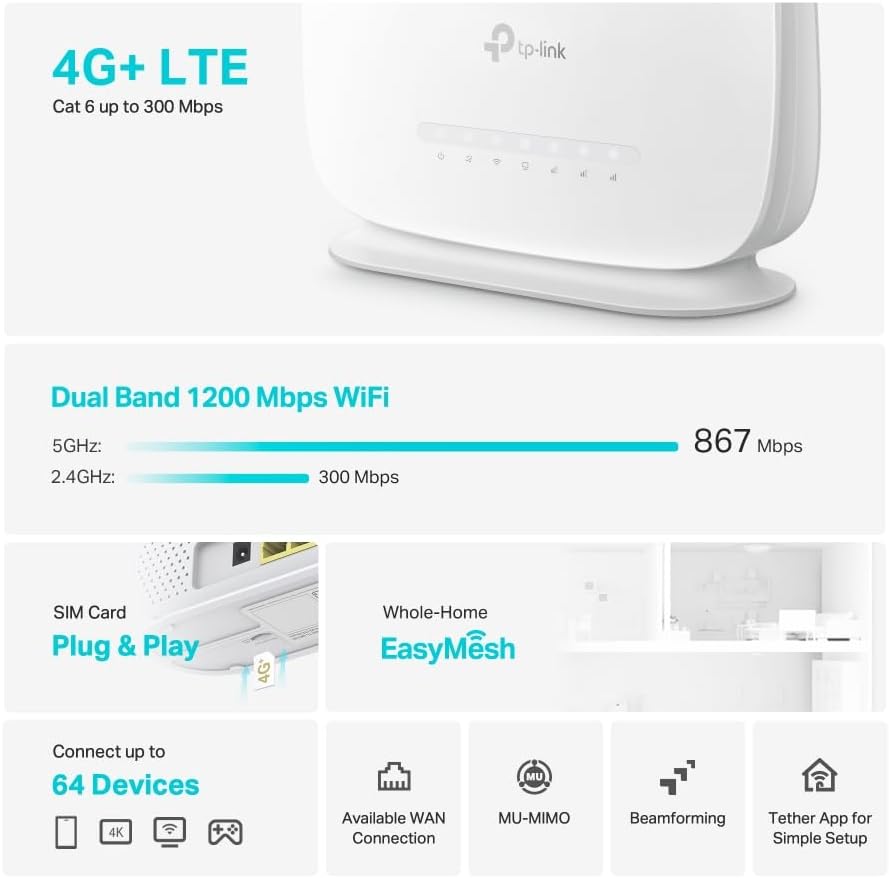
Figure 2: Side view of the Archer MR505 router.
Package Contents
Verify that all items are present in your package:
- TP-Link Archer MR505 Router
- Power Adapter
- Quick Installation Guide
- RJ45 Ethernet Cable

Figure 3: Key features and components of the Archer MR505.
Setup Instructions
Follow these steps to set up your Archer MR505 router:
- Insert SIM Card: Locate the SIM card slot on the router. Insert your 4G/LTE SIM card into the slot until it clicks into place. Ensure the SIM card is a normal data SIM for optimal compatibility. Some data-only SIM cards may require specific configurations or may not be fully compatible.
- Connect Power: Connect the provided power adapter to the router's power port and then plug it into a power outlet. The router will power on automatically.
- Wait for Initialization: Allow a few minutes for the router to boot up and establish a connection to the 4G/LTE network. The LED indicators on the front panel will show the connection status.
- Initial Wi-Fi Connection:
- Find the default Wi-Fi network name (SSID) and password printed on the label at the bottom of the router.
- Connect your computer or mobile device to this Wi-Fi network.
- Access Router Management:
- Open a web browser and enter the default management address (e.g., http://tplinkwifi.net or http://192.168.1.1).
- Log in using the default username and password (usually admin/admin or specified on the label).
- Configure Network Settings: Follow the on-screen Quick Setup wizard to configure your internet connection, change the Wi-Fi network name (SSID), and set a strong, unique password for both your Wi-Fi and router management interface.
- Tether App Setup (Optional): Download the TP-Link Tether app from your device's app store. The app provides an intuitive way to manage your router settings from your smartphone or tablet.
- External Antenna (Optional): If using external antennas (not included), connect them to the designated ports on the back of the router. You may need to manually enable external antenna usage through the router's web interface or Tether app.
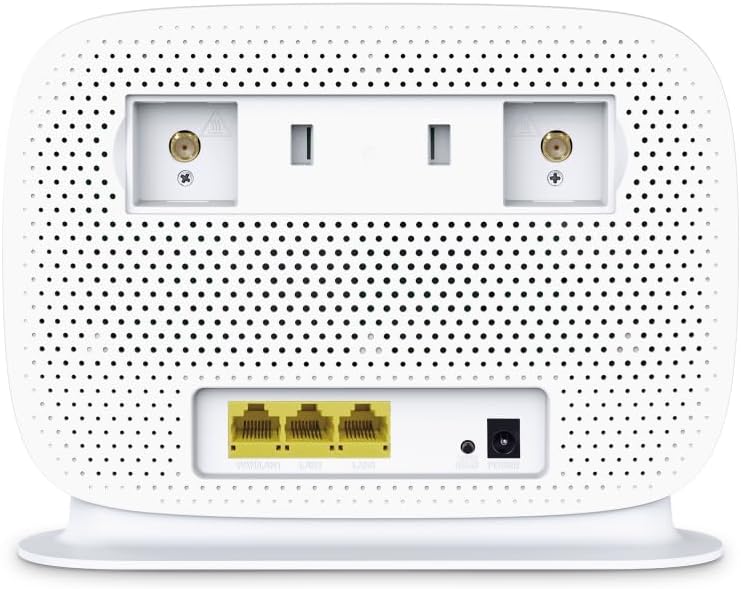
Figure 4: Rear panel of the Archer MR505 with ports and SIM slot.

Figure 5: Archer MR505 in various usage scenarios.
Operating Instructions
The Archer MR505 provides robust wireless and wired connectivity:
- Dual-Band Wi-Fi: The router operates on both 2.4 GHz and 5 GHz bands, offering speeds up to 300 Mbps and 867 Mbps respectively, for a total of AC1200 Wi-Fi.
- 4G+ Cat6 Connectivity: Enjoy mobile broadband speeds up to 300 Mbps download and 300 Mbps upload (maximum upstream data transfer rate).
- Gigabit Ethernet Ports: Four Gigabit LAN ports (1000 Mbps) are available for high-speed wired connections to devices like computers, gaming consoles, or smart TVs. One port can also function as a WAN port for traditional broadband connections.
- Device Capacity: The router can support connectivity for up to 64 devices simultaneously.
- Smart Connect: This feature automatically assigns devices to the best available Wi-Fi band (2.4 GHz or 5 GHz) for optimized performance.
- EasyMesh Compatibility: The Archer MR505 is compatible with TP-Link EasyMesh, allowing you to create a seamless whole-home mesh Wi-Fi network by adding compatible range extenders.
- Advanced Technologies: Features like MU-MIMO and Beamforming enhance Wi-Fi efficiency and range, especially for multiple connected devices.
- Security: The router supports WPA3 encryption for enhanced network security.

Figure 6: Versatile connectivity and speed capabilities.

Figure 7: Whole-Home EasyMesh integration.
Maintenance
To ensure optimal performance and security of your router:
- Firmware Updates: Regularly check for and install the latest firmware updates from the TP-Link official website or via the Tether app. Firmware updates often include security patches and performance improvements.
- Secure Passwords: Use strong, unique passwords for your Wi-Fi network and router management interface. Change them periodically.
- Physical Placement: Place the router in a central location, away from obstructions and sources of interference (e.g., microwaves, cordless phones) to maximize Wi-Fi coverage.
- Cleaning: Keep the router clean and free from dust. Ensure ventilation holes are not blocked.
- Restart Periodically: Restarting the router occasionally can help resolve minor network issues and improve performance.
Troubleshooting
If you encounter issues with your Archer MR505 router, consider the following:
- No Internet Connection via 4G/LTE:
- Ensure your SIM card is correctly inserted and activated.
- Verify that your SIM card is a normal data SIM. Some data-only SIM cards may require specific APN settings or might not be fully compatible. Contact your mobile service provider for details.
- Check the 4G/LTE signal strength indicated by the router's LEDs. If the signal is weak, try repositioning the router or consider using external antennas (if supported and configured).
- Restart the router and your connected devices.
- Wi-Fi Connection Issues:
- Ensure your device is within the router's Wi-Fi range.
- Verify you are using the correct Wi-Fi password.
- If a device frequently connects and disconnects, try restarting that specific device.
- Check for interference from other electronic devices.
- Slow Internet Speed:
- Check your 4G/LTE signal strength. Weak signal can significantly reduce speed.
- Ensure no other applications or devices are consuming excessive bandwidth.
- If using Wi-Fi, try connecting to the 5 GHz band for faster speeds, if your device supports it.
- Perform a speed test to confirm the actual speed you are receiving.
- Cannot Access Router Management Page:
- Ensure your device is connected to the router's network (either via Wi-Fi or Ethernet cable).
- Verify you are entering the correct management address (e.g., http://tplinkwifi.net).
- Try clearing your browser's cache or using a different browser.
Specifications
| Brand | TP-Link |
| Model Name | Archer MR505 |
| Wireless Standard | 802.11ac (Wi-Fi 5) |
| Frequency Band Class | Dual-Band (2.4 GHz & 5 GHz) |
| Wi-Fi Data Rate | Up to 300 Mbps (2.4 GHz), Up to 867 Mbps (5 GHz) - AC1200 Total |
| 4G+ Cat6 Speed | Up to 300 Mbps Download, Up to 300 Mbps Upload |
| Ethernet Ports | 4 x Gigabit LAN Ports (1000 Mbps), 1 x WAN/LAN Port |
| Antenna Type | Internal (External antenna support available) |
| Security Protocol | WPA3 |
| Control Method | App (TP-Link Tether) |
| Compatible Devices | Laptop, Personal Computer, Smart Television, Smartphone, Tablet |
| Power Input | 12 Volts |
| Item Weight | 0.93 Kilograms |
| Included Components | Archer MR505, Power Adapter, Quick Installation Guide, RJ45 Ethernet Cable |
Warranty and Support
For warranty information, please refer to the warranty card included with your product or visit the official TP-Link website for your region. Support resources, including FAQs, firmware downloads, and contact information, are available on the TP-Link support website and through the TP-Link Tether app.
Official TP-Link Website: https://www.tp-link.com
TP-Link Tether App: Available on iOS App Store and Google Play Store.


