
1. Introduction
Thank you for choosing the Inateck Bluetooth Keyboard KB01104. This ultra-thin keyboard features an integrated touchpad, multi-device Bluetooth connectivity, and support for various operating systems including Windows, iPad OS, Android, and iOS. It also incorporates an AI function and is compatible with the Inateck Origin application for enhanced functionality. This manual provides detailed instructions for setup, operation, and maintenance to ensure optimal performance.
2. Package Contents
- Inateck Bluetooth Keyboard KB01104
- USB Charging Cable
- User Manual (this document)
3. Product Overview
The Inateck KB01104 keyboard is designed for portability and versatility. It features a QWERTZ layout, a large touchpad, and backlit keys. The power switch and Bluetooth indicators are located on the top right side of the keyboard.

Front view of the Inateck KB01104 Bluetooth Keyboard, showing the QWERTZ layout, integrated touchpad, and backlit keys.
4. Setup Instructions
4.1. Charging the Keyboard
Before first use, fully charge the keyboard using the provided USB charging cable. Connect the cable to the keyboard's charging port and a standard USB power source. The charging indicator light will show the charging status.
4.2. Power On/Off
Locate the power switch on the top right side of the keyboard. Slide the switch to the 'ON' position to power on the keyboard. Slide it to 'OFF' to power it down.
4.3. Bluetooth Pairing
The KB01104 supports up to three Bluetooth connections, allowing seamless switching between devices.
- Turn on the keyboard.
- Press and hold the Fn key and one of the Bluetooth channel keys (1, 2, or 3) for 3-5 seconds until the corresponding Bluetooth indicator light flashes rapidly. This indicates the keyboard is in pairing mode.
- On your device (tablet, smartphone, computer), go to Bluetooth settings and search for available devices.
- Select "Inateck KB01104" from the list of found devices to connect.
- Once connected, the indicator light will stop flashing and remain solid for a few seconds before turning off.
- Repeat these steps for up to two additional devices using the remaining Bluetooth channels.

Diagram illustrating the Inateck KB01104 Bluetooth Keyboard connecting to a tablet, iPhone, PC, and laptop via its three Bluetooth channels.
5. Operating Instructions
5.1. Switching Between Connected Devices
To switch between your paired devices, simply press the Fn key along with the corresponding Bluetooth channel key (1, 2, or 3) that your desired device is paired to. The keyboard will automatically connect to the selected device.
5.2. Touchpad Usage
The integrated touchpad provides precise navigation and supports multi-touch gestures. It features an anti-error contact function to prevent accidental inputs.
- Single Finger Tap: Left-click.
- Two Finger Tap: Right-click.
- Two Finger Scroll: Scroll up or down.
- Pinch to Zoom: Zoom in or out (supported on compatible operating systems).

Image showing a hand interacting with the large touchpad of the Inateck KB01104 keyboard, highlighting palm rejection and multi-touch gesture capabilities.
5.3. Backlight Control
The keyboard features a 7-color backlight with 3 adjustable brightness levels.
- Press Fn + Light Bulb icon key to cycle through backlight colors.
- Press Fn + Up Arrow key to increase brightness.
- Press Fn + Down Arrow key to decrease brightness.
The Inateck KB01104 keyboard displaying its 7-color adjustable backlight feature with three brightness levels, shown alongside a tablet.
5.4. Inateck App and AI Function
The Inateck KB01104 integrates with the Inateck Origin application, offering advanced features such as data transfer and AI capabilities. Ensure the Inateck Origin app is installed on your device for full functionality.
- Activating AI Model: Press Fn + R to activate the AI model within the Inateck app. This enables features like pop-up translation and AI-powered Q&A.
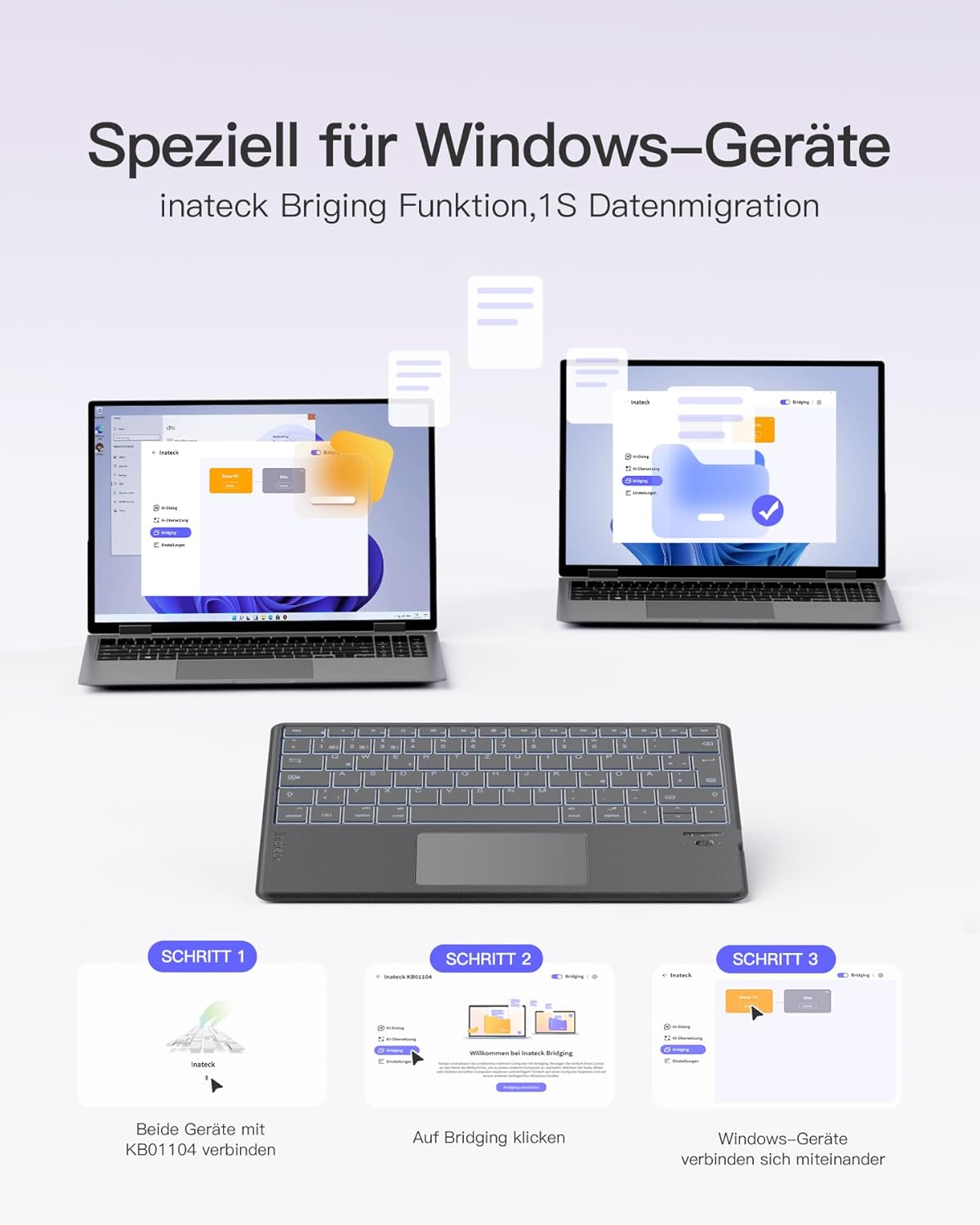
- Data Migration (Windows): The Inateck Bridging function allows for quick data migration between Windows devices. Connect both devices to the KB01104 and use the app to initiate the transfer.

Screenshot of the Inateck Origin app interface on a tablet, demonstrating its features in conjunction with the Inateck KB01104 keyboard.
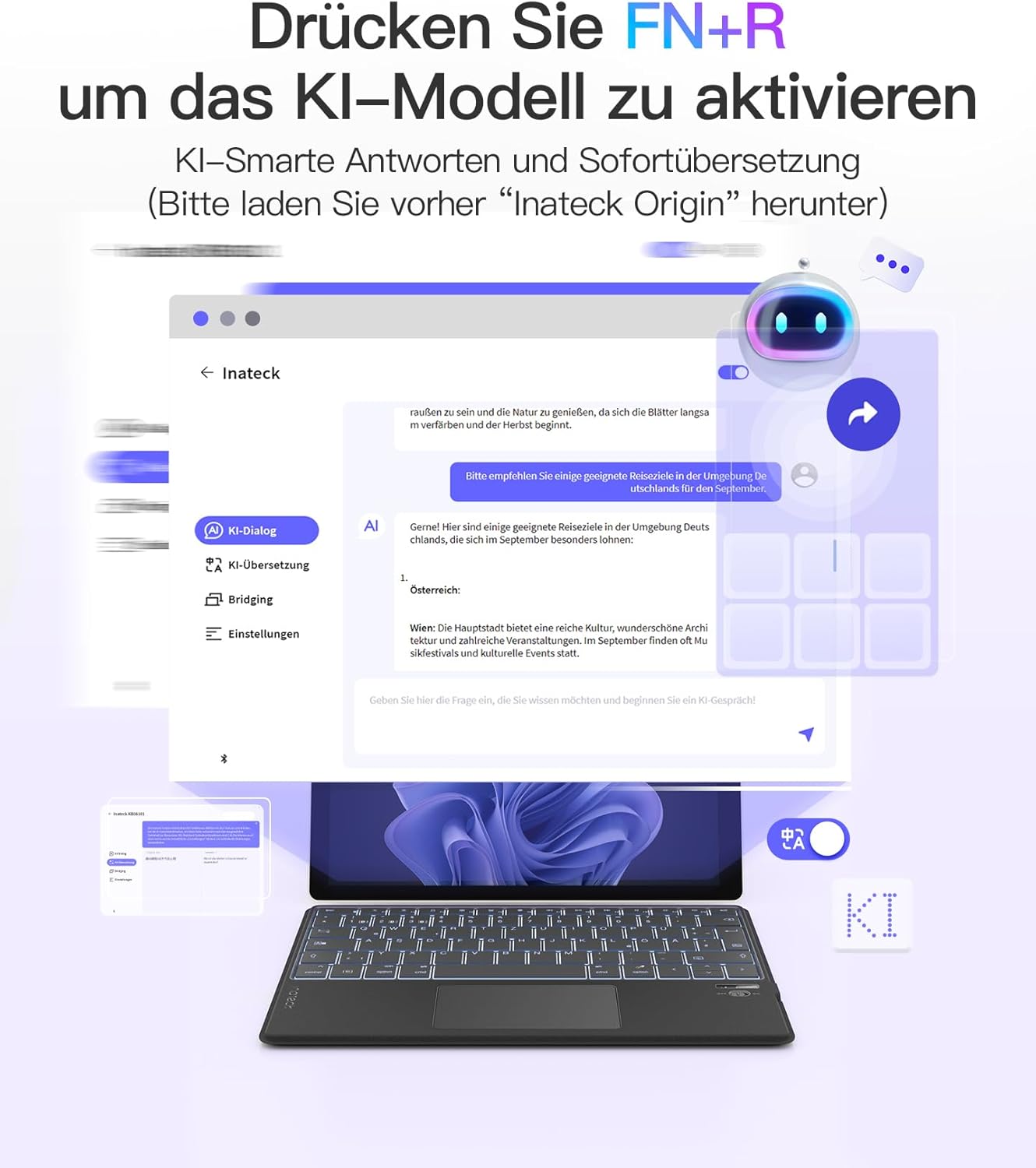
Illustration showing how to activate the AI model function on the Inateck KB01104 keyboard by pressing FN+R, with examples of AI-powered translation and Q&A.

Visual guide demonstrating the Inateck Bridging function for 1-second data migration between Windows devices using the KB01104 keyboard.
5.5. System Compatibility
The Inateck KB01104 is compatible with a wide range of operating systems and devices:
- Windows
- iPad OS
- Android
- iOS
- Compatible devices include: iPad 10/9/8, iPad Air, 12.9"/11"/10.5" iPad Pro, iPad Mini 7/6/5.

Icons representing the Inateck KB01104 keyboard's compatibility with Windows, iPad OS, Android, and iOS operating systems.
6. Specifications
| Brand | Inateck |
| Model Number | KB01104 |
| Connectivity Technology | Bluetooth |
| Special Features | AI Function, Ultra-thin design, 7-color Backlight |
| Compatible Devices | Windows, iPad OS, Android, iOS, iPad 10/9/8, iPad Air, 12.9"/11"/10.5" iPad Pro, iPad Mini 7/6/5 |
| Battery Composition | Lithium-ion (1 included) |
| Keyboard Description | Flexible |
| Recommended Uses | Business, Student |
| Included Components | USB Cable |
7. Maintenance
To ensure the longevity and optimal performance of your Inateck KB01104 keyboard, follow these maintenance guidelines:
- Cleaning: Use a soft, dry, lint-free cloth to wipe the keyboard surface and touchpad. For stubborn dirt, slightly dampen the cloth with water or a mild cleaning solution. Avoid excessive moisture.
- Storage: Store the keyboard in a cool, dry place away from direct sunlight and extreme temperatures.
- Avoid Liquids: Do not expose the keyboard to liquids, as this can cause damage to internal components.
- Handle with Care: The keyboard is ultra-thin; avoid bending or applying excessive force to prevent damage.
8. Troubleshooting
If you encounter issues with your Inateck KB01104 keyboard, refer to the following common solutions:
- Keyboard not connecting:
- Ensure the keyboard is powered on and fully charged.
- Verify that Bluetooth is enabled on your device.
- Put the keyboard into pairing mode again (Fn + 1/2/3 for 3-5 seconds) and re-attempt pairing from your device's Bluetooth settings.
- Forget the device in your device's Bluetooth settings and try pairing again.
- Ensure your device is within the effective Bluetooth range (typically 10 meters).
- Keys not responding or typing incorrectly:
- Check if the keyboard is connected to the correct device channel.
- Restart both the keyboard and your connected device.
- Ensure the keyboard's battery is not critically low.
- Touchpad not working:
- Ensure the touchpad is not accidentally disabled (check for a function key combination to toggle it).
- Clean the touchpad surface to remove any dirt or debris.
- Restart the keyboard and your device.
- Backlight not working or stuck:
- Ensure the keyboard is powered on.
- Try adjusting the brightness or changing colors using the Fn + Arrow/Light Bulb keys.
- Charge the keyboard, as low battery might affect backlight functionality.
9. Warranty and Support
For warranty information, technical support, or further assistance, please refer to the manufacturer's official website or your purchase documentation. Contact details for customer service are typically provided with your product packaging or on the Inateck website.
