
1. Introduction
This manual provides comprehensive instructions for the installation, operation, and maintenance of your ASHATA MT7925 Network Card. This PCIEx1 adapter is designed to enhance your system's wireless connectivity with high-speed Wi-Fi and Bluetooth capabilities. Please read this manual thoroughly before installation and use to ensure optimal performance and longevity of the product.
2. Product Overview
2.1 Key Features
- High-Speed Connectivity: Supports 2.4G (574Mbps), 5G (2400Mbps), and 6G (2400Mbps) bands for fast and stable wireless performance.
- Advanced Technology: Features the MT7925 chip and MU-MIMO technology for efficient data handling.
- Wide Compatibility: PCIEx1 interface, compatible with Windows 10, Windows 11, Linux, Openwrt, and Ubuntu.
- Integrated Bluetooth 5.3: Provides faster and more stable device connections.
- Robust Design: Constructed from premium PCB material for durability and anti-interference performance.
2.2 Package Contents
- 1 x ASHATA MT7925 Network Card
- 1 x Adapter Cable
- 2 x Antennas
- 1 x Screws

Figure 1: ASHATA MT7925 Network Card with two detachable antennas.
3. Specifications
| Feature | Detail |
|---|---|
| Item Type | Network Card Adapter |
| Material | PCB |
| Interface | PCIEx1 |
| Chip | MT7925 |
| Wireless Protocols | 802.11a/b/g/n/ac/ax/be |
| Frequency Bands | 2.4G, 5G, 6G |
| Max Speed (2.4G) | 574Mbps |
| Max Speed (5G) | 2400Mbps |
| Max Speed (6G, 160MHz) | 2400Mbps |
| Bluetooth Version | 5.3 |
| Technical Support | MU-MIMO Technology |
| System Support | Windows 10, Windows 11, Linux, Openwrt, Ubuntu |
| Package Dimensions | 7.87 x 4.33 x 1.57 inches |
| Item Weight | 4.2 ounces |

Figure 2: Overview of key features and specifications.
4. Setup Instructions
Follow these steps to properly install your ASHATA MT7925 Network Card into your computer system.
4.1 Hardware Installation
- Power Off and Disconnect: Completely shut down your computer and disconnect the power cable and all peripherals.
- Open Computer Case: Remove the side panel of your computer case to access the motherboard.
- Locate PCIEx1 Slot: Identify an available PCIEx1 slot on your motherboard. These are typically shorter than PCIEx16 slots.
- Remove Slot Cover: Carefully remove the metal slot cover from the back of your computer case corresponding to the chosen PCIEx1 slot.
- Insert Network Card: Align the network card with the PCIEx1 slot and press it firmly and evenly until it is securely seated. Ensure the bracket is flush with the back of the case.
- Secure Card: Use the provided screw to secure the network card's bracket to the computer case.
- Attach Antennas: Screw the two provided antennas onto the connectors on the back of the network card. Ensure they are finger-tight.
- Close Case and Reconnect: Replace the computer case side panel, reconnect all cables, and power on your computer.

Figure 3: Network card installed in a desktop PC.

Figure 4: Detail of antenna connection points.
4.2 Driver Installation
For most modern operating systems, including Windows 10, Windows 11, Linux, Openwrt, and Ubuntu, the ASHATA MT7925 Network Card supports plug-and-play functionality. This means drivers are often automatically detected and installed upon system startup.
- Automatic Installation: After booting your computer, the operating system should automatically detect the new hardware and install the necessary drivers.
- Verification: You can verify successful installation by checking your operating system's Device Manager (Windows) or network settings (Linux/Openwrt/Ubuntu) for the newly installed Wi-Fi and Bluetooth adapters.
- Manual Installation (if needed): If drivers are not automatically installed, please visit the ASHATA official website for the latest driver downloads specific to the MT7925 chip.
5. Operating Instructions
5.1 Connecting to a Wi-Fi Network
- Enable Wi-Fi: Ensure Wi-Fi is enabled in your operating system's network settings.
- Scan for Networks: Open the Wi-Fi network list (usually accessible from the taskbar or system tray).
- Select Network: Choose your desired Wi-Fi network from the list.
- Enter Password: If prompted, enter the Wi-Fi password (security key) and click "Connect".
- Verify Connection: Once connected, the network icon should indicate an active internet connection.
The MT7925 supports 2.4GHz, 5GHz, and 6GHz bands. Your system will automatically connect to the best available band based on your router's capabilities and signal strength.
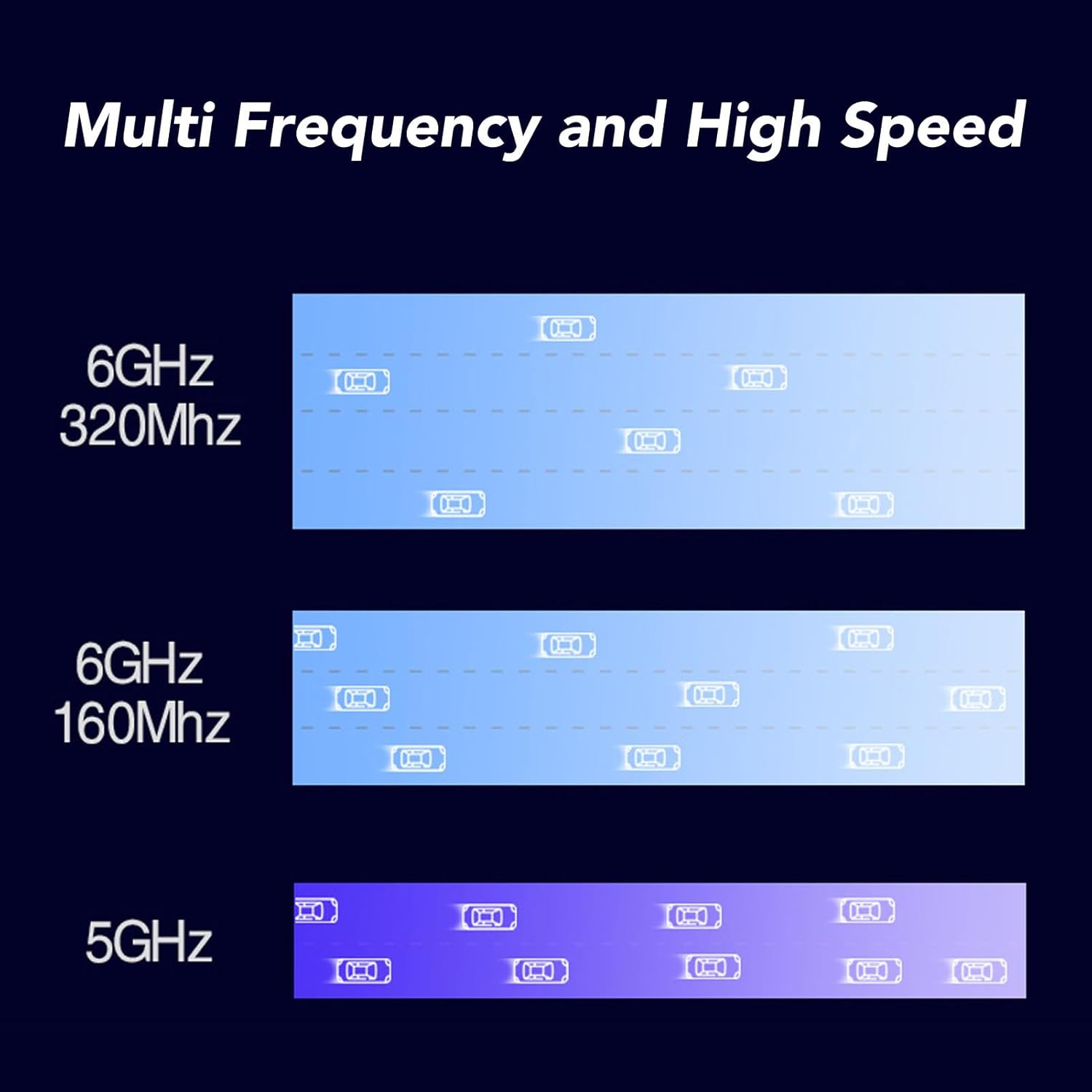
Figure 5: Multi-frequency and high-speed band support.
5.2 Bluetooth Pairing
- Enable Bluetooth: Ensure Bluetooth is enabled in your operating system's settings.
- Enable Pairing Mode: Put your Bluetooth device (e.g., headphones, mouse, keyboard) into pairing mode. Refer to your device's manual for specific instructions.
- Add Device: In your computer's Bluetooth settings, select "Add Bluetooth or other device" and choose "Bluetooth".
- Select and Pair: Select your device from the list of discovered devices and follow any on-screen prompts to complete the pairing process.
6. Maintenance
- Keep Antennas Clear: Ensure the antennas are not obstructed by other objects to maintain optimal signal strength.
- Driver Updates: Periodically check the ASHATA official website for updated drivers to ensure the best performance and compatibility.
- Cleanliness: Keep your computer's interior clean from dust to prevent overheating and ensure proper functioning of all components, including the network card.
7. Troubleshooting
If you encounter issues with your ASHATA MT7925 Network Card, refer to the following common troubleshooting steps:
7.1 No Wi-Fi Connection
- Check Physical Installation: Ensure the network card is securely seated in the PCIEx1 slot and the antennas are properly attached.
- Verify Drivers: Check Device Manager (Windows) or network settings (Linux) to confirm the network adapter is recognized and drivers are installed correctly. Reinstall drivers if necessary.
- Router Status: Ensure your Wi-Fi router is powered on and broadcasting a signal. Try restarting your router.
- Wi-Fi Enabled: Confirm that Wi-Fi is enabled in your operating system's settings.
- Correct Password: Double-check that you are entering the correct Wi-Fi password.
7.2 Slow Wi-Fi Speed
- Antenna Position: Adjust the position of the antennas for better signal reception.
- Router Proximity: Move your computer closer to the Wi-Fi router, or ensure there are no major obstructions.
- Interference: Other electronic devices (e.g., microwaves, cordless phones) can cause interference. Try to minimize these.
- Driver Updates: Ensure you have the latest drivers installed for optimal performance.
- Router Settings: Check your router's settings to ensure it's operating on the correct channels and bands (2.4G, 5G, 6G) and that MU-MIMO is enabled if supported.
7.3 Bluetooth Device Not Connecting
- Bluetooth Enabled: Verify Bluetooth is enabled in your operating system's settings.
- Device Pairing Mode: Ensure your Bluetooth device is in pairing mode.
- Remove and Re-pair: If a device was previously paired, try removing it from your computer's Bluetooth device list and then re-pairing it.
- Driver Updates: Ensure Bluetooth drivers are up to date.
8. Warranty and Support
The ASHATA MT7925 Network Card is manufactured by ASHATA. For specific warranty information, please refer to the documentation included with your purchase or visit the official ASHATA website.
For technical support or further assistance, please contact ASHATA customer service through their official channels. You can find more information and products from ASHATA by visiting their Amazon Store.