
1. Introduction
The KOHO KR043B Multi-Function Media Recorder is designed to convert and preserve your valuable video and audio memories from various analog and digital sources into modern digital formats. This device allows you to record content from VHS tapes, VCRs, camcorders, DVD players, and even smartphones directly to DVDs, USB drives, or SD cards without the need for a personal computer.
With its intuitive interface, 4.3-inch LCD preview screen, and versatile connectivity options, the KR043B simplifies the process of digitizing your media. It supports HD output for external display and offers convenient file copying between different storage devices. Additionally, a dedicated mobile application enables wireless transfer of photos, videos, and music from your smartphone to the recorder for archiving.
2. What's in the Box
Upon opening your KOHO KR043B package, please ensure all the following items are present:
- DVD Recorder (Main Unit)
- AC Power Adapter
- AV Cable (RCA to 3.5mm jack)
- 10 Pcs Blank DVD-R
- Quick Start Guide
- User Manual

Image: The KOHO KR043B Multi-Function Media Recorder and its included accessories, such as the power adapter, AV cable, blank DVD-R discs, and user manuals, neatly arranged on a table.
Video: An unboxing and overview of the KOHO KR043B Media Recorder, highlighting the device and its included accessories like the AV cable and blank DVD-R discs.
3. Setup
3.1 Power Connection
- Connect the AC Power Adapter to the 'DC IN 5V' port on the side of the KOHO KR043B.
- Plug the power adapter into a standard electrical outlet.
- Press and hold the 'POWER' button on the front panel until the device powers on and the screen illuminates.
3.2 Connecting Source Devices (e.g., VCR, Camcorder)
The KR043B supports various input sources via RCA (AV) cables. Ensure your source device has RCA/AV output ports.
- Connect the yellow RCA cable to the 'VIDEO IN' port on the recorder and the video output port of your source device.
- Connect the white RCA cable to the 'AUDIO IN L' port on the recorder and the left audio output port of your source device.
- Connect the red RCA cable to the 'AUDIO IN R' port on the recorder and the right audio output port of your source device.

Image: A visual guide illustrating how to connect a source device (like a DVD player) to the KOHO KR043B using RCA cables for video and audio input, and how the recorder can output to a TV or store to USB/SD/DVD.

Image: A detailed diagram demonstrating the connection of a VCR to the KOHO KR043B Media Recorder using RCA cables, with options to record to DVD or USB, and preview on a television.
3.3 Connecting to a TV for Preview (Optional)
For a larger viewing experience during recording or playback, connect the KR043B to a TV via HDMI.
- Connect an HDMI cable (not included) from the 'HD OUT' port on the recorder to an HDMI input port on your television.
- Select the corresponding HDMI input on your TV.
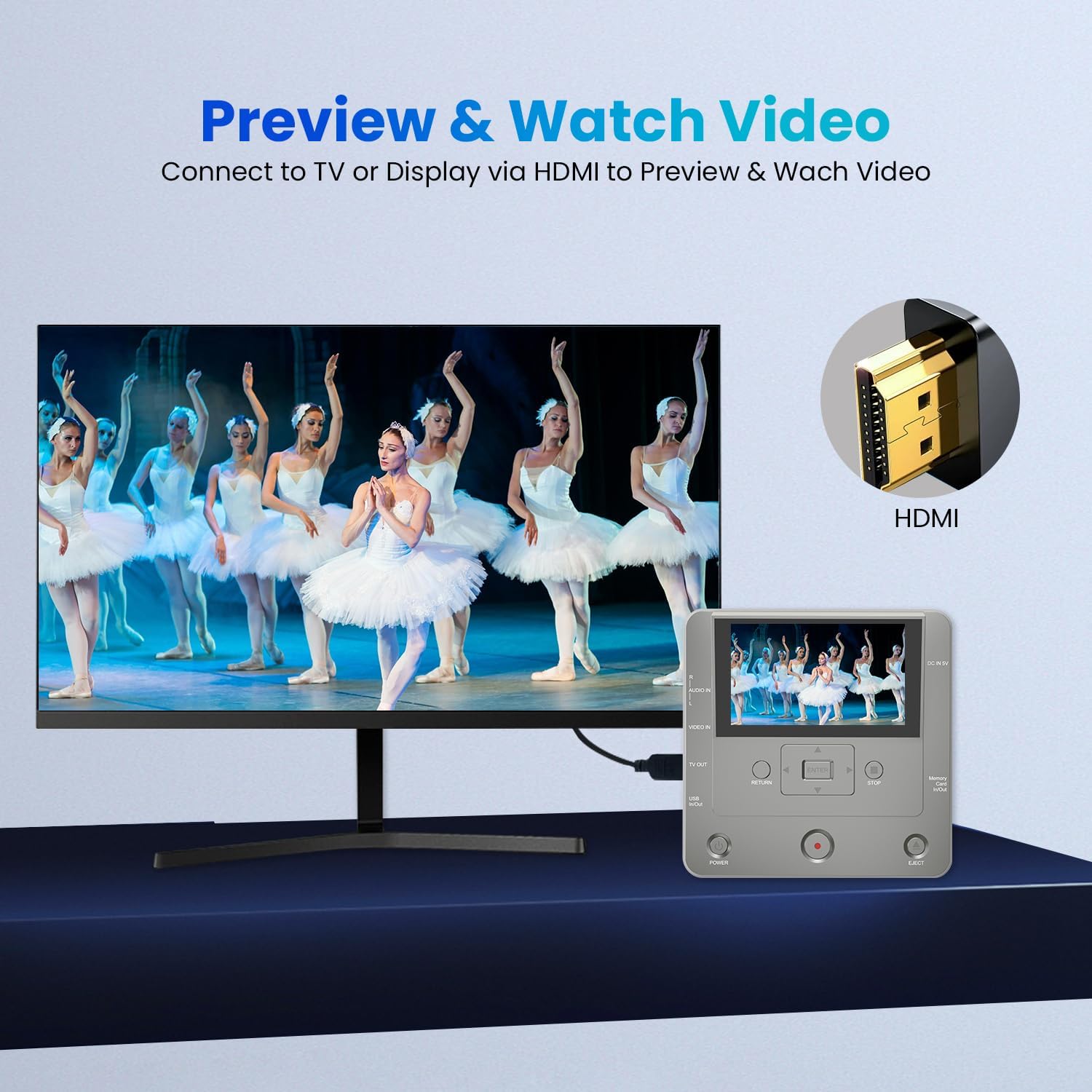
Image: The KOHO KR043B Media Recorder displaying content on its screen and simultaneously connected to a larger television via an HDMI cable for an enhanced preview experience.
4. Operating Instructions
4.1 Recording from External Sources
The KR043B can record from various analog video sources such as VCRs, camcorders, and DVD players.
- Ensure your source device is connected correctly via AV cables (see Section 3.2).
- Insert a blank DVD-R/RW disc into the DVD tray, or connect a FAT32 formatted USB drive/SD card.
- On the recorder's menu, navigate to 'Video/USB/Card -> DVD' or 'Video -> USB/Card' depending on your desired output.
- Select 'Video' as the input source.
- Start playback on your source device. The video should appear on the recorder's screen.
- Press the 'REC' button (red circle) on the recorder to begin recording.
- Press 'STOP' to end the recording.
Video: A demonstration of recording video from a VCR to the KOHO KR043B Media Recorder, showing the connection process and the recording interface.
Video: A detailed guide on using the KOHO DVD Recorder, demonstrating the on-screen menu for easy recording and navigation.

Image: An illustration of the KOHO KR043B's compatibility with a wide range of analog video sources, such as VCRs, DVRs, DVD players, VHS tapes, Hi8 cameras, film, camcorders, and portable players, emphasizing the need for AV output.

Image: A comprehensive diagram showcasing the multi-functional nature of the KOHO KR043B, illustrating its ability to record from various sources like VHS, TV, camcorders, and mobile phones to multiple storage options including portable HDDs, USB drives, SD cards, and DVD/CDs.
4.2 Playing Back Media
You can play back recorded videos or other media files directly on the device's screen or an external TV.
- From the main menu, select 'Media Player'.
- Choose the source for playback: 'USB', 'Card', or 'CD/DVD'.
- Navigate through the folders and files using the arrow buttons and press 'ENTER' to select and play a file.
Video: A demonstration of the KOHO VHS to Digital Converter, showing its functionality as a DVD recorder for TV recording and media playback.

Image: A diagram illustrating how the KOHO KR043B can play back content from an SD card, USB drive, or external HDD directly to a television using its HDMI output port.
4.3 Copying Files Between Storage Devices
The KR043B allows for direct file transfer between different storage media.
- From the main menu, select the desired copy option (e.g., 'USB/Card -> CD', 'CD -> USB/Card').
- Follow the on-screen prompts to select the source and destination for the files.
- Confirm the transfer to begin copying.

Image: The KOHO KR043B Media Recorder's screen showing a menu that facilitates seamless file transfers between various storage types, including USB HDDs, SD cards, and DVD discs.
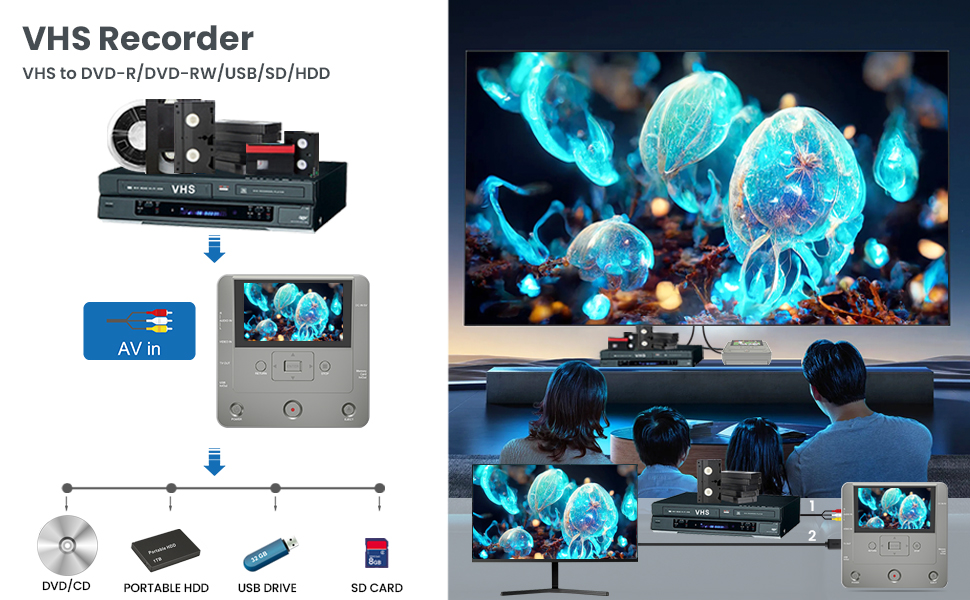
Image: A diagram detailing the 'Cross-Format Clone' feature of the KOHO KR043B, which enables bidirectional copying of files between four different storage devices: SD card, USB drive, external HDD, and DVD-RW.

Image: A diagram illustrating the process of copying content from a DVD player to various digital storage formats, including SD card, USB drive, external HDD, or DVD-RW, using the KOHO KR043B Media Recorder.
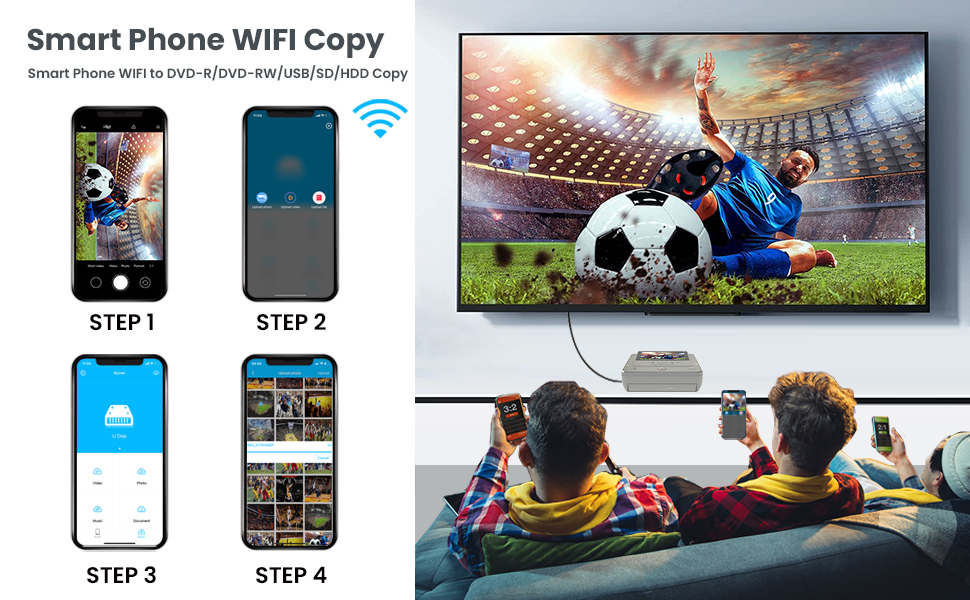
Image: A diagram illustrating the process of converting VHS tapes to digital formats using the KOHO KR043B, showing output options to DVD/CD, portable HDD, USB drive, or SD card.
5. App & WiFi Transfer
The KOHO KR043B features an exclusive app, "Friendly Memories," for wireless transfer of media from your smartphone.
- Download the free "Friendly Memories" app from the iOS App Store or Google Play Store.
- Connect your smartphone to the recorder's WiFi network (no internet required).
- Within the app, select the pictures and video files you wish to transfer.
- Transfer them directly to a DVD, USB flash drive, or SD card on the recorder.

Image: The KOHO KR043B Media Recorder shown alongside a smartphone running the 'Friendly Memories' app, demonstrating the wireless upload of videos and pictures from the phone to the recorder's storage options.
Video: A demonstration of the smartphone WiFi transfer feature of the KOHO VHS to DVD Recorder, showing how to copy media from a smartphone to DVD, USB, or SD/HDD.

Image: A step-by-step diagram illustrating the Smart Phone WiFi Copy function, detailing how to transfer content from a smartphone to DVD, USB, SD, or HDD using the KOHO KR043B Media Recorder.
6. Maintenance
Proper maintenance ensures the longevity and optimal performance of your KOHO KR043B Media Recorder.
- Cleaning: Regularly wipe the device with a soft, dry cloth. Avoid using liquid cleaners or abrasive materials. For the LCD screen, use a screen-specific cleaning solution and a microfiber cloth.
- Disc Handling: Always handle DVDs by their edges to prevent fingerprints and scratches. Store discs in their cases when not in use.
- Storage: Store the device in a cool, dry place away from direct sunlight, extreme temperatures, and high humidity.
- Ventilation: Ensure the device's ventilation openings are not blocked during operation to prevent overheating.
7. Troubleshooting
If you encounter issues with your KOHO KR043B, refer to the following common problems and solutions:
- Device does not power on: Ensure the AC power adapter is securely connected to both the device and a working electrical outlet. If the power button is unresponsive, try pressing it firmly or holding it for a few seconds.
- No video/audio signal from source: Verify that all RCA (AV) cables are correctly connected to the 'VIDEO IN' and 'AUDIO IN' ports on the recorder and the output ports of your source device. Ensure the source device is powered on and playing media. Check if your source device's output is compatible with RCA/AV.
- "Disk not ready" error: This usually indicates an issue with the inserted DVD. Ensure the disc is clean, unscratched, and inserted correctly. Verify that you are using a compatible DVD-R or DVD-RW disc. Try a different blank disc.
- USB drive/SD card not recognized: Ensure the USB drive or SD card is formatted to FAT32. Other formats may not be recognized by the device. Re-insert the storage device securely.
- Recorded video quality is poor: The recording quality is dependent on the quality of the original source material. Ensure your source device is providing the best possible signal. The device does not upscale video.
- No audio during playback/recording preview: While the device's screen shows video, audio may not be output through the internal speaker during preview. Connect the device to an external TV via HDMI for full audio-visual experience.
- Files saved in multiple segments: Some recordings, especially from longer tapes, may be automatically divided into multiple digital files. This is normal behavior and files can be combined using video editing software on a computer.
8. Specifications
| Feature | Specification |
|---|---|
| Brand Name | KOHO |
| Model Name | KR043B |
| Item Weight | 1.3 Pounds |
| Product Dimensions | 6.1 x 6.1 x 1.91 inches |
| Color | Light Grey |
| Media Type | VHS to DVD Recorder |
| Resolution (HD Output) | 1920x1080 |
| Connector Type | RCA, USB, SD Card, HDMI |
| Connectivity Technology | Wi-Fi, USB, RCA |
| Audio Output Mode | Stereo, Surround Sound |
| Special Features | VHS, DVD, TV, USB, HDD, Mobile Phone, SD Card, Recorder, CDR, Copy |
9. Warranty & Support
For warranty information and technical support, please refer to the documentation included in your product packaging or visit the official KOHO website. Keep your purchase receipt as proof of purchase for any warranty claims.
For direct assistance, you may contact KOHO customer service through their official channels. Details are typically provided in the user manual or on the product's Amazon listing page.