
Introduction
This manual provides detailed instructions for the installation, operation, and maintenance of your Leadfan Android Car Stereo. This unit is designed specifically for Nissan Altima models from 2008 to 2012 with manual air conditioning. Please read this manual thoroughly before use to ensure proper functionality and to maximize your user experience.
Applicable Models
This double DIN car stereo is designed for the following vehicles:
- Nissan Altima: 2008, 2009, 2010, 2011, 2012
Important Note: This unit is suitable for vehicles with manual A/C. It is not compatible with cars equipped with premium audio systems, OEM cameras, or factory large screens. If your car has automatic A/C, please refer to model B0DM22KHFF.
Before installation, verify your car's model, year, and the shape and size of the center console to ensure compatibility.
Package Contents
The following items are included in your package:
- Car Stereo Unit
- Backup Camera
- GPS Antenna
- Rear View Input Cable
- RCA Cable
- USB Cable (x2)
- Power Cable
- User Manual
All necessary accessories for installation are provided, eliminating the need for additional purchases. The wiring harness is pre-adjusted for plug-and-play installation.

Figure 1: Package contents and dimensions of the Leadfan Android Car Stereo.
Setup and Installation
The installation process is designed to be plug-and-play. The included user manual provides detailed installation and usage instructions. Ensure all connections are secure before powering on the device.
- Preparation: Disconnect the car battery before starting installation.
- Remove Old Unit: Carefully remove your existing car radio and trim.
- Connect Wiring: Connect the provided power cable, RCA cable, USB cables, GPS antenna, and backup camera (if applicable) to the corresponding ports on the new stereo and your vehicle's wiring harness. The wiring harness is pre-adjusted for ease of connection.
- Mounting: Secure the new car stereo unit into the dashboard opening.
- Test Functionality: Reconnect the car battery and test all functions of the stereo, including audio, touch screen, GPS, Bluetooth, and camera.
- Final Assembly: Reinstall any removed trim pieces.
For detailed wiring diagrams and specific steps, please refer to the user manual included in the package.
Operating Instructions
Wireless Carplay & Android Auto
The car stereo supports wireless Apple CarPlay and Android Auto. This allows you to integrate your smartphone's functions directly onto the car's display.
- Connection: Connect your smartphone to the car stereo via Bluetooth and Wi-Fi.
- Access Functions: Once connected, you can access phone features such as music, video, GPS navigation, messaging, and more directly from the touch screen.
- Voice Control: Utilize voice commands by saying "Hey Siri" for Apple CarPlay or "Hey Google" for Android Auto to control various functions hands-free.

Figure 2: Wireless Apple CarPlay, Android Auto, and Mirror Link connectivity.
GPS Navigation & WiFi Connection
The unit features a built-in GPS navigation system and supports Wi-Fi connectivity.
- GPS Navigation: The system supports both offline and online maps. When connected to the internet, it can sync with the latest smartphone GPS navigation data for real-time navigation.
- Wi-Fi Connection: Connect the car stereo to a Wi-Fi network or a mobile hotspot to download applications, stream content, and access online services.

Figure 3: GPS Navigation and Wi-Fi connectivity features.
Bluetooth 5.1 & FM Radio
Enjoy hands-free communication and your favorite radio stations with Bluetooth 5.1 and FM radio functionality.
- Bluetooth 5.1: Pair your phone via Bluetooth to make and receive calls hands-free using the built-in microphone. You can also stream music from your personal playlist.
- FM Radio: Tune into FM radio stations to listen to news, music, and other programs.

Figure 4: Bluetooth 5.1 and FM Radio interfaces.
Mirror Link, HD Touchscreen & Split Screen
The 9-inch IPS touch screen offers versatile display options.
- Mirror Link: Supports mirroring for both iOS (wireless) and Android (wireless/wired) phones, allowing you to display your phone's screen on the stereo.
- HD Touchscreen: The 2.5D IPS touch screen provides a clear and responsive interface.
- Split Screen: The split-screen function allows two applications to run simultaneously on the display, with independent operation for each side.
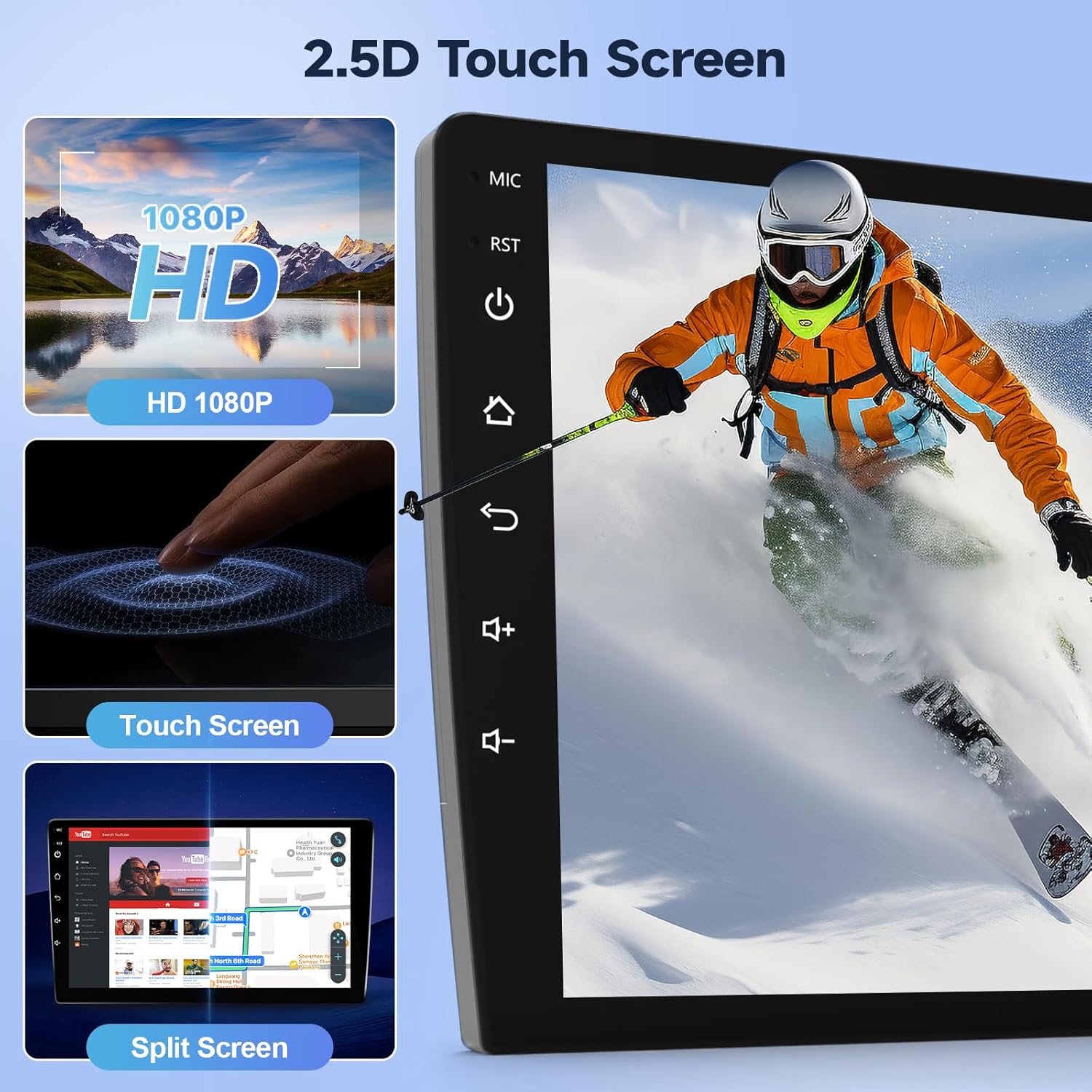
Figure 5: HD Touchscreen with Mirror Link and Split Screen features.
Backup Camera & Steering Wheel Controls (SWC)
Enhance safety and convenience with the backup camera input and steering wheel control compatibility.
- Backup Camera: The stereo supports rearview mirror image input when backing up. The included backup camera features a 170° wide-angle lens, IP68 waterproofing, and night vision for optimal visibility in various conditions.
- Steering Wheel Controls (SWC): After correct wiring, you can program the steering wheel buttons to control the stereo functions, providing convenient access without taking your hands off the wheel.

Figure 6: Backup Camera features and display.

Figure 7: Steering Wheel Control (SWC) setup and functionality.
Specifications
| Feature | Detail |
|---|---|
| Item Weight | 2.97 pounds |
| Package Dimensions | 11.81 x 11.06 x 3.82 inches |
| Display Size | 9 Inches |
| Voice Command | Touchscreen (via Carplay/Android Auto) |
| Operating System | Android |
| Vehicle Service Type | Car |
| Special Features | Android Auto, Bluetooth, Carplay, Touchscreen |
| Connectivity Technology | Bluetooth, USB, Wi-Fi |
| Map Type | Street (Online/Offline) |
| Audio Output Mode | Stereo |
| Mounting Type | Dashboard Mount |
Maintenance
To ensure the longevity and optimal performance of your car stereo, follow these maintenance guidelines:
- Cleaning: Use a soft, dry cloth to clean the screen and exterior. Avoid abrasive cleaners or solvents.
- Software Updates: Periodically check for and install software updates to ensure the system runs efficiently and securely.
- Environmental Conditions: Avoid exposing the unit to extreme temperatures, direct sunlight for prolonged periods, or excessive moisture.
- Cable Connections: Ensure all cables are securely connected and free from damage.
Troubleshooting
If you encounter issues with your Leadfan Android Car Stereo, refer to the following common troubleshooting steps:
No Power / Unit Not Turning On
- Check the power cable connection to the unit and the car's power source.
- Verify the car's fuse related to the stereo is not blown.
- Ensure the car battery is properly connected and charged.
No Sound
- Check speaker wire connections.
- Ensure the volume is not muted or set to minimum.
- Verify audio settings in the system menu.
Touchscreen Unresponsive or Lagging
- Restart the unit.
- Ensure the screen is clean and free from debris.
- If persistent, a factory reset might be necessary (note: this will erase personal data and settings).
GPS Not Working / Inaccurate
- Ensure the GPS antenna is properly installed and has a clear view of the sky.
- Check GPS settings within the system.
- Verify internet connection for online maps.
Bluetooth / Wi-Fi Connectivity Issues
- Ensure Bluetooth/Wi-Fi is enabled on both the stereo and your device.
- Delete existing pairings and re-pair the devices.
- Check for interference from other electronic devices.
Backup Camera Not Displaying
- Check the camera input cable connection.
- Ensure the camera is receiving power.
- Verify camera settings in the system menu.
For more complex issues, please contact customer support.
Warranty and Support
Your Leadfan Android Car Stereo comes with comprehensive support and warranty options:
- 30-Day Free Return: Eligible for free returns within 30 days of purchase.
- 12-Month Replacement: A 12-month replacement is offered for quality-related issues.
- Lifetime Technical Support: Receive lifetime technical support for any questions regarding installation or use. Support inquiries will be answered within 24 hours.
- Professional Customer Service: Dedicated professional customer service is available to assist you.
How to Get Technical Support:
- Navigate to the product page on Amazon.
- Click on the seller's name, "Nideo".
- On the seller's storefront, click "Ask a question".
- Provide details of your issue, including photos or videos if relevant, and the support team will respond promptly.

Figure 8: Steps to contact technical support.


