
1. Introduction
This manual provides detailed instructions for the installation, operation, and maintenance of your upHere Dual Tower CPU Air Cooler, Model UE2K6 US. This high-performance air cooler is designed to efficiently dissipate heat from your CPU, ensuring stable and quiet operation for a wide range of Intel and AMD processors. It features a dual-tower heatsink design, two 120mm PWM fans, and six copper heat pipes for optimal thermal management.

Image 1.1: upHere Dual Tower CPU Air Cooler UE2K6 US, showing its dual fan and heatsink design.

Image 1.2: The upHere CPU Air Cooler installed within a desktop computer case.
2. Package Contents
Verify that all components are present in the package before beginning installation:
- upHere Dual Tower CPU Air Cooler (Heatsink with pre-installed fans)
- Mounting Brackets for Intel Sockets
- Mounting Brackets for AMD Sockets
- Screws and Spacers
- Thermal Paste
- Screwdriver
- Thermal Paste Spatula (if included)

Image 2.1: Included mounting hardware and accessories for Intel and AMD platforms.
3. Setup and Installation
3.1. Compatibility
This CPU cooler is compatible with the following CPU sockets:
- Intel: LGA 2011, 2066, 1851, 1700, 1200, 1150, 1121, 1155, 1156, 1366, 1356
- AMD: AM5, AM4, AM3, AM2, AM3+, AM2+, FM2, FM1
3.2. Pre-Installation Steps
- Ensure your motherboard is removed from the PC case or has sufficient access for installation.
- Clean the CPU surface thoroughly with isopropyl alcohol to remove any old thermal paste.
- Identify the correct mounting brackets and hardware for your CPU socket (Intel or AMD).
3.3. Installation Procedure
The cooler is designed for easy installation without the need to remove the existing fan, saving time and effort. Follow these steps:
- Attach the appropriate backplate (if required for your socket) to the rear of the motherboard.
- Secure the standoffs to the motherboard through the CPU socket holes.
- Apply a small amount of thermal paste to the center of your CPU. Use the provided spatula to spread it evenly into a thin layer, or apply a pea-sized dot if using the pressure method.
- Carefully place the cooler onto the CPU, aligning the mounting holes on the cooler with the standoffs.
- Using the provided screwdriver, secure the cooler to the mounting brackets. Tighten screws in a diagonal pattern until snug, but do not overtighten. The design allows installation from above without removing the fan.
- Connect the 4-pin PWM fan connector(s) to the CPU_FAN header on your motherboard.

Image 3.1: Illustration of the easy installation method, allowing access to mounting screws without fan removal.
3.4. RAM Compatibility
The compact and thoughtful design of this cooler ensures that your RAM modules are not blocked or interfered with during installation. This allows full access to all your components without compromising cooling efficiency.

Image 3.2: The cooler's design provides ample RAM clearance.
4. Operating Instructions
4.1. Fan Operation
The upHere CPU Air Cooler features dual 120mm PWM fans. PWM (Pulse Width Modulation) technology allows the motherboard to automatically adjust the fan speed based on the CPU temperature. This ensures efficient cooling when needed and quiet operation during lighter workloads.
- Fan Speed: Automatically adjusts between 600-1650 RPM (±10%).
- Airflow: Up to 68 CFM (Cubic Feet per Minute).

Image 4.1: Depiction of airflow and low-noise operation.
4.2. Cooling Performance
The innovative dual tower structure and six high-performance copper heat pipes work together to provide superior cooling efficiency and airflow. This design ensures optimal heat dissipation, keeping your CPU temperatures low even under demanding workloads and gaming sessions.
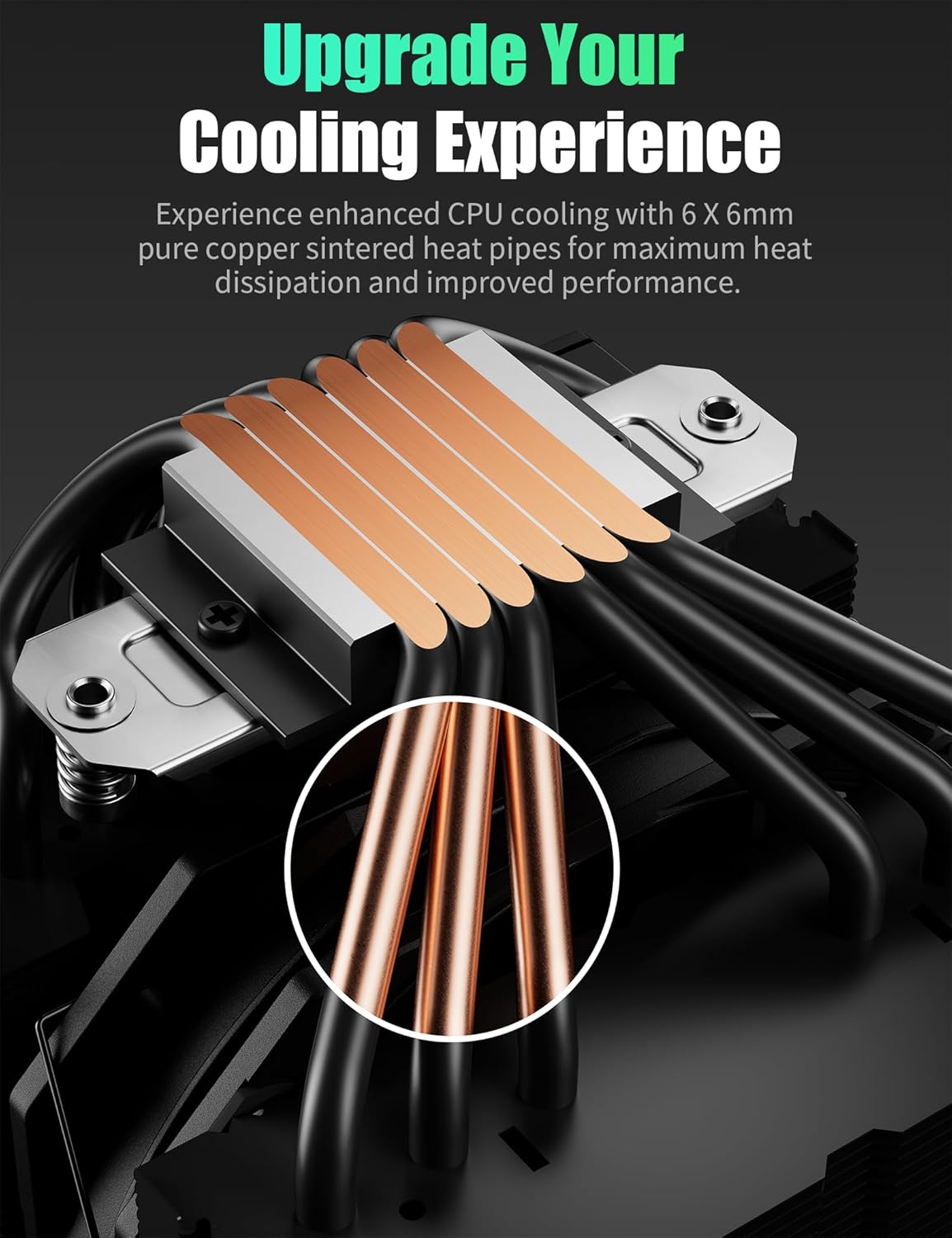
Image 4.2: Close-up of the 6x6mm pure copper sintered heat pipes for maximum heat dissipation.

Image 4.3: The dual tower design and PWM fan control contribute to efficient cooling.
5. Maintenance
Regular maintenance helps ensure the longevity and optimal performance of your CPU cooler.
- Dust Removal: Periodically inspect the heatsink fins and fan blades for dust accumulation. Use compressed air to gently blow away dust. Ensure the fans are held stationary during cleaning to prevent damage to the bearings.
- Fan Inspection: Check fan blades for any obstructions or signs of wear. Ensure the fan cables are securely connected and not interfering with fan rotation.
- Thermal Paste: While not required frequently, if you remove the cooler for any reason, it is recommended to clean off old thermal paste and apply new paste before re-installation.
6. Troubleshooting
If you encounter issues with your CPU cooler, consider the following common solutions:
- High CPU Temperatures:
- Verify that the cooler is securely mounted to the CPU and motherboard.
- Ensure sufficient thermal paste was applied correctly.
- Check for proper airflow within your PC case. Ensure case fans are correctly oriented.
- Confirm that the CPU_FAN header on the motherboard is functioning and the fan is spinning.
- Fan Not Spinning:
- Check if the 4-pin PWM connector is securely plugged into the CPU_FAN header.
- Inspect for any cable obstructions preventing fan rotation.
- Ensure the motherboard's BIOS/UEFI settings are configured to allow fan operation.
- Excessive Fan Noise:
- While designed for quiet operation (≤25 dB), check for dust buildup on fan blades or heatsink fins.
- Ensure no cables are touching the fan blades.
- Verify that the fan is securely mounted and not vibrating against other components.
7. Specifications

Image 7.1: Visual representation of technical specifications and dimensions.
| Feature | Detail |
|---|---|
| Model Number | UE2K6 US |
| Brand | upHere |
| Package Dimensions | 7.87 x 6.26 x 6.26 inches |
| Item Weight | 2.49 Pounds |
| Power Connector Type | 4-Pin PWM |
| Voltage | 12 Volts (DC) |
| Wattage | 1.45 watts |
| Cooling Method | Air, Heat Pipe |
| Compatible Devices | Desktop |
| Noise Level | ≤25 Decibels |
| Material | Aluminum (Heatsink), Copper (Heat Pipes) |
| Maximum Rotational Speed | 1650 RPM |
| Heat Pipes | 6 x Ø6mm |
| Fan Dimensions | 120mm |
8. Warranty and Support
For warranty information or technical support, please refer to the official upHere website or contact their customer service directly. Keep your purchase receipt as proof of purchase for warranty claims.
Manufacturer: upHere
First Available Date: June 27, 2024

