
1. Product Overview
The AODK 59 Inch Gaming Desk is designed for an enhanced gaming and work experience. It features integrated LED lighting, convenient USB charging ports, and ample storage solutions. The desk is constructed with a durable metal frame and high-quality MDF board, ensuring stability and longevity.
- Colorful LED Lights: Features 10 static colors, 10 dynamic modes, and 6 brightness levels with memory function.
- USB Charging Ports & Power Outlets: Equipped with 3 power outlets and 2 USB charging ports for electronic devices.
- Powerful Storage Function: Includes 3 fabric drawers, a side hook, and an open storage shelf for a gaming PC. The shelf design is reversible.
- Ergonomic Monitor Stand: Raises your monitor to a suitable height for improved posture and reduced fatigue.
- Spacious, Sturdy & Durable: A 59"(L) x 19.7"(D) desktop provides ample space. Made of premium metal frame and high-quality MDF board, resistant to scratches and water damage. Adjustable non-slip foot pads ensure stability.
2. Safety Information
Please read and understand all instructions before assembly and use. Keep this manual for future reference.
- Always follow the assembly instructions carefully.
- Ensure the desk is assembled on a stable, even surface.
- Do not use the desk on uneven surfaces or attempt to anchor it to the wall or floor as it is not designed for this purpose.
- Always adhere to the weight limits of the desk and its components.
- Keep children and pets away from the assembly area.
- Do not overtighten screws during assembly to prevent damage.
- Ensure all electrical connections (USB ports, power outlets, LED lights) are properly secured and not overloaded.
3. Package Contents
Verify all components are present before beginning assembly. Refer to the included user manual for a detailed parts list.
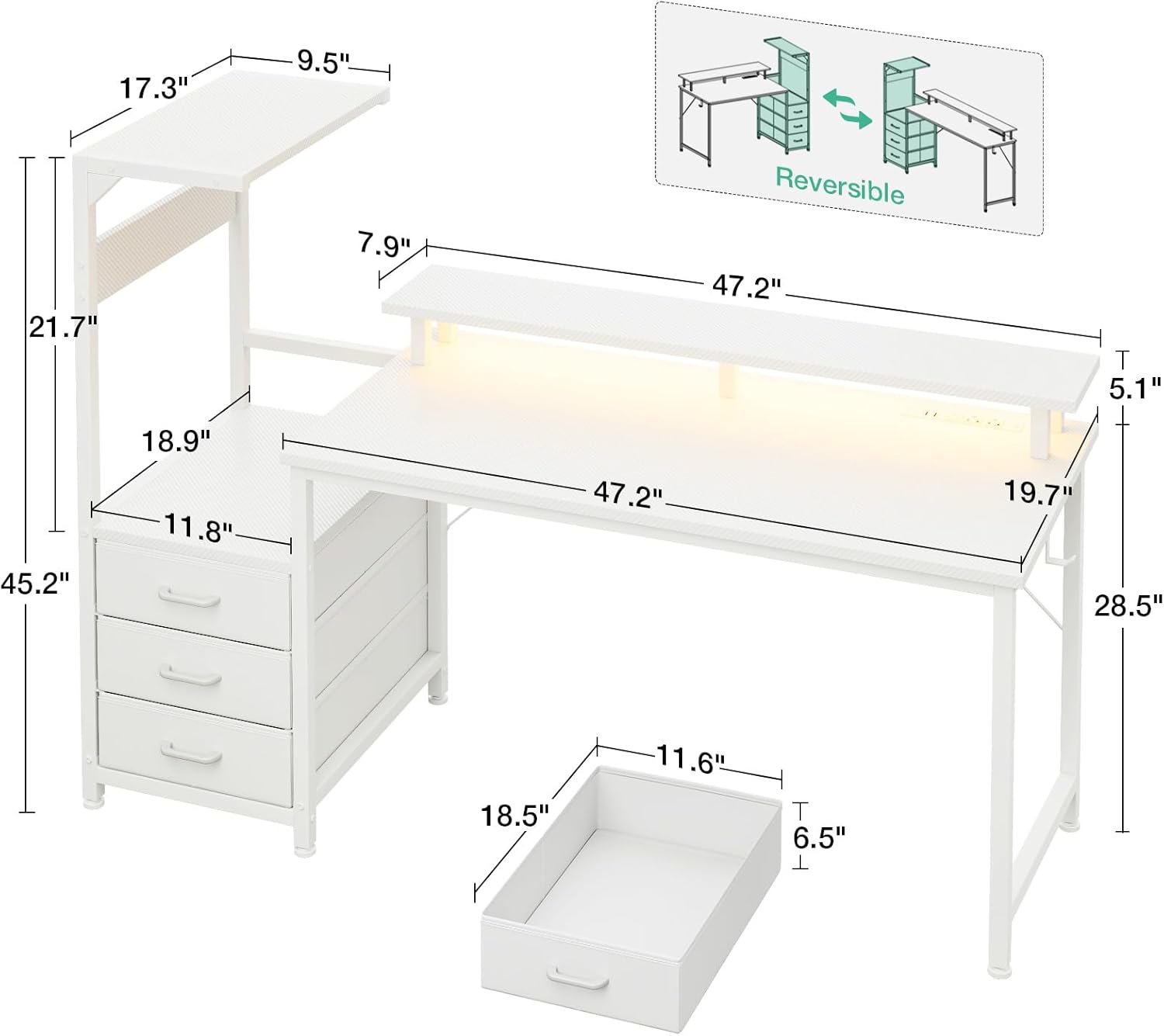
Image: All components of the AODK 59 Inch Gaming Desk laid out with dimensions.
The package includes all necessary parts for assembly, such as the desktop, frame components, storage shelves, fabric drawers, monitor stand, LED light strip, USB charging ports, power outlets, and a side hook. All parts are clearly labeled for easy identification.
4. Setup and Assembly
Assembly is designed to be straightforward with clearly labeled parts and detailed instructions. An Allen key and screwdriver are included. It is recommended to have two people for assembly for ease and safety.
Assembly Video Guide
Video: AODK Gaming Desk assembly guide, demonstrating step-by-step construction.
Key Assembly Steps:
- Prepare Components: Unpack all parts and verify against the parts list in the included manual.
- Assemble Main Frame: Connect the main desk frame components using the provided screws and Allen key.
- Install Storage Unit: Attach the side storage unit, including the PC tower shelf and fabric drawer supports. Note that the storage unit is reversible and can be installed on either the left or right side.
- Insert Fabric Drawers: Fold and insert the fabric drawers into their designated slots.
- Attach Desktop: Secure the main desktop surface to the assembled frame.
- Install Monitor Stand: Attach the monitor stand to the main desktop.
- Mount Power Outlet & USB Ports: Secure the recessed power outlet and USB charging ports into the designated slot on the desktop.
- Install LED Light Strip: Affix the LED light strip to the underside of the monitor stand using the provided adhesive.
- Attach Side Hook: Install the side hook for headphones or other accessories.
For detailed visual instructions, please refer to the included paper manual or the video guide above.
5. Operating Instructions
LED Light Operation

Image: Close-up of the LED light controller with buttons labeled C, M, and Power/Speed/Brightness.
The LED light strip is controlled via an inline remote:
- Static Color Button (C): Press once to switch to static color mode. Each press changes the color.
- Dynamic Mode Button (M): Press once to switch to dynamic effect mode. Each press changes the dynamic mode. Press and hold for 3 seconds to enter demo mode, cycling through various dynamic modes.
- Speed & Brightness and Power Button:
- In static mode, press to adjust brightness (6 grades).
- In dynamic mode, press to adjust dynamic mode speed.
- Press and hold to shut down the strip when it is on. Press once to turn it on when off.
The LED strip has a power-off memory function, restoring the last color, brightness, and mode upon next power-on.
USB Charging Ports & Power Outlets

Image: Close-up of the recessed power outlet featuring three AC outlets and two USB ports.
The desk is equipped with 3 standard AC power outlets (125V/12A) and 2 USB charging ports (5V/2A). Simply plug the desk's main power cord into a wall outlet to activate these features. Use these to conveniently power and charge your electronic devices.
6. Maintenance
- Cleaning: Wipe the desk surfaces with a soft, damp cloth. Avoid harsh chemicals that may damage the finish.
- Dusting: Regularly dust the desk and its components to prevent buildup.
- Fasteners: Periodically check all screws and fasteners to ensure they are tight. Retighten if necessary, but do not overtighten.
- Electrical Components: Ensure power cords and LED light connections are not pinched or damaged.
- Fabric Drawers: The fabric drawers can be spot cleaned with a mild detergent and water. Allow to air dry completely.
7. Troubleshooting
- LED Lights Not Working: Check if the desk's main power cord is plugged in. Ensure the LED light strip's USB connector is securely plugged into one of the desk's USB ports. Verify the inline remote is not damaged.
- Power Outlets/USB Ports Not Functioning: Confirm the desk's main power cord is fully plugged into a working wall outlet. Check for any tripped circuit breakers in your home.
- Desk Wobbles: Ensure all assembly screws are tightened. Adjust the non-slip foot pads on the bottom of the desk legs to level the desk on uneven surfaces.
- Drawers Stick/Don't Slide Smoothly: Ensure the fabric drawers are correctly assembled and inserted. Check for any obstructions in the drawer slots.
If you encounter any product-related issues not covered here, please contact AODK customer support for assistance.
8. Specifications
| Feature | Detail |
|---|---|
| Brand | AODK |
| Model | B0D9QJTCGS |
| Product Dimensions | 19.69"D x 59.44"W x 45.2"H |
| Color | White (Carbon Fiber Texture) |
| Material | Engineered Wood (Top), Metal (Base) |
| Special Features | Built-In USB Outlet, Desk with LED lights, Ergonomic Monitor Stand, Reversible Storage |
| Power Outlets | 3 AC Outlets (125V/12A) |
| USB Ports | 2 USB Charging Ports (5V/2A) |
| Number of Drawers | 3 (Fabric) |
| Included Components | Built-in Outlet, Built-in USB Port, Headphone Hook, Assembly Tools |
| Assembly Required | Yes |
9. Warranty and Support
The AODK 59 Inch Gaming Desk comes with a Limited Warranty. For specific details regarding warranty coverage and duration, please refer to the warranty card included in your package or contact customer support.
Customer Service: If you encounter any product-related issues, please feel free to contact us. Our professional customer support team is ready to assist you within 24 hours.
Contact information can typically be found on the product packaging or the official AODK website.