
1. Setup
1.1 Unboxing and Initial Inspection
Upon opening the package, verify that all components are present and undamaged. The standard package typically includes the Motorola Moto E14 smartphone, a charging cable, and documentation.
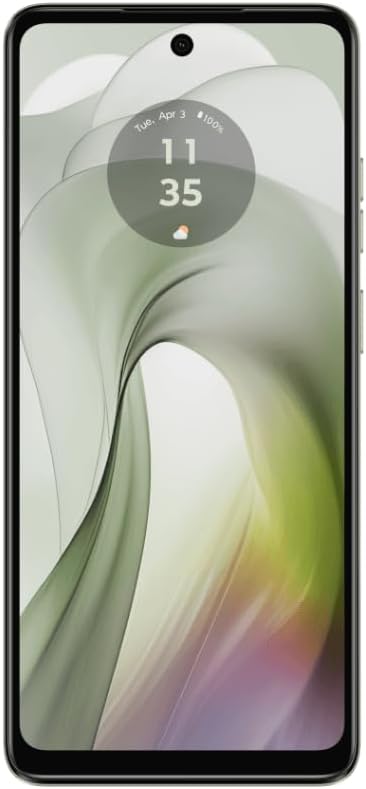
Image 1.1: Front view of the Motorola Moto E14 smartphone, displaying the screen and front camera.
1.2 SIM Card and Storage Installation
The Moto E14 supports Dual SIM functionality. Locate the SIM tray on the side of the device. Use the provided SIM ejector tool to open the tray. Insert your Nano-SIM cards and an optional microSD card (for expanded storage) into the designated slots, ensuring correct orientation. Gently push the tray back into the device until it clicks into place.

Image 1.2: Side view of the Motorola Moto E14, showing the location of the SIM card tray and volume/power buttons.
1.3 Initial Power On and Setup Wizard
Press and hold the power button located on the side of the device until the Motorola logo appears. Follow the on-screen instructions to complete the initial setup. This includes selecting your language, connecting to a Wi-Fi network, accepting terms and conditions, and signing in to your Google account.
1.4 Charging the Device
Before first use, it is recommended to fully charge your device. Connect the charging cable to the phone's USB-C port and the other end to a compatible power adapter. The Moto E14 supports 15W rapid charging. A full charge of the 5000 mAh battery can provide up to 40 hours of usage.
2. Operating Your Device
2.1 Basic Navigation
The Moto E14 operates on Android. Navigate the interface using touch gestures: tap to select, swipe to scroll, pinch to zoom. The home screen provides quick access to frequently used apps and widgets. Swipe up from the bottom of the screen to access the app drawer.
2.2 Making Calls and Sending Messages
To make a call, open the Phone app, enter the number, and tap the call icon. To send a message, open the Messages app, tap the new message icon, enter the recipient's number or select from contacts, and type your message.
2.3 Camera Usage
The Moto E14 features a 13 MP main camera and a 5 MP front camera. Open the Camera app to capture photos and videos. Utilize the AI-powered camera features for enhanced image quality. Tap the shutter button to take a photo or hold it to record a video. Switch between front and rear cameras using the camera toggle icon.

Image 2.1: Back view of the Motorola Moto E14, highlighting the 13 MP AI camera module and Motorola logo.
2.4 Connecting to Networks
Access Wi-Fi and Bluetooth settings from the Quick Settings panel (swipe down from the top of the screen) or through the main Settings app. The device supports 4G LTE bands: 1, 3, 5, 7, 8, 20, 28, 38, 40, 41 for cellular connectivity. Ensure your SIM card is active and your carrier supports these bands for optimal network performance.
2.5 Media and Entertainment
Experience media on the 6.56-inch IPS LCD display with a 90Hz refresh rate. The device also features Dolby Atmos sound for an enhanced audio experience. Use pre-installed apps for music, video playback, and gaming.
3. Maintenance and Care
3.1 Software Updates
Regularly check for and install software updates to ensure your device has the latest features, security patches, and performance improvements. Go to Settings > System > System updates to check for available updates.
3.2 Cleaning Your Device
To clean your device, power it off and gently wipe the screen and body with a soft, lint-free cloth. Avoid using harsh chemicals or abrasive materials that could damage the screen or finish.
3.3 Battery Care
To prolong battery life, avoid exposing the device to extreme temperatures. It is generally recommended to keep the battery charge between 20% and 80% for optimal long-term health. Use only approved chargers and cables.
3.4 Durability Features
The Moto E14 is designed with Corning Gorilla Glass 3 for screen protection and an IP52 water-repellent design, offering resistance against light splashes and dust. This does not mean the device is waterproof; avoid submerging it in water.
4. Troubleshooting
- Device not powering on: Ensure the battery is charged. Connect the device to a charger and wait a few minutes before attempting to power it on again.
- Apps crashing or freezing: Try restarting the app. If the issue persists, clear the app's cache and data in Settings > Apps > [App Name] > Storage.
- Poor network connectivity: Check if your SIM card is properly inserted. Toggle Airplane Mode on and off. Restart the device. Verify your carrier's network coverage in your area.
- Slow performance: Close unused apps running in the background. Clear cache regularly. Consider uninstalling unnecessary applications to free up storage.
- Screen unresponsive: Perform a forced restart by holding down the power button for approximately 10-15 seconds.
5. Technical Specifications
| Feature | Specification |
|---|---|
| Model Number | XT2421 |
| Display | 6.56-inch IPS LCD, 90Hz, 720 x 1612 pixels (~269 ppi), Corning Gorilla Glass 3 |
| Processor | Octa-core (Cortex, 1.6 GHz) |
| RAM | 2 GB |
| Internal Storage | 64 GB |
| Rear Camera | 13 MP, f/2.2, (wide), 1.12µm, PDAF, LED flash, HDR, 1080p@30fps |
| Front Camera | 5 MP, f/2.2, (wide), 1/5.0, 1.12µm |
| Battery | 5000 mAh, non-removable, 15W wired charging |
| Operating System | Android |
| Connectivity | 4G LTE (Bands: 1, 3, 5, 7, 8, 20, 28, 38, 40, 41), Wi-Fi, Bluetooth, GPS |
| Audio Jack | 3.5 mm |
| Durability | IP52 water-repellent design |
| Dimensions | 6.89 x 3.5 x 1.93 inches (Package) |
| Weight | 10.8 ounces (Item) |
6. Warranty Information
Your Motorola Moto E14 XT2421-12 is covered by a limited warranty. The specific terms and duration of the warranty may vary by region and retailer. Please refer to the warranty card included in your product packaging or visit the official Motorola website for detailed warranty information applicable to your purchase.
7. Support and Contact
For further assistance, technical support, or to access additional resources, please visit the official Motorola support website. You can also find more information and contact options through the Motorola Store:


