
1. Product Overview
This manual provides instructions for the FENIFOX Wireless Keyboard and Mouse Combo. This combo is designed for use with various operating systems, including Windows, macOS, and iOS, offering a convenient and efficient input solution.
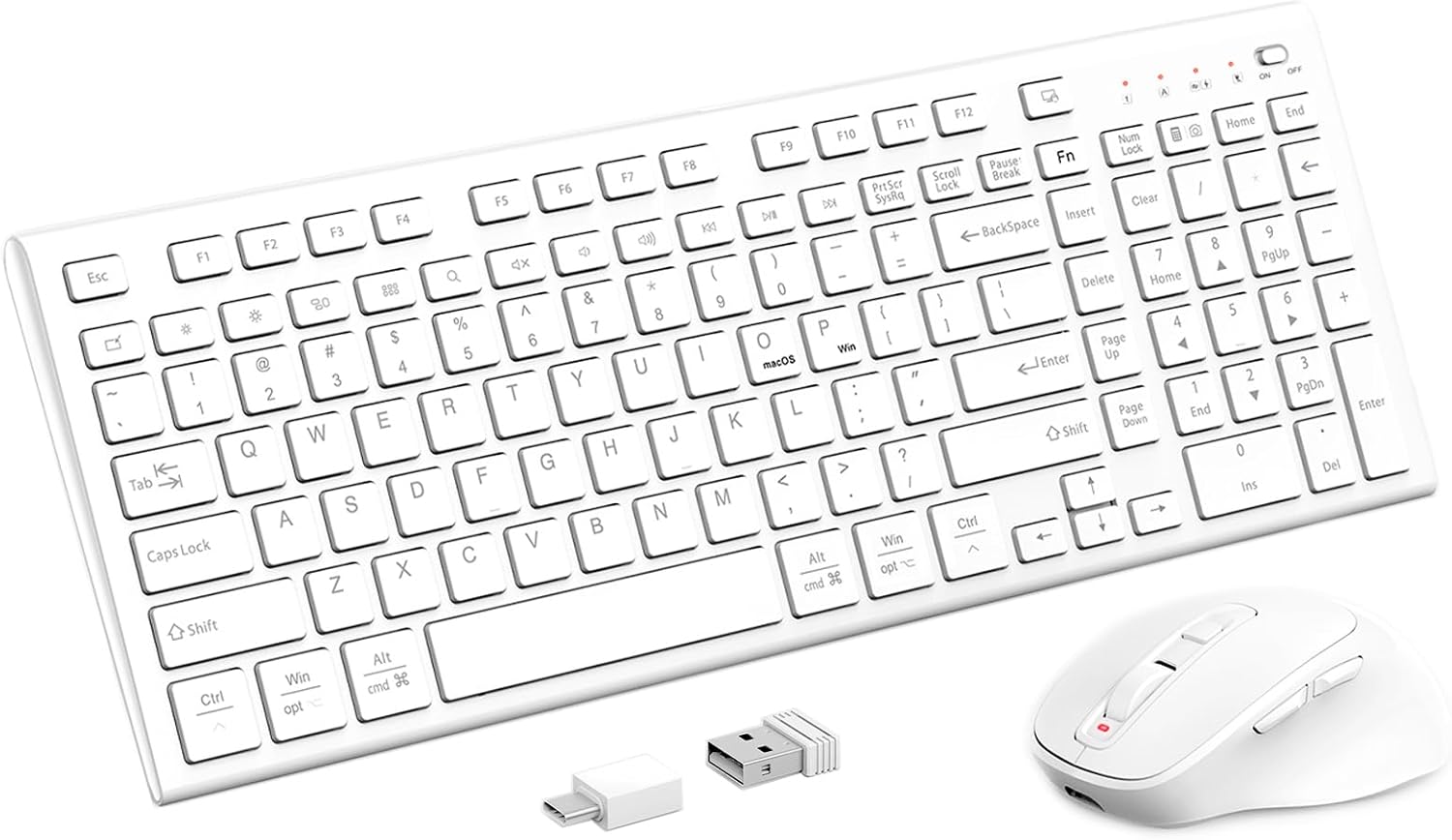
Figure 1: FENIFOX Wireless Keyboard and Mouse Combo with USB receiver. This image displays the full white wireless keyboard, the ergonomic white wireless mouse, and the compact USB receiver.
2. Package Contents
- Wireless Keyboard
- Wireless Mouse
- USB Receiver (stored in the mouse battery compartment)
- USB-C Charging Cable
- User Manual
3. Setup Instructions
3.1. Charging the Devices
The keyboard and mouse are equipped with rechargeable batteries. Before initial use, it is recommended to fully charge both devices.
- Locate the USB-C charging port on the keyboard and mouse.
- Connect the provided USB-C charging cable to the charging port on each device and to a USB power source (e.g., computer USB port, USB wall adapter).
- The charging indicator light will illuminate during charging and turn off when fully charged.
Charging Time: Approximately 2 hours for a full charge.
Standby Time: Keyboard: Up to 90 days; Mouse: Up to 35 days.

Figure 2: Charging the Wireless Keyboard and Mouse. This image shows the white wireless mouse and a portion of the white wireless keyboard, both connected to a USB-C charging cable, highlighting the 500mAh battery capacity and charging times.
3.2. Connecting to Your Device
The keyboard and mouse connect wirelessly via a single USB receiver.
- Remove the USB receiver from the battery compartment of the mouse.
- Plug the USB receiver into an available USB-A port on your computer or tablet.
- Turn on the keyboard and mouse using their respective power switches. The devices should automatically connect to your computer.
- No additional drivers are typically required for Windows, macOS, or iOS systems.
4. Operating Instructions
4.1. Keyboard Functions
The keyboard features a full layout with dedicated multimedia keys and dual OS compatibility.
- 14 Independent Multimedia Keys: Located at the top of the keyboard, these keys provide quick access to functions such as volume control, media playback, and system shortcuts.
- OS/Windows Dual Layout: The keyboard supports both Windows and macOS layouts. Keys like 'Win' and 'Alt' are labeled with their macOS equivalents ('opt' and 'cmd') for seamless switching between operating systems.
- Scissor-Switch Keys: Designed for comfortable and responsive typing.
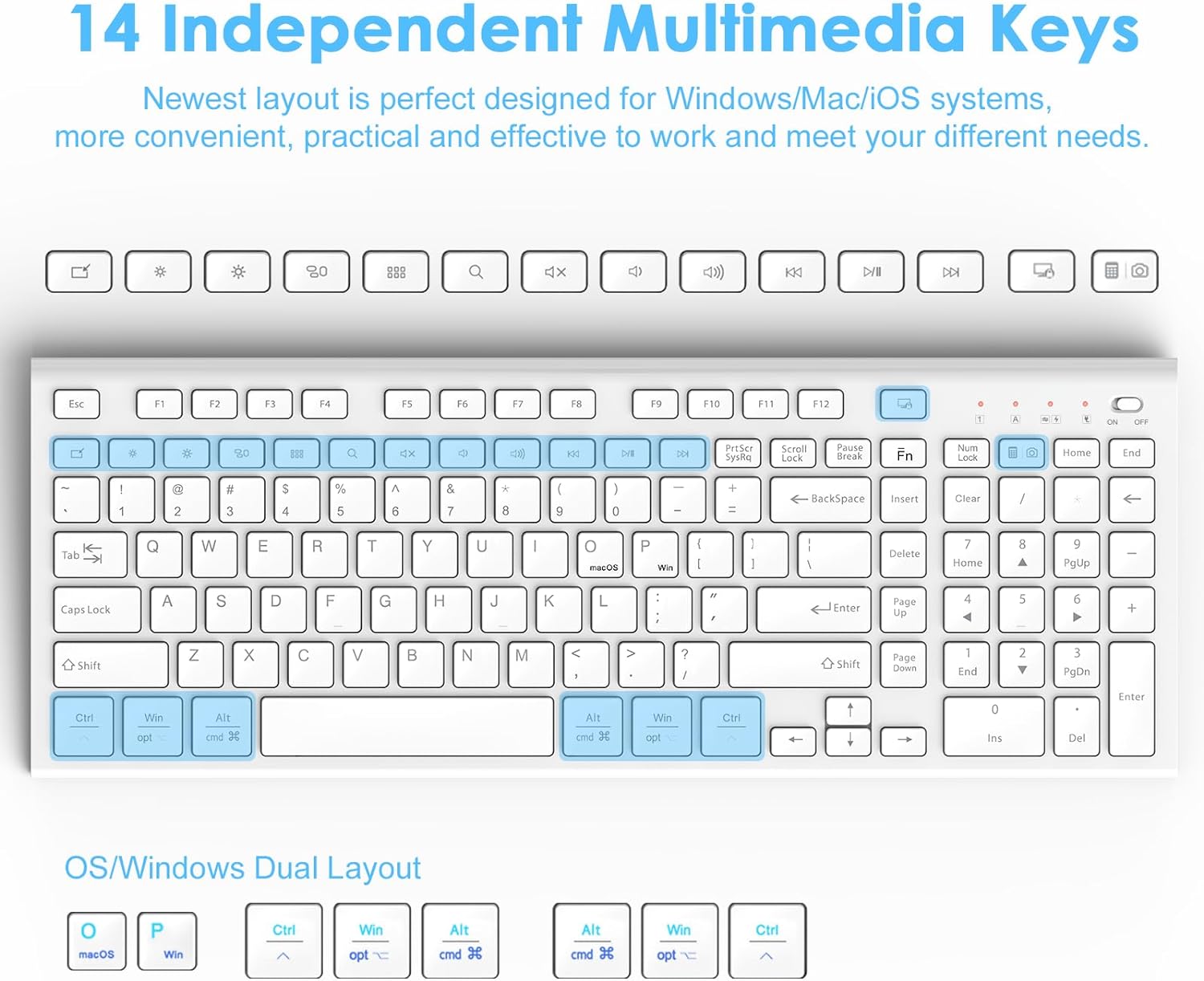
Figure 3: Keyboard Layout and Multimedia Keys. This image highlights the 14 independent multimedia keys at the top of the keyboard and the dual OS (Windows/macOS) key labels.
4.2. Mouse Functions
The mouse offers adjustable sensitivity and silent operation.
- Adjustable DPI: The mouse features 5 adjustable DPI levels (800-1200-1600-2000-2400). Press the DPI button (usually located near the scroll wheel) to cycle through the sensitivity settings.
- Back/Forward Buttons: Conveniently located on the side of the mouse for easy navigation in web browsers and file explorers.
- Silent Buttons: The mouse buttons are designed to produce minimal click noise.

Figure 4: Mouse Features. This image details the ergonomic design of the mouse, pointing out the back and forward buttons, and mentioning the 5 adjustable DPI settings and 99% noiseless buttons.
5. Maintenance
5.1. Cleaning
To maintain the appearance and functionality of your devices:
- Use a soft, dry, lint-free cloth to wipe the surfaces of the keyboard and mouse.
- For stubborn dirt, slightly dampen the cloth with water or a mild cleaning solution. Avoid harsh chemicals or abrasive materials.
- Do not immerse the devices in water or allow liquids to enter the internal components.
5.2. Battery Care
- Charge the devices regularly to prolong battery life.
- Avoid exposing the devices to extreme temperatures (hot or cold) as this can affect battery performance.
- If the devices will not be used for an extended period, charge them to about 50% before storing.
6. Troubleshooting
6.1. Connection Issues
- No connection: Ensure the USB receiver is securely plugged into a working USB port. Try a different USB port.
- Devices not recognized: Make sure both the keyboard and mouse are powered on. Turn them off and on again.
- Interference: Move the devices closer to the USB receiver. Avoid placing the receiver near other wireless devices or large metal objects that might cause interference.
6.2. Lag or Unresponsiveness
- Low battery: Charge the keyboard and mouse fully.
- Interference: As mentioned above, check for potential sources of wireless interference.
- Re-pairing: In rare cases, you might need to re-pair the devices. Consult FENIFOX support if this issue persists.
6.3. Charging Problems
- Not charging: Ensure the USB-C cable is properly connected to both the device and the power source. Try a different USB-C cable or power source.
- Charging indicator not working: If the device is charging but the indicator light is not behaving as expected, contact support.
7. Specifications
| Brand | FENIFOX |
| Model | Wireless Keyboard and Mouse Combo |
| Color | White |
| Connectivity Technology | Wireless (2.4GHz USB Receiver) |
| Keyboard Features | 14 Multimedia Keys, Dual OS Layout (Windows/macOS), Scissor-Switch Keys, Ergonomic Design (5°/9° tilt) |
| Mouse Features | 5 Adjustable DPI (800-1200-1600-2000-2400), Back/Forward Buttons, Silent Clicks |
| Battery | Rechargeable (500mAh), USB-C Charging |
| Compatible Devices | Laptop, Personal Computer, Tablet |
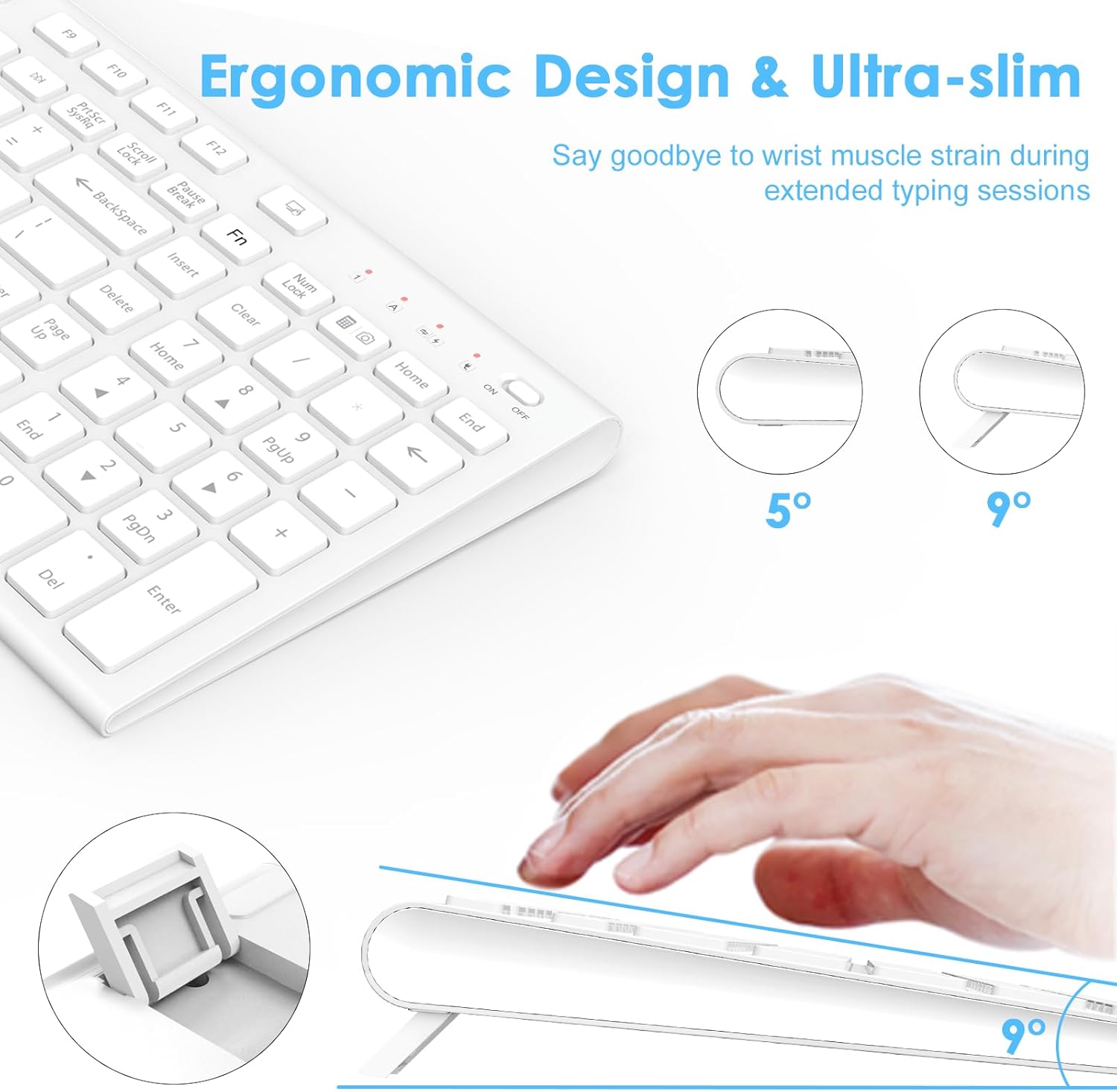
Figure 5: Ergonomic Keyboard Design. This image illustrates the ultra-slim profile and adjustable tilt angles (5° and 9°) of the keyboard, designed for comfortable typing.
8. Warranty and Support
FENIFOX products come with a standard manufacturer's warranty. For specific warranty details, please refer to the product packaging or the official FENIFOX website.
If you encounter any issues or have questions regarding your FENIFOX Wireless Keyboard and Mouse Combo, please contact FENIFOX customer support for assistance. Contact information can typically be found on the product packaging or the official FENIFOX website.