
TCL MW513U
TCL Linkzone 5G UW (MW513U) User Manual
Your comprehensive guide to setting up and using your 5G MiFi Hotspot Router.
1. Introduction
The TCL LINKZONE 5G UW (Model MW513U) is a portable 5G MiFi Hotspot Router designed to provide high-speed internet connectivity on the go. It allows you to create a secure Wi-Fi network for multiple devices, monitor usage, and customize settings through its integrated display or a web-based management tool. Equipped with a 4500mAh battery, it also supports On-The-Go (OTG) reverse charging for other mobile devices.
2. What's in the Box
Please check the package contents to ensure all items are present:
- TCL Linkzone 5G UW Router
- Battery
- USB Power Adapter
- USB-C Cable
3. Product Overview
Familiarize yourself with the physical components of your TCL Linkzone 5G UW device.

Figure 3.1: Front View. The front of the device features a 2.4-inch display showing network status, data usage, Wi-Fi information, and menu navigation options. The TCL logo is visible on the right side.
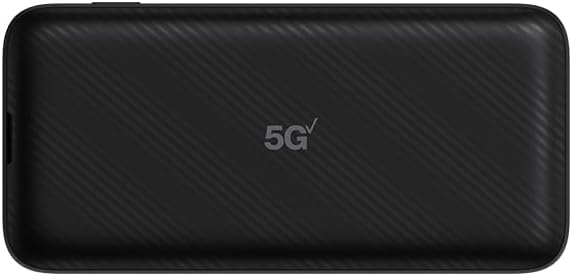
Figure 3.2: Back View. The back of the device features a subtle textured pattern and the "5G UW" logo, indicating its 5G Ultra Wideband capability.

Figure 3.3: Top/Bottom View (Ports). This view shows the USB-C charging port, a LAN port for wired connections, and a small reset button.

Figure 3.4: Side View (Power Button). The side of the device features the power button, used for turning the device on/off and waking the screen.
4. Setup
4.1. Inserting the SIM Card
- Locate the SIM card slot, typically under the battery cover or on the side of the device.
- Carefully open the SIM card slot cover.
- Insert your activated Nano-SIM card into the slot with the gold contacts facing down and the notched corner aligned correctly.
- Close the SIM card slot cover securely.
4.2. Installing the Battery
- Remove the back cover of the device.
- Align the battery contacts with the terminals inside the battery compartment.
- Gently press the battery into place until it is seated securely.
- Replace the back cover.
4.3. Initial Power On
Press and hold the Power button (refer to Figure 3.4) for a few seconds until the screen illuminates. The device will boot up and attempt to connect to the cellular network.
5. Operating the Device
5.1. Connecting Devices via Wi-Fi
The TCL Linkzone 5G UW can connect up to 32 devices simultaneously via Wi-Fi.
- On the Linkzone's display, navigate to the "Wi-Fi Name/Password" section to view the network SSID (Wi-Fi name) and password.
- On your device (smartphone, tablet, laptop), open your Wi-Fi settings.
- Select the Linkzone's SSID from the list of available networks.
- Enter the Wi-Fi password when prompted.
- Once connected, your device will have internet access through the Linkzone.
5.2. Using the Touchscreen Display
The 2.4-inch touchscreen allows you to monitor your connection, data usage, and adjust basic settings directly on the device. Tap icons to navigate menus and view detailed information.
5.3. Web-based Management Tool
For advanced settings and detailed network management, access the web-based management tool. Connect a device to the Linkzone's Wi-Fi, then open a web browser and enter the IP address displayed on the Linkzone's screen (or found in the manual/device settings). Log in using the default credentials (usually found on a sticker inside the device or in the quick start guide).
5.4. On-The-Go (OTG) Reverse Charging
The 4500mAh battery allows the Linkzone to act as a power bank. Connect your mobile device to the Linkzone's USB-C port using a compatible cable to charge it.
6. Maintenance
6.1. Battery Care
- Charge the device regularly using the provided USB-C cable and power adapter.
- Avoid exposing the device to extreme temperatures, which can degrade battery performance.
- If storing the device for extended periods, ensure the battery is charged to approximately 50%.
6.2. Cleaning
Use a soft, dry, lint-free cloth to clean the device. Avoid using harsh chemicals or abrasive materials that could damage the screen or casing.
7. Troubleshooting
| Problem | Possible Solution |
|---|---|
| Device does not power on. | Ensure the battery is correctly installed and charged. Connect the device to the power adapter and try again. |
| No internet connection. |
|
| Cannot connect devices to Wi-Fi. |
|
| Device is slow or unresponsive. | Restart the device. If the issue persists, perform a factory reset (refer to the device's web management tool for instructions, as this will erase custom settings). |
| Activation issues with service provider (e.g., Verizon). | Contact your service provider's customer support directly for assistance with SIM card activation and service provisioning. Ensure the device is compatible with their network. |
8. Specifications
| Feature | Detail |
|---|---|
| Model Name | TCL Linkzone 5G UW |
| Model Number | MW513U |
| Brand | TCL |
| Connectivity Technology | 5G, Wi-Fi, USB |
| Wireless Communication Standard | 802.11n, 802.11b, 802.11ax, 802.11g |
| Frequency Band Class | Dual-Band |
| Frequency | 5 GHz |
| Battery Capacity | 4500mAh Lithium Ion (included) |
| Max Connected Devices | Up to 32 |
| Display | 2.4" Touchscreen |
| Item Weight | 14.4 ounces |
| Package Dimensions | 7 x 4 x 2 inches |
| Compatible Devices | Personal Computer, Tablet, Smartphone |
| Recommended Uses | Home, Business |
9. Warranty and Support
For warranty information, technical support, or to view additional resources, please visit the official TCL support website or refer to the documentation included with your product. You can also visit the TCL Store on Amazon for product information and updates.
Protection plans are available for purchase separately to extend coverage beyond the standard manufacturer's warranty. Please refer to the product listing for details on available protection plans.
Related Documents - MW513U
 |
TCL LINKZONE 5G UW Quick Reference Guide A quick reference guide for setting up and using the TCL LINKZONE 5G UW mobile hotspot, covering device features, status indicators, connectivity options, app usage, and troubleshooting. |
 |
TCL LINKZONE MW63 Gebruikershandleiding - Installatie, Configuratie en Probleemoplossing Uitgebreide gebruikershandleiding voor de TCL LINKZONE MW63 mobiele 4G LTE router, inclusief installatie, Wi-Fi configuratie, toegang tot de webinterface, beveiligingsinstellingen en probleemoplossing. |
 |
TCL LINKZONE MW63VC Quick Start Guide: Setup, Features, and Specifications Get started with your TCL LINKZONE MW63VC mobile hotspot. This guide covers setup, network connection, indicator lights, power saving, charger info, and technical specifications. |
 |
TCL LINKHUB HH515L Quick Start Guide: Setup and Connectivity Get started with your TCL LINKHUB HH515L 5G/LTE mobile hotspot. This quick start guide covers SIM card installation, device connection via Wi-Fi and Ethernet, indicator lights, and technical specifications. |
 |
TCL LinkZone MW45V2 Quick Start Guide - Portable Wireless Router Quick start guide for the TCL LinkZone MW45V2 portable wireless router. Covers safety precautions, device overview, LED indicators, installation, Wi-Fi connection, quick setup, charging, WEEE/RoHS compliance, SAR information, and warranty details. |
 |
TCL LINKZONE MW63AF User Manual and Safety Information User manual and safety information for the TCL LINKZONE MW63AF mobile hotspot, covering setup, operation, LED indicators, and important safety guidelines. |
Ask a question about this manual
Ask about setup, troubleshooting, compatibility, parts, safety, or missing instructions. Manuals+ will review the question and use this page’s manual context to help answer it.