
1. Product Overview
The Wonrabai ESP32-S3-Touch-LCD-4.3B is a microcontroller development board featuring a 4.3-inch capacitive touch display. It integrates a powerful 32-bit LX7 dual-core processor, Wi-Fi, and Bluetooth 5 (LE) connectivity. Designed for Human-Machine Interface (HMI) and other embedded applications, this board offers a high-resolution IPS LCD with 5-point touch support and various peripheral interfaces for versatile development.

Figure 1: Overview of the ESP32-S3-Touch-LCD-4.3B Development Board with its core features.
2. What's in the Box
The package includes the following components:
- ESP32-S3-Touch-LCD-4.3B Development Board (with back wiring 16PIN screw terminal) x1
- 16PIN screw terminal for bottom wiring x1

Figure 2: Contents of the ESP32-S3-Touch-LCD-4.3B package.
3. Key Features
- Processor: Xtensa 32-bit LX7 dual-core processor, up to 240MHz main frequency.
- Connectivity: 2.4GHz Wi-Fi (802.11 b/g/n) and Bluetooth 5 (LE) with onboard antenna.
- Memory: Built-in 512KB SRAM and 384KB ROM, with onboard 16MB Flash and 8MB PSRAM.
- Display: 4.3-inch IPS capacitive touch screen, 800×480 resolution, 65K color.
- Touch Control: Capacitive 5-point touch via I2C interface with interrupt support.
- Power Supply: Onboard voltage regulator supporting 7~36V wide range power supply.
- RTC: Onboard RTC chip and rechargeable battery header (battery not included) for time data retention.
- Interfaces: Onboard CAN, RS485, I2C interface, TF card slot, GH1.25 2P battery header, and digital isolated IO interfaces.
- Wiring: Supports two wiring methods (bottom or back) using screw terminals for integration into various scenarios like DIN rail or embedded devices.
- Indicators: Onboard LED indicators for power and battery recharging status.
- Power Management: Supports flexible clock and independent module power supply settings for low power consumption.
4. Hardware Description
4.1. Board Layout
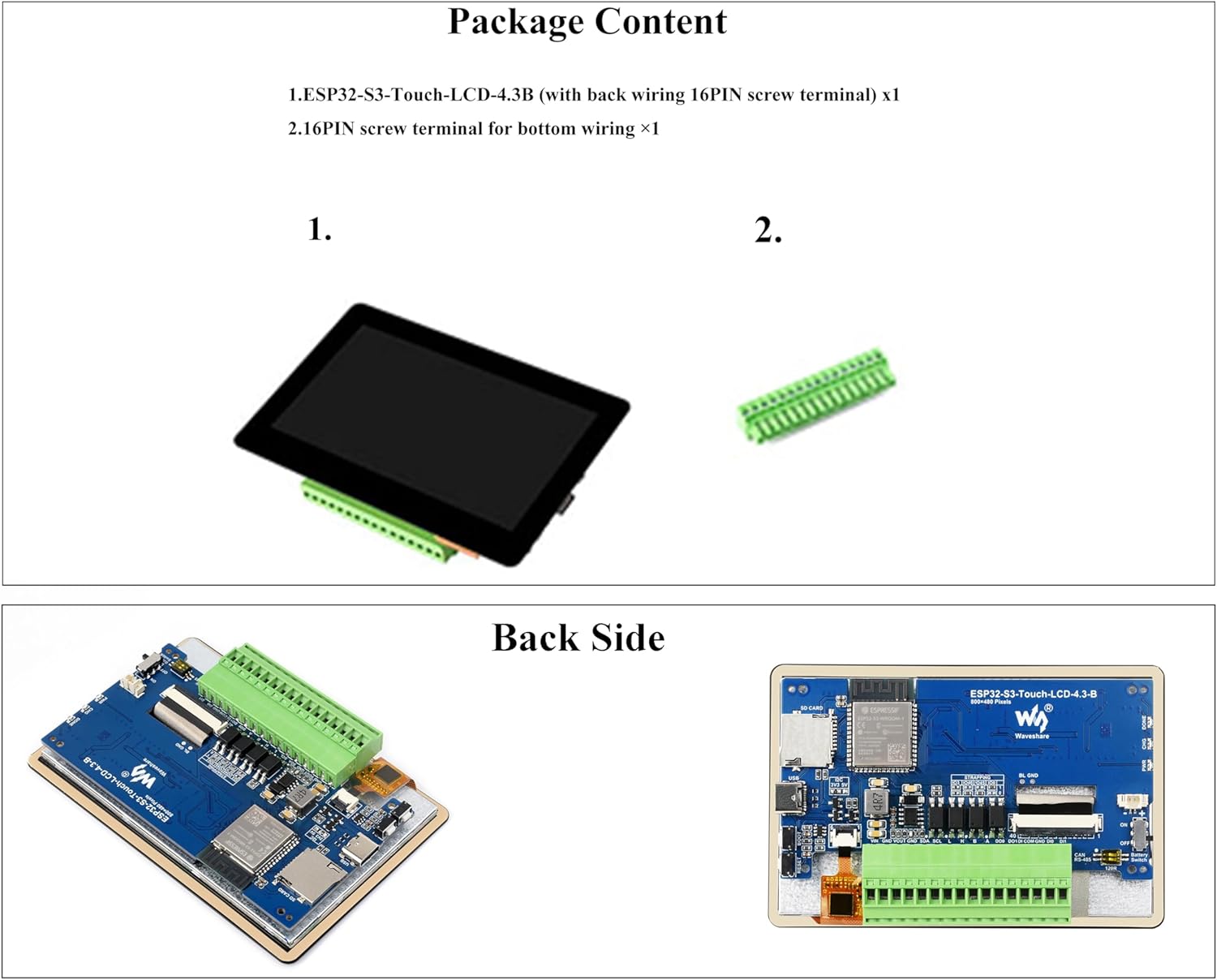
Figure 3: Detailed view of the ESP32-S3-Touch-LCD-4.3B board components.
- ESP32-S3-WROOM-1-N16R8: SoC with Wi-Fi and Bluetooth, up to 240MHz operating frequency, integrated 8MB PSRAM and 16MB Flash
- TF card slot
- USB Type-C port
- BOOT button: Press and hold while powering on for program burning
- RESET button
- Optocoupler isolation
- Touch panel connector
- 4.3-inch display panel connector
- RS485 and CAN terminal resistors selection (close by default)
- Battery power supply ON/OFF switch
- 3.7V single lithium battery GH1.25 header
- Status Indicators:
- DONE: Lithium battery charging completed indicator
- CHG: Lithium battery charging indicator
- PWR: Power supply indicator (the CHG will blink and DONE will light on when connecting with DC power supply and without lithium battery connected or battery switch is OFF)
- 7-36V DC power supply terminal
- I2C interface terminal: VOUT pin output 5V/3.3V (switching by onboard resistor)
- CAN interface terminal
- RS485 interface terminal
- Digital output: 5-36V, open-drain output, output load: 450mA per channel (MAX)
- Input signal common terminal: NC: dry contact passive input; Connect to power supply positive: digital input low active, for NPN wet contact active input, 5V-36V DC; Connect to power supply negative: digital input high active, for PNP dry contact active input, 5V-36V DC
- Digital input: 5-36V, supports passive / active input (NPN or PNP)
4.2. Wiring Methods
The board supports two wiring methods for the screw terminals:
- Bottom Wiring: Terminals are connected from the bottom of the board.
- Back Wiring: Terminals are connected from the back of the board.
This flexibility allows for easier integration into various application scenarios, such as DIN rail or embedded devices.
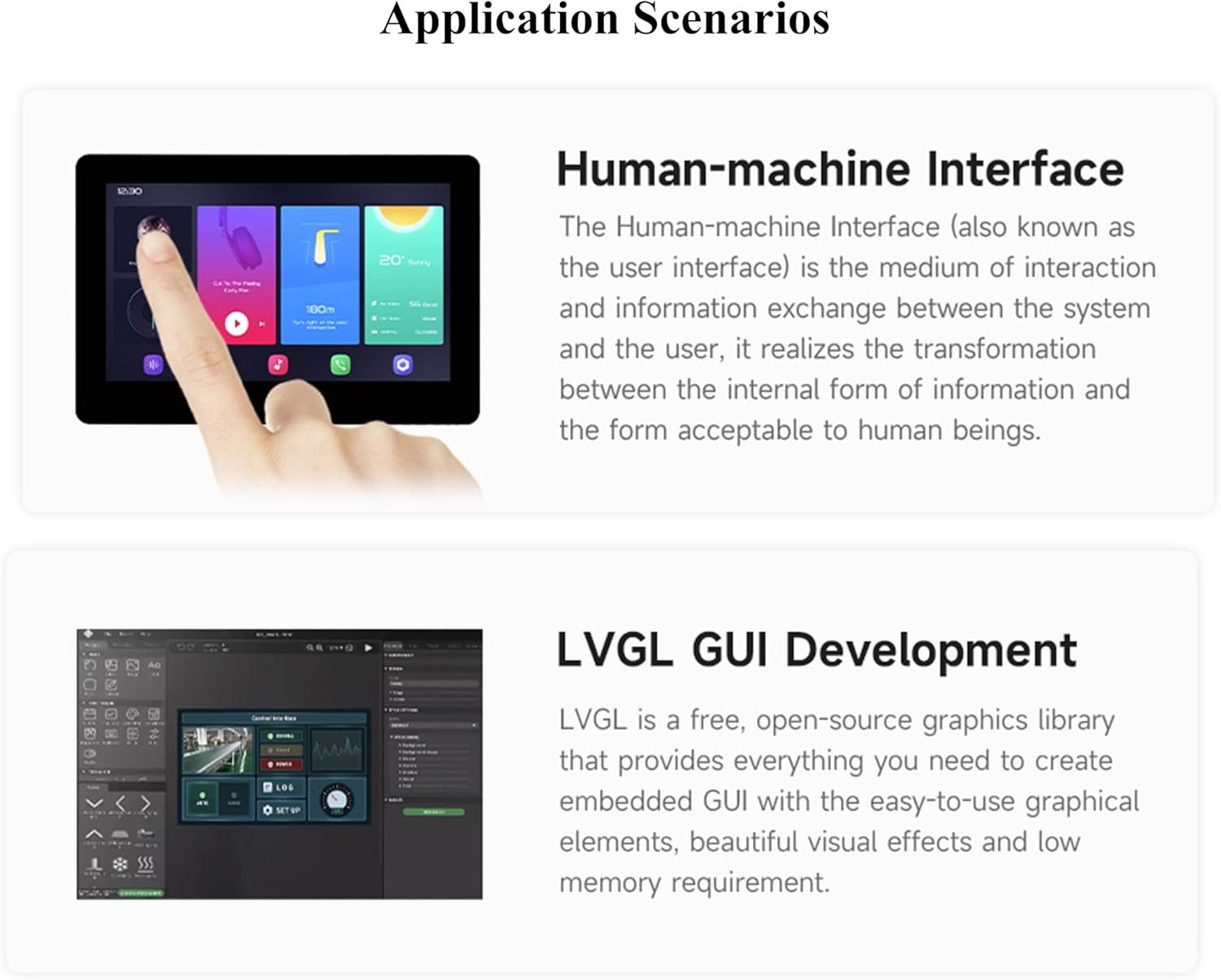
Figure 4: Illustration of bottom and back wiring methods.
4.3. Peripheral Interfaces
The board provides multiple peripheral interfaces for expansion:
- I2C interface terminal
- CAN terminal
- RS485 terminal
- Digital Output (DO) terminal
- Digital Input (DI) terminal (supports active digital input, passive digital input)

Figure 5: Overview of supported peripheral interfaces and their connection diagrams.
5. Setup and Installation
5.1. Powering the Board
Connect a 7-36V DC power supply to the designated terminal. The board also features a 3.7V single lithium battery header (MX1.25) for portable applications. Ensure the battery power supply ON/OFF switch is in the correct position.
5.2. Initial Program Upload
To upload a program, connect the board to your computer via the USB Type-C port. Press and hold the BOOT button while powering on or resetting the board to enter programming mode.
5.3. Optional Plastic Case and Mounting
An optional plastic case is available for the development board, which supports installing a 60x30x6mm lithium battery (battery not included). The case provides multiple installation methods:
- Rail Mounting
- Wall Mounting
- Monitor Arm Mounting
The mounting hole spacing on the back of the case is 75mm.

Figure 6: The optional plastic case and its features.

Figure 7: Various installation methods for the cased development board.
6. Operating Instructions
6.1. Touch Display Interaction
The 4.3-inch capacitive touch screen supports 5-point touch, allowing for intuitive interaction with GUI programs such as LVGL. The display offers excellent performance with a 160° wide viewing angle.

Figure 8: IPS Display Panel with 160° wide viewing angle.
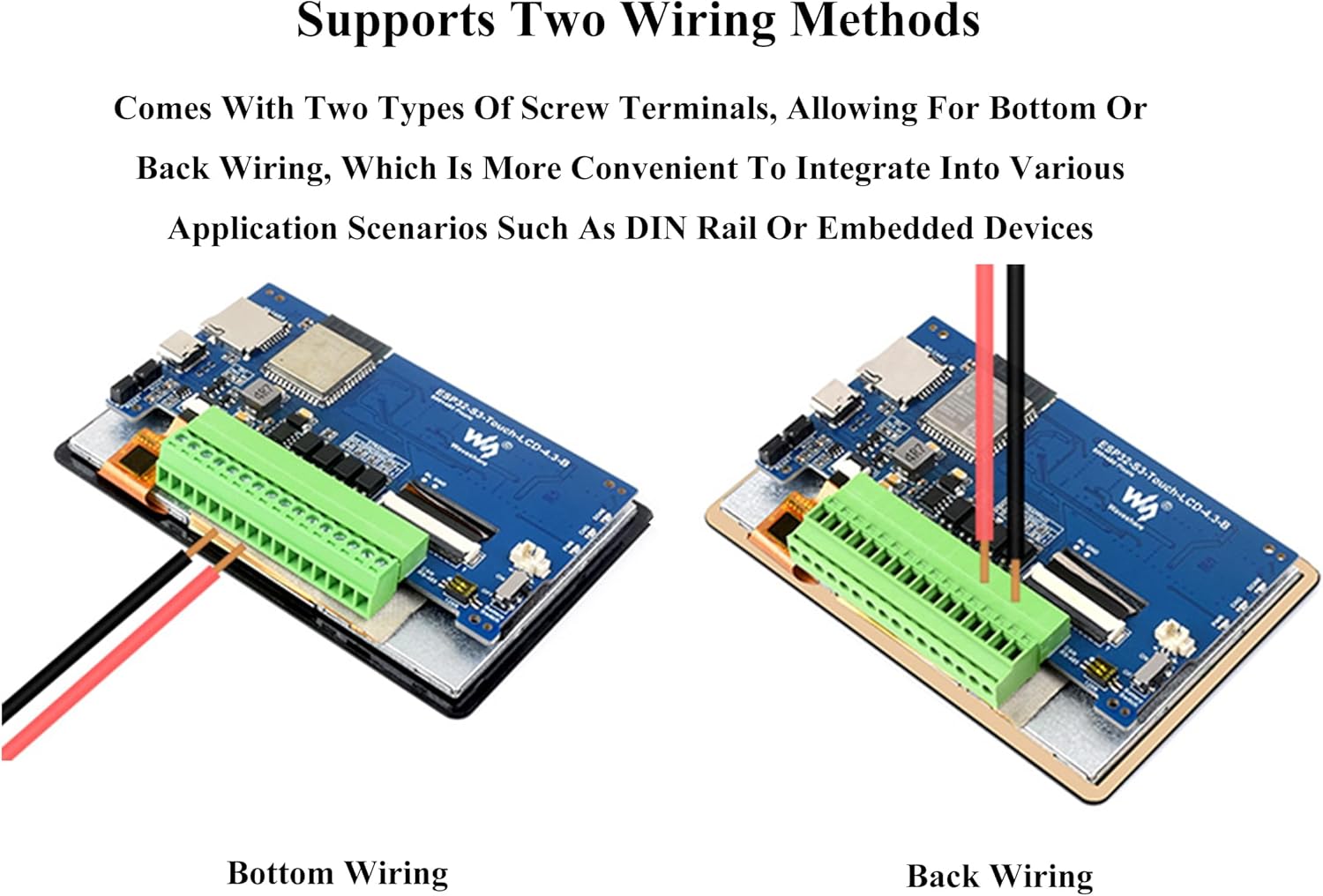
Figure 9: Demonstrating 5-point capacitive touch functionality.
6.2. Application Scenarios
The ESP32-S3-Touch-LCD-4.3B is suitable for various applications, including:
- Human-Machine Interface (HMI): For interactive control and information display in industrial or home automation systems.
- LVGL GUI Development: A platform for creating embedded graphical user interfaces with low memory requirements.

Figure 10: Common application scenarios for the development board.
6.3. Video Demonstration
Watch this video for a demonstration of the ESP32-S3 4.3-inch Touch LCD Development Board's features and capabilities.
Video 1: ESP32-S3 4.3-inch Touch LCD 800x480 Development Board Overview. This video demonstrates the touch screen functionality, processor capabilities, and various interfaces of the development board.
7. Specifications
| Specification | Value |
|---|---|
| Standing screen display size | 4.3 Inches |
| Processor | Xtensa 32-bit LX7 Dual-Core, 240 MHz |
| RAM | 8 MB PSRAM |
| Memory Storage Capacity | 16 MB Flash |
| Wireless Type | 802.11b (Wi-Fi), Bluetooth 5 (LE) |
| Operating System | FreeRTOS (typical for ESP32) |
| Item Weight | 0.48 ounces |
| Product Dimensions | 0.12 x 2.76 x 1.57 inches |
| Manufacturer | Wonrabai |
7.1. Outline Dimensions

Figure 11: Outline dimensions of the development board in millimeters.
8. Troubleshooting
This section provides general troubleshooting tips. For specific issues, refer to the online tutorial and development resources.
- Board not powering on: Ensure the power supply is within the 7-36V range and correctly connected. Check the battery power supply ON/OFF switch if using a battery. Verify the PWR LED indicator.
- Program upload failure: Ensure the USB Type-C cable is functional and properly connected. Confirm the BOOT button is pressed and held during power-on/reset to enter programming mode. Check your development environment settings.
- Display not working: Verify the display panel connector is securely attached. Check power supply.
- Touch screen unresponsive: Ensure the touch panel connector is secure. Verify I2C communication in your software.
- Wi-Fi/Bluetooth connectivity issues: Check antenna connection. Verify software configuration for Wi-Fi/Bluetooth. Ensure no interference from other devices.
9. Warranty and Support
For detailed online tutorial usage guides and development resources, please visit: n9.cl/ocbd8
For warranty information and technical support, please contact Wonrabai customer service through the platform of purchase.