
Introduction
Thank you for choosing the Redragon K679 RGB Gaming Keyboard. This manual provides essential information for setting up, operating, maintaining, and troubleshooting your new mechanical keyboard. Please read this guide thoroughly to ensure optimal performance and longevity of your device.
Setup
Package Contents
Before proceeding, please verify that all items are present in your package:
- Redragon K679 RGB Gaming Keyboard
- USB-C Cable
- Keycap Puller
- User Manual (this document)
Connecting the Keyboard
The Redragon K679 keyboard utilizes a wired USB-C connection for reliable performance.
- Locate the USB-C port on the back or side of your Redragon K679 keyboard.
- Insert one end of the provided USB-C cable into the keyboard's USB-C port.
- Insert the other end of the USB-C cable into an available USB port on your computer.
- The keyboard will automatically be detected by your operating system (Windows, macOS, etc.) and drivers will install. No additional software installation is typically required for basic functionality.
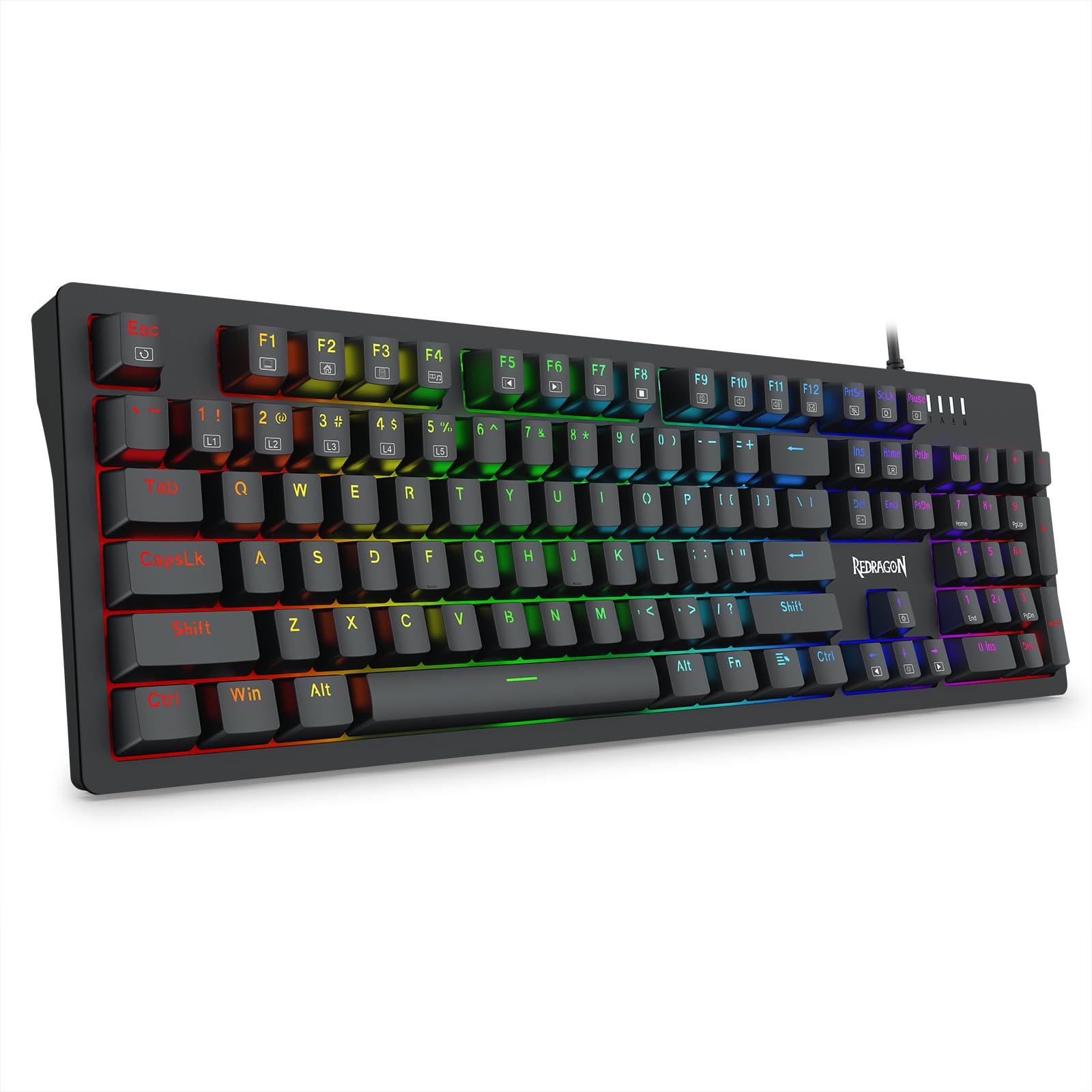
Image: The Redragon K679 RGB Gaming Keyboard, showcasing its full layout and wired USB-C connection.
Operating Instructions
Basic Keyboard Functions
The Redragon K679 is a standard 104-key QWERTY layout keyboard. All keys function as labeled for typing and general computer use.
RGB Backlight Modes
The keyboard features 18 distinct RGB backlight modes and 6 themed backlights. To cycle through these modes:
- Press FN + INS to cycle through various preset RGB lighting effects.
- Press FN + DEL to change the backlight color within certain modes.
- Press FN + HOME to activate or change specific themed backlights.
- Press FN + PGUP to adjust backlight brightness.
- Press FN + PGDN to adjust backlight speed.
To enter Pro-gamer mode, press FN + INS-PgDn (this likely refers to a combination or a specific key labeled 'INS-PgDn' if present, otherwise it's a typo and refers to INS and PGDN separately).

Image: Top-down view of the Redragon K679 keyboard, highlighting the full RGB backlighting across all keys.
N-Key Rollover
The Redragon K679 supports N-key rollover, meaning all keys pressed simultaneously will register correctly. This feature is particularly beneficial for fast-paced gaming and typing.
Compatibility
This keyboard is compatible with a wide range of operating systems, including:
- Windows 10, Windows 8, Windows 7, Windows XP, Windows VISTA
- Mac OS X
Maintenance
Cleaning the Keyboard
To maintain the cleanliness and functionality of your keyboard:
- Disconnect the keyboard from your computer before cleaning.
- Use a soft, dry cloth to wipe down the keycaps and keyboard surface.
- For stubborn dirt, slightly dampen the cloth with water or a mild, non-abrasive cleaning solution. Avoid excessive moisture.
- Use compressed air to remove dust and debris from between the keycaps.
Replacing Keycaps and Switches (Hot-Swappable Feature)
The Redragon K679 features hot-swappable sockets, allowing you to easily change keycaps and mechanical switches without soldering.
- Removing Keycaps: Use the provided keycap puller. Gently hook the puller onto the keycap and pull straight up.
- Removing Switches: After removing the keycap, use a switch puller (not included, but commonly available) to carefully grip the top and bottom clips of the switch and pull it straight out.
- Installing Switches: Align the pins of the new switch with the holes on the PCB. Press the switch firmly until it clicks into place. Ensure the pins are not bent.
- Installing Keycaps: Place the desired keycap over the switch stem and press down gently until it is securely seated.

Image: A close-up view of the Redragon K679 keyboard with several keycaps removed, illustrating the hot-swappable mechanical switches.

Image: A keycap puller and detached keycaps positioned near the keyboard, demonstrating the ease of customization.
Troubleshooting
Keyboard Not Responding
- Ensure the USB-C cable is securely connected to both the keyboard and the computer.
- Try connecting the keyboard to a different USB port on your computer.
- Test the keyboard on another computer to determine if the issue is with the keyboard or your system.
- Restart your computer.
Backlight Issues
- Ensure the backlight is not turned off or set to minimum brightness. Use FN + PGUP to increase brightness.
- Cycle through different backlight modes using FN + INS to see if the issue persists across all modes.
- If specific keys are not lighting up, check if they are properly seated or if the switch needs replacement (refer to Maintenance section).
Key Input Errors
- If a key is not registering, ensure the keycap and switch are properly installed.
- Clean around the affected key to remove any debris that might be obstructing the switch.
- If the issue persists, consider replacing the switch for the problematic key, leveraging the hot-swappable feature.
Specifications
| Brand | Redragon |
| Model | K679 |
| Connectivity Technology | USB-C (Wired) |
| Keyboard Description | Mechanical |
| Number of Keys | 104 |
| Switch Type | Tactile (Hot-Swappable) |
| Backlighting | RGB (18 modes, 6 themes) |
| Compatibility | PC (Windows 10/8/7/XP/Vista, Mac OS X) |
| Product Dimensions (L x W x H) | 17.53" x 5.28" x 1.34" |
| Item Weight | 1.9 Pounds |
| Material | Plastic |
Warranty Information
The Redragon K679 RGB Gaming Keyboard comes with a 1-year warranty from the date of purchase. This warranty covers manufacturing defects and workmanship under normal use. It does not cover damage caused by misuse, accidents, unauthorized modifications, or normal wear and tear.
Please retain your proof of purchase for warranty claims.
Support
For further assistance, technical support, or to inquire about warranty services, please visit the official Redragon website or contact their customer service department.
Official Redragon Website: www.redragonusa.com


