
Introduction
This manual provides detailed instructions for the installation, operation, and maintenance of your AKAMATE Wireless CarPlay Portable Motorcycle Dash Cam. Please read this manual thoroughly before using the product to ensure proper function and safety. Keep this manual for future reference.
Safety Information
- Ensure all components are securely mounted to prevent detachment during operation.
- Route all cables away from moving parts, heat sources, and sharp edges to prevent damage and interference.
- Do not attempt to disassemble or modify the device. Unauthorized modifications may void the warranty and pose safety risks.
- The device is waterproof (IP67 rated); however, avoid prolonged submersion or high-pressure water jets.
- Operating the device while riding should be done with caution to avoid distraction. Utilize voice control features for safer interaction.
- Connect the power supply correctly to avoid electrical shorts or damage to your motorcycle's electrical system.
Package Contents
Verify that all items listed below are included in your package:
- Motorcycle Dash Cam Unit (Main Display)
- Front Camera
- Rear Camera
- Mounting Tool
- Installation Tool
- Wiring Kit
- Hardwire Kit
- User Manual
Product Overview
The AKAMATE Wireless CarPlay Portable Motorcycle Dash Cam is designed to enhance your riding experience with smart connectivity and recording capabilities. It features a 5.5-inch waterproof touch screen, dual 1080P HD cameras for front and rear recording, and supports wireless CarPlay and Android Auto. Integrated Bluetooth 5.3 allows for seamless connection to your smartphone and headset, enabling voice control and hands-free communication.
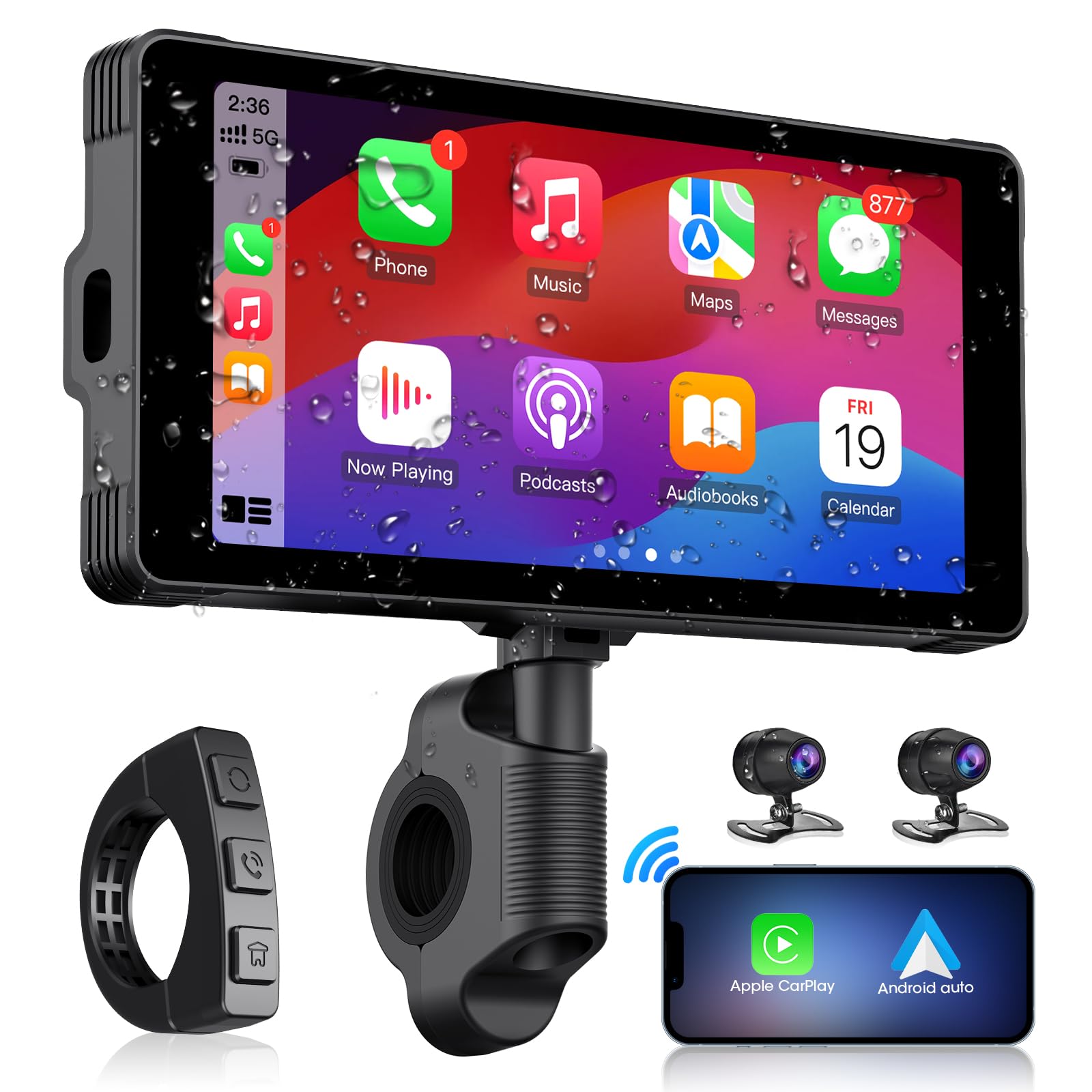
Image: The main AKAMATE dash cam unit, showing its compact design and display.
Setup
1. Installation
Proper installation is crucial for the device's performance and your safety. Follow these general steps:
- Mounting the Main Unit: Use the provided mounting tools to securely attach the main display unit to your motorcycle's handlebar. Ensure it is positioned for clear visibility without obstructing your view of the road or controls.
- Camera Placement: Install the front and rear cameras in locations that provide a clear, unobstructed view. Typically, the front camera is mounted near the headlight or on the fairing, and the rear camera near the license plate or tail light.
- Wiring: Connect the wiring kit. The hardwire kit typically connects directly to your motorcycle's battery (for constant power) and an accessory wire (for ignition-switched power). Ensure all connections are secure and insulated. Route cables carefully, avoiding hot engine parts, sharp edges, and areas where they might be pinched or snagged. Use zip ties or cable clips to secure wiring.
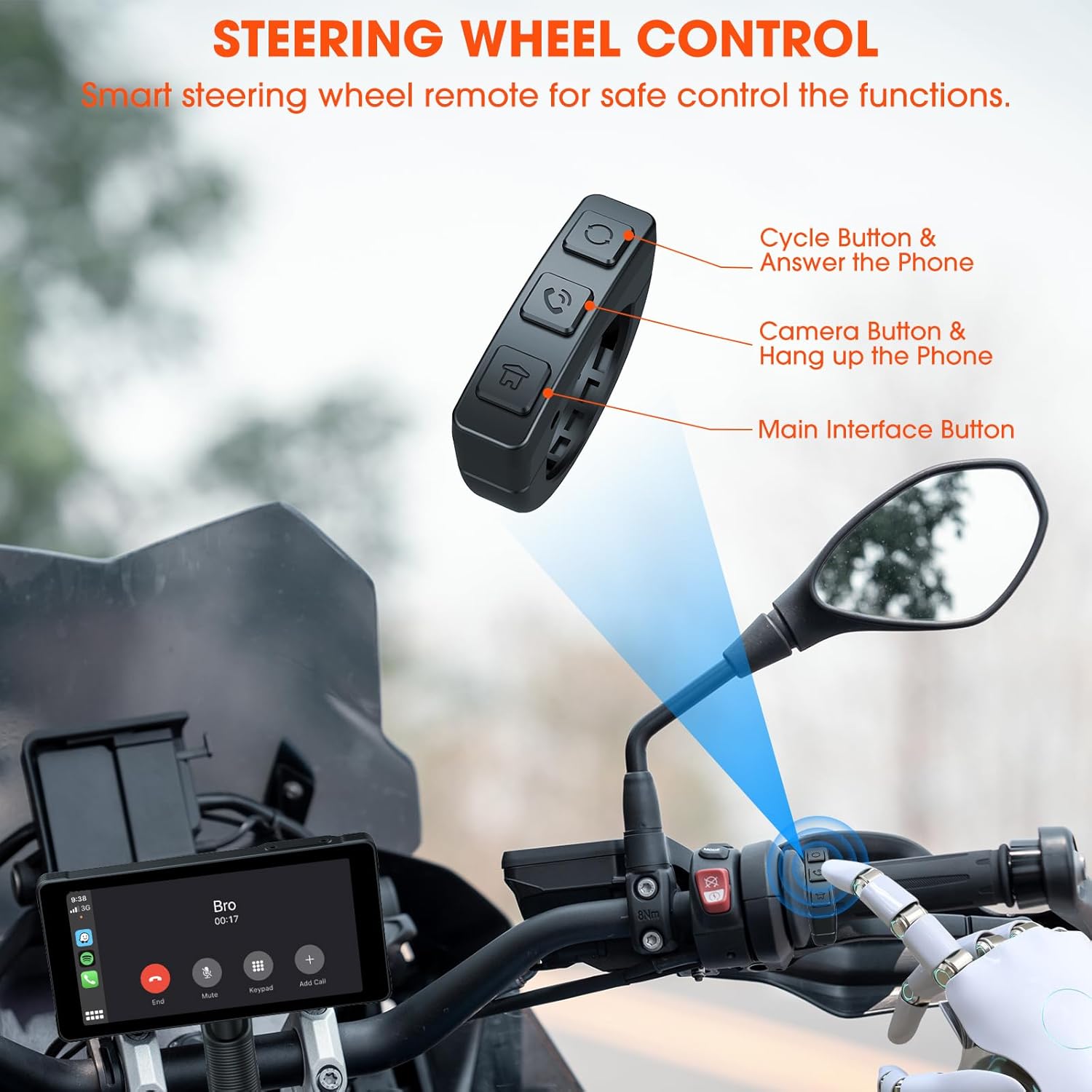
Image: Comparison showing a motorcycle handlebar before and after the installation of the AKAMATE dash cam, highlighting the integrated look and IP67 waterproof rating.
2. Initial Power-On
Once installed and wired, turn on your motorcycle's ignition. The dash cam should power on automatically. Follow the on-screen prompts for initial setup, including language selection and time zone settings.
Operating Instructions
1. Wireless Connection (CarPlay/Android Auto)
The device supports wireless Apple CarPlay and Android Auto for seamless smartphone integration.
- Ensure Bluetooth and Wi-Fi are enabled on your smartphone.
- On the dash cam, navigate to the 'Wireless Connection' or 'CarPlay/Android Auto' settings.
- Search for available devices on your phone and select the dash cam's Bluetooth name.
- Confirm the pairing code on both devices. Once paired via Bluetooth, the device will automatically establish a Wi-Fi connection for CarPlay or Android Auto.
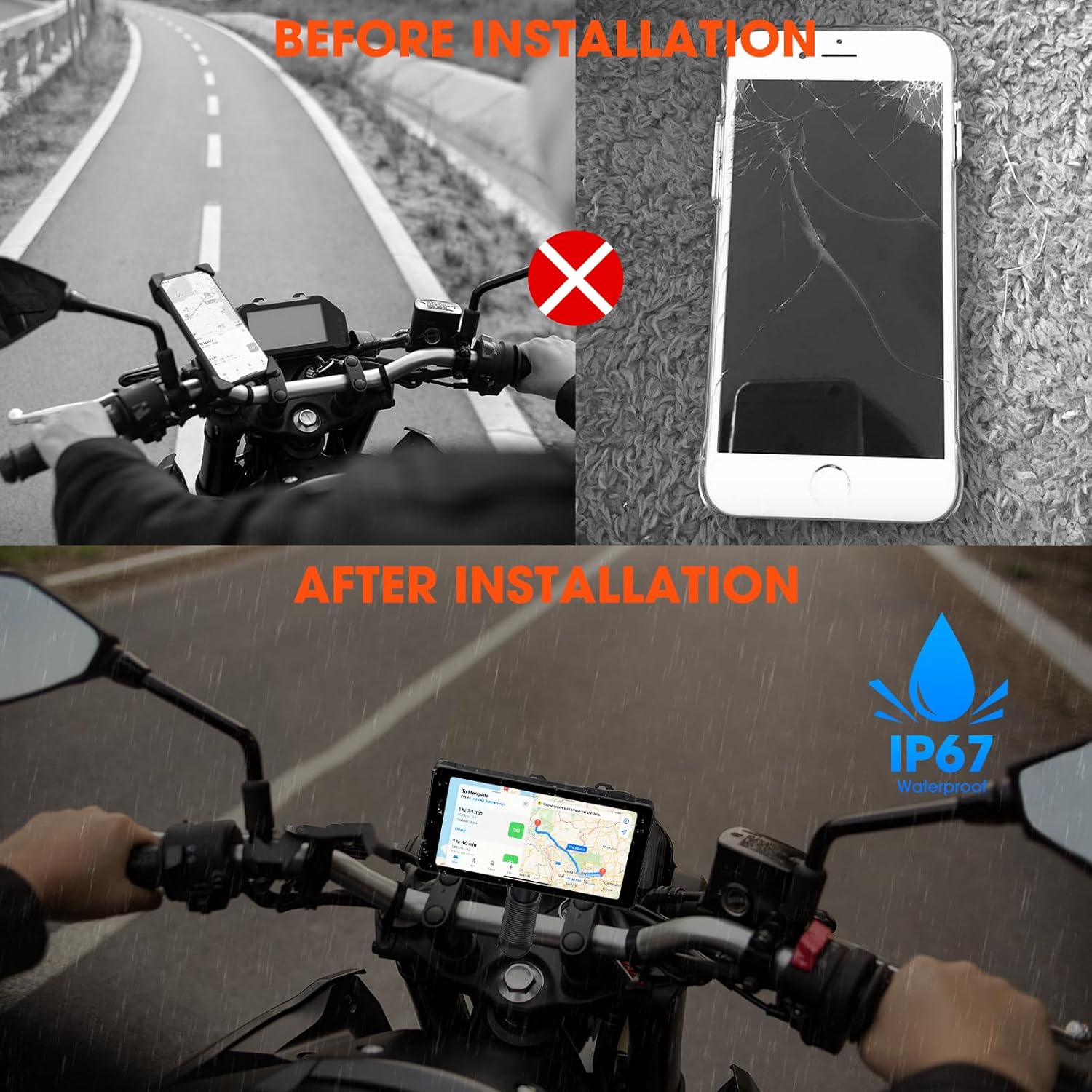
Image: Illustrates the wireless connection feature, showing the dash cam displaying navigation and music, with voice commands for Siri and Google Assistant.
2. Dash Cam Operation (Video Recording)
The device automatically begins recording upon power-on. It features 1080P HD front and rear cameras.
- Loop Recording: The system records video in continuous loops, overwriting the oldest footage when the memory card is full.
- Emergency Recording: In the event of a sudden impact or collision, the G-sensor will trigger emergency recording, locking the current footage to prevent it from being overwritten.
- Viewing Footage: Recorded videos can be viewed directly on the dash cam's screen or by removing the memory card and inserting it into a computer.

Image: Demonstrates the 1080P HD front and rear camera views, highlighting the 170-degree wide-angle recording and loop recording function.
3. Bluetooth Connectivity
The device utilizes Bluetooth 5.3 for stable connections.
- Phone Pairing: Pair your smartphone via Bluetooth for CarPlay/Android Auto functionality and hands-free calls.
- Headset Pairing: Connect your Bluetooth helmet or earphones to the dash cam to receive audio (navigation prompts, music, calls) directly.

Image: Illustrates the dual Bluetooth connection capability, allowing simultaneous pairing with a smartphone and a Bluetooth helmet or earphones.
4. Voice Control
With CarPlay or Android Auto connected, you can use voice commands (Siri or Google Assistant) for navigation, music playback, calls, and messages, minimizing manual interaction while riding.
5. Steering Wheel Control (Remote)
A smart remote control is included for convenient operation of key functions without reaching for the main unit.
- Cycle Button & Answer Phone: Used to cycle through modes or answer incoming calls.
- Camera Button & Hang up Phone: Activates camera functions (e.g., take a snapshot) or ends calls.
- Main Interface Button: Navigates to the main menu or home screen.
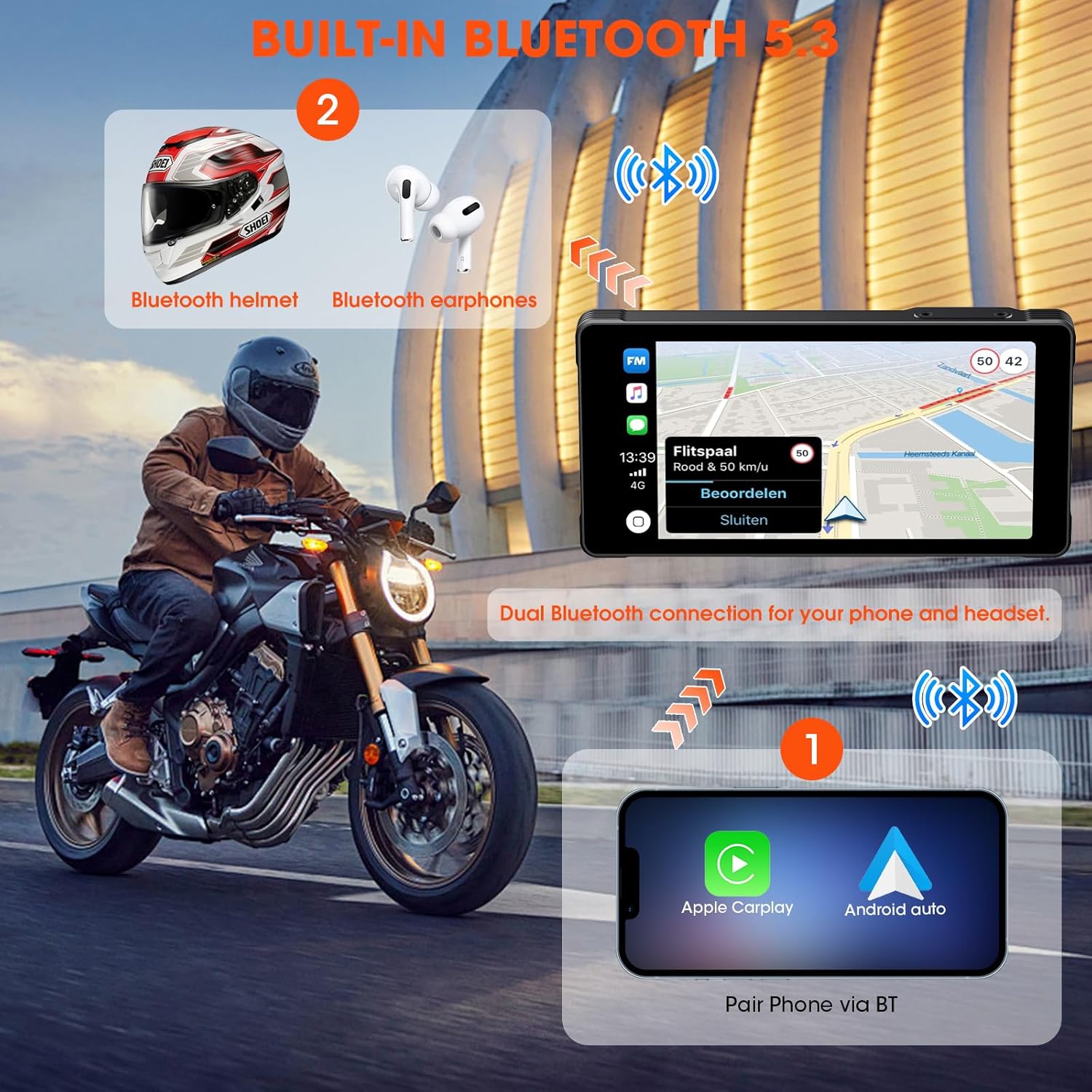
Image: Shows the smart steering wheel remote control and its functions, designed for safe operation while riding.
6. GPS Navigation
GPS navigation is provided through your smartphone's CarPlay or Android Auto application. The dash cam acts as a display for your phone's navigation system, offering real-time directions on its screen.
Maintenance
- Cleaning: Use a soft, damp cloth to clean the screen and device body. Avoid abrasive cleaners or solvents.
- Firmware Updates: Periodically check the manufacturer's website for firmware updates to ensure optimal performance and access to new features.
- Memory Card: Format the memory card regularly (e.g., monthly) to maintain optimal recording performance and prevent data corruption. Back up important footage before formatting.
- Cable Inspection: Regularly inspect all cables and connections for wear, damage, or loose fittings.
Troubleshooting
| Problem | Possible Cause | Solution |
|---|---|---|
| Device does not power on. | Incorrect wiring; Blown fuse; Low battery voltage. | Check power connections; Inspect fuse; Ensure motorcycle battery has sufficient charge. |
| CarPlay/Android Auto not connecting. | Bluetooth/Wi-Fi off on phone; Incorrect pairing; Interference. | Ensure phone's Bluetooth/Wi-Fi is on; Re-pair devices; Move away from sources of interference. |
| Cameras not recording or footage is corrupted. | Memory card full/faulty; Incorrect card format; Loose camera connection. | Format memory card; Replace card if faulty; Check camera cable connections. |
| No audio from headset. | Headset not paired; Volume too low; Incorrect audio output selected. | Ensure headset is paired and connected; Adjust volume; Check audio settings on device. |
Specifications
| Feature | Detail |
|---|---|
| Manufacturer | AKAMATE |
| Product Dimensions | 0.99 x 14.99 x 7.49 cm (approx. 1 x 15 x 7.5 cm) |
| Item Weight | 907.18 grams (approx. 2 pounds) |
| ASIN | B0D9B3T8SL |
| Brand | AKAMATE |
| Vehicle Service Type | Motorcycle, Bicycle |
| Connectivity Technology | Bluetooth, Wi-Fi |
| Special Features | Voice Control, Wireless Android Auto, Portable Wireless CarPlay, Waterproof (IP67) |
| Video Capture Resolution | 1080p |
| Included Components | Motorcycle Dash Cam Unit, Front Camera, Rear Camera, Mounting Tools, Installation Tools, Wiring Kit, Hardwire Kit, User Manual |
| Mounting Type | Handlebar Mount |
| Control Method | Remote |
Warranty and Support
For warranty information and technical support, please refer to the documentation included with your product or visit the official AKAMATE website. Keep your purchase receipt as proof of purchase for warranty claims.


