
Introduction
Thank you for choosing the CHONCHOW G220 USB Wireless Gaming Keyboard and Mouse Combo. This manual provides essential information for setting up, operating, and maintaining your new gaming peripherals. Please read it carefully to ensure optimal performance and longevity of your product.
Product Overview
The CHONCHOW G220 combo offers a seamless and responsive experience for both gaming and daily tasks. Key features include:
- 2.4GHz Wireless Connection: Both keyboard and mouse share a single USB adapter for a stable, lag-free connection up to 10 meters.
- Rainbow LED Backlit Keyboard: Features 3 brightness levels and breathing speeds. All keys are backlit for visibility in low-light conditions, with clear and uniform light transmission.
- Rechargeable & Long Battery Life: Keyboard with a 2500 mAh battery and mouse with a 500 mAh battery, providing up to 10 hours of continuous use with backlighting. Smart energy-saving functions include automatic sleep mode after 5 minutes of inactivity.
- Full-size Ergonomic Keyboard: 104-key layout with volcano-shaped keys, stepped design, and foldable stand for comfortable typing and improved accuracy.
- Ergonomic Wireless Mouse with 7 RGB Backlit: Symmetrical design for comfortable grip, 6 buttons, and 3 adjustable DPI levels (1600-2400-3200) for flexible and accurate control.
- Anti-ghosting Keys: 19 anti-ghosting keys ensure simultaneous keystrokes are registered accurately, crucial for gaming.
- Wide Compatibility: Compatible with PC, laptop, PS3, PS4, PS5, Xbox, Mac, and operating systems including Windows 2000/2003/XP/Vista/Win7/Win8/Win10/Win11/Linux/Mac OS.
Setup Instructions
- Unpack the Combo: Carefully remove the keyboard, mouse, and USB adapter from the packaging.
- Locate the USB Adapter: The 2.4GHz USB adapter is conveniently stored in the back compartment of the mouse. Gently remove it.
- Connect the USB Adapter: Plug the USB adapter into an available USB port on your computer or gaming console. The system will automatically detect and install the necessary drivers.
- Power On the Keyboard: Locate the ON/OFF switch on the side of the keyboard and slide it to the 'ON' position.
- Power On the Mouse: Locate the ON/OFF switch on the bottom of the mouse and slide it to the 'ON' position.
- Initial Charging: For optimal performance, it is recommended to fully charge both the keyboard and mouse before first use. Use the provided Type-C charging cable.

Image: CHONCHOW G220 Wireless Gaming Keyboard and Mouse Combo, showing the keyboard and mouse with RGB backlighting.
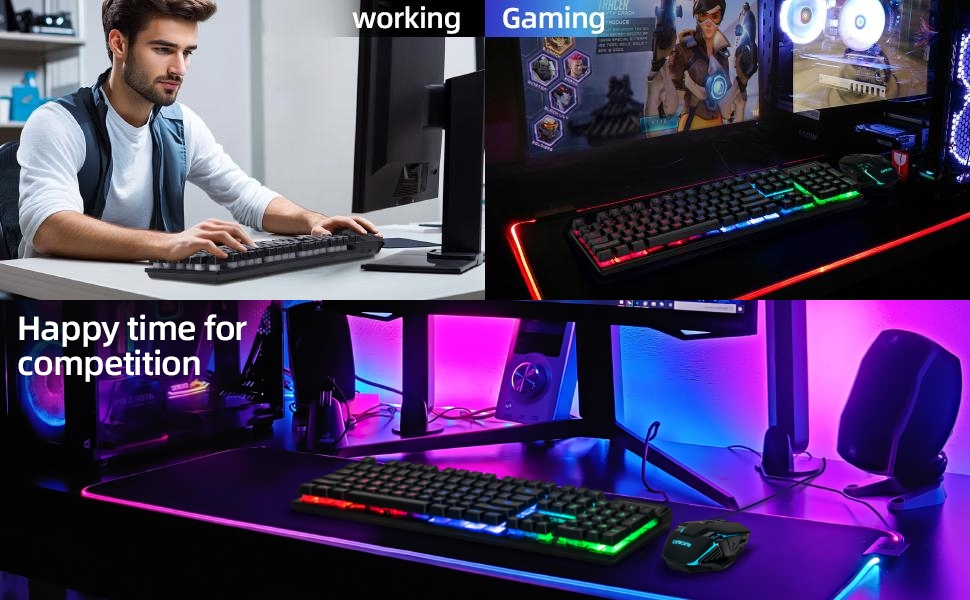
Image: Illustration of the CHONCHOW G220 keyboard and mouse connected to various devices like PC, laptop, PS5, and PS4, highlighting its wide compatibility.
Operating Instructions
Keyboard Functions
- Backlight Modes: Press the FN + Sunkey (located near the right CTRL key) to cycle through different rainbow LED backlight modes or to turn the backlight ON/OFF.
- Backlight Brightness: Press FN + Page Up (PU) to increase backlight brightness. Press FN + Page Down (PD) to decrease backlight brightness.
- Breathing Speed: Press FN + Minus (-) to decrease the breathing speed of the backlight. Press FN + Plus (+) to increase the breathing speed.
- Multimedia Shortcuts: Use the FN key in combination with F1-F12 keys for various multimedia functions (e.g., volume control, media playback).
- Windows Key Lock: Press FN + Win to lock or unlock the Windows key, preventing accidental presses during gaming.
Mouse Functions
- DPI Adjustment: The mouse features 3 adjustable DPI levels (1600-2400-3200). Press the DPI button (usually located below the scroll wheel) to cycle through the settings.
- RGB Backlight: The mouse has a 7-color auto-changing breathing backlight, creating a dynamic visual experience.
- 7 Buttons: The mouse is equipped with 7 buttons for enhanced control and customization in gaming.

Image: The CHONCHOW G220 keyboard displaying various rainbow LED backlight effects and controls for switching modes, colors, and adjusting brightness.

Image: The CHONCHOW G220 mouse showcasing its ergonomic design, 7 buttons, and dynamic RGB lighting effects, with an indication of 3 adjustable DPI options.
Maintenance
- Cleaning the Keyboard: The keyboard features detachable ABS keycaps, allowing for easy removal and cleaning. Use a soft brush or compressed air to remove dust and debris. For deeper cleaning, keycaps can be gently washed with mild soap and water, ensuring they are completely dry before reattaching.
- Cleaning the Mouse: Use a soft, dry cloth to wipe down the mouse. Avoid using harsh chemicals or abrasive materials.
- Battery Care: The keyboard and mouse are equipped with smart energy-saving functions, including automatic sleep mode after 5 minutes of no operation. Press any key to wake them up. To prolong battery life, ensure regular charging. A 5V2A charger is recommended for efficient charging.
- Storage: When not in use for extended periods, turn off both the keyboard and mouse to conserve battery life. Store them in a cool, dry place away from direct sunlight and extreme temperatures.
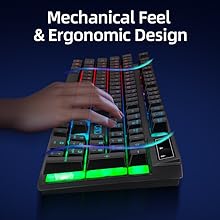
Image: Close-up of the keyboard showing detachable keycaps, illustrating the double injection keycap design for easy cleaning and fade resistance.
Troubleshooting
- No Connection/Lag: Ensure the USB adapter is securely plugged into your device. Check that both the keyboard and mouse are powered ON. Move closer to the USB adapter to rule out range issues. If problems persist, try plugging the adapter into a different USB port.
- Backlight Not Working/Dim: Ensure the keyboard is powered ON. Press FN + Sunkey to cycle through modes or turn the backlight on. Adjust brightness using FN + Page Up/Down. Check battery level and charge if necessary.
- Keys Not Responding: If specific keys are unresponsive, ensure the keyboard is fully charged. If the keyboard has entered sleep mode, press any key (e.g., Shift or Enter) to reactivate it. For persistent issues, try reconnecting the USB adapter.
- Mouse Not Tracking Properly: Check the mouse's battery level and charge if low. Ensure the mouse sensor is clean and free from obstructions. Adjust DPI settings using the DPI button. Ensure the mouse is used on a suitable surface.
- Charging Issues: Ensure the Type-C cable is correctly connected to both the device and a 5V2A power source. Check the charging indicator light (if available) on the device. If the device is not charging, try a different cable or power adapter.
Specifications
| Feature | Detail |
|---|---|
| Brand | CHONCHOW |
| Model Number | G220 |
| Connectivity Technology | 2.4GHz Radio Frequency Wireless |
| Keyboard Battery Capacity | 2500 mAh |
| Mouse Battery Capacity | 500 mAh |
| Mouse DPI Levels | 1600-2400-3200 |
| Keyboard Keys | 104 (Full-size) |
| Anti-Ghosting | 19 Keys |
| Special Features | Backlit, Ergonomic, Portable, Rechargeable |
| Compatible Devices | Gaming Console, Laptop, Personal Computer, Tablet, Television |
| Compatible OS | Windows 2000/2003/XP/Vista/Win7/Win8/Win10/Win11/Linux/Mac OS |
| Item Weight | 1.8 pounds |
| Package Dimensions | 17.8 x 8.31 x 2.01 inches |
Official Product Videos
Video: An overview of the CHONCHOW Wireless Gaming Keyboard and Mouse Combo, demonstrating its features and functionality.
Video: A detailed look at the CHONCHOW G220 Wireless Gaming Keyboard and Mouse Combo, showcasing its design and various lighting effects.
Warranty and Support
CHONCHOW is committed to providing high-quality products and excellent customer service. If you encounter any quality problems or require assistance with your CHONCHOW G220 USB Wireless Gaming Keyboard and Mouse Combo, please contact our after-sales service team. We are dedicated to serving you wholeheartedly and providing satisfactory solutions for any quality-related issues.
For further support, please refer to the contact information provided with your product packaging or visit the official CHONCHOW website.


