
EasySMX M15
EasySMX M15 Mobile Controller User Manual
Model: M15 | Brand: EasySMX
Introduction
Thank you for choosing the EasySMX M15 Mobile Controller. This manual provides comprehensive instructions for setting up, operating, and maintaining your new gaming accessory. Designed for both Android and iPhone (USB-C) devices, the M15 offers a console-like gaming experience on the go with its advanced features and ergonomic design.

Figure 1: EasySMX M15 Mobile Controller with a smartphone, ready for gaming.
Key Features
- Wide Compatibility: Compatible with most Android phones (Android 8.0 or newer) and iPhone 15/16 series (USB-C). Supports phone sizes from 102mm to 176mm.
- Dual Hall Effect Joysticks & Triggers: Equipped with Hall Effect joysticks and triggers for precise control and no drift. Triggers can be switched between Hall trigger (for racing games) and rapid trigger (for ultra-short travel and precise control).
- Turbo Mode: Features a turbo function with 0.1ms response time for rapid input.
- Programmable Buttons: Customizable A/B/X/Y, LB/RB/LT/RT, L3/R3, and D-pad buttons for competitive advantage.
- Dual Vibration: Enhanced immersion with 6 adjustable vibration levels.
- Full Mechanical Buttons: Provides a crisp, instantaneous, and fast response, similar to gaming keyboards and mice.
- Versatile Game Modes: Seamlessly switch between HID, Xbox, and M Virtual Touch modes to support various gaming platforms and titles.
- Plug and Play: Offers reliable Bluetooth and direct USB-C connections for quick and hassle-free setup.

Figure 2: Detailed view of the M15's mechanical buttons, highlighting their responsive design.

Figure 3: Illustration of the Hall Effect Sticks, designed for durability and precision without drift.

Figure 4: The two mappable back buttons (M1, M2) for enhanced control.
Setup
1. Unboxing
Upon opening the package, ensure you have the EasySMX M15 Mobile Controller and any included accessories (e.g., USB-C cable, user manual).
2. Phone Insertion
Gently extend the controller to fit your smartphone. The M15 supports phones with widths between 102mm and 176mm. Ensure your phone's USB-C port aligns with the controller's USB-C connector for direct connection.

Figure 5: The M15's stretchable design accommodates various phone sizes.
3. Initial Connection
The M15 supports both direct USB-C connection and Bluetooth. For optimal performance and minimal latency, direct USB-C connection is recommended for compatible devices.
- Direct USB-C Connection: Simply plug your USB-C phone into the controller's USB-C port. The controller will draw power directly from your phone.
- Bluetooth Connection: If your device does not support direct USB-C connection or you prefer wireless play, you can connect via Bluetooth. Refer to the 'Operating Instructions' section for detailed mode switching.
Video 1: Unboxing the EasySMX M15 Mobile Controller, showing its components and initial setup.
Video 2: Demonstrating how to connect the EasySMX M15 Mobile Controller to a smartphone.
Operating Instructions
1. Power On/Off
The controller powers on automatically when a compatible phone is connected via USB-C. To power off, simply disconnect your phone.
2. Mode Switching
The M15 supports various modes to ensure compatibility with different games and platforms. Use the Function (Fn) button in combination with other buttons to switch modes:
- HID Mode (Fn + A for 2s): Standard Android controller mode.
- XBOX Mode (Xinput) (Fn + X for 2s): For Android devices, ideal for games supporting Xbox controllers.
- M Virtual Mode (Fn + Y for 2s): For Android devices, allows mapping touch controls to physical buttons via a companion app (e.g., MooWii Gaming).
- Apple Mode (Fn + B for 2s): For iPhone devices.
- Bluetooth XBOX Mode (Xinput) (Fn + Turbo for 2s): For wireless Xbox controller emulation.

Figure 6: Mode indicator lights and corresponding button combinations for different platforms.
3. Turbo Function
Activate Turbo mode for rapid-fire inputs. The M15 supports 4 levels of Turbo speed. Refer to the full manual for specific button combinations to activate and adjust Turbo settings.

Figure 7: The four levels of Turbo speed available on the M15.
4. Adjustable Vibration
The controller features 6 levels of adjustable vibration for enhanced haptic feedback. Adjust the intensity to your preference for a more immersive gaming experience.
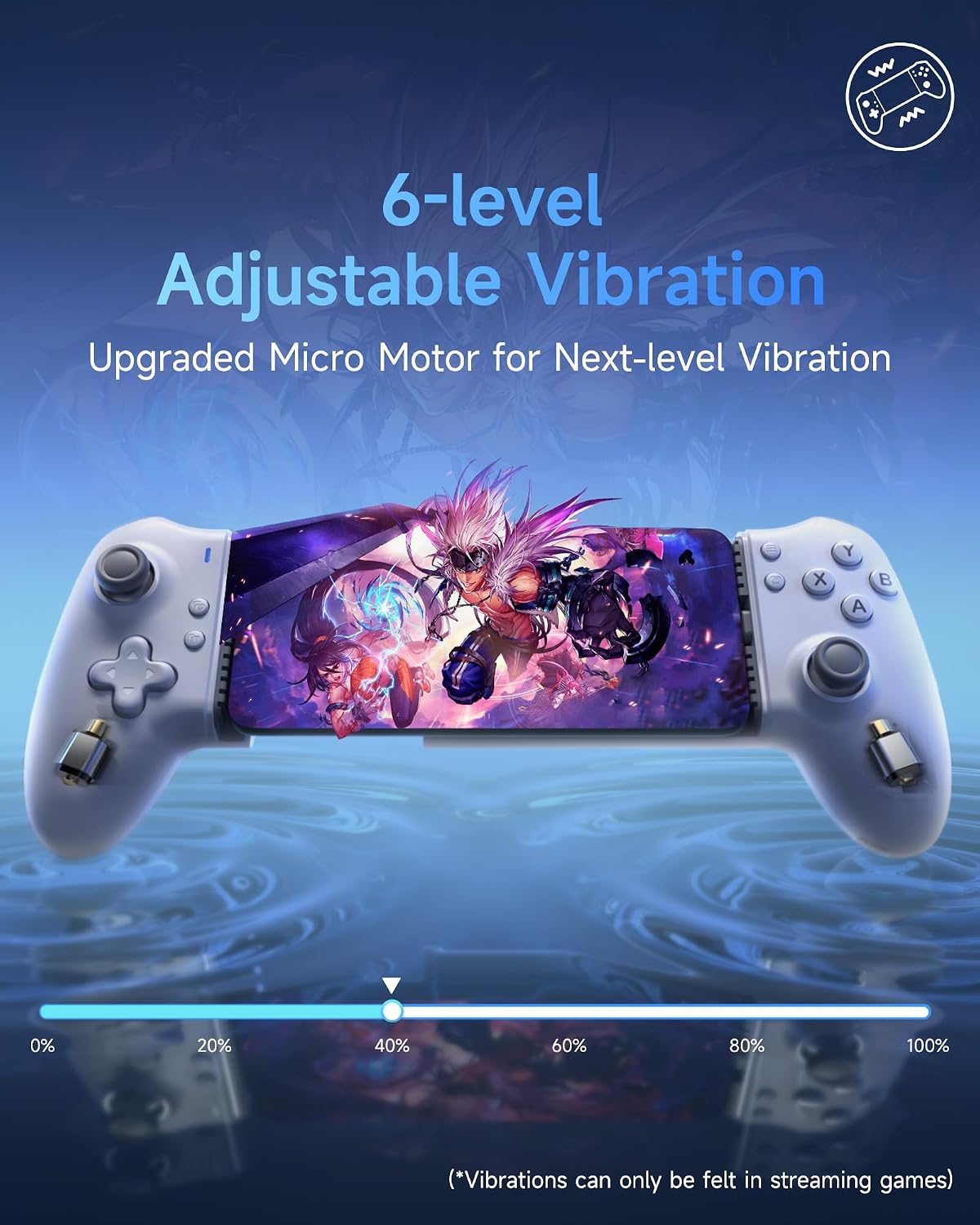
Figure 8: Visual representation of the 6-level adjustable vibration feature.
5. Mappable Back Buttons
The M15 includes two mappable back buttons (M1 and M2) that can be assigned to various functions for quick access during gameplay. Refer to the full manual for instructions on how to program these buttons.
Maintenance
1. Cleaning
To maintain the longevity and performance of your controller, regularly clean its surfaces. Use a soft, dry cloth to wipe down the exterior. For stubborn dirt, a slightly damp cloth can be used, but ensure no moisture enters the internal components or ports. Avoid using harsh chemicals or abrasive cleaners.
2. Storage
When not in use, store the EasySMX M15 controller in a cool, dry place away from direct sunlight, extreme temperatures, and high humidity. Keep it free from dust and debris to prevent damage to the buttons and joysticks.
Troubleshooting
- Controller Not Connecting:
- Ensure your phone's USB-C port is clean and free of debris.
- Verify that your phone is compatible (Android 8.0+ or iPhone 15/16 series with USB-C).
- Try restarting your phone and the controller.
- If using Bluetooth, ensure Bluetooth is enabled on your phone and the controller is in the correct Bluetooth pairing mode.
- Buttons/Joysticks Not Responding:
- Check if the controller is in the correct game mode (HID, Xbox, M Virtual Touch) for the game you are playing.
- Ensure the controller is securely connected to your phone.
- Restart the game and/or your phone.
- Vibration Not Working:
- Check if the game supports vibration feedback.
- Ensure vibration is enabled in the game's settings and on your phone.
- Adjust the vibration level on the controller.
For more detailed troubleshooting or persistent issues, please refer to the official EasySMX support resources or contact customer service.
Specifications
| Attribute | Detail |
|---|---|
| Brand | EasySMX |
| Model Name | M15 |
| Color | White |
| Connections | Bluetooth, USB-C |
| Special Features | Ergonomic, Multi-function |
| Compatible Devices | Android, iPhone 15 Series (USB-C) |
| Number of Buttons | 12 |
| Product Dimensions | 217.5x104x51mm |
| Extendable Size | 102-176mm |
| Hardware Platform | Smartphone |
Warranty and Support
The EasySMX M15 Mobile Controller comes with a 12-month manufacturer's warranty. Please retain your proof of purchase for warranty claims.
For product support, technical assistance, or warranty inquiries, please contact EasySMX customer service through their official website or the retailer where you purchased the product.
Related documentsM15


Ask a question about this manual
Ask about setup, troubleshooting, compatibility, parts, safety, or missing instructions. Manuals+ will review the question and use this page’s manual context to help answer it.