
1. Introduction
This manual provides comprehensive instructions for the setup, operation, and maintenance of your ZMX CIY68 Mechanical Keyboard Kit. The CIY68 is a 65% layout barebones keyboard kit designed for customization, featuring dual-mode wireless connectivity (Bluetooth 5.0 and 2.4G) and hot-swappable switch sockets. Please read this manual thoroughly before using your keyboard kit to ensure proper functionality and longevity.

Figure 1.1: The CIY68 68-key compact keyboard kit, ideal for desktop use due to its small footprint.
2. Package Contents
Before proceeding with setup, please verify that all items listed below are included in your package:
- 1 x CIY68 Keyboard Kit (Barebones PCB)
- 1 x User Manual (This document)
- 1 x 2-in-1 Keycap and Switch Puller
- 1 x Cleaning Brush
3. Setup
3.1. Battery Installation
The CIY68 keyboard kit requires 2 AAA batteries for operation. The battery compartment is located on the underside of the keyboard.
- Locate the battery compartment cover on the back of the keyboard.
- Gently slide or lift the cover to open the compartment.
- Insert 2 AAA batteries, ensuring correct polarity (+/-) as indicated inside the compartment.
- Replace the battery compartment cover securely.

Figure 3.1: Rear view of the CIY68 keyboard, highlighting the battery compartment and 2.4G receiver storage.
3.2. Switch and Keycap Installation
The CIY68 features hot-swappable sockets, allowing for easy installation of 3-pin or 5-pin MX-style mechanical switches without soldering. Keycaps are then placed on top of the installed switches.
- Align the pins of your desired mechanical switch with the corresponding holes on the PCB.
- Gently push the switch straight down until it clicks into place. Ensure the switch is fully seated and stable.
- Repeat for all desired switch positions.
- Place your chosen keycaps onto the stems of the installed switches, pressing firmly until they are secure.
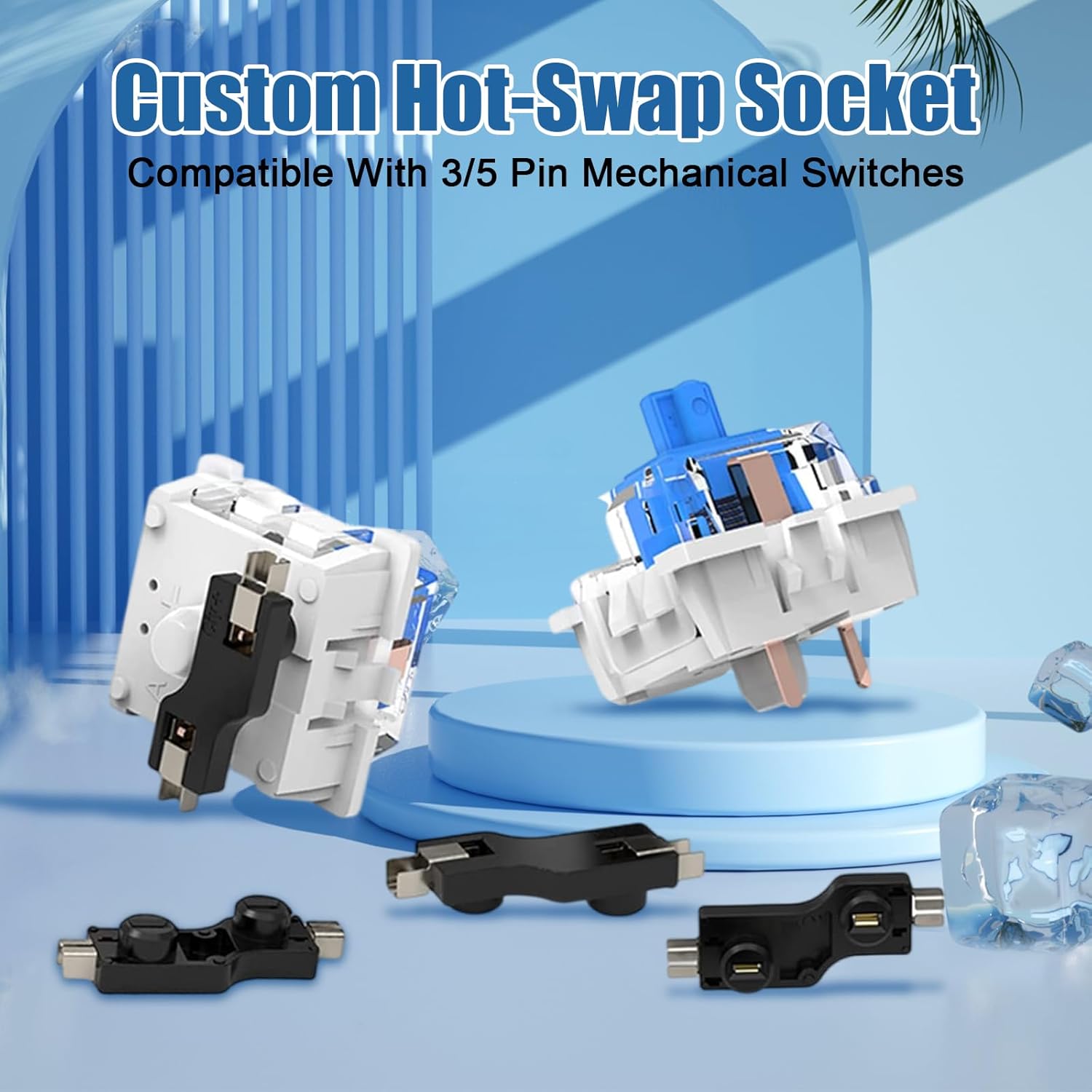
Figure 3.2: The CIY68's hot-swappable sockets are compatible with both 3-pin and 5-pin mechanical switches.

Figure 3.3: Customize your CIY68 keyboard by installing your preferred switches and keycaps.
4. Operating Instructions
4.1. Powering On/Off
Locate the power switch on the back of the keyboard, near the battery compartment. Slide the switch to the 'ON' position to power on the keyboard and to 'OFF' to power it down.
4.2. Wireless Connection Modes
The CIY68 supports two wireless connection modes: Bluetooth 5.0 and 2.4G wireless via a dedicated receiver.
4.2.1. 2.4G Wireless Mode
- Ensure the keyboard is powered on.
- Locate the 2.4G USB receiver, typically stored in a slot on the back of the keyboard.
- Plug the 2.4G USB receiver into an available USB port on your computer or compatible device.
- On the keyboard, long press the FN + Q keys simultaneously to activate 2.4G mode. The keyboard should automatically connect to the receiver.
4.2.2. Bluetooth 5.0 Mode
The keyboard can connect to two different Bluetooth devices.
- Ensure the keyboard is powered on.
- On the keyboard, long press the FN + W keys simultaneously to enter Bluetooth pairing mode for Device 1.
- Alternatively, long press the FN + E keys simultaneously to enter Bluetooth pairing mode for Device 2.
- On your device (computer, tablet, smartphone), navigate to Bluetooth settings and search for available devices.
- Select "CIY68" or a similar identifier from the list of found devices to pair.
- Once paired, the keyboard will connect to the selected device. You can switch between paired Bluetooth devices by short pressing FN + W or FN + E.

Figure 4.1: The CIY68 supports both Bluetooth 5.0 and 2.4GHz wireless connection modes for versatile use.
5. Maintenance
5.1. Cleaning
Regular cleaning helps maintain the appearance and functionality of your keyboard. Use the provided cleaning brush to remove dust and debris from between keycaps and around switches.
- Power off the keyboard before cleaning.
- Use the cleaning brush to gently sweep away dust and crumbs from the keyboard surface and between keys.
- For stubborn dirt, a slightly damp, lint-free cloth can be used on the exterior casing. Avoid getting moisture into the switches or electronics.
- If removing keycaps for deeper cleaning, use the keycap puller to prevent damage. Clean keycaps with mild soap and water, then ensure they are completely dry before reattaching.
5.2. Battery Replacement
When the keyboard's performance degrades or it fails to power on, it may be time to replace the AAA batteries. Follow the battery installation steps in Section 3.1.
6. Troubleshooting
If you encounter issues with your CIY68 keyboard kit, refer to the following common problems and solutions:
- Keyboard not responding:
Ensure the keyboard is powered on and batteries are correctly installed and charged. Verify the correct connection mode (2.4G or Bluetooth) is selected and properly paired with your device. Try re-pairing the keyboard. - Input lag or disconnections in wireless mode:
This can sometimes occur due to environmental interference or low battery. Try moving closer to your device or replacing the batteries. Ensure no other strong wireless signals are interfering. - Keys not registering or double-typing:
Ensure switches are fully seated in their sockets. Remove the affected switch and reinsert it firmly. If the issue persists, the switch itself may be faulty and require replacement. - Stabilizer rattle:
Some users may experience rattling from the stabilizers (for larger keys like Spacebar, Shift, Enter). This is common in mechanical keyboards and can often be mitigated by lubricating the stabilizers. - No RGB lighting:
The CIY68 keyboard kit does not feature RGB backlighting. This is by design and not a malfunction. - No wired connection option:
The CIY68 is designed exclusively for wireless operation (2.4G and Bluetooth) and does not support a wired USB connection.
7. Specifications
| Feature | Detail |
|---|---|
| Model Number | CIY68 |
| Product Dimensions | 12.2 x 4 x 1.2 inches |
| Item Weight | 1 pounds |
| Connectivity Technology | 2.4G Wireless Connection, Bluetooth 5.0 |
| Layout | 65% (68 keys) |
| Switch Compatibility | 3-pin/5-pin MX style mechanical switches (Hot-swappable) |
| Power Source | 2 AAA batteries (included) |
| Compatible Devices | Gaming Console, Laptop, Personal Computer, Smartphone, Tablet |
| Manufacturer | ZMX |
8. Warranty and Support
8.1. Warranty Information
This product is subject to the standard return and refund policies of the retailer from which it was purchased. Please refer to your purchase documentation or the retailer's website for specific warranty terms and conditions.
8.2. Customer Support
For technical assistance, troubleshooting beyond this manual, or inquiries regarding your ZMX CIY68 Mechanical Keyboard Kit, please contact ZMX customer support through the retailer's platform or the official ZMX brand store. Keep your purchase receipt or order number handy for faster service.
Visit the ZMX Store for more information.

