
Wireless Warehouse TBGRY100071481
Onn. 7-inch LCD Touchscreen Tablet Gen 3 User Manual
Comprehensive guide for your Onn. 7-inch LCD Touchscreen Tablet Gen 3, model TBGRY100071481.
Introduction
Welcome to the user manual for your Onn. 7-inch LCD Touchscreen Tablet Gen 3. This guide provides detailed instructions on setting up, operating, maintaining, and troubleshooting your device. Designed for portability and everyday use, this tablet features a crystal-clear display, long battery life, and runs on Android 11 (Go Edition).
What's in the Box
- Onn. 7-inch Tablet Gen 3
- AC adapter + USB-C charging cable (3.2 ft / 1 m)
- Quick Start Guide
Setup
1. Charging the Tablet
Before first use, fully charge your tablet. Connect the USB-C charging cable to the tablet's USB-C port and the AC adapter to a power outlet. The battery indicator on the screen will show charging status.
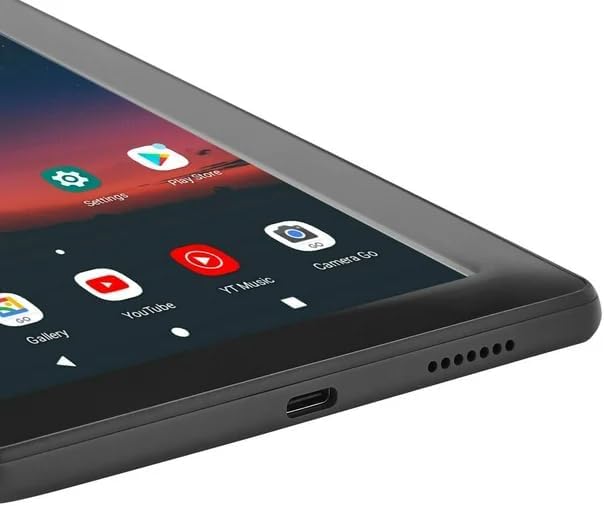
Figure 1: USB-C charging port and speaker grille.
2. Powering On/Off
To power on, press and hold the Power button located on the side of the tablet until the Onn. logo appears. To power off, press and hold the Power button, then select "Power off" from the options.
3. Initial Setup Wizard
Upon first power-on, the tablet will guide you through an initial setup process. This includes selecting your language, connecting to a Wi-Fi network, setting up your Google account, and configuring basic device settings.

Figure 2: Tablet front view with home screen.
Operating Your Tablet
Navigation and Gestures
- Tap: Select an item or open an app.
- Tap and Hold: Access contextual menus or move icons.
- Swipe: Scroll through pages, menus, or switch between home screens.
- Pinch-to-Zoom: Zoom in or out on images and web pages.
Connecting to Wi-Fi
- Go to Settings > Network & internet > Wi-Fi.
- Toggle Wi-Fi On.
- Select your desired network from the list and enter the password if prompted.
Using the Camera
The tablet is equipped with front and rear cameras. Open the "Camera Go" app to capture photos and videos. The app includes features for storage reminders and language translation.

Figure 3: Tablet back view with rear camera.
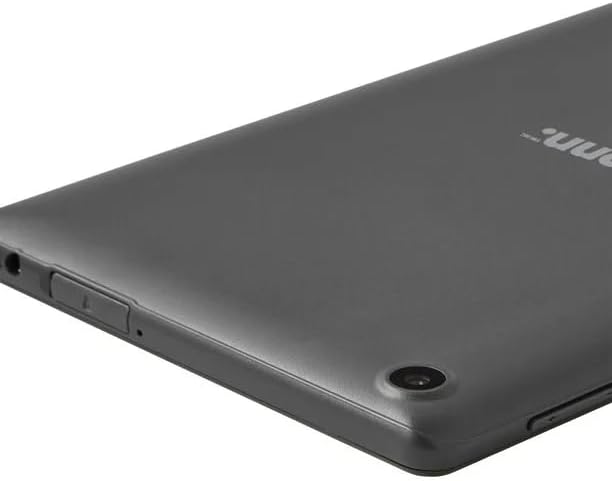
Figure 4: Close-up of tablet rear camera and side controls.
Installing and Managing Apps
Access the Google Play Store to download and install new applications. To manage installed apps, go to Settings > Apps & notifications.
Maintenance
Cleaning the Tablet
Use a soft, lint-free cloth to clean the screen and body of the tablet. Do not use abrasive cleaners or solvents. Avoid spraying liquids directly onto the screen.
Battery Care
To maximize battery life, avoid exposing the tablet to extreme temperatures. It is recommended to fully charge the tablet before it completely drains. The tablet offers up to 10 hours of battery life under typical usage conditions.
Software Updates
Periodically check for system updates to ensure your tablet has the latest features and security patches. Go to Settings > System > System update.
Troubleshooting
| Problem | Solution |
|---|---|
| Tablet does not turn on. | Ensure the tablet is charged. Connect to the AC adapter and wait a few minutes before attempting to power on again. |
| Screen is unresponsive. | Perform a force restart by pressing and holding the Power button for approximately 10-15 seconds until the tablet restarts. |
| Cannot connect to Wi-Fi. | Check if Wi-Fi is enabled in Settings. Ensure you are entering the correct password. Restart your Wi-Fi router. |
| Apps are crashing or running slowly. | Close unused apps. Clear app cache (Settings > Apps & notifications > [App Name] > Storage & cache > Clear cache). Restart the tablet. |
Specifications
| Feature | Detail |
|---|---|
| Model Name | Onn. 7.0" Tablet Gen 3 |
| Model Number | TBGRY100071481 |
| Screen Size | 7 Inches |
| Screen Resolution | 1024 x 600 pixels |
| Operating System | Android 11 (Go Edition) |
| Processor | 2.0 GHz Quad-core |
| Internal Storage | 32 GB |
| Battery Life | Up to 10 hours (average) |
| Cameras | Front and Rear |
| Wireless Connectivity | 802.11n Wi-Fi, Bluetooth |
| Dimensions (LxWxH) | 7.42 x 4.26 x 0.79 inches |
| Weight | 15.8 ounces |
Warranty and Support
For warranty information and technical support, please refer to the Quick Start Guide included in your product packaging or visit the official Wireless Warehouse support website. Keep your proof of purchase for warranty claims.
For further assistance, you may contact customer service at the details provided on the product packaging or the brand's official website.
Ask a question about this manual
Ask about setup, troubleshooting, compatibility, parts, safety, or missing instructions. Manuals+ will review the question and use this page’s manual context to help answer it.