
bvate B7
bvate B7 14-inch Windows 11 Laptop User Manual
Model: B7
Introduction
The bvate B7 laptop is designed for daily productivity and entertainment. This compact and lightweight 14-inch device features a N4020 processor, 6GB RAM, and a 256GB Solid State Drive (SSD), running on Windows 11. It offers versatile connectivity options including 2.4G+5G WiFi, Bluetooth 4.2, USB 3.0 ports, and Mini HDMI.
Setup
1. Unboxing and Package Contents
Carefully unpack your bvate B7 laptop and verify all items are present.
- 1 x bvate B7 Laptop (Blue)
- 1 x Power Charger
- 1 x Mouse
- 1 x User Manual
- 1 x Silicone Keyboard Film (may be Spanish layout)

Image: The bvate B7 14-inch laptop in blue, showcasing its 1080P Full HD IPS display, 256GB SSD, N4020 Celeron processor, and metal shell construction.
2. Product Overview and Ports
Familiarize yourself with the laptop's physical components and connection ports.
- Display: 14-inch Full HD (1920x1080) IPS screen with 180-degree hinge.
- Keyboard: Chiclet style.
- Ports:
- 2 x USB 3.0 ports
- 1 x Mini HDMI port
- 1 x DC Charge port
- 1 x TF Card slot (supports up to 512GB)
- 1 x Headset Plug
- Wireless Connectivity: 2.4G/5G WiFi (802.11a/b/g/n/ac), Bluetooth 4.2.
- Audio: Stereo speakers, Dual Analog Microphone.
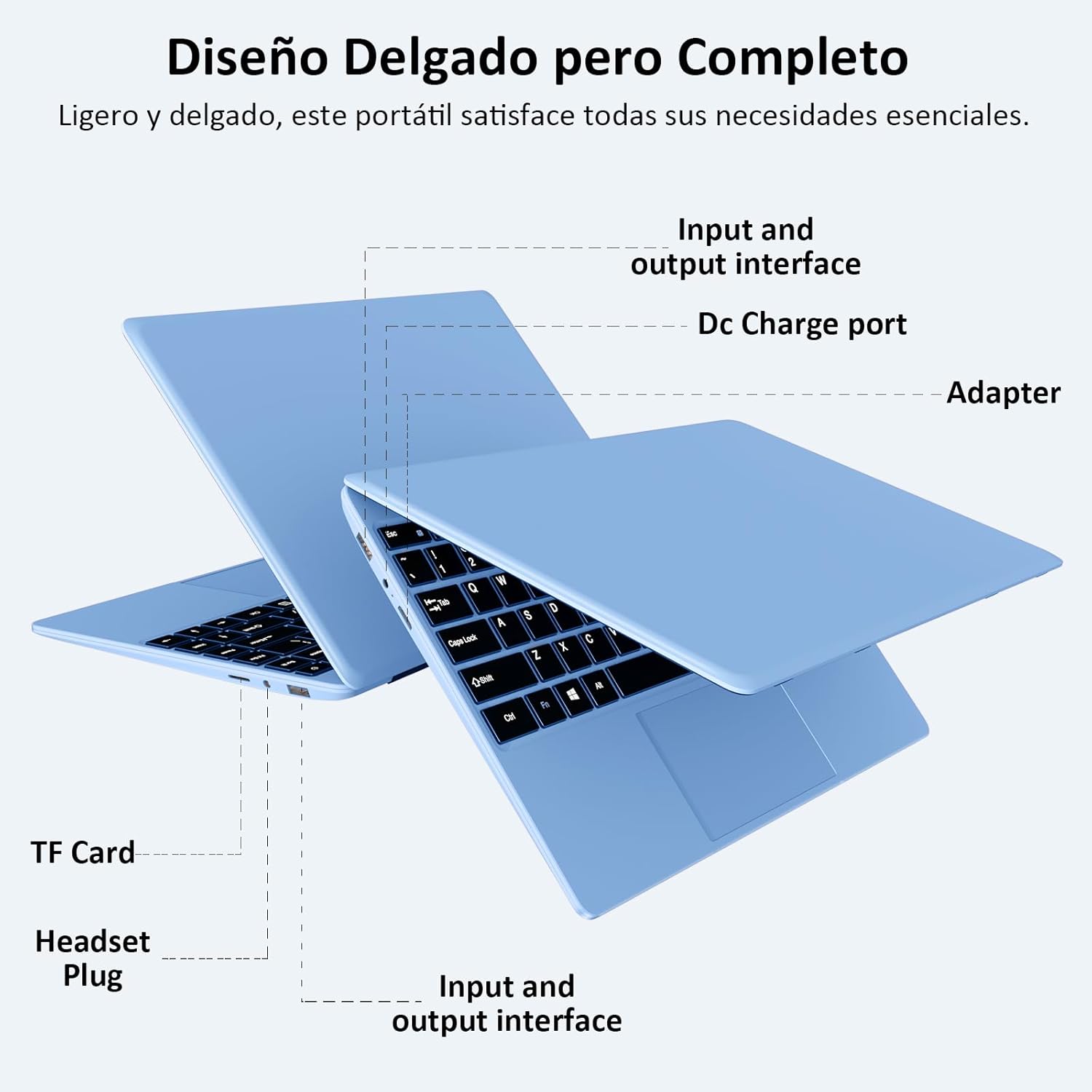
Image: A diagram illustrating the various input and output interfaces on the bvate B7 laptop, including the DC charge port, TF card slot, and headset plug.

Image: The bvate B7 laptop screen showing a video conference, highlighting its connectivity features like WiFi 5G, Bluetooth 4.2, stereo speakers, and dual analog microphone.
3. Initial Power On and Windows 11 Setup
- Charge the Laptop: Before first use, connect the power charger to the DC Charge port and a power outlet. Allow the laptop to charge for at least 30 minutes.
- Power On: Press the power button located on the keyboard.
- Windows 11 Setup: Follow the on-screen prompts to complete the initial Windows 11 setup. This includes selecting your region, language, connecting to a Wi-Fi network, and creating a user account.
Operating the Laptop
Power Management
- Power On: Press the power button.
- Sleep Mode: Close the lid or select "Sleep" from the Start Menu.
- Shut Down: Go to the Start Menu, select "Power," then "Shut down."
- Battery Life: The 5000 mAh battery provides approximately 5-6 hours of video playback and up to 8 days of standby time.

Image: An infographic highlighting the bvate B7 laptop's lightweight design (1.32 KG) and its 38.0Wh (5000mAh) battery, emphasizing extended battery life.
Display and Visual Experience
The 14-inch Full HD (1920x1080) IPS display offers clear visuals. The screen can pivot up to 180 degrees, providing flexibility for various viewing angles and collaborative work.

Image: The bvate B7 laptop's display showcasing its 1920x1080 Full HD resolution, IPS technology, bright view, and eye protection features for a comfortable visual experience.

Image: The bvate B7 laptop being used in a collaborative setting, illustrating its 180-degree hinge that allows for flexible screen positioning and shared viewing.
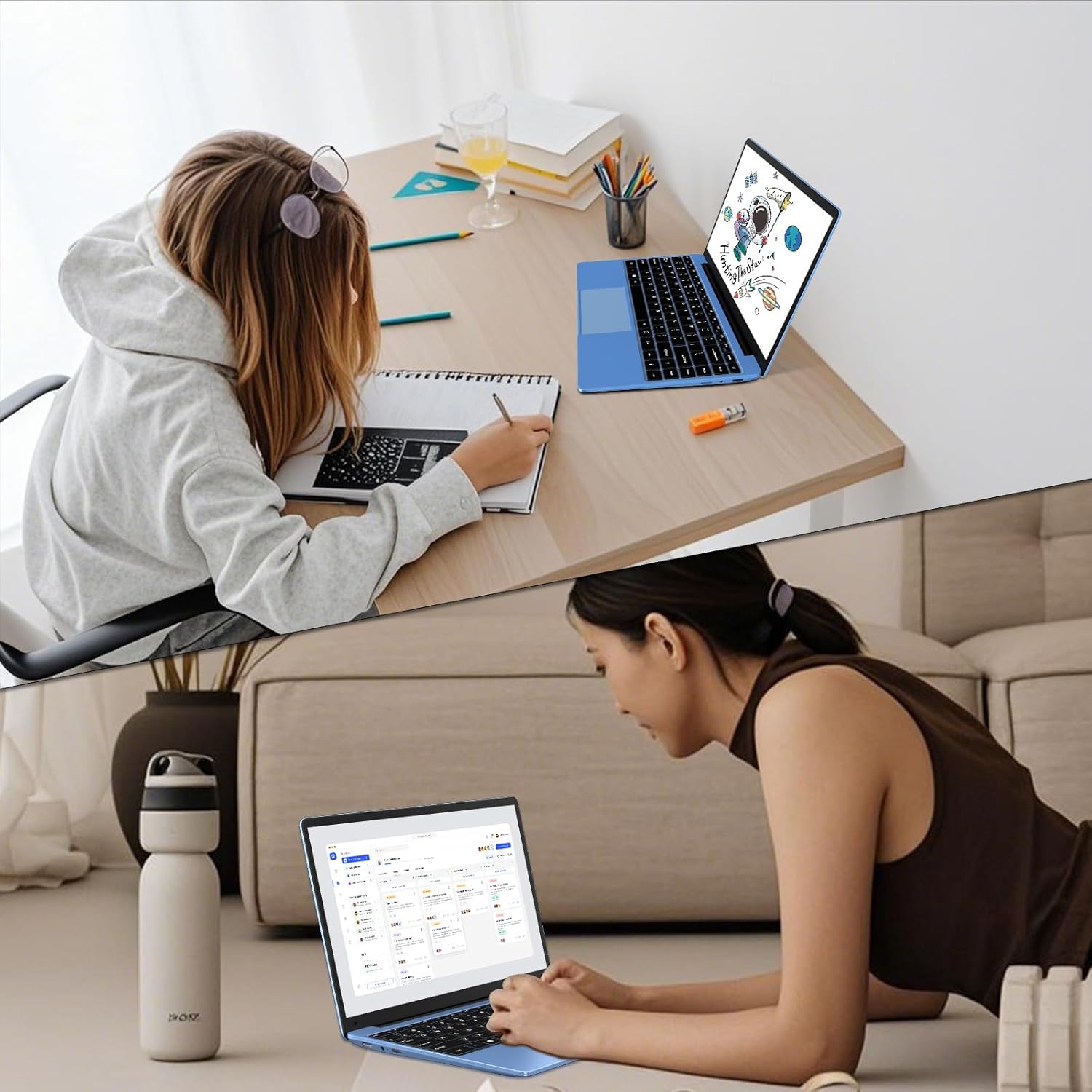
Image: Two scenarios depicting users with the bvate B7 laptop, one at a desk and another on the floor, emphasizing its portability and suitability for various work or study environments.
Storage and Memory
The laptop comes with 6GB RAM and a 256GB SSD for storage. The storage can be expanded via a TF card up to 512GB, or the SSD can be upgraded to 1TB for increased capacity.

Image: An infographic illustrating the bvate B7 laptop's 256GB SSD and 6GB RAM, with multiple application windows (work, movies, audio, graphics, games) suggesting its multitasking capabilities.
Connectivity
- Wi-Fi: Connect to 2.4G or 5G wireless networks for internet access.
- Bluetooth: Pair Bluetooth 4.2 compatible devices such as headphones, speakers, or mice.
- USB 3.0: Use the two USB 3.0 ports for connecting peripherals like external hard drives, USB drives, or other accessories.
- Mini HDMI: Connect an external display or projector using a Mini HDMI to HDMI adapter (not included).
- TF Card: Insert a TF (Micro SD) card into the dedicated slot for additional storage.
Maintenance
Proper maintenance ensures the longevity and optimal performance of your laptop.
- Cleaning: Use a soft, lint-free cloth to clean the screen and exterior. For stubborn marks, slightly dampen the cloth with water or a screen-safe cleaner. Avoid harsh chemicals.
- Ventilation: Ensure the laptop's ventilation openings are not blocked to prevent overheating. Use the laptop on a hard, flat surface.
- Battery Care: To prolong battery life, avoid fully discharging the battery frequently. Store the laptop in a cool, dry place if not used for extended periods.
- Software Updates: Regularly update Windows 11 and device drivers to maintain security and performance.
Troubleshooting
This section addresses common issues you might encounter.
- Laptop does not power on:
- Ensure the power adapter is securely connected to both the laptop and a working power outlet.
- Verify the battery has sufficient charge.
- No Wi-Fi connection:
- Check if Wi-Fi is enabled in Windows settings.
- Restart your router and the laptop.
- Ensure you are within range of a Wi-Fi network and have the correct password.
- Slow performance:
- Close unnecessary applications and browser tabs.
- Check for available Windows updates.
- Ensure there is sufficient free space on the SSD.
- External display not working via HDMI:
- Ensure the Mini HDMI to HDMI adapter and cable are correctly connected.
- Select the correct input source on your external display.
- Press Windows key + P to cycle through display modes.
Specifications
| Brand | bvate |
| Model Name | B7 |
| Operating System | Windows 11 |
| Color | Blue |
| Screen Size | 14 Inches |
| Screen Resolution | 1920 x 1080 Pixels (Full HD) |
| Processor Brand | Celeron N4020 |
| Processor Speed | 1.1 GHz |
| Number of Cores | 2 |
| RAM Size | 6 GB |
| Storage Type | SSD |
| Storage Capacity | 256 GB |
| Expandable Storage | TF Card up to 512GB, SSD upgrade up to 1TB |
| Graphics Coprocessor | Celeron N4020 (Integrated) |
| Wireless Technology | 802.11a/b/g/n/ac (2.4G/5G Wi-Fi) |
| Bluetooth | Bluetooth 4.2 |
| USB Ports | 2 x USB 3.0 |
| HDMI Ports | 1 x Mini HDMI |
| Battery Capacity | 5000 mAh (38.0 Wh) |
| Product Weight | 1.32 Kilograms |
| Product Dimensions | 322 x 228 x 21 mm |
Warranty and Support
The bvate B7 laptop includes a 1+1 year VIP service. For technical assistance or warranty claims, please refer to the contact information provided with your purchase documentation or visit the official bvate support website.
For software updates and additional resources, please visit the official Windows support website.
Related documentsB7


Ask a question about this manual
Ask about setup, troubleshooting, compatibility, parts, safety, or missing instructions. Manuals+ will review the question and use this page’s manual context to help answer it.