
1. Introduction
This manual provides detailed instructions for the Maxcom MM39D 4G VoLTE Big Button Wireless Phone. The MM39D is a modern 4G LTE phone designed for both home and office environments, serving as an ideal replacement for traditional analog landline phones. It features a large, clear display and user-friendly island-style keys.
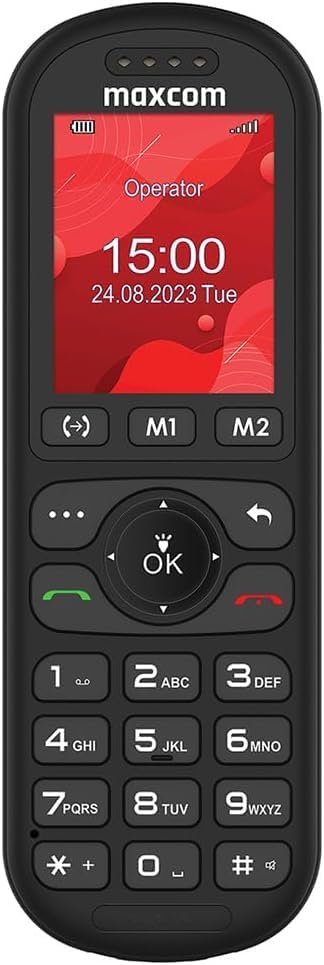
Figure 1: Front view of the Maxcom MM39D phone, showcasing its large buttons and clear display.
Key features include:
- 4G VoLTE Connectivity: Ensures clear call quality and reliable network connection.
- Large 2-inch Display: A 176 x 220 px screen for excellent readability of text and images.
- Island-Style Keys: Designed for easy and accurate dialing and function selection.
- 1000 mAh Efficient Battery: Provides extended standby time, ensuring the phone is ready when needed.
- USB-C Desktop Charger: For convenient and universal charging.
- Integrated Features: Includes calendar, alarm clock, speed dial, FM radio, SMS/MMS, audio/video player, hands-free mode, and call transfer function.
2. Setup
2.1 Package Contents
Before you begin, ensure all items are present in the package:
- Maxcom MM39D Wireless Phone
- USB-C Desktop Charger
- USB-C Cable
- Power Adapter (UK Plug)
- User Manual
2.2 Installing the SIM Card and Battery
- Remove the Back Cover: Gently pry open the back cover of the phone using the notch provided, usually located at the bottom edge.
- Insert SIM Card: Locate the SIM card slot. Insert your 4G compatible SIM card into the slot with the gold contacts facing down and the cut corner aligned as indicated. Ensure it clicks into place.
- Insert Battery: Place the 1000 mAh battery into the battery compartment, aligning the gold contacts on the battery with the contacts in the phone.
- Replace Back Cover: Carefully align the back cover and press it firmly until it snaps into place around all edges.

Figure 2: Rear view of the Maxcom MM39D, indicating the area for battery and SIM card installation.
2.3 Charging the Phone
For first-time use, fully charge the phone.
- Connect the USB-C cable to the desktop charger and the power adapter.
- Plug the power adapter into a wall outlet.
- Place the Maxcom MM39D phone into the desktop charger, ensuring it sits securely and the charging indicator appears on the screen.
- Allow the phone to charge until the battery icon indicates a full charge.
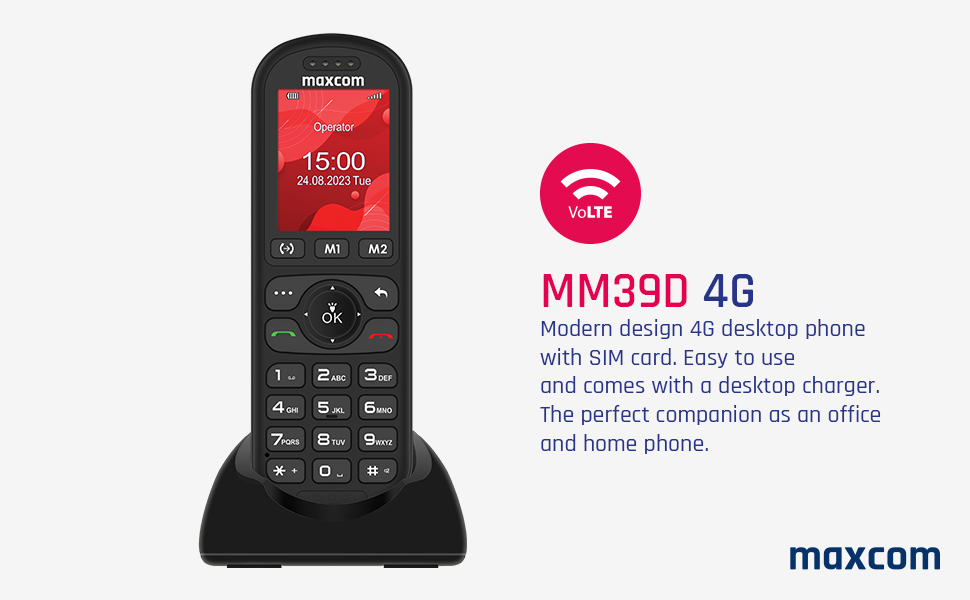
Figure 3: The Maxcom MM39D phone placed in its USB-C desktop charging dock.
3. Operating Instructions
3.1 Powering On/Off
- To Power On: Press and hold the red End Call/Power button until the screen lights up.
- To Power Off: Press and hold the red End Call/Power button until the power-off options appear, then select "Power Off".
3.2 Making and Receiving Calls
- To Make a Call:
- Enter the phone number using the keypad.
- Press the green Call button to initiate the call.
- To Answer a Call: When the phone rings, press the green Call button.
- To End a Call: Press the red End Call button.
- Speed Dial: Assign frequently called numbers to specific keys (M1, M2, or numeric keys). Refer to the phone's menu for speed dial setup.
3.3 Using Basic Functions
- Navigation: Use the directional keys (up, down, left, right) and the central OK button to navigate through menus and confirm selections.
- Calendar: Access the calendar from the main menu to view dates and add events.
- Alarm Clock: Set multiple alarms with customizable tones and repeat options.
- SMS/MMS: Compose and send text messages. The phone supports multimedia messages (MMS) for sending images.
- FM Radio: Tune into FM radio stations. Headphones may be required as an antenna.
- Audio and Video Player: Play media files stored on the phone or an inserted memory card (if supported).
- Hands-free Mode: Activate speakerphone during a call for hands-free communication.
- Call Transfer Function (CTF): Consult your network provider for details on activating and using call transfer services.
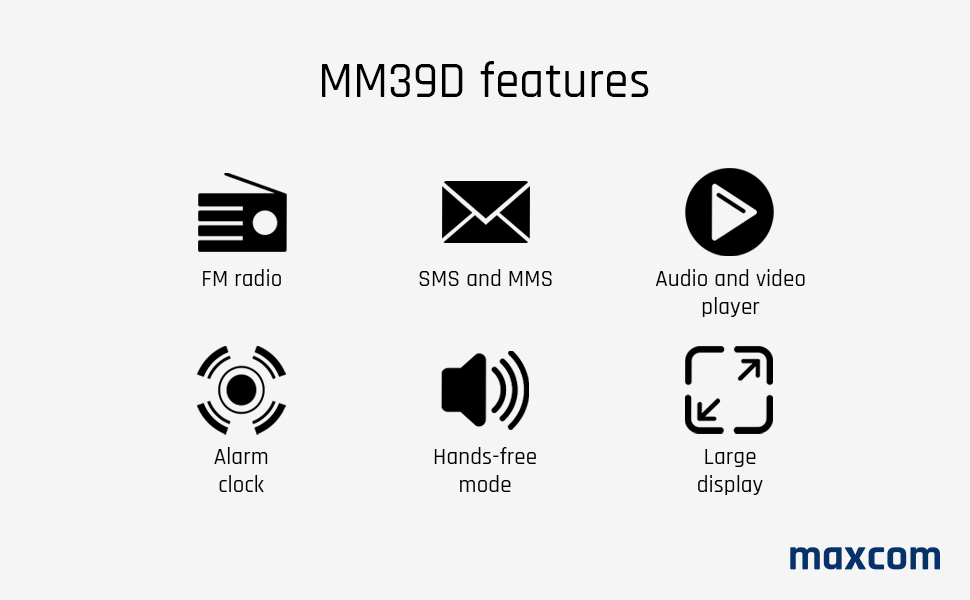
Figure 4: Visual representation of key features available on the Maxcom MM39D.
4. Maintenance
4.1 Cleaning the Phone
- Use a soft, dry cloth to wipe the phone's surface.
- Avoid using liquid cleaners, aerosols, or harsh chemicals, as these can damage the phone.
- Keep the charging port free from dust and debris.
4.2 Battery Care
- Do not expose the battery to extreme temperatures.
- Avoid fully discharging the battery frequently to prolong its lifespan.
- If the phone will not be used for an extended period, charge it to about 50% before storing.
- Use only the original or approved replacement battery and charger.
5. Troubleshooting
If you encounter issues with your Maxcom MM39D, refer to the following common problems and solutions:
| Problem | Possible Cause | Solution |
|---|---|---|
| Phone does not power on | Low battery; Battery not inserted correctly; Phone malfunction. | Charge the phone for at least 30 minutes. Reinsert the battery. If the problem persists, contact support. |
| Cannot make or receive calls | No SIM card; SIM card not inserted correctly; No network signal; SIM card not activated. | Ensure SIM card is correctly inserted and activated. Check network signal strength. Restart the phone. |
| Low ringtone volume | Volume settings are too low. | Adjust the ringtone volume in the phone's settings menu. Ensure the phone is not in silent or vibrate-only mode. |
| Phone not charging | Charger or cable faulty; Charging port blocked; Phone not properly seated in dock. | Check connections. Clean the USB-C port. Try a different USB-C cable or power adapter. Ensure the phone is correctly placed in the desktop charger. |
If these solutions do not resolve the issue, please refer to the Warranty and Support section.
6. Specifications
| Brand | Maxcom |
| Model Number | MM39D |
| Color | Black |
| Product Type | Bar Phone |
| Network | 4G VoLTE |
| Operating System | Symbian 9.3 (Note: This OS is typically for smartphones, may be a generic entry or simplified OS.) |
| Screen Size | 2 inches |
| Display Resolution | 176 x 220 px |
| Connections | Bluetooth, Cellular |
| Charging Port | USB Type-C |
| Battery Capacity | 1000 mAh |
| Power Source | Battery Powered |
| Dialer Type | Keypad |
7. Warranty and Support
For warranty information, please refer to the documentation provided with your purchase or contact your retailer. Maxcom strives to provide reliable products, and any specific warranty terms will be outlined by the point of sale.
Information regarding spare parts availability and guaranteed software updates is not readily available. For technical support or service inquiries, please contact the Maxcom customer service department or your local distributor.
You can often find contact details on the official Maxcom website or through your product's packaging.


