
Introduction
The TP-Link Festa FR365 AX3000 Wi-Fi 6 Gigabit VPN Router is designed for small businesses, home offices, cafes, retail environments, prosumers, advanced consumers, and large houses. It integrates into the Festa Self-Organizing Network (SON) platform, offering Zero-Touch Provisioning, Centralized Cloud Management, and Intelligent Monitoring. This manual provides essential information for setting up, operating, and maintaining your device.
Package Contents
Verify that your package contains the following items:
- Festa FR365 Router (including 3 detachable Wi-Fi Antennas)
- Power Adapter
- Quick Installation Guide
- Silicone Feet
Product Overview
The Festa FR365 router features multiple ports and indicators for network connectivity and status monitoring.

Figure 1: Front view of the TP-Link Festa FR365 router with three detachable antennas.

Figure 2: Detailed diagram showing the ports and features of the Festa FR365 router, including 5 Gigabit ports (1 WAN, 4 WAN/LAN), 1 Gigabit SFP WAN/LAN port, and 1 USB 3.0 port.
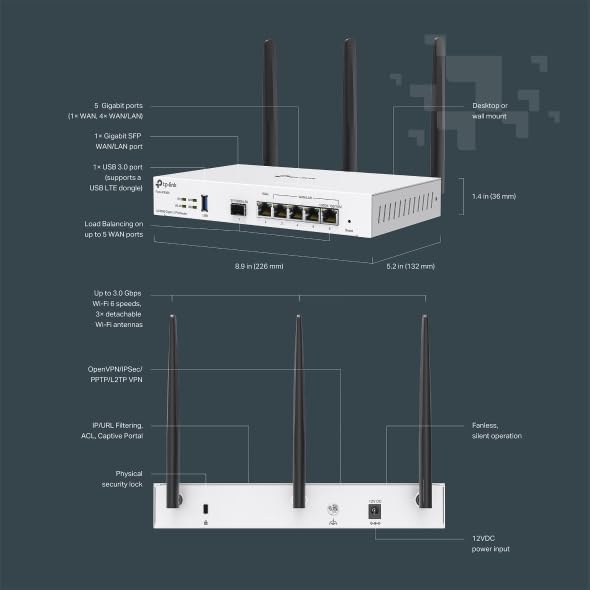
Figure 3: Top and side views illustrating the compact dimensions (8.9 in x 5.2 in x 1.4 in) and key features like fanless operation and physical security lock.
Setup and Initial Configuration
Follow these steps to set up your Festa FR365 router and establish initial network connectivity.
- Physical Connection: Connect the WAN port of the router to your internet source (modem). Connect your devices (computers, switches) to the LAN/WAN ports.
- Power On: Connect the power adapter to the router and plug it into a power outlet. Wait for the system indicator lights to stabilize.
- Access Festa Cloud: To manage the network, you will need a TP-Link ID. Go to festa.tplinkcloud.com to create an account or log in.
- Add Controller: Once logged in, click 'Add Controller' to register your new Cloud-Based Controller. Follow the setup wizard to configure basic settings like controller name, country/region, and time zone.
- Adopt Devices: Ensure all Festa devices have internet access. Navigate to the 'Devices' menu and click 'Add Devices'. Enter the serial number of each device to add them to your controller.
Video 1: This video demonstrates how to configure a Festa network using the Cloud-Based Controller, including logging in, adopting devices, and setting up basic network parameters.

Figure 4: The Festa App and Web interface provide convenient setup and on-the-go network management, including Zero-Touch Provisioning, Topology View, VLAN Settings, and more. Download the Festa App from https://download-app.tp-link.com?app=festa.
Operating Instructions
The Festa FR365 operates as a central component of your network, providing robust Wi-Fi 6 connectivity and advanced routing capabilities.
Network Monitoring
The controller dashboard provides a summarized view of your network status, including connected devices, active SSIDs, clients, and alerts. You can monitor traffic and client activity in real-time.
Wireless Connectivity
The router supports dual-band Wi-Fi 6 (802.11ax) with speeds up to 2976 Mbps (2402 Mbps on 5 GHz and 574 Mbps on 2.4 GHz). It utilizes 1024-QAM, HE160, and OFDMA technologies for enhanced performance and efficiency.
Wired Connectivity
The FR365 features six Gigabit ports (including 1 SFP) and supports load balancing on up to 5 WAN Ethernet ports to optimize multi-line broadband utilization. A USB 3.0 WAN port supports mobile broadband via 4G/3G modems for WAN backup.
Advanced Features
The Festa FR365 offers several advanced features for network customization and security.
VLAN Configuration
You can segment your network using VLANs to separate different user groups (e.g., owner, staff, customers) and control their access to network resources. For example, VLAN 1 for owners (full access), VLAN 10 for staff (internet access, no core network access), and VLAN 20 for customers (guest network with rate limit).
VPN Options
The router supports high-security VPN options, including up to 100x LAN-to-LAN IPsec, 55x OpenVPN, 50x L2TP, and 50x PPTP VPN connections. This allows for secure remote access and communication between different locations.
Access Control Lists (ACL)
ACL rules can be configured to block clients from reaching specific network segments or other subnets, enhancing network security and control over data flow.

Figure 5: Diagram illustrating a Festa networking solution for small businesses, showing the integration of the VPN router, PoE switch, and various access points (ceiling mount, wall plate, outdoor) managed via the Cloud Network.
Maintenance
To ensure optimal performance and longevity of your TP-Link Festa FR365 router, regular maintenance is recommended.
- Firmware Updates: Periodically check the TP-Link website for the latest firmware updates. Updating the firmware can improve performance, add new features, and fix security vulnerabilities.
- Regular Reboots: Rebooting the router periodically (e.g., once a month) can help clear its memory and resolve minor performance issues.
- Physical Cleaning: Keep the router clean and free from dust. Ensure proper ventilation by not obstructing the vents.
- Secure Placement: Place the router in a cool, dry place away from direct sunlight, heat sources, and moisture.
Troubleshooting
If you encounter issues with your Festa FR365 router, try the following troubleshooting steps:
- No Internet Access:
- Check cable connections: Ensure all Ethernet cables are securely plugged into the correct ports.
- Reboot modem and router: Power off both your modem and router, wait 30 seconds, then power on the modem first, followed by the router.
- Verify WAN settings: Log into the Festa Cloud Controller and check the WAN settings to ensure they are correctly configured by your ISP.
- Slow Wi-Fi Speeds:
- Check signal strength: Ensure your devices are within optimal range of the router or connected access points.
- Reduce interference: Move the router away from devices that emit strong electromagnetic interference (e.g., microwaves, cordless phones).
- Update device drivers: Ensure your client devices have the latest Wi-Fi drivers installed.
- Adjust Wi-Fi channels: In the Festa Cloud Controller, try changing the Wi-Fi channels to less congested ones.
- Connectivity Issues (Dropping Connections):
- Check for firmware updates: Ensure your router is running the latest firmware.
- Review ACL rules: Incorrectly configured ACL rules can block legitimate traffic. Review your ACL settings in the controller.
- Monitor logs: Use the 'Logs' and 'Tools' sections in the Festa Cloud Controller to identify any recurring errors or events.
Specifications
| Feature | Description |
|---|---|
| Product Dimensions | 7.17 x 3.11 x 14.76 inches |
| Item Weight | 2.34 pounds |
| Model Name | Festa AX3000 Wi-Fi 6 Gigabit VPN Router |
| Special Features | Beamforming, Guest Mode, Internet Security, Remote Access |
| Frequency Band Class | Dual-Band |
| Wireless Communication Standard | 802.11ac, 802.11ax, 802.11b, 802.11g, 802.11n |
| Compatible Devices | Personal Computer, Security Camera, Smart Television, Smartphone, Tablet |
| Frequency | 5 GHz |
| Recommended Uses | Business, Home |
| Connectivity Technology | Ethernet, Optical Fiber Port, USB |
Warranty and Support
The TP-Link Festa FR365 router is backed by an industry-leading 3-year warranty. Free technical support is available from 6 AM to 6 PM PST, Monday to Friday.
For the complete compatibility list of 4G/3G modems, please visit the TP-Link website. Note that all TP-Link Festa Devices do not work with TP-Link Omada Controllers; Festa Devices require Festa Cloud to manage. Standalone mode does not apply.


