
AUSDOM Foliokey11
AUSDOM iPad Pro M4 11-inch Keyboard Case User Manual
Model: Foliokey11
1. Compatibility
This keyboard case is designed exclusively for the iPad Pro 11-inch (M4) 2024. Compatible iPad models include A2836, A2837, and A3006.
NOTE: This product is NOT compatible with iPad Air 11 (M2) 2024 or iPad Pro 11 4th/3rd/2nd/1st Generation models.

Image: Compatibility details for the keyboard case.
2. Key Features
- Magnetic Stand: Securely attaches your iPad, transforming it into a floating stand for a laptop-like experience.
- Multi-Touch Trackpad: Integrated trackpad with full multi-touch gesture support for precise navigation and enhanced productivity.
- 11-Color Backlit Keyboard: Features 11 vibrant backlight colors and 4 adjustable brightness levels for comfortable typing in any lighting condition.
- Pencil Holder: Conveniently stores your Apple Pencil.
- Durable Hinge: Constructed with a tough aluminum alloy hinge, tested for over 20,000 open/close cycles, allowing for a smooth adjustable viewing angle up to 135°.
- Long Battery Life: Equipped with a 700mAh battery, providing up to 200 hours of continuous use (with backlight off) on a single 2.5-hour charge via USB-C.

Image: Magnetic stand, durable hinge, and adjustable viewing angle.
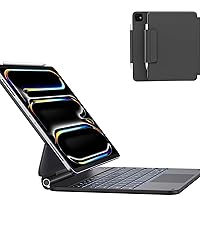
Image: Integrated pencil holder.
3. Setup Instructions
3.1 Attaching Your iPad
- Open the keyboard case.
- Align your iPad Pro 11-inch (M4) with the magnetic back cover. The iPad will snap securely into place.
- Adjust the viewing angle by tilting the iPad to your desired position (up to 135°).
3.2 Bluetooth Pairing
- Ensure the keyboard is charged (see section 3.3).
- Turn on the keyboard by sliding the power switch. The power indicator light will illuminate.
- On your iPad, go to Settings > Bluetooth and turn Bluetooth ON.
- The iPad will search for nearby devices. Select "Foliokey11" from the list of available devices.
- Once connected, the pairing indicator light on the keyboard will turn off.
3.3 Charging the Keyboard
The keyboard uses a USB-C port for charging. Connect the provided USB-C cable to the charging port on the side of the keyboard and to a power source.
- Charging Indicator (Red Light): Flashes rapidly when battery is low, solid red when charging.
- Fully Charged (Green Light): Illuminates green when charging is complete.

Image: USB-C charging port and indicator lights.
4. Operating Instructions
4.1 Using the Keyboard
Once paired, the keyboard functions like a standard laptop keyboard. Type directly into any text field on your iPad.
4.2 Multi-Touch Trackpad Gestures
The integrated trackpad supports various multi-touch gestures for efficient navigation:
- Single Finger Tap: Click/Select.
- Two-Finger Scroll: Scroll up/down or left/right.
- Pinch to Zoom: Zoom in/out on content.
- Three-Finger Swipe Up: Go to the Home screen.
- Three-Finger Swipe Left/Right: Switch between open apps.
- Four-Finger Swipe Up: Open App Switcher.

Image: Multi-Touch Trackpad gestures.
4.3 Backlight Control
The keyboard features an 11-color RGB backlight with 4 levels of adjustable brightness.
- Adjust Brightness: Press Fn + ↑ or Fn + ↓ to increase or decrease brightness.
- Change Color: Press Fn + → to cycle through the 11 backlight colors.

Image: Backlit keyboard in use.
4.4 Keyboard Shortcuts
Utilize the following function key combinations for quick actions:

Image: Keyboard shortcut guide.
| Key Combination | Function |
|---|---|
| Fn + Esc | Go Back |
| Fn + ↑ | Increase Brightness |
| Fn + ↓ | Decrease Brightness |
| Fn + 4 | Open Siri |
| Fn + → | Switch Backlight Color |
| Fn + 8 | Play/Pause |
| Fn + 9 | Volume Down |
| Fn + 0 | Turn Off/On Trackpad |
| Fn + 3 | Open Virtual Keyboard |
| Fn + 5 | Adjust Backlight Brightness |
| Fn + 7 | Previous Track |
| Fn + - | Next Track |
| Fn + = | Volume Up |
| Fn + Delete | Lock Screen |
5. Maintenance
- Cleaning: Use a soft, damp cloth to wipe the exterior of the case and keyboard. Avoid harsh chemicals or abrasive materials.
- Storage: When not in use for extended periods, ensure the keyboard is fully charged and stored in a cool, dry place.
- Avoid Liquids: Keep the keyboard case away from liquids to prevent damage to electronic components.
6. Troubleshooting
6.1 Keyboard Not Connecting
- Ensure the keyboard is powered on and fully charged.
- Check your iPad's Bluetooth settings to confirm Bluetooth is enabled and "Foliokey11" is selected.
- If already paired, try unpairing and re-pairing the keyboard.
- Restart both your iPad and the keyboard.
6.2 Backlight Not Working
- Ensure the keyboard is charged. Low battery can affect backlight functionality.
- Use the Fn + ↑ or Fn + ↓ keys to adjust brightness.
6.3 Trackpad Not Responding
- Ensure the trackpad is not accidentally turned off. Press Fn + 0 to toggle the trackpad on/off.
- Check Bluetooth connection.
- Restart the keyboard and iPad.
7. Specifications
| Feature | Detail |
|---|---|
| Model Number | Foliokey11 |
| Compatible Devices | iPad Pro 11-inch (M4) 2024 (A2836, A2837, A3006) |
| Connectivity Technology | Bluetooth |
| Battery Capacity | 700mAh Lithium Polymer |
| Charging Time | Approx. 2.5 hours |
| Continuous Working Time | 200 hours (backlight off) |
| Keyboard Backlighting | 11 Colors RGB, 4 Brightness Levels |
| Special Features | Backlit, Ergonomic, Portable, Rechargeable, Full-area Trackpad |
| Product Dimensions | 9.99 x 7.2 x 0.77 inches |
| Item Weight | 2 pounds |
| Manufacturer | AUSDOM |
8. Product Videos
8.1 AUSDOM iPad Pro 11 Inch Case with Keyboard (M4, 2024) Overview
Video: This official product video provides a comprehensive overview of the AUSDOM iPad Pro 11-inch M4 Keyboard Case, demonstrating its features, design, and functionality.
9. Warranty and Support
For warranty information, technical support, or any inquiries regarding your AUSDOM iPad Pro M4 11-inch Keyboard Case, please refer to the contact details provided in the packaging or visit the official AUSDOM website.
A detailed user manual is included in the product packaging for additional guidance.
Related documentsFoliokey11

Ask a question about this manual
Ask about setup, troubleshooting, compatibility, parts, safety, or missing instructions. Manuals+ will review the question and use this page’s manual context to help answer it.