
OMOTON B0D8KGSVZ2
OMOTON Bluetooth Keyboard User Manual
Model: B0D8KGSVZ2
1. Introduction
This manual provides detailed instructions for the setup, operation, and maintenance of your OMOTON Bluetooth Keyboard. Designed for seamless compatibility with Mac devices, this compact wireless keyboard offers an ergonomic design and convenient shortcut keys to enhance your productivity.
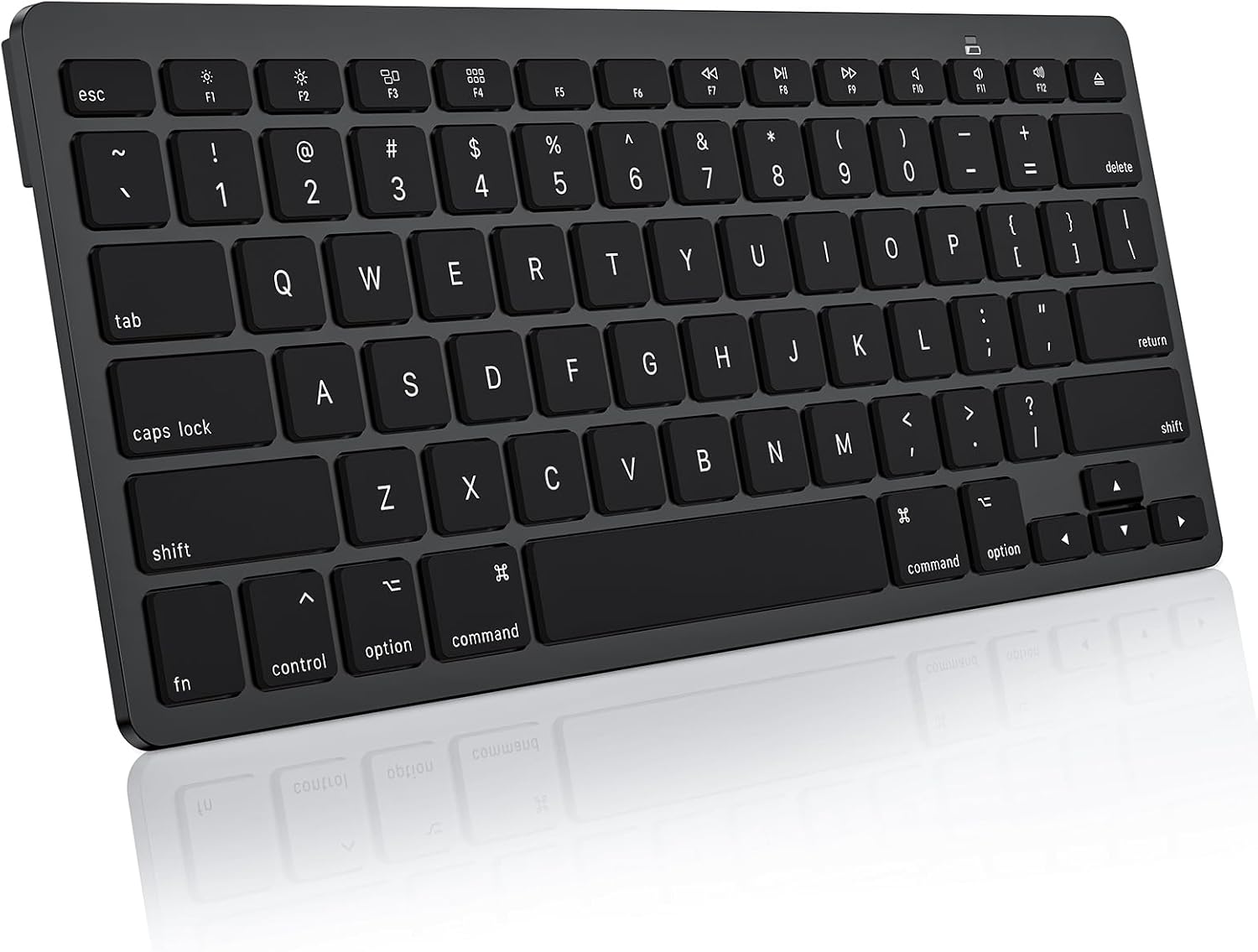
Figure 1: OMOTON Bluetooth Keyboard (Dark Black)
2. Setup
2.1 Battery Installation
The keyboard requires two AAA batteries (not included) for operation. Follow these steps to install the batteries:
- Locate the battery compartment on the back of the keyboard.
- Open the battery compartment cover.
- Insert two AAA batteries, ensuring correct polarity (+/-).
- Close the battery compartment cover securely.
2.2 Bluetooth Connection Steps
To connect your OMOTON Bluetooth Keyboard to your Mac device, follow these instructions:
- Insert 2 AAA batteries into the keyboard (as described above).
- Slide the power switch on the keyboard from OFF to ON.
- Double-click the "CONNECT" button located on the back of the keyboard.
- On your Mac, turn on Bluetooth.
- In the Bluetooth settings, "KB066 Mac Keyboard" should appear. Select it to begin pairing.
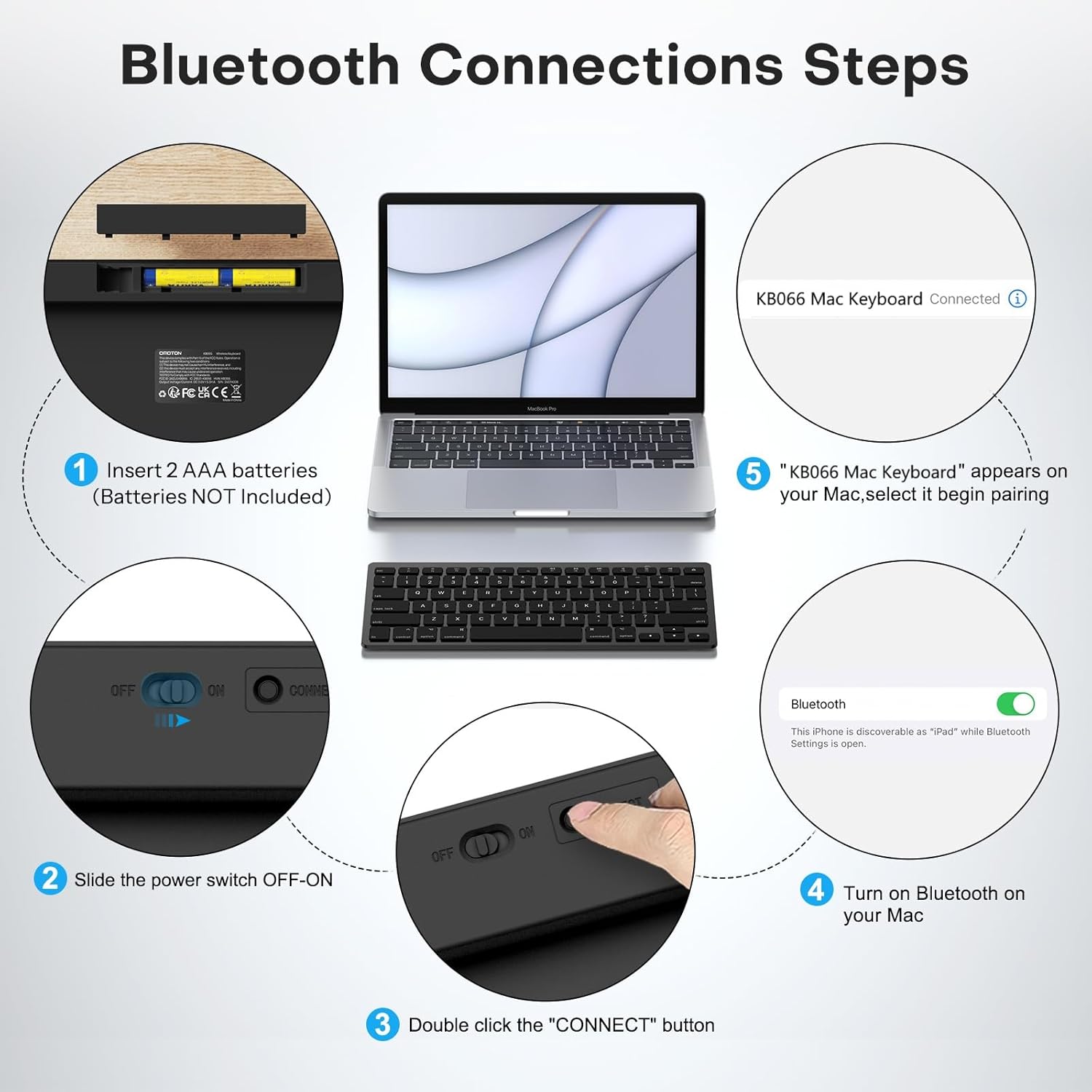
Figure 2: Bluetooth Connection Steps
3. Operating Instructions
3.1 Compatibility
This Bluetooth keyboard is designed to work with Mac OS X 10.10 and above. It is compatible with various Apple devices including MacBook, MacBook Pro, MacBook Air, Mac, iMac, iMac Pro, Mac Pro/Mini, and similar devices.

Figure 3: Mac OS Compatibility
3.2 Multimedia and Shortcut Keys
The keyboard features 12 shortcut keys to streamline your workflow and enhance productivity. These keys provide quick access to common functions:
- Esc: Escape
- F1: Decrease Brightness
- F2: Increase Brightness
- F3: Open Mission Control
- F4: Open Launchpad
- F7: Previous Track
- F8: Play/Pause
- F9: Next Track
- F10: Mute Volume
- F11: Decrease Volume
- F12: Increase Volume
- Eject Key: Eject (for optical drives, if applicable)

Figure 4: Multimedia Keys for Mac
3.3 Ergonomic Design
The keyboard features a scissor-switch design, which aims to reduce typing fatigue and provide a smoother, more comfortable typing experience. An 8° ergonomic angle is incorporated to offer a comfortable typing position.

Figure 5: Ergonomic Angle

Figure 6: Scissor-Switch Mechanism
3.4 Power Saving Mode
To conserve battery life, the keyboard features an environmentally friendly auto-sleep mode. After 10 minutes of inactivity, the keyboard will enter sleep mode. To wake it up, simply click any key.
4. Maintenance
4.1 Cleaning
To maintain the keyboard's appearance and functionality, regularly clean it with a soft, dry cloth. For stubborn dirt, a slightly damp cloth can be used, ensuring no moisture enters the keycaps or internal components. Avoid using harsh chemicals or abrasive cleaners.
4.2 Battery Replacement
When the keyboard's performance degrades or it fails to connect, it may be time to replace the AAA batteries. Follow the battery installation steps in Section 2.1.
5. Troubleshooting
If you encounter issues with your OMOTON Bluetooth Keyboard, refer to the following common troubleshooting tips:
- Keyboard not connecting:
- Ensure the keyboard is powered on and has fresh batteries.
- Double-check that Bluetooth is enabled on your Mac device.
- Press the "CONNECT" button on the back of the keyboard to re-enter pairing mode.
- Remove the keyboard from your Mac's Bluetooth device list and attempt to pair it again.
- Keys not responding:
- Verify that the keyboard is connected via Bluetooth.
- Replace the batteries if they are low.
- If specific keys are not responding, ensure no debris is lodged under the keycap.
- Input delay after waking from sleep:
- A slight delay of one or two seconds may occur when the keyboard wakes from auto-sleep mode before inputs are shown on screen. This is normal operation.
- "Delete" vs. "Backspace" key:
- The keyboard features a "Delete" key. This key performs both the delete (forward delete) and backspace functions. To delete characters to the left of the cursor, simply press the "Delete" key. To delete characters to the right, highlight them first, then press "Delete".
6. Specifications
| Feature | Detail |
|---|---|
| Brand | OMOTON |
| Model | B0D8KGSVZ2 |
| Connectivity Technology | Bluetooth |
| Compatible Devices | Laptop (Mac OS X 10.10 and above) |
| Keyboard Description | Ergonomic |
| Special Features | Ergonomic, Portable |
| Color | Dark Black |
| Number of Keys | 78 |
| Power Source | Battery Powered (2 x AAA batteries) |
| Item Weight | 10.8 ounces |
| Package Dimensions | 11.38 x 4.96 x 1.02 inches |
7. Warranty and Support
For warranty information or technical support, please refer to the product packaging or contact OMOTON customer service directly. Keep your purchase receipt for any warranty claims.
You can visit the official OMOTON store for more information: OMOTON Store on Amazon.
Related documentsB0D8KGSVZ2


Ask a question about this manual
Ask about setup, troubleshooting, compatibility, parts, safety, or missing instructions. Manuals+ will review the question and use this page’s manual context to help answer it.