
1. Introduction
Thank you for choosing the SIXWIN 1 Din Car Stereo. This manual provides essential information for the proper installation, operation, and maintenance of your new car media receiver. Please read this manual thoroughly before using the product to ensure optimal performance and safety.
This device features a 10.4-inch touchscreen, Bluetooth connectivity, Apple CarPlay, Android Auto, FM radio, USB, AUX, SD card support, and Mirror Link functionality, designed to enhance your in-car entertainment and navigation experience.
2. Safety Information
- Always operate the device safely and responsibly. Distracted driving can lead to accidents.
- Do not attempt to disassemble or modify the unit. This may cause damage and void the warranty.
- Ensure all wiring connections are secure and properly insulated to prevent short circuits and electrical hazards.
- Consult a professional for installation if you are unsure about any steps.
- Keep the volume at a moderate level to remain aware of external traffic sounds.
3. Package Contents
Verify that all items are present in the package:
- SIXWIN 1 Din Car Stereo Unit
- Power Cable
- Horn Cable
- Microphone (MIC)
- Mounting Brackets and Screws
- User Manual (this document)

Figure 3.1: Included accessories for the SIXWIN 1 Din Car Stereo. This image displays the main car stereo unit, a power cable, a horn cable, a microphone, and various mounting brackets and screws, essential for installation.
4. Setup and Installation
Before installation, ensure your vehicle's battery is disconnected to prevent electrical damage. Professional installation is recommended.
4.1 Wiring Diagram
Refer to the detailed wiring diagram provided with your product for specific connections. General connections include:
- Power Cable: Connect to the vehicle's power supply (constant 12V, accessory 12V, and ground).
- Speaker Cables: Connect to your vehicle's speakers, ensuring correct polarity.
- Antenna: Connect the FM antenna.
- Steering Wheel Control (SWC): Connect to your vehicle's SWC wires if applicable.
- Rear View Camera (Optional): Connect the camera input and trigger wire.
- USB/AUX: Connect external devices as needed.
4.2 Mounting the Unit
- Insert the 1 Din chassis into the vehicle's dashboard opening.
- Secure the unit using the provided mounting brackets and screws.
- Connect all necessary wiring harnesses.
- Carefully slide the 10.4-inch display onto the main unit and secure it.
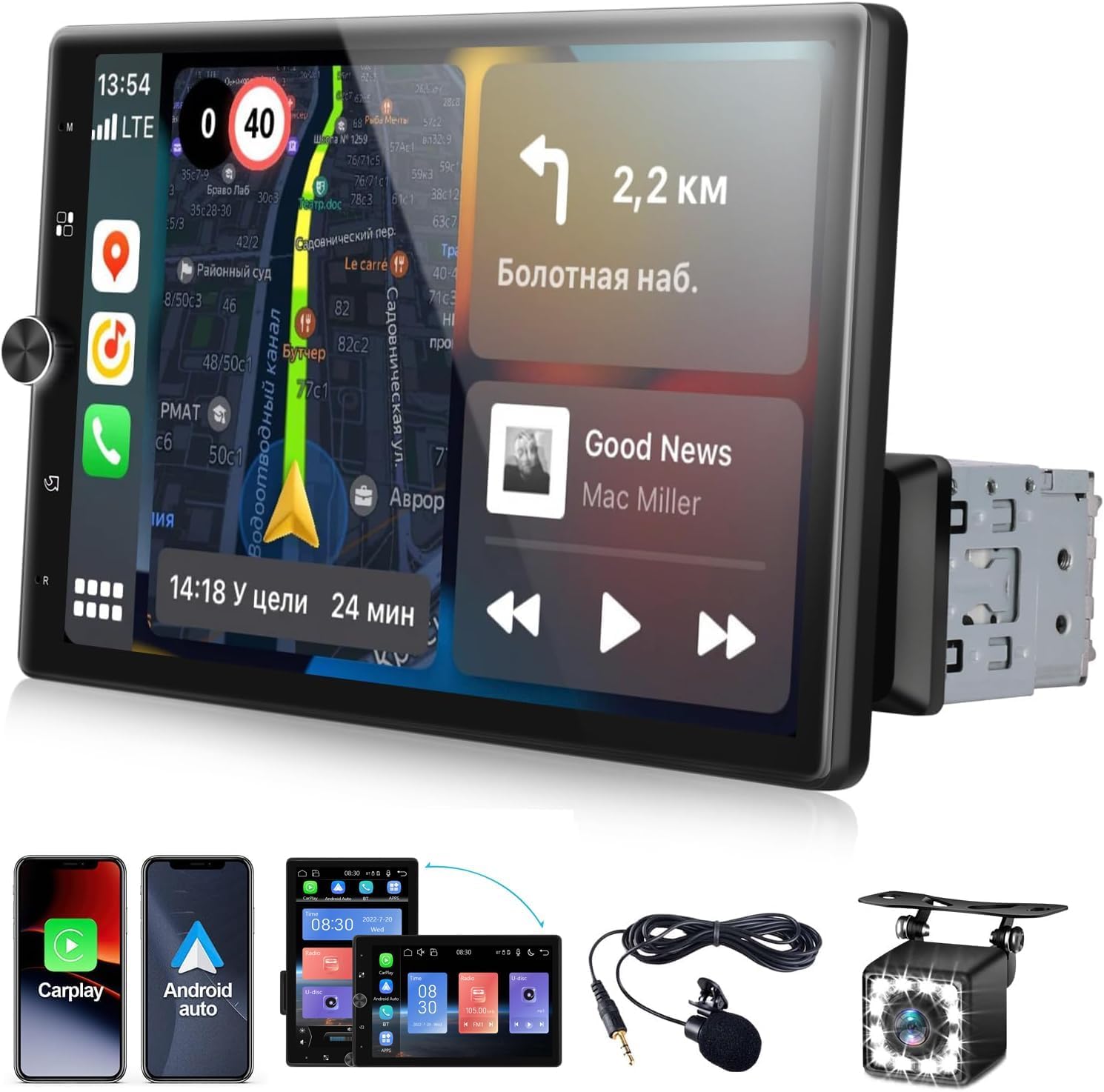
Figure 4.1: The SIXWIN 1 Din Car Stereo with its 10.4-inch touchscreen display, shown installed in a vehicle's dashboard. The screen is oriented vertically, providing a large interface for various functions.
5. Operating Instructions
5.1 Basic Operations
- Power On/Off: Press the power button (usually a physical button or a soft button on the screen) to turn the unit on or off.
- Volume Control: Use the rotary knob or touchscreen controls to adjust the volume.
- Home Screen: Tap the 'Home' icon to return to the main menu.
- Screen Adjustment: The 10.4-inch screen can be manually adjusted horizontally to optimize viewing angles.

Figure 5.1: Manual screen adjustment feature. This image illustrates a hand gently pushing the 10.4-inch touchscreen display horizontally, indicating its adjustable nature for optimal viewing.
5.2 Apple CarPlay & Android Auto
Connect your compatible smartphone via USB to access Apple CarPlay or Android Auto. This allows you to use navigation, make calls, send messages, and listen to music directly from your phone's interface displayed on the car stereo screen.
- Connect your iPhone or Android phone to the USB port.
- The system will automatically detect and launch CarPlay or Android Auto.
- Follow on-screen prompts to grant necessary permissions.
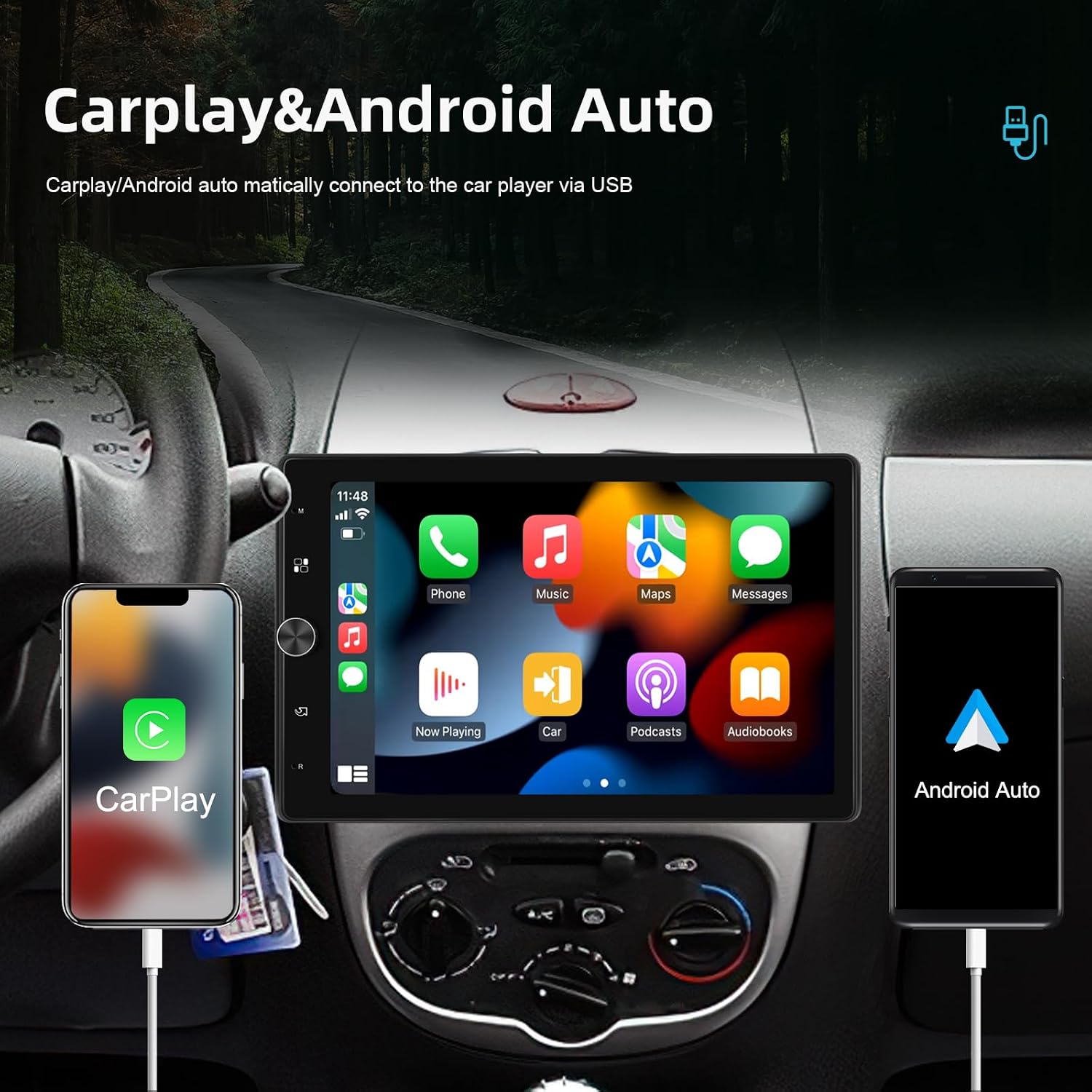
Figure 5.2: Apple CarPlay and Android Auto functionality. The image shows the car stereo screen displaying the CarPlay interface, with an iPhone connected via USB. An Android phone is also shown connected, indicating support for Android Auto.
5.3 Mirror Link
Mirror Link allows you to display your smartphone's screen directly onto the car stereo's display. This feature is compatible with both iOS and Android devices.
- Connect your smartphone to the car stereo via USB.
- Select the 'Mirror Link' option on the car stereo.
- Follow the instructions on your phone to enable screen mirroring.
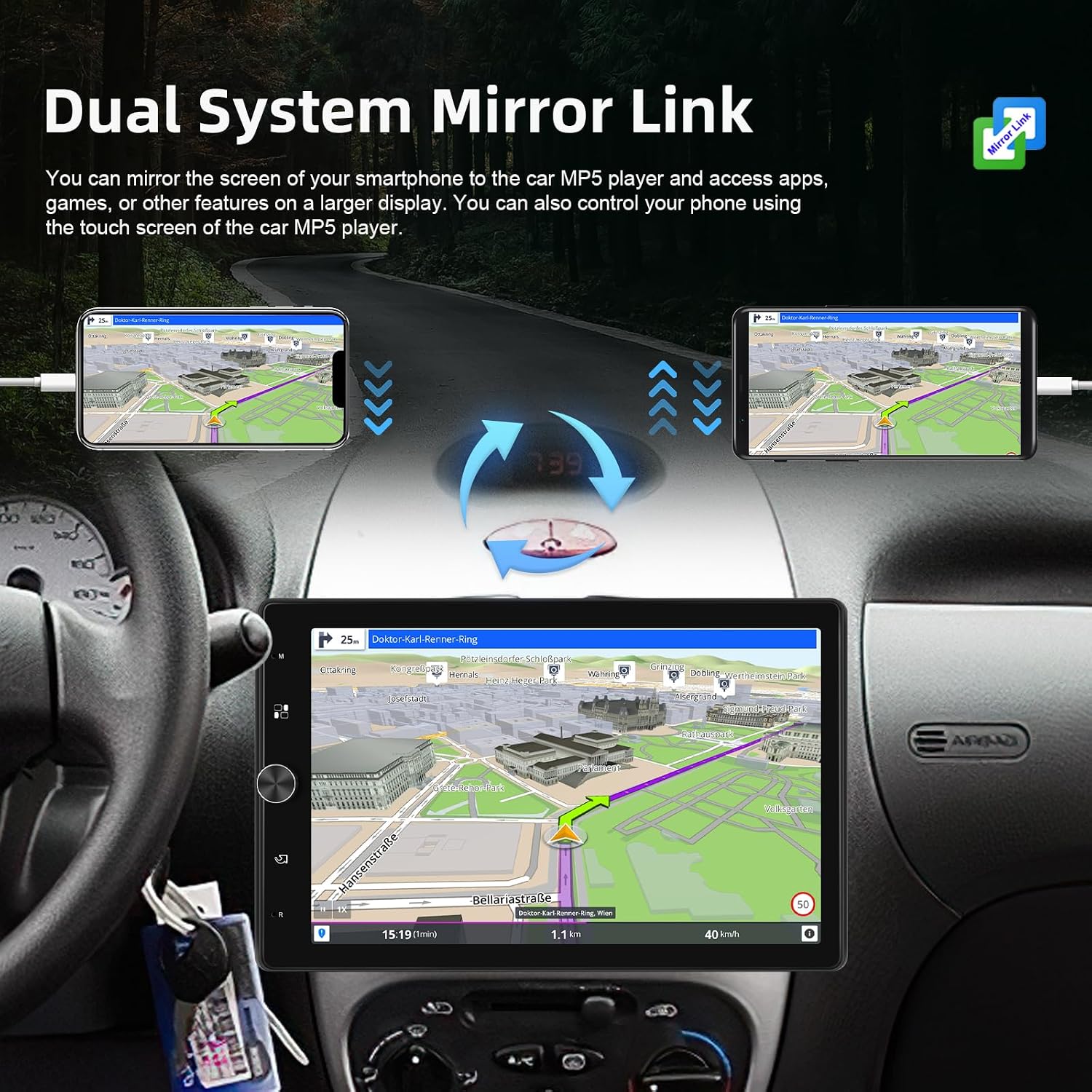
Figure 5.3: Dual System Mirror Link in action. The car stereo screen displays a navigation map, mirroring the content from a smartphone. Two smartphones are depicted, illustrating the mirroring capability.
5.4 Bluetooth Functionality
The built-in Bluetooth allows for hands-free calling and wireless audio streaming.
- Pairing: Go to the Bluetooth settings on the car stereo and your phone. Search for available devices and select 'SIXWIN Car Stereo'. Enter the PIN (usually 0000) if prompted.
- Hands-Free Calling: Once paired, you can make and receive calls directly through the car stereo. Your phonebook can be automatically loaded.
- Audio Streaming: Play music from your phone wirelessly through the car stereo speakers.

Figure 5.4: Built-in Bluetooth features. This image shows the car stereo displaying various Bluetooth functions, including a call interface, phonebook access, and music playback controls, alongside a smartphone demonstrating a call.
5.5 FM Radio
Tune into your favorite radio stations with the integrated FM tuner.
- Select the 'FM Radio' application from the main menu.
- Use the scan function to automatically find and save stations, or manually tune to a frequency.
- Save your preferred stations as presets for quick access.

Figure 5.5: FM Radio interface. The car stereo screen shows the FM radio application, displaying the current frequency (105.50 MHz) and options for scanning and saving stations.
5.6 Steering Wheel Control (SWC)
If your vehicle supports it, you can configure the car stereo to respond to your steering wheel controls for added convenience.
- Access the 'Steering Wheel Control' settings in the system menu.
- Follow the on-screen instructions to map your vehicle's steering wheel buttons to the corresponding functions on the car stereo (e.g., volume up/down, track skip, mode).

Figure 5.6: Steering Wheel Control setup. The image shows the car stereo's interface for programming steering wheel controls, allowing users to assign functions to their vehicle's existing buttons.
5.7 Media Playback
The unit supports media playback from various sources:
- USB: Insert a USB drive into the designated USB port to play audio or video files.
- SD Card: Insert an SD card into the slot to access media files.
- AUX-in: Connect external audio devices using a 3.5mm AUX cable.
6. Maintenance
- Cleaning the Screen: Use a soft, lint-free cloth to gently wipe the touchscreen. Do not use abrasive cleaners or solvents.
- General Cleaning: Keep the unit free from dust and debris. Use a dry cloth for cleaning the main body.
- Software Updates: Check the manufacturer's website periodically for any available software updates to ensure optimal performance and new features.
7. Troubleshooting
| Problem | Possible Cause | Solution |
|---|---|---|
| Unit does not power on. | Incorrect wiring, blown fuse, vehicle battery issue. | Check power connections, inspect fuses, verify vehicle battery voltage. |
| No sound. | Volume too low, incorrect speaker wiring, mute function active. | Increase volume, check speaker connections, disable mute. |
| Bluetooth not connecting. | Device not in pairing mode, incorrect PIN, interference. | Ensure both devices are in pairing mode, re-enter PIN, try pairing in a different location. |
| CarPlay/Android Auto not launching. | Faulty USB cable, phone not compatible, app not installed. | Use a high-quality USB cable, ensure phone compatibility, install CarPlay/Android Auto app on phone. |
| Poor FM radio reception. | Antenna not connected, weak signal, interference. | Check antenna connection, try scanning for stations again, move to an area with better signal. |
8. Specifications
| Feature | Detail |
|---|---|
| Model Number | A3061A3 |
| Screen Size | 10.4 inches |
| Connectivity Technology | Auxiliary, USB, Bluetooth, FM |
| Controller Type | Touchscreen |
| Special Features | Android Auto, Apple CarPlay, Mirror Link |
| Compatible Devices | iOS and Android smartphones |
| Connector Type | RCA |
| Audio Output Mode | Digital, Stereo |
| Surround Sound Channel Configuration | 5.1 |
| Video Encoding | H.264, H.265/HEVC, MPEG-4 |
| Output Power | 45 Watts |
| Number of Channels | 5 |
| Digital Media Format | Surround, Dolby, Digital |
| Item Dimensions (D x W x H) | 10.2 x 18.8 x 4.5 centimeters |
9. Warranty and Support
9.1 Warranty Information
This SIXWIN product comes with a 1-year warranty from the date of purchase, covering manufacturing defects. Please retain your proof of purchase for warranty claims.
9.2 Customer Support
For technical assistance, troubleshooting, or any inquiries regarding your SIXWIN car stereo, please contact our customer support team.
- Online Support: Visit SixWinVip6125.com for assistance and additional resources.
- Email Support: For direct inquiries, you may contact us via email at SIXWINVIP@126.com.
- We offer 24/7 customer support and lifetime technical support for our products.
- Enjoy a 30-day voluntary return guarantee and a 24-month quality guarantee.

Figure 9.1: SIXWIN Customer Support. This image shows customer service representatives, emphasizing the availability of help and user manuals through the provided website and contact information.
