
Introduction
This manual provides detailed instructions for the setup, operation, maintenance, and troubleshooting of your ESR Multi-Mode Magnetic Stand Keyboard Case for iPad Air 13 Inch. Please read this manual thoroughly to ensure proper use and to maximize the functionality of your device.
Compatibility
This keyboard case is designed for specific iPad Air 13 Inch models. Verify your iPad model number to ensure compatibility.
- iPad Air 13" (M4) 2026: Models A3461, A3462, A3464
- iPad Air 13" (M3) 2025: Models A3268, A3269, A3271
- iPad Air 13" (M2) 2024: Models A2898, A2899, A2900

Image: Compatibility chart for ESR iPad Air 13 Inch Keyboard Case.
How to Identify Your iPad Model
To find your iPad's model number:
- Go to Settings > General > About.
- Check the Model Name.
- Tap Model Number to display the AXXXX format.

Image: Steps to identify your iPad model.
Setup
1. Attaching the iPad to the Case
Align your iPad Air 13 Inch with the magnetic back case. The strong magnets will securely attach the iPad to the case, ensuring full-body protection.
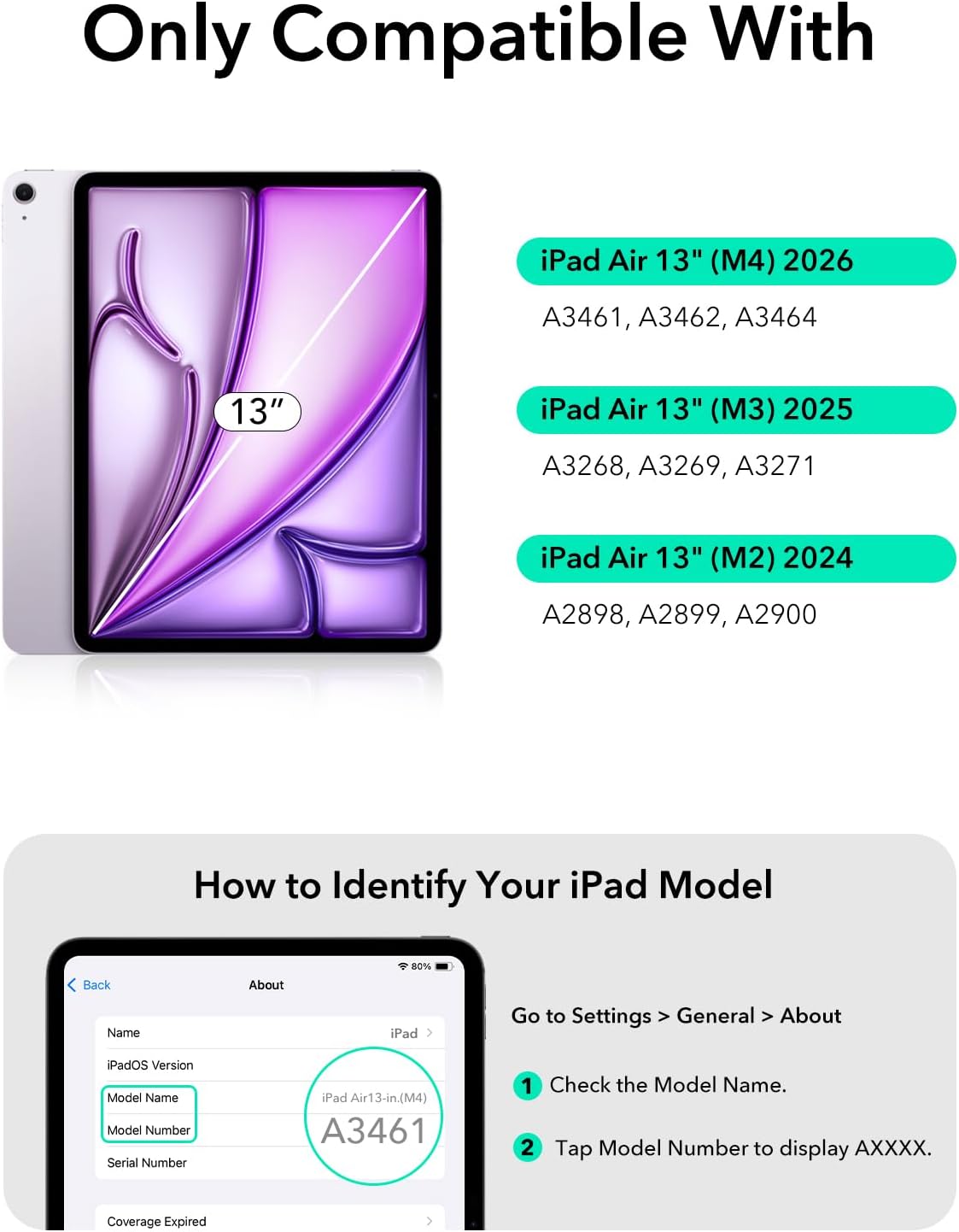
Image: iPad magnetically attaching to the case.
2. Pairing the Keyboard via Bluetooth
- Ensure the keyboard is charged (refer to the Charging section).
- Turn on the keyboard using the power switch, usually located on the side or top edge of the keyboard.
- On your iPad, go to Settings > Bluetooth.
- Turn on Bluetooth.
- The iPad will search for nearby devices. Select the ESR keyboard from the list of available devices.
- Follow any on-screen prompts to complete the pairing process. A successful connection will be indicated on your iPad.
Video: Demonstration of unboxing, setup, and initial use of the ESR Magnetic Keyboard Case.
Operating Instructions
Multi-Mode Magnetic Stand
The case features a quick-set magnetic stand that allows for various viewing angles and modes, enhancing productivity and comfort.
- Typing Mode: Position the iPad at an optimal angle for comfortable typing.
- Viewing Mode: Adjust the stand for media consumption or presentations.
- Browsing Mode: Utilize a more upright angle for web browsing or reading.
- Raised Screen View: The stand can be adjusted to raise the screen, promoting better posture during extended use.
- Portrait Mode: The back case detaches to allow for portrait orientation, ideal for video calls or specific applications.

Image: Various usage modes (Typing, Viewing, Browsing).

Image: Quick-set magnetic stand in raised screen view.

Image: Secure magnetic lock for stable positioning.
Detachable Back Case
The back case can be easily detached from the keyboard, allowing you to use your iPad with full-body protection independently of the keyboard. This provides flexibility for hands-on use.

Image: Detachable back case functionality.
Video: Demonstration of detaching the iPad from the keyboard for standalone use.
Multifunctional Trackpad
The extended multi-touch trackpad allows for precise navigation of your iPad. Utilize gestures such as tapping, pinching, and swiping to control your device efficiently.
- Click: Single tap or press for selection.
- Scroll: Two-finger swipe up or down.
- Zoom: Pinch in or out with two fingers.
- Go Home: Swipe up with three fingers.
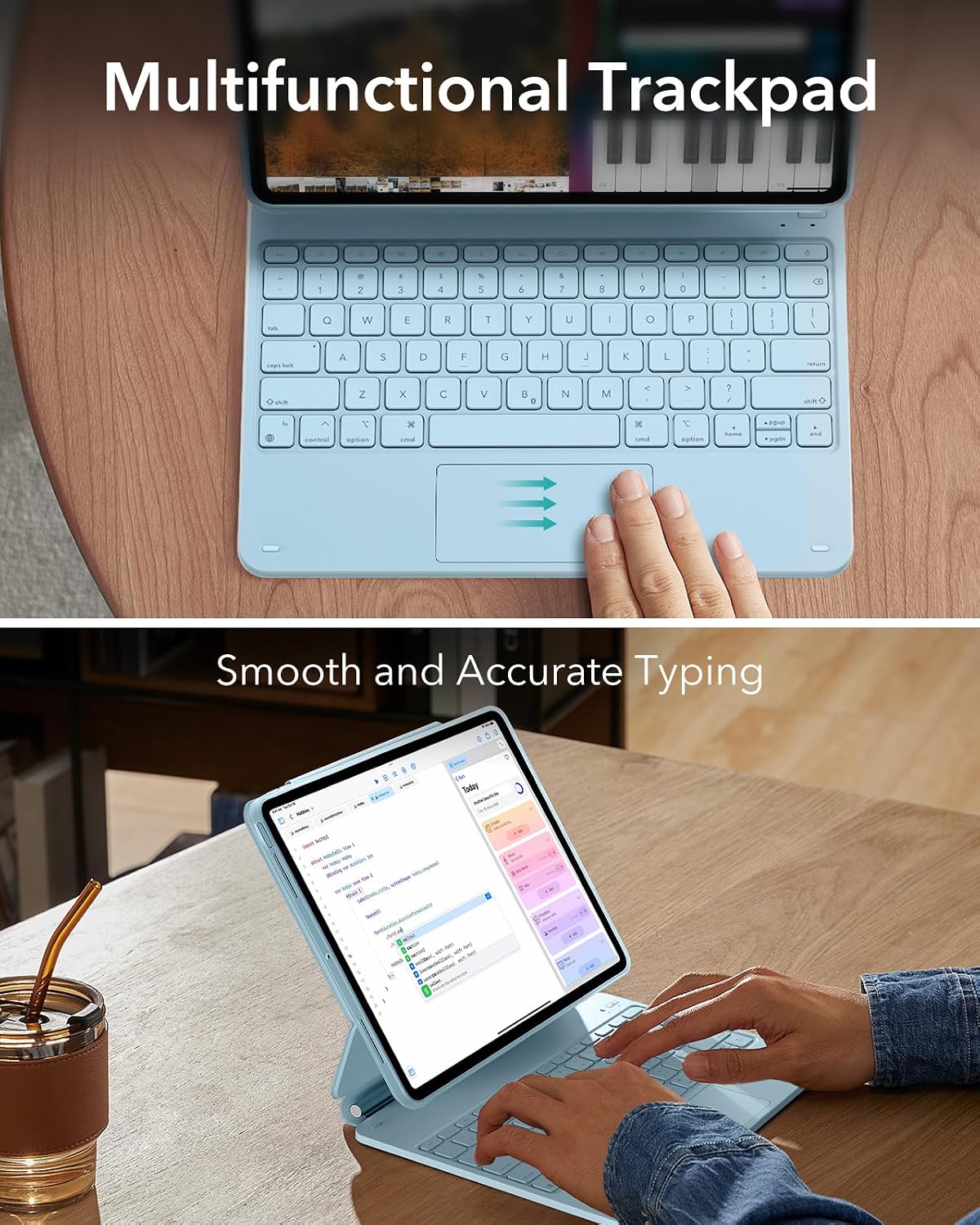
Image: Multifunctional trackpad with gesture indicators.
Keyboard Backlighting
The keyboard features single-color backlighting for improved visibility in low-light conditions. Adjust brightness levels as needed.
Video: Demonstration of keyboard usage and backlighting.
Pencil Storage
The case includes a secure magnetic clasp designed to protect and store your Apple Pencil or compatible stylus.

Image: Magnetic clasp for pencil protection.
Charging and Battery Life
The keyboard is powered by a rechargeable battery. Use the provided USB-C cable to charge the keyboard.
- Standby Time: Up to 1 year
- Day Use (2 hours/day, backlight off): Up to 3 months
- Night Use (2 hours/day, backlight on): Up to 1 week

Image: Battery life indicators for standby, day use, and night use.
Troubleshooting
If you encounter issues with your ESR keyboard case, refer to the following common solutions:
Keyboard Not Connecting
- Recharge Keyboard: Ensure the keyboard battery is not depleted. Connect it to a power source using the USB-C cable.
- Restart Bluetooth: On your iPad, turn Bluetooth off and then on again in Settings.
- Re-pair Device: Go to iPad Settings > Bluetooth, tap the 'i' icon next to the ESR keyboard, and select 'Forget This Device'. Then, repeat the pairing steps from the Setup section.
- Restart iPad: A simple restart of your iPad can resolve connectivity glitches.
Keys Not Responding or Incorrect Input
- Check Connection: Ensure the keyboard is properly paired and connected via Bluetooth.
- Clean Keyboard: Dust or debris under the keys can affect performance. Gently clean the keyboard surface.
- Software Update: Ensure your iPadOS is updated to the latest version.
- Reset Keyboard: If available, perform a factory reset on the keyboard (refer to specific instructions if provided with the product packaging).
iPad Wobbles When Typing
- Ensure Secure Placement: Confirm the iPad is firmly seated against the magnetic stand.
- Stable Surface: Use the keyboard case on a flat, stable surface to minimize movement.
Specifications
| Feature | Detail |
|---|---|
| Brand | ESR |
| Model Number | 6B024 |
| Compatible Devices | iPad Air 13" M4/M3/M2 (2026/2025/2024) |
| Connectivity Technology | USB-C (for charging) |
| Keyboard Description | Multi Functional |
| Special Features | Backlit, Ergonomic, Foldable, Horizontal and vertical screen use, Protective case |
| Color | Blue |
| Keyboard Backlighting | Single Color |
| Material | Aluminum, Polycarbonate, Polyurethane (PU), Thermoplastic Polyurethane (TPU) |
| Power Source | Battery (rechargeable) |
| Switch Type | Scissor-Switch |
| Keyboard Layout | QWERTY |
| Number of Keys | 78 |
| Compatible OS Family | iPadOS |
Warranty and Support
Warranty Information
This ESR Keyboard Case comes with a 1-year warranty from the date of purchase. This warranty covers manufacturing defects and issues arising from normal use. Please retain your proof of purchase for warranty claims.
Customer Support
For further assistance, technical support, or warranty inquiries, please contact ESR customer service through their official website or the retailer where the product was purchased. You may also find additional resources and FAQs on the ESR support page.
Note: Product specifications and warranty terms are subject to change without prior notice.


