
1. Introduction
The LSC Smart Connect Solar IP Camera is designed to provide reliable outdoor surveillance with the convenience of solar power. This camera offers 1080p video recording, two-way audio, and night vision capabilities up to 10 meters. It integrates seamlessly with the LSC Smart Connect app, allowing for remote monitoring and control. Key features include a light and sound alarm, flash function, and privacy mode to enhance security.
This manual provides essential information for the proper setup, operation, and maintenance of your LSC Smart Connect Solar IP Camera, ensuring optimal performance and longevity.
2. Package Contents and Setup
Before beginning installation, please ensure all components are present and undamaged.

Image 2.1: The LSC Smart Connect Solar IP Camera packaging, showing the camera, solar panel, and app interface. This image represents the complete product package as received.
2.1 Components Overview
The package typically includes the LSC Smart Connect Solar IP Camera unit, a solar panel for continuous power, and mounting accessories.
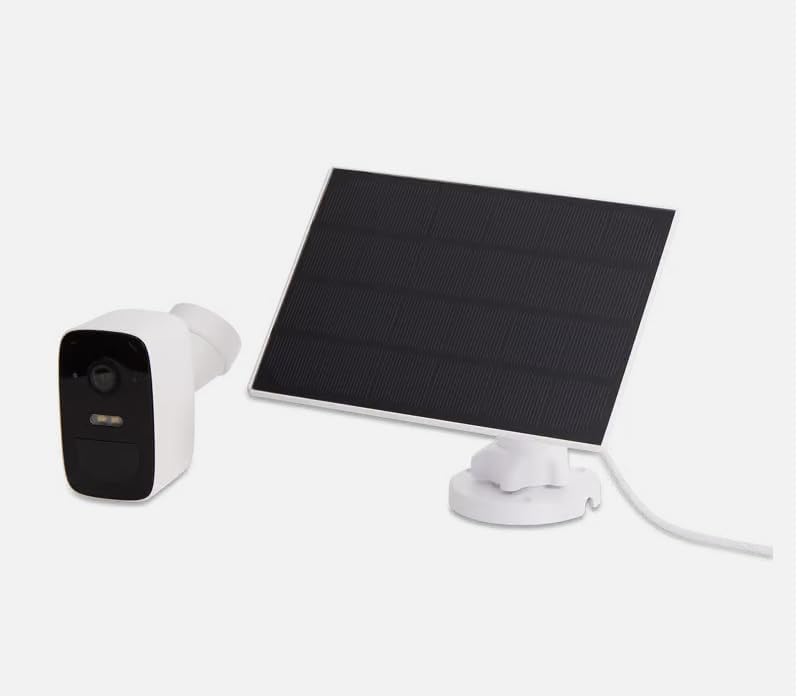
Image 2.2: The LSC Smart Connect Solar IP Camera shown alongside its separate solar panel. This illustrates the two main components of the surveillance system.
2.2 Initial Setup Steps
- Download the App: Download the "LSC Smart Connect" app from your smartphone's app store (iOS or Android).
- Create Account: Open the app and register for a new account or log in if you already have one.
- Power On Camera: Ensure the camera is charged or connected to the solar panel. The camera should enter pairing mode (indicated by an LED light).
- Add Device: In the app, select "Add Device" or the "+" icon. Follow the on-screen instructions to connect the camera to your 2.4GHz Wi-Fi network. Ensure your Wi-Fi signal is strong at the installation location.
- Mounting: Choose a suitable outdoor location for the camera and solar panel. The solar panel should receive direct sunlight for most of the day. Use the provided screws and mounting brackets for secure installation. The camera supports wall mounting.
For detailed mounting instructions, refer to the quick start guide included in your product packaging.
3. Operating Instructions
Once your camera is set up and connected, you can begin monitoring and utilizing its features through the LSC Smart Connect app.
- Live View: Open the app and select your camera to view the live feed.
- Two-Way Audio: Use the microphone icon in the app to speak through the camera and the speaker icon to hear audio from the camera's vicinity.
- Night Vision: The camera automatically switches to night vision in low-light conditions, providing clear images up to 10 meters.
- Motion Detection & Alerts: Configure motion detection sensitivity and set up push notifications to receive alerts on your smartphone when activity is detected.
- Alarm Functions: Activate the light and sound alarm or flash function via the app to deter intruders.
- Recording & Playback: The camera supports local storage (e.g., microSD card, not included) or cloud storage (subscription may be required) for recording. Access recorded footage through the app's playback feature.
- Privacy Mode: Utilize the privacy function to temporarily disable recording and live view for specific periods.
4. Maintenance
Regular maintenance ensures the optimal performance and longevity of your LSC Smart Connect Solar IP Camera.
- Cleaning: Periodically clean the camera lens and solar panel with a soft, damp cloth to remove dust, dirt, and debris. Avoid abrasive cleaners.
- Solar Panel Efficiency: Ensure the solar panel is free from obstructions (e.g., leaves, snow) that could block sunlight and reduce charging efficiency.
- Firmware Updates: Check the LSC Smart Connect app regularly for firmware updates. Keeping the camera's firmware updated ensures access to the latest features and security enhancements.
- Connection Check: Periodically verify the Wi-Fi connection strength and camera status in the app.
5. Troubleshooting
If you encounter issues with your LSC Smart Connect Solar IP Camera, refer to the following common troubleshooting steps:
- Camera Offline:
- Check Wi-Fi signal strength at the camera's location.
- Ensure the camera is receiving adequate power from the solar panel or is sufficiently charged.
- Restart your Wi-Fi router and the camera.
- Verify that the camera is connected to a 2.4GHz Wi-Fi network.
- Poor Image Quality:
- Clean the camera lens.
- Ensure there are no obstructions in front of the lens.
- Check your internet connection speed.
- Motion Detection Not Working:
- Verify motion detection settings in the app (sensitivity, detection zones).
- Ensure notifications are enabled on your smartphone and in the app.
- Battery Not Charging:
- Ensure the solar panel is clean and receiving direct sunlight.
- Check the connection between the solar panel and the camera.
If issues persist, consult the LSC Smart Connect app's help section or the manufacturer's support resources.
6. Specifications
| Feature | Specification |
|---|---|
| Video Recording Resolution | 1080p |
| Color | Black/White |
| Wireless Communication Technology | Wi-Fi (2.4GHz) |
| Installation Type | Screw-in / Wall Mount |
| Night Vision Range | 10 Meters |
| Item Dimensions (L x W x H) | 15 x 6 x 15 cm |
| Manufacturer | LSC |
| Model Number | 3203968 |
| ASIN | B0D899HFXL |
| Recommended Product Use | Outdoor Security |
| Connectivity Technology | Wireless |
| Compatible Devices | Smartphone |
| Controller Type | SmartThings (via LSC Smart Connect App) |
| Indoor/Outdoor Use | Outdoor |
7. Warranty and Support
For warranty information, please refer to the documentation included with your purchase or contact the retailer/manufacturer directly. Typically, products come with a limited warranty covering manufacturing defects.
For technical support, frequently asked questions, or further assistance, please visit the official LSC Smart Connect website or utilize the support section within the LSC Smart Connect mobile application.
Online Resources:
- LSC Smart Connect App (available on iOS App Store and Google Play Store)
- Manufacturer's Official Website (for product updates and support)


