UCOCARE 4G LTE Cellular Security Camera User Manual
Model: S2-4G
Introduction
Thank you for choosing the UCOCARE 4G LTE Cellular Security Camera. This device is designed for reliable outdoor surveillance in areas without Wi-Fi or consistent power supply, utilizing 4G LTE connectivity and solar power. This manual will guide you through the installation, operation, and maintenance of your camera to ensure optimal performance and security.
What's in the Box
- Security Camera
- Solar Panel
- SIM Card (prepaid with 100MB free data trial)
- Screw Bag and Other Installation Tools
- User Manual
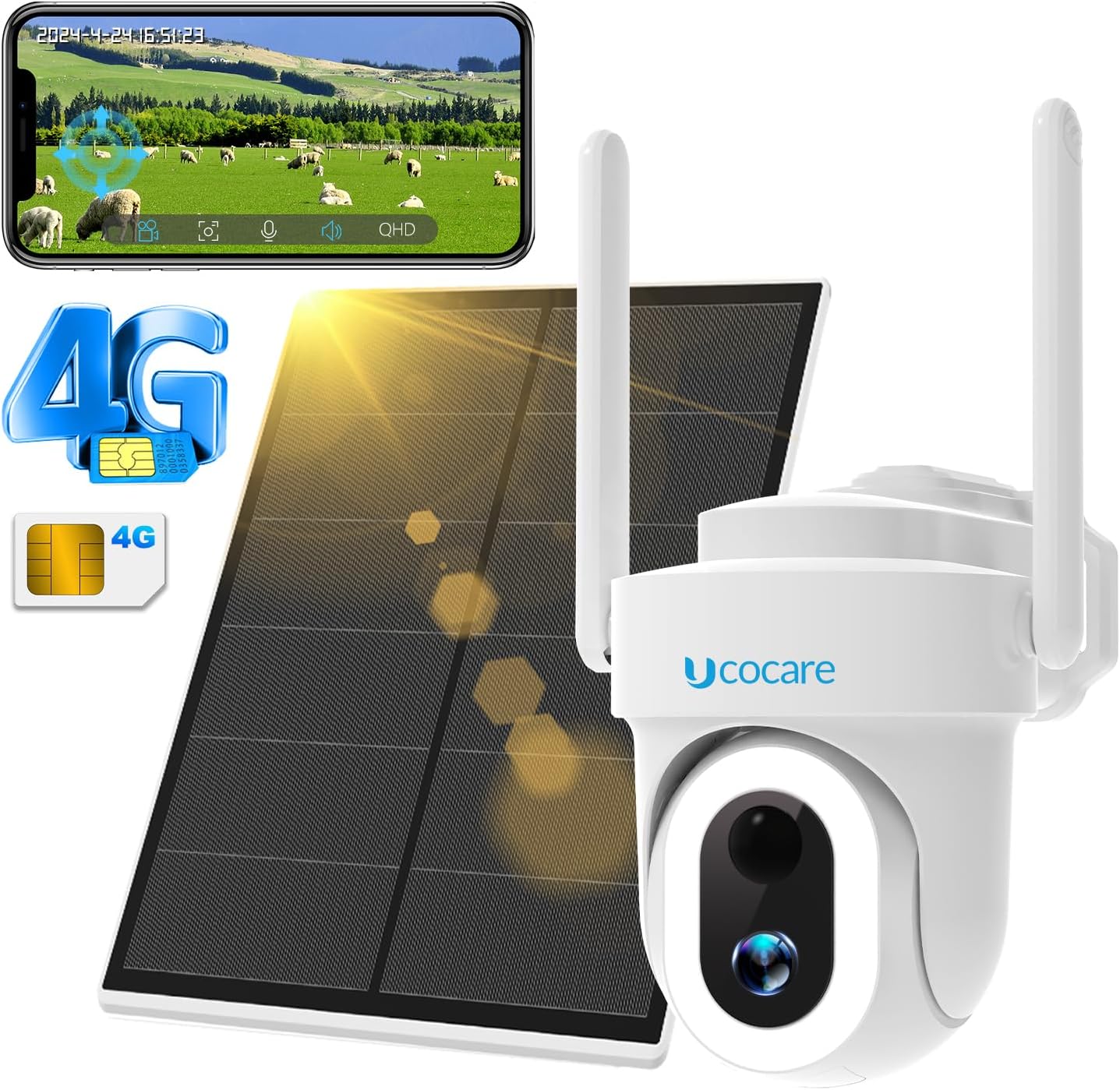
Image: The UCOCARE 4G LTE Cellular Security Camera, its solar panel, and the included SIM card.
Setup
1. SIM Card Installation
The camera comes with a prepaid 4G SIM card. This camera is designed to work exclusively with the included SIM card and is not compatible with SIM cards from other carriers. Ensure the camera is powered off before inserting the SIM card.
- Locate the SIM card slot on the camera body.
- Carefully insert the provided 4G SIM card into the slot until it clicks into place.
- Close the protective cover to ensure water resistance.

Image: Detailed view of the camera's SIM card and Micro SD card slots, highlighting the included SIM card.
2. Solar Panel Connection
Connect the 6W high-efficiency solar panel to the camera. The solar panel will continuously charge the 15,000mAh rechargeable battery, providing uninterrupted power.

Image: The UCOCARE camera and its solar panel mounted on an outdoor wall, illustrating continuous solar power.
3. App Download and Connection (Cloudedge App)
The camera is controlled via the Cloudedge app. Follow these steps for initial setup:
- Download the Cloudedge app from your smartphone's app store (Google Play Store for Android or Apple App Store for iOS).
- Install the SIM card and turn on the camera.
- Wait for the 'Status Light' on the camera to flash blue, indicating a successful data network connection.
- Open the Cloudedge app and follow the on-screen instructions to add your camera. You may need to scan the QR code located on the base of the camera.

Image: A visual guide demonstrating the three simple steps for setting up the camera: SIM card insertion, network connection indicator, and QR code scanning via the Cloudedge app.
4. Mounting
The camera is designed for outdoor use with an IP66 waterproof rating. It can be mounted on walls, ceilings, pillars, or trees using the provided screws and installation tools.
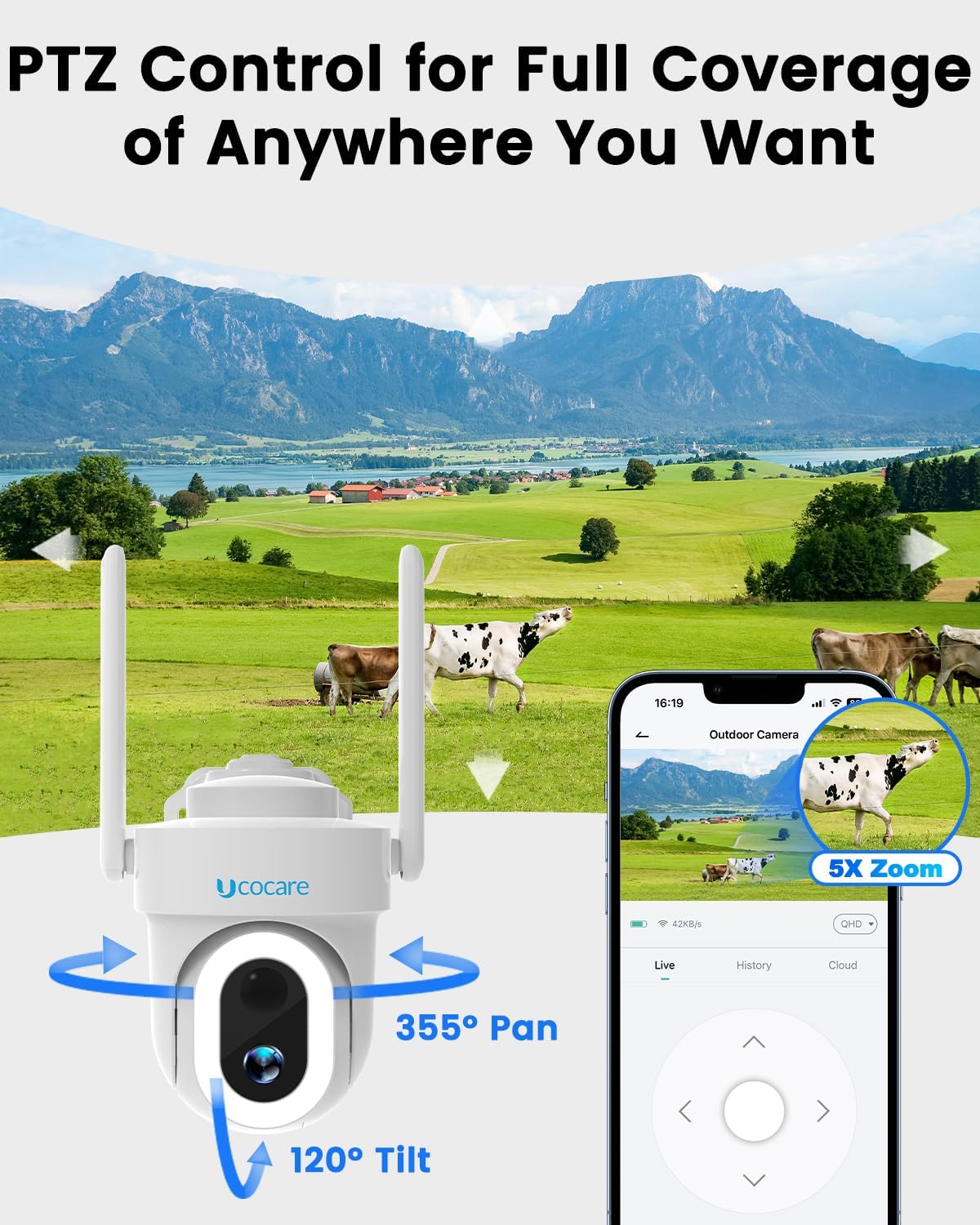
Image: The camera mounted outdoors, showcasing its IP66 waterproof design, suitable for various weather conditions.
Operation
1. Pan, Tilt, and Digital Zoom Control
Utilize the Cloudedge app to remotely control the camera's movement. The camera offers 355° pan, 120° tilt, and 5x digital zoom for comprehensive coverage.
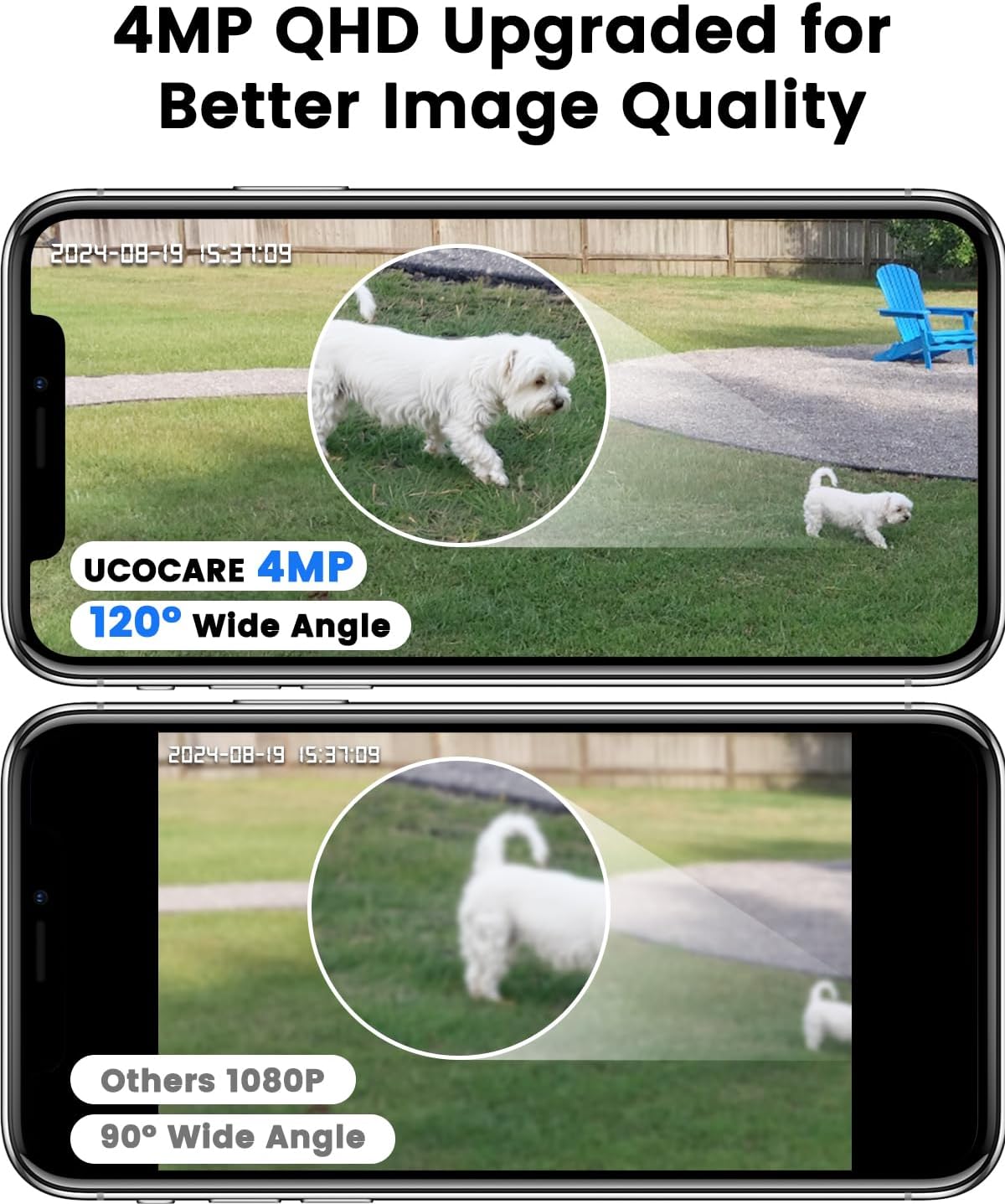
Image: The camera's pan and tilt capabilities, controlled via the Cloudedge app, providing 360° view.

Image: A panoramic representation of the camera's 360° PTZ control, demonstrating its wide coverage.
2. Night Vision Modes
The camera features both vivid color night vision (up to 65 feet with 500-lumen floodlight) and super IR black-and-white night vision (up to 50 feet) for clear monitoring in low-light or complete darkness.

Image: A night view demonstrating the camera's powerful floodlight for clear color vision, with a smartphone displaying the live feed.

Image: A comparison showing the difference between Spotlight Mode (vivid color image) and Infrared Mode (black and white image) for night vision.
3. Smart Detection & Alerts
The camera uses advanced human detection technology to reduce false alarms. You will receive instant alerts on your phone when motion is detected. Customize motion zones, sensitivity, and alarm schedules through the app.

Image: A visual representation of the camera's accurate human detection, triggering alerts, siren, and spotlight to deter intruders.

Image: The camera's upgraded human detection capability, designed to ignore irrelevant movements like shadows, leaves, and bugs.

Image: An illustration of timely and accurate alerts, showing an intruder triggering the camera's spotlight and an alarm message on a smartphone.

Image: Examples of detection zone settings, allowing users to define specific areas for motion detection to reduce false alarms.
4. Two-Way Talk
The built-in microphone and speaker allow for real-time two-way communication through the Cloudedge app. This feature enables you to speak to visitors or deter unwanted individuals remotely.

Image: An illustration of the real-time two-way talk feature, allowing communication with individuals near the camera.
5. Flexible Secure Storage
The camera supports local storage via a Micro SD card (up to 128GB, not included) and offers a free 7-day trial for premium cloud storage with video encryption.

Image: The camera's Micro SD card slot for local storage and a smartphone interface showing cloud storage options.

Image: A smartphone screen displaying video recording and smart playback features with a timeline.
6. Multi-User Access
Share camera access with family members or trusted individuals through the Cloudedge app. You can view up to 5 online streams simultaneously.

Image: An illustration showing the ability to share camera access with multiple users and view multiple camera feeds simultaneously.
7. Smart Home Integration
The camera is compatible with Google Home and Amazon Alexa, allowing for convenient voice-activated live viewing.

Image: Demonstrating compatibility with Google Home and Amazon Alexa for voice-controlled live viewing.
Maintenance
1. Solar Charging
The 6W solar panel is designed to keep the 15,000mAh battery charged continuously. Ensure the solar panel is positioned to receive maximum sunlight for optimal charging performance, even on cloudy days.

Image: The camera and solar panel installed in an outdoor environment, highlighting its non-stop solar power capability.
2. Weather Resistance
The camera has an IP66 waterproof rating, making it suitable for various outdoor conditions including sun, rain, and snow. The special charging port cover provides additional protection against water damage. Regularly check that all covers are securely closed.

Image: Visual representation of the camera's reliability in various weather conditions, including hot, rainy, and snowy environments.
3. Data Plan Management
The included SIM card comes with a 100MB free data trial. Once the trial data is used, you can easily renew your data plan through the Cloudedge app. Affordable unlimited data plans are available starting at $17.99 per month.

Image: Information on the unlimited data plan options available for the camera, emphasizing the included 4G SIM card.
Troubleshooting
Connectivity Issues (Camera Constantly Reconnecting)
If your camera frequently displays a "trying to reconnect" message or fails to connect:
- Check SIM Card Data: Ensure your data plan has not expired or run out of data. Renew your plan via the Cloudedge app if necessary.
- Signal Strength: Verify that the camera is in an area with adequate 4G LTE cellular signal. Relocate the camera if the signal is weak.
- Power Cycle: Power off the camera, wait for 30 seconds, and then power it back on.
- App Reinstallation: If issues persist, try uninstalling and reinstalling the Cloudedge app on your smartphone.
- Reset Camera: As a last resort, perform a factory reset on the camera (refer to the app or camera's physical buttons for specific instructions). Note that this will erase settings and require re-setup.
Image Quality Issues
- Lens Cleanliness: Ensure the camera lens is clean and free from dust, dirt, or smudges.
- Lighting Conditions: For optimal color night vision, ensure the floodlight is enabled and there are no obstructions.
False Alarms
- Adjust Sensitivity: Reduce the motion detection sensitivity in the Cloudedge app.
- Set Detection Zones: Utilize the detection zone feature in the app to exclude areas with frequent irrelevant motion (e.g., swaying trees, busy roads).
Specifications
| Feature | Specification |
|---|---|
| Model Name | S2-4G |
| Indoor/Outdoor Usage | Outdoor, Indoor |
| Compatible Devices | Smartphone |
| Power Source | Battery Powered, Solar Powered |
| Connectivity Protocol | Cellular |
| Controller Type | CloudEdge, Google Assistant, Amazon Alexa, Android |
| Mounting Type | Ceiling Mount, Pole Mount, Tree Mount, Wall Mount |
| Video Capture Resolution | 4MP |
| Color | White |
| Number of Items | 1 |
| Wireless Communication Technology | Cellular |
| Form Factor | Bullet |
| Viewing Angle | 355 Degrees (Pan), 120 Degrees (Tilt) |
| Installation Type | Screw In |
| Night Vision Range | 65 Feet (Color), 50 Feet (IR) |
| Material | Plastic |
| Voltage | 5 Volts |
| Wattage | 6W (Solar Panel) |
| Battery Capacity | 15000 mAh |
| Item dimensions L x W x H | 5.11 x 4.33 x 3.14 inches |
| Water Resistance Level | IP66 Waterproof |
| Flash Memory Type | Micro SD (Max 128GB) |
| Video encoding | MPEG-4 |
| Zoom Type | Digital Zoom |
| Zoom Ratio | 5x |
| Alert Type | Motion Only (Human Detection) |
| Light Source Type | Infrared, LED |
| UPC | 790885676635 |
Support
UCOCARE is committed to ensuring your delight with our products. Our dedicated technical team is always prepared to resolve any concerns and provide comprehensive support.
Privacy Commitment
Your privacy is our priority. We utilize financial-grade encryption to safeguard your videos, ensuring they are protected from theft and damage. Your data is always safe with us – no one can access it without your permission.

Image: Icons symbolizing data encryption and privacy protection for your video footage.

Image: UCOCARE's dedicated technical support team, ready to assist with any product concerns.


