
NYXI Warrior
NYXI Warrior GameCube Controller User Manual
Model: Warrior
Introduction
This manual provides detailed instructions for the setup, operation, maintenance, and troubleshooting of your NYXI Warrior GameCube Controller. Please read this manual thoroughly before use to ensure optimal performance and longevity of your device.

Figure 1: NYXI Warrior GameCube Controller (Violet)
Product Overview
The NYXI Warrior is a versatile wireless controller designed to provide a classic GameCube-style gaming experience across multiple platforms. It features advanced technology for precision and responsiveness.
Key Features:
- Hall Effect Joysticks: Designed to prevent stick drift, ensuring precise and accurate movements.
- Adjustable Hall Sensing Analog Triggers: Allows customization of trigger lengths for different game genres.
- Micro Mechanical Switch A/B/X/Y: Offers instant activation with a 0.2ms response time and high durability.
- HD Rumble: Provides enhanced vibration feedback for immersive gameplay.
- 6-Axis Gyro: Supports motion sensing for compatible games.
- Interchangeable Back Paddles: Programmable for custom button assignments and turbo functions.
- Ultra-compatibility: Compatible with Nintendo Switch, Switch 2, GameCube, Wii, and PC.
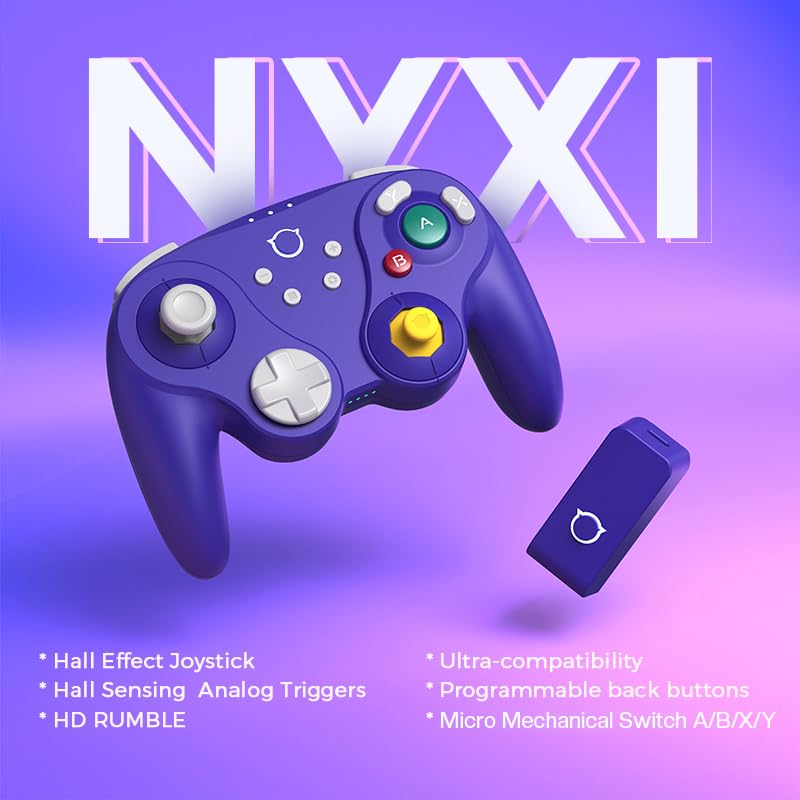
Figure 2: Key features of the NYXI Warrior Controller.
Setup and Connection
The NYXI Warrior controller offers multiple connection methods for various platforms.
Wireless Connection (via Adapter)
- Connect the included adapter to your computer (PC) or console (GameCube/Wii) using a short USB cable.
- Press and hold the adapter's pairing button for 3 seconds to enter its pairing mode. The adapter's LED will begin to blink.
- On the NYXI Warrior controller, press and hold the pairing button (located on the top of the controller) for 3 seconds. The controller's status LED will blink rapidly.
- Once successfully connected, both the controller's status LED and the adapter's button will remain solid white.
Video 1: Demonstrates wireless connection setup for the NYXI Warrior controller.
Bluetooth Connection (for PC/Switch)
- Press and hold the pairing button and the X button on the controller at the same time until the status LED blinks blue.
- On your Windows PC, open the Bluetooth settings. Search for and discover "Xbox Wireless Controller" (the NYXI Warrior is recognized as such). Click to connect. For Nintendo Switch, navigate to "Controllers" -> "Change Grip/Order" and press the pairing button on the controller.
- Once connected successfully, the status LED on the controller will remain solid blue.
Wired Connection (for PC)
- Connect the controller to your computer via the included USB-C cable. The status LED will remain solid blue, indicating a successful wired connection.
Operating Instructions
Basic Button Layout and Functions

Figure 3: Front view of the controller showing buttons.
- A/B/X/Y Buttons: Mechanical switches for quick and precise input.
- Left/Right Analog Sticks: Hall Effect joysticks for drift-free, accurate movement.
- D-Pad: Responsive 8-way directional pad.
- L/R/ZL/ZR Triggers: Adjustable Hall Sensing Analog Triggers.
- Home Button: Powers on/off the controller and returns to the home screen on compatible consoles.
- +/- Buttons: Standard menu navigation.
- Screenshot Button: Captures screenshots on compatible consoles.
Advanced Features
Adjusting Trigger Lengths
The NYXI Warrior allows you to adjust the physical travel distance of the L and R triggers to suit your gaming style, from full analog range to a shorter, digital-like press.
- To adjust the trigger length, locate the small switches on the underside of the controller near the L and R triggers.
- Slide the switch to your preferred position. A shorter travel distance is ideal for quick-response games like FPS, while a longer travel provides more nuanced control for racing or analog-sensitive titles.
Video 2: Guide on adjusting trigger lengths and performing trigger calibration.
Programmable Back Buttons (M1/M2)
The controller features two interchangeable back paddles (M1 and M2) that can be programmed to replicate other button inputs, enhancing your gameplay efficiency.
- To Program: Hold the Setting button (small button near the center of the controller) and press the back button (M1 or M2) you wish to program. The M1/M2 status LED will blink rapidly, indicating customization mode.
- Input the button you'd like to set (e.g., A, B, X, Y, L, R, ZL, ZR, L3, R3, D-pad, -, +). Then, press the Setting button again. The M1/M2 status LED will remain solid blue, confirming the programming.
- To Clear Settings: Hold the Setting button and press the back button (M1 or M2) for 2 seconds. After releasing, the M1/M2 status LED blinks slowly. Press the Setting button again to clear the programmable function. The M1/M2 status LED will remain solid white.
- Quickly Clear All Settings: Hold the Setting button for 3 seconds. The joystick will vibrate to indicate that all programmable functions have been cleared successfully.
Video 3: Instructions for programming and clearing back button settings.
Turbo Function
The Turbo function allows a button to be repeatedly pressed automatically when held down. Supported buttons for Turbo function: A, B, X, Y, L, R, ZL, ZR, D-pad.
- Manual Turbo Mode: Hold the button you'd like to assign the Turbo function (e.g., A button) and press the Turbo button (small button with a fan icon) to enable Turbo mode. The Turbo status LED will blink rapidly.
- Auto Turbo Mode: Hold the button you'd like to assign the Turbo function and press the Turbo button twice to enable Auto Turbo mode. The Turbo status LED will blink rapidly.
- Turn Off Turbo: Hold the button with the assigned Turbo function and press the Turbo button twice to disable Turbo mode. The Turbo status LED will turn off.
Maintenance
- Cleaning: Use a soft, dry cloth to clean the controller. Avoid using harsh chemicals or abrasive materials.
- Storage: Store the controller in a cool, dry place away from direct sunlight and extreme temperatures.
- Battery Care: To prolong battery life, avoid fully discharging the controller frequently. Charge the controller regularly, even if not in use for extended periods.
Troubleshooting
| Problem | Possible Cause | Solution |
|---|---|---|
| Controller does not connect. | Low battery, incorrect pairing mode, interference. | Ensure controller is charged. Re-enter pairing mode on both controller and adapter/device. Move closer to the device. |
| Buttons or joysticks are unresponsive. | Controller malfunction, calibration needed. | Perform a controller reset (see below). If issues persist, refer to trigger calibration video. |
| Controller disconnects frequently. | Low battery, range issues, interference. | Charge the controller. Reduce distance to the device. Minimize other wireless device interference. |
| Trigger input is not registering correctly (e.g., always full press). | Trigger calibration required. | Follow the "Trigger Adjustment and Reset" video for calibration steps. |
| Controller not waking up Switch 2. | Feature not supported. | Switch 2's mouse mode and wakeup function are not supported. Contact after-sales service for potential upgrade methods if available. |
Controller Reset
In case of controller malfunction or unresponsive behavior, perform a reset:
- Hold down the Home button on the controller for 5 seconds. The controller will vibrate and restart.
Specifications
- Model: NYXI Warrior
- Compatibility: Nintendo Switch, Switch 2, GameCube, Wii, PC (Windows 10 or above)
- Connection Type: Wireless (2.4G via adapter), Bluetooth, Wired (USB-C)
- Joysticks: Hall Effect
- Triggers: Hall Sensing Analog, Adjustable
- Face Buttons: Micro Mechanical Switches (A/B/X/Y)
- Rumble: HD Rumble
- Motion Control: 6-Axis Gyroscope (on Switch)
- Battery: 1 Lithium Ion battery (included)
- Item Weight: 1.52 pounds
- Package Dimensions: 10.43 x 7.36 x 3.15 inches
- Country of Origin: China
Warranty and Support
For warranty information, technical support, or any inquiries regarding your NYXI Warrior controller, please visit the official NYXI website or contact their customer service directly. Refer to the product packaging or the official NYXI store page for contact details.
NYXI Official Store: Visit the NYXI Store on Amazon
Related documentsWarrior


Ask a question about this manual
Ask about setup, troubleshooting, compatibility, parts, safety, or missing instructions. Manuals+ will review the question and use this page’s manual context to help answer it.