
Introduction
The FOXWELL NT1009 is a professional-grade diagnostic scan tool designed for comprehensive vehicle system analysis and maintenance. This device offers advanced features such as bi-directional control, all-system diagnostics, extensive reset services, and topology mapping. It is engineered to provide efficient and accurate vehicle troubleshooting for a wide range of car makes and models.

Figure 1: FOXWELL NT1009 Diagnostic Scan Tool and accessories.
What's in the Box
Upon opening the package, please verify that all the following items are included:
- NT1009 Diagnostic Tool (1 unit)
- Bluetooth VCI Dongle (1 unit)
- USB Cable (1 unit)
- Charging Adapter (4 types for various regions)
- Durable Carrying Box
- User Manual (1 unit)
- Quick Start Guide (1 unit)

Figure 2: All components included in the FOXWELL NT1009 package.
Setup
1. Initial Device Setup
- Unpacking: Carefully remove the NT1009 diagnostic tablet and the Bluetooth VCI Dongle from the durable carrying box.
- Charging: Connect the provided USB cable to the NT1009 tablet and use the appropriate charging adapter to power the device. Ensure the device is fully charged before first use.
- Power On: Press and hold the power button on the tablet to turn it on. The device will boot into the Android operating system.
2. Connecting to the Vehicle
- Locate OBD-II Port: Identify the vehicle's OBD-II diagnostic port, typically located under the dashboard on the driver's side.
- Connect VCI Dongle: Plug the Bluetooth VCI Dongle firmly into the vehicle's OBD-II port. Ensure the dongle's indicator light illuminates, signifying a successful connection.
- Establish Wireless Connection: The NT1009 tablet will automatically attempt to connect to the VCI Dongle via Bluetooth. Confirm the connection status on the tablet's interface.
Video 1: Demonstrates the unboxing, setup, and initial connection of the FOXWELL NT1009 diagnostic tool to a vehicle, including the tablet and VCI dongle.
Operating the NT1009
The NT1009 features a user-friendly 10.1-inch color touch screen interface, powered by Android 9.0, for intuitive navigation and operation.
1. Auto VIN Scan
The device supports Smart AutoVIN Scan, which automatically identifies vehicle information for quick and accurate diagnostics.
- From the main menu, select "Diagnostic".
- Choose "Automatic Read" under the VIN section to allow the tool to automatically acquire the vehicle's VIN.

Figure 3: The NT1009 displaying options for Auto-VIN scan and wireless connectivity.
2. Full System Diagnostics
Perform a comprehensive scan of all available vehicle systems, including ECM, TCM, ABS, SRS, BCM, BMS, TPMS, SAS, and more, to identify fault codes and issues.
- After VIN acquisition, select "Quick Scan" or "Control Modules" from the diagnostic menu.
- The tool will scan all systems and display detected fault codes.
3. Bi-Directional Control (Active Test)
The NT1009 allows you to send commands to vehicle systems and components to test their functionality, aiding in quick identification of issues.
- Navigate to the "Active Test" function within the diagnostic menu for a specific system.
- Select the component you wish to test (e.g., injectors, windows, wipers, headlights, mirrors) and activate/deactivate as needed.

Figure 4: Illustration of the NT1009's bi-directional control and all-system diagnostic capabilities.
4. ECU Offline Coding & Hidden Feature Activation
This function allows for advanced programming and activation of hidden features for supported vehicle brands (e.g., Audi, BMW, Skoda, SEAT, Bentley, Bugatti, Lexus, Hino, Mini, Lamborghini, Scion, Toyota, Volkswagen).
- Access the "Brush Hide" or "Coding" section from the main menu.
- Select the vehicle brand and follow the on-screen prompts to perform coding or activate features.

Figure 5: Activating hidden features using the NT1009.
5. Maintenance Services (Resets)
The NT1009 supports over 36 common maintenance and reset services, eliminating the need for multiple specialized tools.
- From the main menu, select "Maintenance".
- Choose the desired reset service (e.g., Oil Reset, EPB Reset, Throttle Relearn, ABS Bleeding, SAS Calibration, Injector Coding, Transmission Adaptation, Suspension Reset, Airbag Reset).
- Follow the on-screen instructions to complete the procedure.

Figure 6: Overview of the 36+ maintenance reset services.
6. Topology Mapping
The tool generates a visual layout of the vehicle's communication network, highlighting fault areas for faster diagnosis.
- After a full system scan, the topology map will be displayed, showing connected ECUs and any identified issues.

Figure 7: Topology Module Mapping interface.
7. Live Data Graph
Monitor real-time data streams from various sensors and components in a graphical format, supporting up to 4-in-1 live data display.
- Select "Live Data" from a specific system's menu.
- Choose the parameters to monitor and view them as text or graphs.

Figure 8: 4-in-1 Live Data Graph display.
8. Software Updates
Keep your NT1009 up-to-date with the latest vehicle models and functions through one-click Wi-Fi updates.
- From the main menu, select "Update".
- Connect the device to a Wi-Fi network and follow the prompts to download and install available updates.

Figure 9: One-click Wi-Fi update process.
9. Diagnostic Report Management
Generate, save, and share diagnostic reports for record-keeping or client communication.
- After a scan, select "Save Report" to generate a PDF.
- Reports can be shared via Bluetooth or email, and printed directly if a compatible printer is connected.

Figure 10: Sharing and printing diagnostic reports.
10. Vehicle Coverage & Language Support
The NT1009 supports over 200 car brands and 20,000+ car models from 1996 to 2025, including new energy vehicles. It also supports 20 languages.
- To change the language, go to "Settings" and select "Language".
- The device's extensive vehicle database is accessible through the diagnostic menu, categorized by region.

Figure 11: Wide vehicle coverage and brand selection.
11. Additional Android Apps
The NT1009 functions as a multi-functional Android tablet, allowing access to various pre-installed and downloadable Android applications.
- Access apps like Browser, Calendar, Clock, Email, Camera, File Manager, Outlook, Calculator, and more from the home screen.
- Additional apps can be downloaded via the browser.
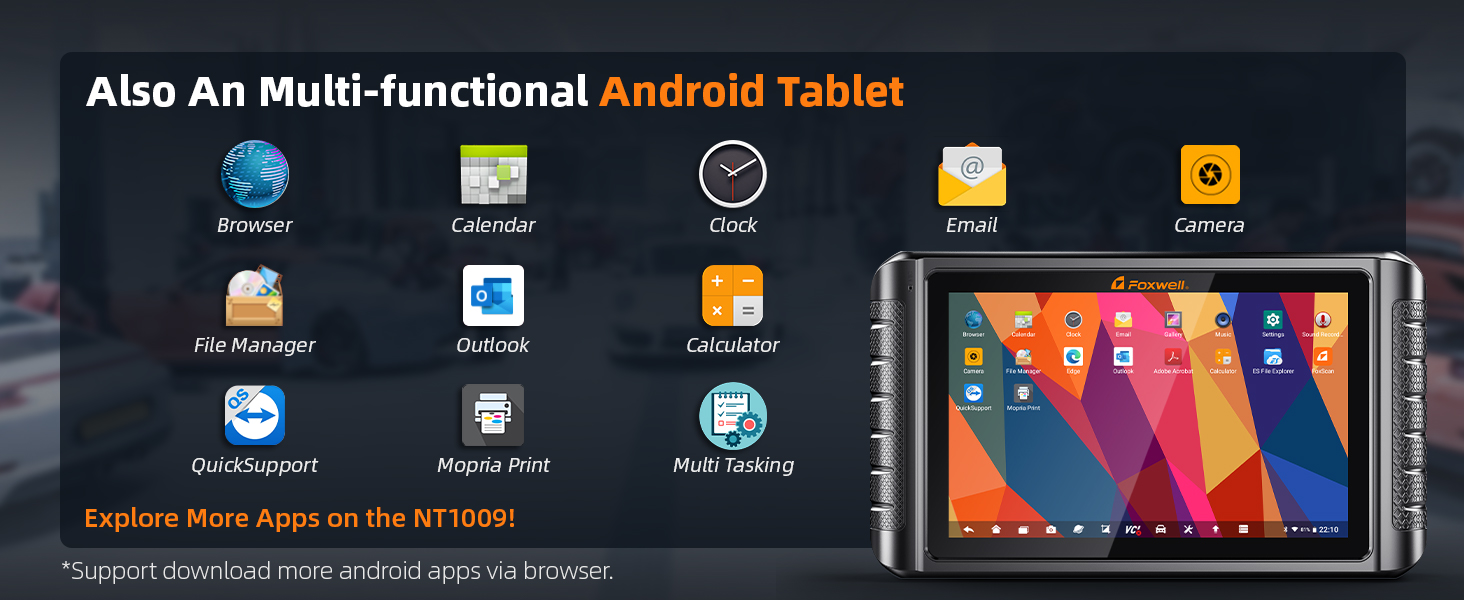
Figure 12: Multi-functional Android tablet interface.
Maintenance
Proper maintenance ensures the longevity and optimal performance of your FOXWELL NT1009.
- Cleaning: Use a soft, damp cloth to clean the screen and exterior of the device. Avoid abrasive cleaners or solvents.
- Storage: Store the device in its durable carrying case when not in use to protect it from dust, moisture, and physical damage.
- Software Updates: Regularly check for and install software updates via Wi-Fi to ensure compatibility with new vehicle models and access to the latest diagnostic features. This is crucial for maintaining the tool's effectiveness.
- Battery Care: For optimal battery life, avoid fully discharging the battery frequently. Charge the device regularly, especially if it will be stored for an extended period.
Troubleshooting
This section addresses common issues you might encounter with your NT1009. For more detailed troubleshooting, refer to the comprehensive User Manual included in your package.
| Problem | Possible Cause | Solution |
|---|---|---|
| Device does not power on. | Low battery; power button not held long enough; hardware issue. | Charge the device for at least 30 minutes. Press and hold the power button for 5-10 seconds. If issue persists, contact support. |
| VCI Dongle not connecting to tablet. | Dongle not properly seated; Bluetooth disabled; VCI damaged. | Ensure dongle is firmly plugged into OBD-II port. Check Bluetooth settings on tablet. Try re-pairing the VCI. |
| Unable to scan vehicle systems. | Incorrect vehicle selection; VCI not connected; vehicle ignition off; software outdated. | Verify correct vehicle make/model/year. Ensure VCI is connected and vehicle ignition is ON. Update software. |
| Slow operation or freezing. | Too many apps running; low storage; software glitch. | Close unnecessary applications. Clear cache/data. Restart the device. Ensure sufficient storage space. |
Specifications
- Model: NT1009BT Bidirectional Scan Tool
- Operating System: Android 9.0
- Display: 10.1-inch Color Touchscreen, 1280x800 resolution
- CPU: 2.0GHz Quad-Core Processor
- Storage: 64GB
- Battery: 8000mAh Lithium Ion (included)
- Connectivity: Wireless Bluetooth, Wi-Fi
- Vehicle Coverage: Over 200 brands, 20,000+ models (1996-2025)
- Protocols Supported: CAN, CAN-FD, KWP, DoIP
- Item Weight: Approximately 7.34 pounds
- Country of Origin: China

Figure 13: Key hardware specifications of the NT1009.
Warranty and Support
FOXWELL provides comprehensive support for the NT1009 diagnostic tool.
- Free Updates: Enjoy 3 years of free online software updates, ensuring your tool remains current with the latest vehicle technologies and diagnostic capabilities.
- Technical Support: For any technical assistance, operational questions, or troubleshooting beyond this manual, please contact FOXWELL customer support. Refer to the contact information provided in the Quick Start Guide or on the official FOXWELL website.
- Warranty Information: Details regarding the product warranty are available in the full User Manual. Please retain your proof of purchase for warranty claims.


