
SEUNKWANG V20
EWEADN Typewriter Style Mechanical Gaming Keyboard Instruction Manual
Model: V20 | Brand: SEUNKWANG
Introduction
This manual provides detailed instructions for the setup, operation, and maintenance of your EWEADN Typewriter Style Mechanical Gaming Keyboard. Designed for both gaming and productivity, this keyboard combines a retro aesthetic with modern mechanical performance and customizable features. Please read this manual thoroughly to ensure optimal use and longevity of your device.
What's in the Box
- EWEADN Typewriter Style Mechanical Gaming Keyboard
- USB Cable
Product Features
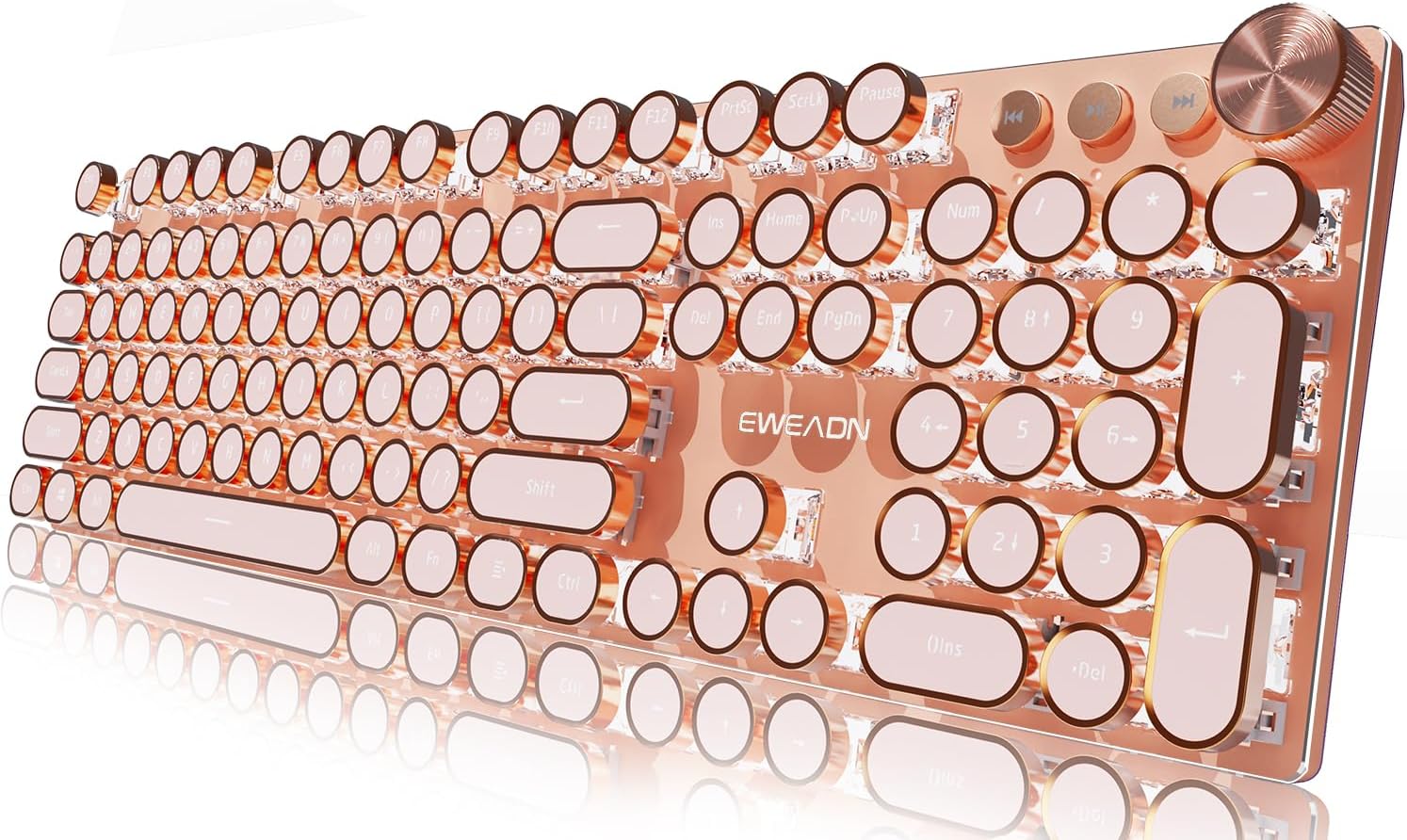
Figure 1: The EWEADN Typewriter Style Mechanical Gaming Keyboard, showcasing its full layout and pink color scheme.

Figure 2: Key features of the keyboard, highlighting its design and functional aspects.
Key Features:
- Retro Typewriter Mechanical Keyboard: Features mechanical custom pink switches for a smooth linear feel and low resistance. Round keycaps mimic a classical typewriter, offering a matte texture and quiet click sound.
- Multimedia & Backlight LED Control: Equipped with a multimedia knob for volume and light control. Offers 19 lighting effects and 5 levels of adjustable brightness and speed. Dedicated buttons for previous, next, and pause media control.
- Mac/Win Wide Compatibility: Wired keyboard with a pink Type-C cable for stable, high-speed transmission. Compatible with Windows 7/8/10/XP/Vista, Linux, and Mac OS systems. System switching via "FN + TAB".
- Metal Panel and Electroplated Punk Keycaps: The keyboard panel is constructed from top-grade aluminum alloy with a metallic matte texture for durability. Floating keycaps are crafted using metal plating technology, providing a unique monochromatic light effect.
- 104 Keys Anti-Ghosting: Advanced anti-ghosting technology ensures accurate recognition of every key operation, even when multiple keys are pressed simultaneously, preventing conflicts and errors.
- Gasket Structure: Designed with a gasket structure for enhanced typing feel and sound.
- Ergonomic Design: Features a comfortable ergonomic design with dual-section adjustable feet for preferred typing angles.

Figure 3: Internal Gasket Structure for improved typing experience.

Figure 4: Ergonomic design with adjustable feet for comfortable use.
Setup Guide
1. Connecting the Keyboard
The EWEADN keyboard is a wired device. Connect the provided USB Type-C cable to the keyboard's port and the other end to an available USB port on your computer (PC, Mac, Laptop, Gaming Console, Smartphone, or Tablet).

Figure 5: Connecting the USB Type-C cable for wired operation.
2. System Compatibility
The keyboard is compatible with Windows 7/8/10/XP/Vista, Linux, and Mac OS systems. No additional drivers or software are required for basic functionality.
- To switch to Mac Layout: Press and hold FN + A simultaneously.
- To switch to Windows Layout: Press and hold FN + W simultaneously.
Figure 6: Keyboard layout switching for Mac and Windows.
Operating Instructions
1. Basic Typing
Simply plug in the keyboard, and it will be ready for use. The 104-key layout provides a full range of standard keys for typing and navigation.
2. Multimedia Knob and Media Control
The dedicated multimedia knob allows for quick adjustments:
- Turn the knob to adjust volume or brightness.
- Press the knob (FN + Knob) to mute/unmute volume or change light effects.
Additional media control buttons are located near the knob:
- Previous Song
- Next Song
- Pause/Play

Figure 7: Multimedia knob functions for volume and lighting.
3. Backlight Control
The keyboard features 19 distinct lighting effects. Use the following key combinations to control the backlight:
- FN + 1~8: Choose from 8 game-specific backlight modes.
- FN + Up Arrow: Increase backlight brightness (5 levels).
- FN + Down Arrow: Decrease backlight brightness (5 levels).
- FN + Left Arrow: Decrease lighting speed.
- FN + Right Arrow: Increase lighting speed.
- FN + INS: Switch between basic lighting effects.
- FN + DEL: Record/Store custom lighting effects.

Figure 8: Backlight control functions.
Maintenance
To ensure the longevity and optimal performance of your EWEADN keyboard, follow these maintenance guidelines:
- Cleaning: Use a soft, dry cloth to wipe down the keyboard surface. For dust and debris between keys, use compressed air. Avoid using harsh chemicals or abrasive materials.
- Storage: When not in use, store the keyboard in a clean, dry environment away from direct sunlight and extreme temperatures.
- Handling: Avoid dropping the keyboard or exposing it to liquids. Do not attempt to disassemble the keyboard, as this may void the warranty.
Troubleshooting
If you encounter any issues with your EWEADN keyboard, please refer to the following common troubleshooting steps:
| Problem | Possible Cause | Solution |
|---|---|---|
| Keyboard not responding | Loose cable connection, incorrect USB port, system conflict. |
|
| Backlight not working or dim | Backlight turned off, brightness set too low. |
|
| Keys are not registering correctly (ghosting) | Software conflict, rare hardware issue. |
|
If the problem persists after attempting these solutions, please contact customer support.
Specifications
| Feature | Detail |
|---|---|
| Model Number | V20 |
| Brand | SEUNKWANG |
| Connectivity Technology | Wired, USB-C |
| Number of Keys | 104 |
| Keyboard Description | Mechanical Wired keyboard, Typewriter Style |
| Switch Type | Pink Switch (Linear, low resistance) |
| Backlighting | Single Color LED, 19 effects, 5 brightness levels |
| Panel Material | Top-grade Aluminum Alloy |
| Anti-Ghosting | Full Keys Anti-Ghosting |
| Compatible Devices | Laptop, PC, Gaming Console, Smartphone, Tablet |
| Operating Force (Pink Switch) | 3.8gf + 0.4mm |
| Key Strokes Lifespan | 100 Million Times |
| Item Weight | 1.94 pounds |
| Package Dimensions | 17.24 x 6.06 x 1.57 inches |
| Country of Origin | China |
Warranty and Support
For warranty information and customer support, please refer to the contact details below. EWEADN is committed to providing a good experience with their products.

Figure 9: Instructions for contacting support via Amazon.

Figure 10: Email contact for support.
For direct inquiries, you may also reach out via email: zack@eweadn.cn.
Ask a question about this manual
Ask about setup, troubleshooting, compatibility, parts, safety, or missing instructions. Manuals+ will review the question and use this page’s manual context to help answer it.