
Redkey
Redkey R10 Robot Vacuum and Mop User Manual
Model: R10 | Brand: Redkey
1. Introduction
Thank you for choosing the Redkey R10 Robot Vacuum and Mop. This 2-in-1 cleaning device is designed to provide efficient and hands-free floor cleaning, combining powerful vacuuming with effective mopping. Equipped with advanced LiDAR navigation and a self-emptying station, the R10 offers a convenient and thorough cleaning experience for various floor types. Please read this manual carefully before using the product to ensure proper operation and maintenance.
2. What's in the Box
Carefully unpack all components and check against the list below. If any items are missing or damaged, please contact customer support.
- Redkey R10 Robot Vacuum and Mop
- Self-Emptying Station
- Power Cable
- Dust Bag (pre-installed in station)
- Mop Pad
- Cleaning Tool
- User Manual

Image: The Redkey R10 robot vacuum, its self-emptying station, a blue mop pad, and a smartphone displaying the control app. This image illustrates the main components included in the product package.
3. Setup
3.1 Placing the Self-Emptying Station
- Place the station on a hard, level surface against a wall.
- Ensure there is at least 0.5 meters (1.6 feet) of clear space on both sides and 1.5 meters (4.9 feet) in front of the station.
- Keep the area free from obstacles, direct sunlight, and heat sources.
- Plug the power cable into the station and a wall outlet.
3.2 Initial Charging
Place the robot onto the charging contacts of the self-emptying station. Ensure the robot is properly aligned. The robot will automatically begin charging. For first-time use, fully charge the robot before operation (approximately 4-6 hours).
3.3 App Download and Connection
- Download the Redkey app from your smartphone's app store (iOS or Android).
- Register or log in to your account.
- Follow the in-app instructions to add your Redkey R10 device. This typically involves connecting to the robot's Wi-Fi hotspot and then connecting the robot to your home Wi-Fi network (2.4 GHz only).

Image: A person holding a smartphone displaying the Redkey app interface, with the Redkey R10 robot vacuum in the background. This image highlights the intelligent app control feature, showing how users can manage cleaning plans and room settings.
3.4 Initial Mapping
For optimal navigation, allow the robot to complete a full mapping run of your home. During this process, ensure all doors are open and clear any small obstacles. The robot uses LiDAR navigation to create a precise map of your environment, which can then be customized in the app.
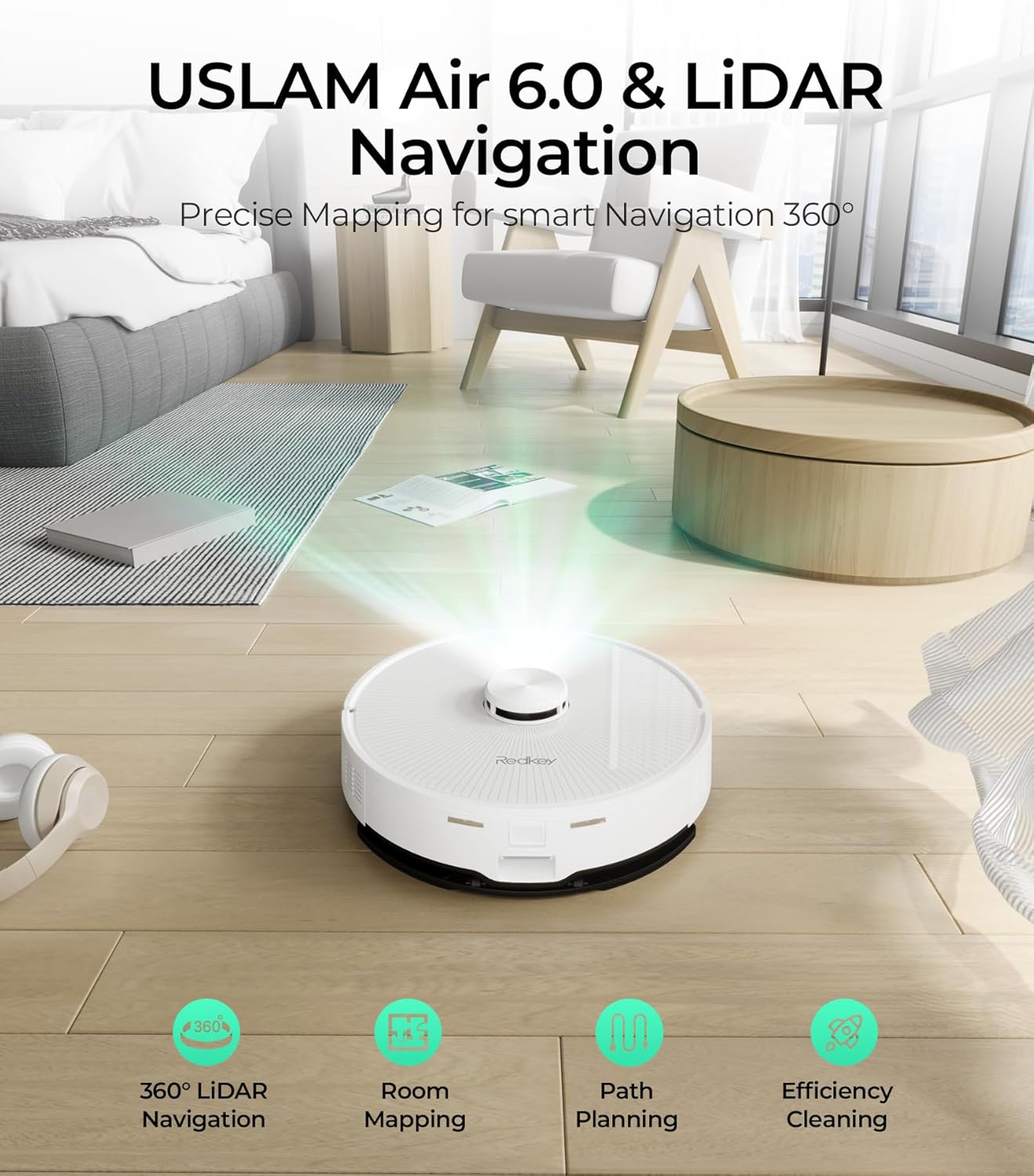
Image: The Redkey R10 robot vacuum emitting a laser beam to map its surroundings, illustrating its USLAM Air 6.0 and LiDAR navigation capabilities for precise mapping and efficient cleaning path planning.
4. Operating Instructions
4.1 Starting and Stopping Cleaning
- Start: Press the power button on the robot or tap 'Start Cleaning' in the app. The robot will begin cleaning in auto mode.
- Pause: Press the power button once during cleaning to pause.
- Stop/Return to Dock: Press and hold the power button for 3 seconds, or tap 'Return to Dock' in the app.
4.2 Vacuuming Mode
The Redkey R10 features a powerful 4000Pa suction to effectively remove dirt, dust, and pet hair from various floor types, including hard floors and carpets. The robot can automatically increase suction power when it detects carpets (Turbo Carpet Auto feature).

Image: The Redkey R10 robot vacuum cleaning a rug, with text indicating its 4000 Pa super suction power and different modes: Quiet, Standard, Strong, and MAX. This illustrates the robot's powerful cleaning capability.
4.3 Mopping Mode
To use the mopping function:
- Fill the water tank with clean water. Do not use detergents or cleaning solutions not approved for robot vacuums.
- Attach the mop pad firmly to the water tank module.
- Slide the water tank module into the designated slot on the robot.
- Start a cleaning cycle via the app or robot button. The robot will automatically switch to mopping mode.
You can adjust the water flow level (3 levels available) via the app to suit different floor types and cleaning needs. The robot can cover up to 200 square meters on a single water tank fill.

Image: The Redkey R10 robot vacuum actively mopping a hard floor, leaving a clean, wet path behind it. This image emphasizes the mopping function and the promise of up to 90 days of hands-free cleaning.
4.4 Smart App Control and Customization
The Redkey app provides comprehensive control over your robot:
- Cleaning Schedule: Set daily or weekly cleaning schedules.
- Zone Cleaning: Define specific areas for the robot to clean.
- Virtual Walls/No-Go Zones: Draw virtual boundaries on the map to prevent the robot from entering certain areas.
- Room Management: Divide, merge, or rename rooms on the map for targeted cleaning.
- Suction & Water Flow Adjustment: Customize cleaning power and water output.
- Cleaning History: View past cleaning records.

Image: The Redkey R10 robot vacuum operating near a blue shaded area on the floor, representing a virtual wall or reserved zone. This illustrates the robot's ability to respect user-defined boundaries for protected areas.
5. Maintenance
Regular maintenance ensures optimal performance and extends the lifespan of your Redkey R10.
5.1 Self-Emptying Station Dust Bag
The 4L dust bag in the self-emptying station can hold up to 90 days of dust and debris, minimizing manual intervention. When the bag is full, the app will notify you. To replace:
- Open the top cover of the self-emptying station.
- Carefully remove the full dust bag. The bag's design prevents dust leakage upon removal.
- Dispose of the old bag and insert a new one, ensuring it is properly seated.
- Close the station cover.

Image: The Redkey R10 robot vacuum docked at its self-emptying station, with a large '90' indicating 90 days of hands-free dust collection. This highlights the convenience of the automatic dust disposal system.
5.2 Cleaning Brushes
- Main Brush: Turn the robot over. Remove the main brush cover and lift out the brush. Use the cleaning tool to remove tangled hair and debris. Reinstall the brush and cover. Clean weekly.
- Side Brush: Use a screwdriver to remove the side brush. Clean off any tangled hair or debris. Reattach the brush. Clean monthly or as needed.
5.3 Cleaning Filters
The robot has multiple filters (e.g., HEPA filter, sponge filter). Remove the dustbin from the robot, then remove the filters. Tap them gently to remove dust or rinse with water if washable (check specific filter type in the manual). Ensure filters are completely dry before reinstallation. Clean weekly.
5.4 Cleaning Water Tank and Mop Pad
- Water Tank: After each mopping session, empty any remaining water from the tank and rinse it thoroughly. Allow it to air dry.
- Mop Pad: Remove the mop pad after each use. Hand wash or machine wash the pad and allow it to air dry completely before reattaching.
5.5 Cleaning Sensors and Charging Contacts
Wipe all sensors (LiDAR, cliff sensors, wall sensors) and charging contacts on both the robot and the station with a clean, dry cloth. This ensures accurate navigation and charging. Clean monthly.
6. Troubleshooting
If you encounter issues with your Redkey R10, please refer to the following common problems and solutions:
| Problem | Possible Cause | Solution |
|---|---|---|
| Robot not charging | Charging contacts are dirty or obstructed. | Clean the charging contacts on both the robot and the station with a dry cloth. Ensure the robot is properly docked. |
| Robot gets stuck frequently | Too many obstacles, loose cables, or low clearance areas. | Clear the cleaning area of obstacles. Use virtual walls in the app for problematic zones. |
| Poor cleaning performance | Brushes or filters are dirty/worn. Dustbin is full. | Clean or replace brushes and filters. Empty the dustbin. Increase suction power via the app. |
| Robot cannot connect to Wi-Fi | Incorrect Wi-Fi password, 5GHz network, or weak signal. | Ensure you are connecting to a 2.4GHz Wi-Fi network. Double-check the password. Move the robot closer to the router. |
| Mopping function not working | Water tank empty, mop pad not attached, or water outlet blocked. | Fill the water tank. Ensure the mop pad is correctly attached. Clean the water outlet if blocked. |
For issues not listed here, or if problems persist, please refer to the full troubleshooting section in the app or contact Redkey customer support.
7. Specifications
| Feature | Specification |
|---|---|
| Brand | Redkey |
| Model Number | R10 |
| Color | White |
| Dimensions (L x W x H) | 38 x 41 x 37 cm (Robot & Station) |
| Item Weight | 8.16 Kilograms (18 Pounds) |
| Suction Power | 4000 Pa |
| Dust Bag Capacity | 4 Liters (up to 90 days hands-free) |
| Battery Life | 150 minutes |
| Battery Type | Lithium-ion |
| Navigation Type | LiDAR |
| Obstacle Climbing Height | 18mm |
| Filter Type | Cloth, Cartridge, Sponge |
| Connectivity | 2.4 GHz Wi-Fi |
8. Warranty and Support
The Redkey R10 Robot Vacuum and Mop comes with a standard manufacturer's warranty. Please refer to the warranty card included in your package for specific terms and conditions. For technical support, troubleshooting assistance, or warranty claims, please contact Redkey customer service through the contact information provided on the official Redkey website or within the Redkey app.
Please retain your proof of purchase for warranty purposes.
Related documents


Ask a question about this manual
Ask about setup, troubleshooting, compatibility, parts, safety, or missing instructions. Manuals+ will review the question and use this page’s manual context to help answer it.